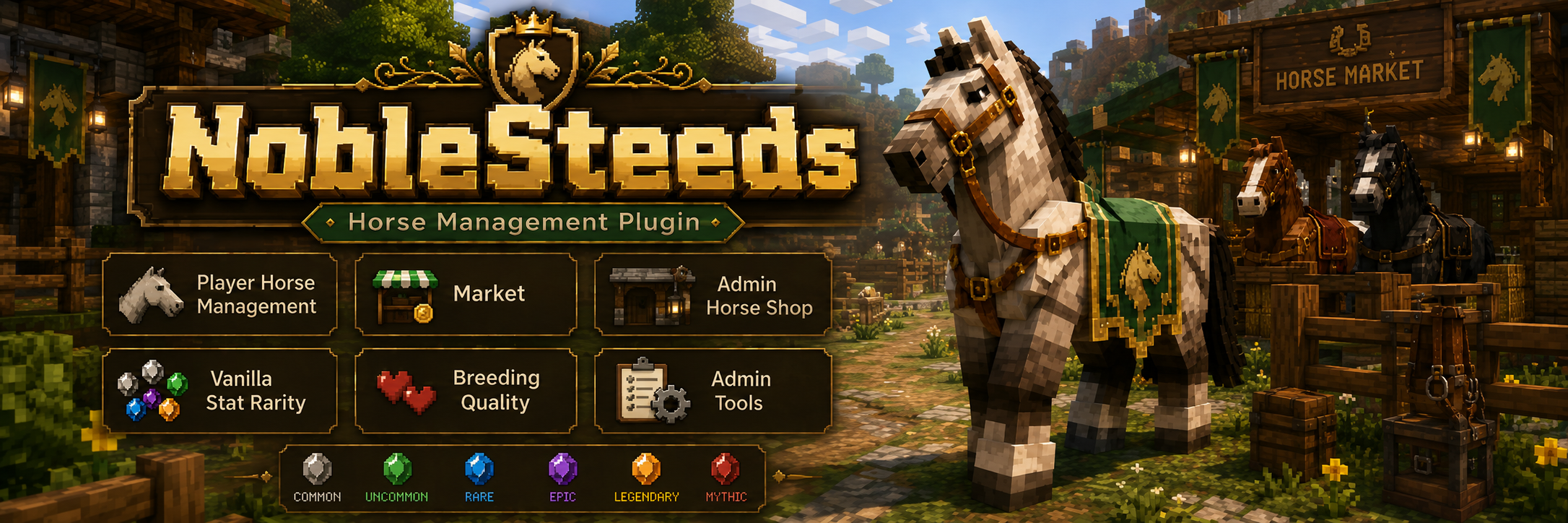
Horse, Mount, Stable, Market, Shop, and Network Management for Minecraft Servers.
NobleSteeds wiki sections
Wiki Version: 1.0.0
This page documents NobleSteeds 1.0.0 for Spigot, Paper, and Purpur servers. The plugin supports normal single-server installs and backend network nodes behind Velocity-style or BungeeCord-style proxies.
NobleSteeds is built for servers that want vanilla mounts to feel persistent, valuable, and manageable without turning them into a separate custom-entity system. Players get a clean way to claim, call, store, share, sell, and recover mounts. Staff get controlled tools for shop inventory, stale claim cleanup, storage conversion, update checks, and network diagnostics.
A single-server install can stay simple: install the jar, keep SQLite, leave network mode disabled, and configure optional economy features when you need them. A network install adds MySQL/MariaDB plus Redis so backend servers can coordinate loaded mounts, stable routing, market state, transfer requests, and safety checks.
Plugin Version
1.0.0
Minecraft Compatibility
1.18.2 through 1.21.11, plus 26.1.x compatibility.
Platform
Spigot, Paper, and Purpur compatible backend servers.
Java
Java 17 or newer.
Network
Single-server mode by default; NETWORK_NODE mode for proxy networks.
Redis
Required only when network mode is enabled.
Storage
SQLite default, YAML available, MySQL/MariaDB required for network mode.
Screenshot pending: 01-main-menu.png
Help Entry Point. Optional file: 01-main-menu.png. /ns shows text help, not a GUI; use this only for the first player help output.
Single server or network: Redis is not part of normal standalone setup. Enable network mode only when multiple backend servers share the same NobleSteeds data.
What NobleSteeds Does
NobleSteeds adds ownership, management, storage, rarity, breeding quality, market, shop, sharing, gifting, revive, NPC access, optional item currency, optional MailboxGUI payouts, and optional backend network safety around vanilla mount entities.
The core model is straightforward: a player claims a supported adult tamed mount, NobleSteeds saves that mount into an owned slot, and future actions use that saved ownership record. The plugin keeps vanilla mount stats meaningful, then layers server-owner features such as rarity display, breeding quality, stable locations, market listings, and shop entries on top.
Claiming: players claim adult, tamed, supported mounts while riding them with /ns claim [name]. Each player has 14 active mount slots.
Management: the My Horses GUI shows active slots, favorite state, stable state, alive state, sharing state, market state, rarity, breeding quality, and stat bars.
Calling: players can call their favorite mount with /ns call or call a specific mount by slot/name.
Stable workflows: players set, send, unset, and auto-stable mounts. Network mode records the backend server ID for stable routing.
Storage: players move active mounts into a stored, despawned state and restore them later when an active slot is free.
Favorites and rename: players can mark one active mount as the default call target and rename claimed mounts within the configured name length.
Sharing and giving: owners can share mount access or send a transfer request. Receivers accept pending transfers from /ns receive, and the receiver must have an available active slot.
Revive and release: dead active mounts can be revived when revive is enabled. Releasing a mount uses confirmation so players do not accidentally delete valuable mounts.
Market and shop: players list mounts on a market; admins create permanent shop entries with exact stat percentages and prices.
Optional integrations: Vault powers money costs, Citizens can expose NPC access points, and MailboxGUI can deliver money or item-currency payouts when configured.
Safety: market-listed mounts cannot be called, ridden, given, stored, renamed, or managed until unlisted or sold.
NobleSteeds does not require custom attributes for rarity. The documented rarity system is based on vanilla speed, jump, and health ranges, while breeding quality is a separate percentage used by the plugin's breeding-quality logic and by server owners when valuing shop or market mounts.
Requirements
NobleSteeds can run with only the server jar and Java requirement met. Optional dependencies unlock specific systems. This distinction matters because a survival server can use basic claiming and management without installing Vault, Citizens, Redis, or MailboxGUI.
Spigot, Paper, or Purpur backend server using Java 17 or newer.
Minecraft server versions 1.18.2 through 1.21.11, plus 26.1.x compatibility.
Vault and a Vault-compatible economy plugin are optional for the plugin overall, but required for normal money-based market, shop, and paid revive features.
Citizens is optional. NPC features are disabled unless Citizens is installed and the matching NPC setting is enabled.
MailboxGUI is optional. It can receive money mail or package payouts when the matching payout settings are enabled.
Redis and MySQL/MariaDB are required only for NobleSteeds network mode. Redis is not required for normal single-server installs.
A permissions plugin is recommended for production servers.
Component
Required When
What Happens If Missing
Java 17+
Always
The plugin is built with Java 17 and will not load correctly on older Java runtimes.
Vault + economy provider
Money market, money shop, or paid revive features are required.
Money features are hidden or blocked when configured to require economy.
Citizens
Only for storage, market, or shop NPC access.
NPC registration is unavailable, but commands and GUIs still work.
MailboxGUI
Only for configured MailboxGUI money/package payouts.
NobleSteeds falls back to direct Vault payout or /ns market receive item payout behavior.
Redis
Only when network.enabled is true.
Network duplicate-protection and cross-server routing cannot become ready.
MySQL/MariaDB
Network mode.
Network backends cannot safely share NobleSteeds state with SQLite or YAML.
Installation
Install NobleSteeds while the backend server is stopped. First boot generates the configuration, language, network, and data folders. Treat the first boot as a setup pass, then stop the server again before editing production settings.
Download the NobleSteeds jar.
Stop the Minecraft backend server.
Place the jar in the server plugins folder.
Start the server once to generate files under plugins/NobleSteeds/.
Check the console log for a successful NobleSteeds enable message and confirm no dependency or storage errors are printed.
Stop the server and review config.yml, language files, and network/config.yml.
For a normal single server, keep SQLite and leave network mode disabled.
For a network, configure MySQL/MariaDB in config.yml, enable NETWORK_NODE in network/config.yml, set a unique server-id per backend, and configure Redis.
Install Vault and an economy provider before enabling money-required market, shop, or revive costs.
Grant player permissions to your normal player group and keep admin permissions staff-only.
Restart after dependency, storage, economy, or network changes.
Verify with /ns and, for admins, /ns admin network.
Production checklist: take a server backup before opening the plugin to players, test claiming with a normal player account, test one admin command from an admin account, and verify market/shop visibility matches your economy configuration.
First Start File Structure
plugins/
└── NobleSteeds/
├── config.yml
├── network/
│ └── config.yml
├── language/
│ ├── messages_en.yml
│ ├── messages_de.yml
│ └── ...
└── data/
├── data.sql # SQLite default
└── yaml/ # used only when storage.type is YAML
Storage providers persist claimed mounts, stored mount snapshots, share entries, player market listings, admin shop entries, pending item-currency market payouts, and other NobleSteeds runtime data. Do not manually edit storage while the server is running.
Path
Purpose
Edit By Hand?
config.yml
Main feature, locale, storage, economy, market, shop, revive, rarity, Citizens, and update settings.
Yes, while the server is stopped. Restart after important changes.
network/config.yml
Network mode, server identity, Redis connection, and Redis channel settings.
Yes, while stopped. Use unique server-id values.
language/messages_*.yml
Translated plugin messages for supported locales.
Yes, but keep keys, placeholders, indentation, and color formatting intact.
data/data.sql
SQLite database used by default standalone installs.
No while the server is running. Back up before copying or migrating.
data/yaml/
Flat-file storage when storage.type is YAML.
Avoid manual edits unless the server is stopped and you have a backup.
MySQL tables
Shared persistent data for network mode or servers choosing MySQL.
No live edits. Use plugin commands or a planned maintenance window.
Use this checklist after the first successful startup. It confirms the player-facing systems, the staff-only systems, and the optional dependency hooks without requiring a full production rollout.
Join with a test player and run /ns, then /ns manage. Confirm the command works and empty active slots are visible.
Tame and ride a supported adult mount, then run /ns claim TestMount. Confirm the mount appears in My Horses.
Set a favorite, run /ns call, and confirm the favorite mount is called when no mount argument is supplied.
Set a stable, send the mount to stable, then test auto-stable only after confirming the saved location is safe.
Open /ns storage, store a test mount, and restore it into a free active slot.
If Vault/economy is installed, test /ns market, /ns shop, and paid revive only with low-value test entries.
Run /ns admin tools from a trusted staff account and verify admin GUIs are permission-gated.
Run /ns admin storage current. For network preparation, confirm conversion to MySQL before enabling NETWORK_NODE.
If Citizens is installed, use NPC Registration on a staging NPC first, then test player permissions against that NPC.
Back up plugins/NobleSteeds/ and the active database before opening the feature to normal players.
Basic Player Usage
Most players interact with NobleSteeds through /ns manage. The command opens the owned mount list, then each mount opens its own management menu. Commands are still useful for fast actions, but the GUI is the safest way to discover available options because unavailable actions can be hidden or blocked based on configuration and mount state.
Tame an adult supported mount, then ride it.
Run /ns claim [name] to claim it into the first free active slot.
Open /ns manage to inspect active slots and choose a mount.
Use the mount menu to call, favorite, rename, set stable, send to stable, share, store, list on the market, revive, or release.
Use /ns storage to restore stored mounts or store active mounts.
Use /ns market to browse, buy, list, unlist, or claim item-currency payouts.
Use /ns shop to buy admin-created shop mounts.
Use /ns give <mount> <player> to offer a transfer, and /ns receive to accept incoming offers.
Normal Player Flow
Claim a mount while riding it, give it a clear name, then open My Horses to verify it appears in an active slot. Set a favorite if you want /ns call to work without typing a mount name. Set a stable at a safe location so the mount can be sent home later, and use storage when you want to keep a mount without leaving it active in the world.
Transfers, Gifts, and Market Use
Giving a mount creates a pending transfer instead of silently moving ownership. The receiver opens /ns receive and accepts the offer when they have a free active slot. Selling through the market is different: the listed mount enters market state and normal owner actions are blocked until it sells or is removed from the market.
When a Mount Cannot Be Called
Check whether the mount is dead, stored, listed on the market, already loaded elsewhere, or missing from saved storage. In network mode, an "already loaded on another server" style message means staff should check /ns admin network, Redis, MySQL, and unique backend server IDs.
Screenshot pending: 02-my-horses-menu.png
My Horses Menu. Expected file: 02-my-horses-menu.png. Show active slots, favorite, stable, sharing, and market status.
GUI Guide
Main Menu and My Horses
/ns displays the player help entry point and /ns manage opens the main player management GUI. Server owners can point new players to this menu first because it shows the current state of the player's mounts without requiring players to memorize every command.
The My Horses menu uses fixed active slots, marks the favorite with a star, and shows state such as alive/dead, stable assignment, sharing, and market listing status. If a mount is listed on the market, NobleSteeds blocks normal management actions until the listing is removed or sold.
Empty active slots help players understand why a transfer can or cannot be accepted. If all active slots are full, a received gift cannot be accepted until the player releases, stores, or otherwise frees a slot.
Horse Management Menu
The management menu is the center of player workflows. It is reached by selecting a claimed mount from My Horses. Normal actions include call mount, set favorite, rename, set/send/unset stable, toggle auto-stable, manage sharing, move to storage, open market listing options, revive dead mounts, and release with confirmation.
Options can be unavailable depending on mount state and configuration. Stored mounts must be restored before active-only actions make sense. Dead mounts use revive instead of call. Market-listed mounts are intentionally locked down so owners cannot duplicate value by calling, giving, renaming, storing, or riding a listed mount.
Screenshot pending: 03-horse-manage-menu.png
Horse Management Menu. Expected file: 03-horse-manage-menu.png. Show the controls for one claimed mount.
Screenshot pending: 04-favorite-toggle.png
Favorite Toggle. Expected file: 04-favorite-toggle.png. Show a claimed mount with favorite state visible.
Screenshot pending: 07-stable-menu.png
Stable Controls. Expected file: 07-stable-menu.png. Show set stable, send, unset, and auto-stable controls.
Storage Menus
The storage GUI restores stored mounts into free active slots. Store Active Mount saves, despawns, and moves an active mount into storage. This is useful for players who collect more mounts than they want active in the world.
Stored mounts are not the same as active mounts. They cannot be called, shared from the active management menu, sent to stable, or managed as active entities until restored. If the player has no free active slot, restore actions should remain blocked.
Screenshot pending: 08-store-horse-menu.png
Store Active Mount Menu. Expected file: 08-store-horse-menu.png. Show choosing an active mount to store.
Screenshot pending: 06-call-horse-success.png
Call Horse Success. Expected file: 06-call-horse-success.png. Show a successful call message or called mount near the player.
Market and Shop Menus
The market hub opens browsing, listing source selection, my listings, price entry, and item payout receive flows. Players use it to compare listings by price, seller, rarity, breeding quality, and vanilla stat bars. Listing a mount moves it into market state until it sells or is removed.
The shop menu shows enabled admin-created entries. Shop mounts are server-created products, not player listings, so they are useful for economy balancing, starter mounts, donor-free public shops, or seasonal server rewards. Both market and shop menus can hide or block purchase paths when economy requirements are not met.
Screenshot pending: 16-market-browse.png
Market Browse. Expected file: 16-market-browse.png. Show listings, prices, sellers, rarity, and stat bars.
Screenshot pending: 17-market-list-horse.png
Market Listing Source. Expected file: 17-market-list-horse.png. Show active versus stored listing choices.
Screenshot pending: 18-market-price-menu.png
Market Price Menu. Expected file: 18-market-price-menu.png. Show Vault or item-currency price entry.
Screenshot pending: 19-market-my-listings.png
My Market Listings. Expected file: 19-market-my-listings.png. Show the player's listing management page.
Screenshot pending: 21-shop-menu.png
Shop Menu. Expected file: 21-shop-menu.png. Show admin-created shop mounts for sale.
Receive, Share, Revive, and Admin Menus
Receive Mounts handles pending transfer offers. Players should use it when another player sends a mount with /ns give. The receiver chooses whether to accept, and acceptance requires a free active slot so the mount has somewhere to go.
Share menus support private, everyone, and specific-player access where available. Sharing is for access control; giving is for ownership transfer. Keep those workflows separate when explaining the plugin to players.
Revive appears for dead owned active mounts when revive is enabled. If paid revive is configured, NobleSteeds prompts the player to confirm before charging. Release/delete actions use confirmation because they remove the player's ownership record.
Admin tools cover player mounts, stored mounts, market listings, shop entries, storage tools, NPC registration, and network diagnostics. The admin network output is especially useful after enabling Redis/MySQL network mode because it reports whether the required safety managers are ready.
Screenshot pending: 12-receive-gifts-menu.png
Receive Mounts Menu. Expected file: 12-receive-gifts-menu.png. Show pending mount transfer requests.
Screenshot pending: 10-share-menu.png
Share Menu. Expected file: 10-share-menu.png. Show mount sharing options.
Screenshot pending: 14-revive-confirm-menu.png
Revive Confirmation. Expected file: 14-revive-confirm-menu.png. Show the revive cost prompt, confirmation instruction, or successful revive result; this may be chat output, not a GUI.
Screenshot pending: 15-release-confirm-menu.png
Release Confirm Menu. Expected file: 15-release-confirm-menu.png. Show release confirmation before ownership is deleted.
Screenshot pending: 25-admin-tools-menu.png
Admin Tools Menu. Expected file: 25-admin-tools-menu.png. Show the NobleSteeds admin GUI.
Screenshot pending: 27-admin-shop-menu.png
Admin Shop Menu. Expected file: 27-admin-shop-menu.png. Show admin shop entries and controls.
Screenshot pending: 29-admin-network-menu.png
Admin Network Status. Expected file: 29-admin-network-menu.png. Show /ns admin network diagnostics; this is command output, not a GUI.
Admin Guide
NobleSteeds admin tools are built for maintenance and moderation rather than daily player use. Keep noblesteeds.admin and the child admin permissions limited to trusted staff, because these workflows can inspect player mounts, restore stored mounts, remove market listings, create shop entries, reload runtime data, and clean stale claim ownership from entities.
Admin Horse Management
/ns admin tools opens the central admin GUI. Source-confirmed reachable admin menu paths include claimed horse/player selection, player mount options, player active mounts, player stored mounts, unclaim confirmation, admin market tools, admin shop tools, and NPC registration. Storage and network administration are command-output workflows, not normal admin GUI buttons.
Use these menus when a player loses track of a mount, a stored mount needs review, or staff need to inspect mount state before taking action. Admin restore/edit respawn paths are covered by the same network mount safety preparation used by normal restore and call workflows, so network servers should still keep Redis/MySQL healthy before staff force mount movement.
Screenshot pending: 26-admin-horse-tools.png
Admin Claimed Horses Menu. Expected file: 26-admin-horse-tools.png. Show claimed horse or player entries for staff review.
Admin Shop Workflow
Admin shop entries are server-created mount products. They are separate from player market listings and are useful for starter mounts, economy sinks, event rewards, or consistent public shop offerings. Create entries with the exact source-confirmed command tags, then review them through the admin shop GUI before players use /ns shop.
The stat tags are percentages. High speed, jump, health, and breeding quality should be priced as premium entries. If item currency is enabled, shop prices can use the item-price format accepted by the source command; if item currency is disabled, keep shop entries on normal money pricing.
Admin Shop Entry Detail. Expected file: 28-admin-shop-entry-detail.png. Show one shop entry with ID, price, stats, and controls.
Market Moderation
Market-listed mounts are intentionally locked from normal owner actions while listed. Staff should use admin market tools when a listing is stale, abusive, mispriced by mistake, or connected to a support issue. Admin market removal uses confirmation and participates in network-safe respawn/listing cleanup paths.
Check whether the player can remove the listing through My Listings first.
Confirm the mount should return to the owner or be removed according to server policy.
Use admin market management from /ns admin tools for staff removal instead of editing storage directly.
On a network, rerun /ns admin network if listings look stale across backend servers.
Clear Claim Data
/ns admin clearclaim exists for stale cleanup. It targets the mount the admin is riding, or a supported mount the admin is looking at within range. Use it when old NobleSteeds or vanilla owner data remains on an entity after data cleanup, testing, or support intervention.
Clearclaim is not a normal unclaim workflow for player-owned mounts. For normal ownership removal, use the player release confirmation or the admin unclaim confirmation tools. Clearclaim is best reserved for stale entity metadata and cases where a mount cannot be reclaimed because old owner data is still attached.
Admin Clearclaim Result. Optional file: 30-admin-clearclaim-result.png. Show the result of /ns admin clearclaim on a test mount.
Staff Workflow Examples
Player cannot find a mount: check My Horses, stored mounts, market listings, and whether the mount is dead or loaded remotely before restoring anything.
Market support ticket: inspect the listing, verify buyer/seller state, check economy/item-currency requirements, then remove only through admin market tools if policy allows.
Network support ticket: run /ns admin network on every backend, verify MySQL and Redis, then test call/storage with a disposable mount.
Shop balancing pass: list entries, compare stat percentages and breeding quality, adjust prices by removing/re-adding entries, then test purchase from a non-admin account.
NPC access setup: register a staging Citizens NPC, test with a non-admin account, then register public NPCs only after permissions and economy requirements are correct.
Commands
Commands are grouped by player and admin use. Player commands are mostly enabled by default permissions, while admin commands should be restricted to trusted staff. Mount arguments use the plugin's mount lookup behavior, so players can normally use the identifier style shown by the GUI or help output, such as a mount name or slot reference where accepted.
The root command is /noblesteeds. Source-confirmed aliases are /ns, /steed, and /steeds. The supported network diagnostic command is /ns admin network. The source does not provide /nsa, /ns kill, or player-facing /ns network.
Player Commands
Command
Permission
Type
Description
Notes
/ns
noblesteeds.command
Player
Shows NobleSteeds player help.
Alias for /noblesteeds. Plugin aliases also include /steed and /steeds.
/ns help [page]
noblesteeds.command
Player
Shows help pages 1-3.
Page is optional.
/ns manage
noblesteeds.manage
Player
Opens the My Horses GUI.
Alias: /ns myhorses.
/ns info
noblesteeds.info
Player
Shows rarity, stat, type, variant, and breeding quality info for the mount being ridden.
Requires riding a supported mount.
/ns claim [name]
noblesteeds.claim
Player
Claims the adult, tamed mount being ridden.
Uses the typed name, existing mount name, or a random configured name.
/ns call [mount]
noblesteeds.call
Player
Calls a named/numbered mount or the favorite mount if no mount is supplied.
Listed market mounts cannot be called.
/ns give <mount> <player>
noblesteeds.give
Player
Sends a pending mount transfer request to an online player.
Network mode can route requests to online players on another backend.
/ns receive
noblesteeds.receive
Player
Opens pending mount transfers.
Receiver accepts offers from this GUI.
/ns rename <mount> <name>
noblesteeds.rename
Player
Renames an owned mount.
Max length defaults to 32 stripped characters.
/ns set favorite <mount>
noblesteeds.favorite
Player
Sets an owned active mount as favorite.
Stored and market-listed mounts cannot be selected.
/ns revive <mount>
noblesteeds.revive
Player
Revives a dead owned active mount.
If paid revive is enabled, use /ns revive confirm after the cost prompt.
/ns revive confirm
noblesteeds.revive
Player
Confirms a pending paid revive.
Only appears when revive cost is enabled.
/ns stable set <mount>
noblesteeds.stable
Player
Saves your current location as that mount's stable.
Network mode stores the backend server-id with the stable.
/ns stable send <mount>
noblesteeds.stable
Player
Sends a mount to its saved stable.
Can route to the stable backend in network mode.
/ns stable unset <mount>
noblesteeds.stable
Player
Removes a stable assignment.
Also clears auto-stable for that mount.
/ns stable auto <mount> <on|off>
noblesteeds.stable
Player
Controls auto-stable on logout.
Requires the mount to have a stable.
/ns storage
noblesteeds.storage
Player
Opens stored mounts.
Controlled by horse-storage.enabled and horse-storage.command-enabled.
/ns market
noblesteeds.market
Player
Opens the player market hub.
Hidden/unavailable when market requirements are not met.
/ns market receive
noblesteeds.market
Player
Opens item-currency payout claims.
The misspelled /ns market recieve is also accepted by the command handler.
/ns shop
noblesteeds.shop
Player
Opens the admin-created shop for players.
Requires shop feature usability.
Admin Commands
Command
Permission
Type
Description
Notes
/ns admin
noblesteeds.admin
Admin
Shows admin help page 1.
Base admin entry point when no admin subcommand is supplied.
/ns admin help [page]
noblesteeds.admin
Admin
Shows admin help pages 1-4.
Page is optional.
/ns admin tools
noblesteeds.admin
Admin
Opens the admin tools GUI.
Player-only command.
/ns admin network
noblesteeds.admin
Admin
Shows network readiness diagnostics.
This is the supported network diagnostic command.
/ns admin storage current
noblesteeds.admin
Admin
Shows configured and active storage providers.
Useful before and after conversion.
/ns admin storage convert <YAML|SQLITE|MYSQL>
noblesteeds.admin
Admin
Converts NobleSteeds data to another storage provider.
Back up data first and restart after storage changes.
/ns admin updatecheck
noblesteeds.admin
Admin
Checks the website update endpoint.
Uses the configured update channel.
/ns admin update
noblesteeds.admin
Admin
Prepares an available update for staging.
Run update confirm only after this reports an available update.
/ns admin update confirm
noblesteeds.admin
Admin
Downloads and stages a valid newer jar for next restart.
Item price format works only when item-currency.enabled is true.
/ns admin shop remove <id|shortId|name:shortId>
noblesteeds.admin.shop
Admin
Removes a shop entry.
The command accepts UUID, short UUID prefix, or normalized name:shortId.
/ns admin reload
noblesteeds.admin
Admin
Reloads NobleSteeds config/language/runtime data.
A full server restart is still recommended after storage or dependency changes.
Supported variant tags: command completions include horse, white, creamy, chestnut, brown, black, gray, dark_brown, donkey, mule, llama, trader_llama, skeleton_horse, and zombie_horse. Stat and breeding values are percentages clamped to 0-100.
Admin shop add requires all main tags: include --v, --s, --j, --h, --b, --price, and --name. Item prices only work when item currency is enabled.
Admin Shop Syntax
The source parser accepts removal by full UUID, short UUID prefix, or normalized name:shortId. Use /ns admin shop list after adding entries so staff copy the exact identifier shown by the plugin instead of guessing.
/ns admin storage current
/ns admin storage convert MYSQL
/ns admin storage current
/ns admin network
Admin shop example
/ns admin shop add --v brown --s 75 --j 70 --h 80 --b 65 --price 1000 --name Swift Brown
/ns admin shop list
/ns admin shop remove swift_brown:1a2b3c4d
Admin Cleanup Workflow
/ns admin clearclaim is for stale claim cleanup when a mount still carries NobleSteeds or vanilla owner data after an admin reset, migration, or manual cleanup. Run it while riding the mount or looking directly at the target mount. It clears NobleSteeds claim data when present and also clears vanilla owner data.
Admin Clearclaim Result. Optional file: 30-admin-clearclaim-result.png. Show the result of /ns admin clearclaim while riding or targeting a stale claimed mount.
Permissions
Most player permissions default to true, which makes NobleSteeds usable immediately on a simple server. Production servers should still manage these nodes through a permissions plugin so staff can disable economy, transfer, storage, or market access for specific ranks if needed.
Permission
Default / Recommended Group
Used For
Notes
noblesteeds.command
true
Basic NobleSteeds command access.
Default player permission from plugin.yml; can be restricted per rank if needed.
noblesteeds.manage
true
My Horses GUI.
Default player permission from plugin.yml; can be restricted per rank if needed.
noblesteeds.storage
true
Storage GUI and storage NPC access.
Default player permission from plugin.yml; can be restricted per rank if needed.
noblesteeds.info
true
Mounted horse rarity/stat info.
Default player permission from plugin.yml; can be restricted per rank if needed.
noblesteeds.claim
true
Claiming vanilla mounts.
Default player permission from plugin.yml; can be restricted per rank if needed.
noblesteeds.call
true
Calling owned mounts.
Default player permission from plugin.yml; can be restricted per rank if needed.
noblesteeds.give
true
Sending mount transfer requests.
Default player permission from plugin.yml; can be restricted per rank if needed.
noblesteeds.receive
true
Receiving pending mount transfers.
Default player permission from plugin.yml; can be restricted per rank if needed.
noblesteeds.rename
true
Renaming owned mounts.
Default player permission from plugin.yml; can be restricted per rank if needed.
noblesteeds.favorite
true
Setting favorite mounts.
Default player permission from plugin.yml; can be restricted per rank if needed.
noblesteeds.stable
true
Stable set/send/unset/auto commands.
Default player permission from plugin.yml; can be restricted per rank if needed.
noblesteeds.revive
true
Reviving dead owned mounts.
Default player permission from plugin.yml; can be restricted per rank if needed.
noblesteeds.market
true
Player market and market NPC access.
Default player permission from plugin.yml; can be restricted per rank if needed.
noblesteeds.shop
true
Player shop and shop NPC access.
Default player permission from plugin.yml; can be restricted per rank if needed.
noblesteeds.admin
op
All admin command entry points; includes admin spawn, edit, clearclaim, and shop children.
Staff-only. Grant deliberately through a permissions plugin.
noblesteeds.admin.spawn
op
Admin mount spawning with stat percentages.
Staff-only. Grant deliberately through a permissions plugin.
noblesteeds.admin.edit
op
Editing vanilla stats on the mount being ridden.
Staff-only. Grant deliberately through a permissions plugin.
noblesteeds.admin.clearclaim
op
Clearing stale claim data from a target mount.
Staff-only. Grant deliberately through a permissions plugin.
noblesteeds.admin.shop
op
Managing admin shop entries.
Staff-only. Grant deliberately through a permissions plugin.
Recommended Permission Groups
Group
Recommended Access
Notes
Player
Default player nodes such as claim, manage, call, stable, storage, give, receive, revive, market, and shop.
Safe for normal survival players when those systems are enabled in config.
Moderator or helper
Only the admin actions they need, such as stale claim cleanup.
Admin subcommands enter through noblesteeds.admin; use your permissions plugin to grant the parent and deny unrelated child actions if you split staff roles.
Admin
noblesteeds.admin plus shop/spawn/edit/clearclaim access as appropriate.
Use for staff who manage player problems, shop entries, and diagnostics.
Owner
All NobleSteeds admin access.
Storage conversion and update staging should be owner-level on production networks.
Configuration
The main file is plugins/NobleSteeds/config.yml. Network settings are stored separately in plugins/NobleSteeds/network/config.yml.
Edit configuration while the server is stopped when changing storage, economy requirements, network mode, NPC settings, or update behavior. Runtime reload can refresh many normal settings, but dependency and storage changes are safest with a full restart.
Key
Default
Purpose
locale.default
en
Fallback language file.
locale.auto-detect-player-locale
true
Uses each player's client language when supported.
storage.type
SQLITE
Main provider: YAML, SQLITE, or MYSQL.
horse-storage.slots
10
Stored mount slots per player.
market.enabled
true
Enables player market features.
market.require-economy
true
Requires Vault economy for money market use.
market.listing-expiration-hours
0
0 means listings never expire.
item-currency.enabled
false
Allows item prices such as Diamond:3,Emerald:2.
shop.enabled
true
Enables admin-created shop entries and /ns shop.
horse-management.revive.cost.enabled
false
Controls whether revive charges Vault money.
rarity.stat-ranges
vanilla ranges
Maps speed, jump, and health to 0-100 rarity scores.
updates.enabled
true
Enables website-powered update checks.
Storage NPC, market NPC, and shop NPC options are under storage-npc.citizens.enabled, market.npc.enabled, and shop.npc.enabled. They require Citizens and remain disabled by default.
Common Safe Defaults
For a standalone survival server, keep storage.type: SQLITE, keep network.enabled: false, and leave item currency disabled until you intentionally design item-price market or shop behavior. Vault can be installed later if you decide to use money market, shop, or paid revive features.
Economy and Item Currency Settings
market.require-economy and shop.require-economy control whether those systems require a Vault economy for money use. Item currency is configured under item-currency, supports up to three material entries per price, and uses Bukkit material names in the configured format.
Revive and Rarity Settings
Revive is enabled under horse-management.revive.enabled. Paid revive is separate and off by default under horse-management.revive.cost.enabled. Rarity uses configured stat ranges, weights, and tier thresholds, while breeding quality uses its own generated range and offspring inheritance settings.
Locale and Update Settings
locale.default chooses the fallback language and locale.auto-detect-player-locale lets the plugin choose a supported language from the player's client locale. The update section can check the website endpoint on startup and notify admins with the configured notify permission.
Example config.yml sections
This is a short reference using confirmed NobleSteeds keys. Edit your generated file rather than replacing it wholesale, especially after updates that may add comments or new defaults.
Major config changes need maintenance time: stop the server before storage, MySQL, Redis, network mode, dependency, and economy requirement changes. Back up plugins/NobleSteeds/ and the active database first.
Network Setup
Single Server vs Network Mode
Most servers should start in standalone mode. Standalone mode is the default, uses the configured local/shared storage provider, and does not require Redis. SQLite is the recommended default for fresh single-server installs.
Network mode is only for multiple backend servers behind a proxy where the same players and mounts need to move between backends. In that setup, every backend runs NobleSteeds, every backend uses the same shared MySQL/MariaDB database, and Redis is used for backend-to-backend coordination.
Network Requirements
MySQL/MariaDB storage: required on every backend. Do not use YAML or SQLite for multiple active backend servers.
Redis: required for cross-backend messages, data refreshes, loaded-mount safety, stable routing, give/receive sync, and payout routing.
Same NobleSteeds version: install the same jar version on every backend before enabling network mode.
Unique server ID: set a different network.server-id on each backend, such as survival, resource, or lobby.
Consistent feature config: keep market, shop, item currency, language, and dependency expectations aligned across backend servers.
Economy and MailboxGUI: if Vault, item currency, or MailboxGUI payouts are used across the network, install and configure the needed dependencies on the backends where those actions can occur.
Before Enabling Network Mode
NobleSteeds has a source-backed storage conversion command. Convert the existing production data to MySQL while network mode is still disabled, then verify the data before turning on Redis/network coordination.
Pre-network storage conversion
/ns admin storage current
/ns admin storage convert MYSQL
/ns admin storage current
Run this on the current production backend first, before adding additional NobleSteeds backend nodes.
Back up plugins/NobleSteeds/, the SQLite/YAML data, and the target MySQL database before converting.
The conversion copies claimed horses, market listings, horse share entries, auto-stable entries, and shop entries, then validates counts before switching storage.type.
Conversion is blocked while NETWORK_NODE mode is active. If conversion fails, keep network mode disabled and fix the storage error first.
After conversion, restart and test real data: My Horses, stored mounts, market listings, shop entries, sharing, and stable state.
Step-by-Step Network Setup
Back up NobleSteeds data and the current database.
Stop all backend servers that will run NobleSteeds.
Configure MySQL/MariaDB in plugins/NobleSteeds/config.yml on the existing production backend.
Start the production backend with network mode still disabled.
Run /ns admin storage current, then /ns admin storage convert MYSQL.
Confirm /ns admin storage current reports active MySQL storage.
Stop the production backend again and copy the cleaned config/language setup to the other backends, changing only backend-specific values.
Install the same NobleSteeds jar on every backend.
In network/config.yml, set network.enabled: true and network.mode: "NETWORK_NODE".
Set a unique network.server-id on every backend.
Configure Redis host, port, username, password, SSL, timeout, and channel on every backend.
Start one primary backend first and run /ns admin network.
Start the remaining backends and run /ns admin network on each one.
Test /ns, /ns manage, storage restore, /ns call, stable send, market listing/buy, and /ns give//ns receive across servers if those features are enabled.
Watch console logs for MySQL connection errors, Redis validation errors, duplicate server IDs, and network readiness warnings.
Network Safety Behavior
NobleSteeds uses a network mount safety manager before local spawn/respawn operations. In standalone mode it removes a duplicate loaded copy on the same backend. In network mode it also publishes a Redis request asking other backends to save and despawn the same mount if it is loaded remotely, waits for the configured safety window, then refreshes shared data before spawning locally.
Protected paths include /ns call, storage restore, revive, stable send/respawn, market buy/unlist/admin removal, shop purchase, admin stored restore/edit respawn, give/receive transfer completion, and saved-mount respawn utilities.
This prevents two copies of the same saved mount from staying active on two backends after a player moves servers or triggers a remote workflow.
network.operation-timeout-millis controls the short wait used for cross-backend safety operations. Higher values may be safer on slower Redis hosting but can make GUI actions feel slower.
If Redis is down, the safety request cannot coordinate remote nodes. Stop and fix network readiness before allowing production cross-server mount movement.
Example network/config.yml
This example shows the confirmed network and Redis keys. Keep the Redis password private and set a different network.server-id on every backend.
Redis failed: verify the backend can reach the configured host/port, password, username, SSL setting, and firewall path. Redis on 127.0.0.1 means "inside this backend host/container", not always the physical machine.
MySQL failed: verify database name, user permissions, host bind address, SSL setting, table prefix, and that every backend points at the same database.
Wrong server ID: duplicate network.server-id values make stable routing and loaded-mount safety ambiguous. Give every backend a unique stable ID.
SQLite by mistake:/ns admin network reports a storage requirement failure when NETWORK_NODE is active without MySQL.
Remote loaded warning: wait for data refresh, verify Redis, and avoid forcing extra spawns. The safety system is protecting the server from duplicate active mounts.
Market or give does not sync: check Redis, MySQL, backend logs, and whether all nodes run the same NobleSteeds version.
Server started before Redis/MySQL: fix the dependency, restart the backend, and rerun /ns admin network.
Network Warning. Optional file: 37-network-remote-loaded-warning.png. Show a naturally testable remote-loaded or network warning if available.
Storage
The storage provider is where NobleSteeds persists ownership and saved mount state. It is not only a list of names; it includes the information needed for claimed mounts, stored snapshots, market listings, shop entries, sharing, pending transfers, stable data, and related runtime records.
SQLite: default and recommended for fresh single-server installs. The default file is data/data.sql.
YAML: available for simple flat-file setups under data/yaml.
MySQL/MariaDB: required for network mode and shared backend access. Configure host, port, database, username, password, SSL, and table prefix in config.yml.
Use /ns admin storage current to inspect active storage and /ns admin storage convert <YAML|SQLITE|MYSQL> to convert. Always back up first, do not edit live storage by hand, and restart after changing storage type.
/ns admin storage current
/ns admin storage convert MYSQL
/ns admin storage convert SQLITE
/ns admin storage convert YAML
Migration caution: storage conversion is an admin maintenance task. Stop player access, back up the current provider, run the conversion, verify counts and sample mounts, then restart before reopening the server.
Recommended Storage Choices
Use SQLITE for fresh standalone servers that do not need shared backend data.
Use MYSQL for networks and for larger servers that already maintain database infrastructure.
Use YAML only when you intentionally want flat-file storage and understand the maintenance tradeoff.
Redis is not a storage provider. Redis coordinates network actions; persistent mount data stays in YAML, SQLite, or MySQL.
Economy and Currency
Vault is optional for NobleSteeds overall. Money-based market listings, shop purchases, and paid revive require Vault plus a compatible economy provider when those features require economy. If Vault/economy is missing, the plugin hides or blocks money features instead of letting purchases proceed.
Item currency is disabled by default. When item-currency.enabled is true, supported market and shop prices can use up to three item entries, for example Diamond:3 or Diamond:3,Emerald:2,Gold_Nugget:2. If MailboxGUI package payout is disabled or unavailable, sellers claim item payouts with /ns market receive.
Feature
Money Behavior
Item Currency Behavior
Player market
Uses Vault for money purchases and seller payouts when money listings are used.
Can use configured material amounts; payouts can go to MailboxGUI package mail or /ns market receive.
Admin shop
Players buy enabled admin-created entries with Vault money when configured that way.
Shop entries can use item price strings only when item currency is enabled.
Revive costs
Paid revive uses Vault and prompts for /ns revive confirm.
The source-backed revive cost system is documented as Vault money, not item currency.
Market System
Players open /ns market to browse listings, list an active or stored mount, view their own listings, remove listings, or buy mounts. Active mounts are saved, despawned, and moved into market-only state while listed. Stored mounts remain despawned while listed. Dead mounts cannot be listed.
A listing can use Vault money or item currency when enabled. Money payouts normally deposit through Vault; market.send-mailboxgui-money.enabled can send payouts through MailboxGUI money mail instead. Item payouts can go through MailboxGUI package mail or be claimed from /ns market receive.
Browse listings from /ns market and compare price, seller, rarity, breeding quality, and stat bars.
Choose a mount to list from the active or stored listing source menu.
Set a price within the configured minimum and maximum range.
Confirm the listing. The mount enters market state and normal owner actions are blocked.
Use My Listings to remove an unsold listing if the player wants the mount back.
Buyers receive the purchased mount only when the purchase can complete safely and they have capacity.
market.listing-expiration-hours defaults to 0, which means listings do not expire by time. If a server changes that value, staff should tell players how long listings remain available and how expired listings are returned or reclaimed according to the configured behavior.
On a network, market behavior depends on the shared MySQL provider and Redis messages. If purchases or payouts appear delayed, start by checking /ns admin network, the backend logs, and the Redis/MySQL connection state.
Market Admin and Failure Checks
Players cannot list dead mounts, unclaimed mounts, mounts they do not own, or mounts that are already listed.
Market-listed mounts are blocked from call, give, rename, normal management, and riding access until unlisted or sold.
Stored-market unlisting requires the seller to have a free active mount slot before the stored mount can return.
Admin market tools can remove stale or problem listings from the admin GUI. If a saved world no longer exists, unlisting or spawn return can fail and should be handled during maintenance.
For item-currency listings, use Bukkit material names and at most three entries. Sellers claim item payouts with /ns market receive unless MailboxGUI package payout is enabled and available.
Admin Shop
The admin shop is separate from the player market. Admins create permanent shop entries with type/variant, vanilla stat percentages, breeding quality percentage, price, and display name. Players buy enabled entries through /ns shop.
Use the shop for server-controlled supply: starter mounts, economy sinks, seasonal mounts, or balanced progression tiers. Unlike player market listings, shop entries are not owned by a player seller and do not depend on one specific live entity being handed over.
Item-price shop entries require item-currency.enabled: true. The remove command accepts a UUID, a short UUID prefix, or the normalized name:shortId token displayed by the shop listing.
When balancing entries, remember that the command uses percentages for speed, jump, health, and breeding quality. A mount with high speed, high jump, high health, and high breeding quality should cost substantially more than a normal utility mount, because the rarity display and breeding-quality value both make it more desirable to players.
Admin Shop Workflow
Decide the mount role: starter, utility storage mount, fast travel mount, high jumper, high-health mount, or premium breeder.
Create the entry with /ns admin shop add using confirmed stat tags and a price that matches your economy.
Run /ns admin shop list and copy the displayed short ID or name:shortId for future removal.
Open the admin shop GUI from /ns admin tools to review enabled state, stat bars, price display, and player-facing presentation.
Test purchase from a non-admin account with the same permissions and economy setup normal players will have.
Variant tags: command completions include horse colors plus donkey, mule, llama, trader_llama, skeleton_horse, and zombie_horse. Stat tags are percentages, not raw Bukkit attribute values.
Rarity and Breeding Quality
Rarity is calculated from vanilla mount stats only. The default score weights are speed 40%, jump 35%, and health 25%, using configured vanilla stat ranges. Default tiers are Common, Uncommon, Rare, Epic, Legendary, and Mythic.
Breeding Quality is separate from rarity. Newly claimed/generated eligible mounts get a random quality from the configured range. Offspring quality inherits from parent average plus random range, and high parent quality can nudge child vanilla speed, jump, and health outcomes toward the configured maximum ranges.
This means a mount can be valuable for different reasons. A high-rarity mount has strong current vanilla stats. A high breeding-quality mount can be valuable for future breeding outcomes. Server shops should price both signals deliberately so players can understand the difference between a fast mount, a strong jumper, a durable mount, and a strong breeder.
Signal
Source
Admin Use
Rarity
Configured score from vanilla speed, jump, and health ranges.
Use for visible value and market comparison.
Breeding Quality
Plugin quality percentage generated or inherited through breeding-quality settings.
Use for long-term progression and shop balancing.
Stat Percentages
Admin spawn/edit/shop tags such as --s, --j, and --h.
Use to create predictable shop tiers.
How Players Should Read Stats
Rarity is a summary of current mount performance. Breeding Quality is a future-facing quality value. A mount with excellent current stats may not be the best breeder, and a mount with strong Breeding Quality may be worth keeping even if its current rarity is not top tier.
Citizens NPC Support
Citizens support turns selected Citizens NPCs into in-game access points for NobleSteeds storage, market, and shop workflows. It is meant for servers that want a stable master, market trader, shop merchant, or similar hub NPC instead of making every player remember the command for each menu.
Citizens is a soft dependency. NobleSteeds starts normally without it, and every command/GUI still works through /ns. NPC registration is only available when Citizens is installed and enabled. If Citizens is missing, the admin NPC menu shows the unavailable state and sends the source-confirmed message that NPC registration is unavailable while the rest of NobleSteeds still works.
NPCs do not bypass NobleSteeds permissions or feature requirements. A storage NPC still requires noblesteeds.storage, a market NPC still requires noblesteeds.market, and a shop NPC still requires noblesteeds.shop. Market and shop NPCs also depend on the matching feature being usable, including Vault/economy requirements when those features require economy.
Citizens NPC Admin Option. Expected file: 31-citizens-npc-admin-option.png. Show the NPC Registration entry inside /ns admin tools.
NPC Setup
Install Citizens on the backend server where players will click the NPC. NobleSteeds declares Citizens as a soft dependency, so a normal restart after adding Citizens is the cleanest setup path. After startup, confirm both plugins appear in the server plugin list and open /ns admin tools with an account that has noblesteeds.admin.
Create the Citizens NPCs you want to use with Citizens itself. NobleSteeds registers existing Citizens NPC IDs; it does not create the visual NPC for you.
Open /ns admin tools and choose the NPC Registration option.
Choose Storage NPC, Market NPC, or Shop NPC. The menu shows whether Citizens, economy requirements, and each NPC type are currently available.
Use the type menu toggle to enable that NPC access type. The source saves the matching config key and reloads the NobleSteeds runtime.
Use Register, then right-click the Citizens NPC that should open that NobleSteeds menu. Left-click air or block while selection is pending to cancel and return to the menu.
Test with a normal player account that has the correct permission. This catches permission and economy issues before players find them.
Per-backend note: Citizens NPCs are backend-server entities. In a Velocity or BungeeCord-style network, register NPCs on the backend where those NPCs exist, and keep the NobleSteeds feature config consistent across backends that should expose the same access points.
The NPC system is managed from GUI menus, not from a separate NPC command. The admin registration menu has separate entries for Storage, Market, and Shop, plus a registered NPC management view. Each type menu provides a toggle, a register action, a deregister action, and a shortcut to the registered NPC list.
Registering an NPC
Open /ns admin tools.
Open NPC Registration and choose the NPC type.
Confirm the type is enabled. For Market and Shop, confirm the feature is usable and economy requirements are satisfied.
Click Register. The inventory closes and NobleSteeds waits for a Citizens NPC right-click.
Right-click the desired Citizens NPC. NobleSteeds stores the Citizens ID under that access type and adds its NobleSteeds NPC trait.
Deregistering and Managing NPCs
Use the Deregister action when you know which NPC to click, or open Manage Registered NPCs to see all registered Storage, Market, and Shop NPC IDs. The management menu lists the NPC type, Citizens ID, and NPC name; clicking an entry deregisters it. This is the safest cleanup path after removing or replacing a Citizens NPC.
Citizens Missing State. Optional file: 34-citizens-missing-disabled-lore.png. Show the unavailable/disabled status when Citizens or requirements are missing.
NPC Player Flow
Players use NobleSteeds NPCs by right-clicking a registered Citizens NPC. A registered Storage NPC opens the storage menu when horse storage is enabled and the player has noblesteeds.storage. A registered Market NPC opens the market when the market feature is usable and the player has noblesteeds.market. A registered Shop NPC opens the shop when the shop feature is usable and the player has noblesteeds.shop.
The NPC is only an access shortcut. Storage data, market listings, shop entries, payments, permissions, and network safety still use the same NobleSteeds systems as the command-driven workflows. If a player can open a menu with a command but not through an NPC, focus troubleshooting on Citizens registration and the NPC enable key. If a player cannot open either path, focus on permissions, feature config, Vault/economy, or storage/network readiness.
Citizens NPC Player Interaction. Optional file: 33-citizens-npc-player-interaction.png. Show a player right-clicking a registered NobleSteeds NPC.
NPC Troubleshooting
Symptom
Likely Cause
Fix or Checklist
NPC Registration says Citizens is unavailable
Citizens is not installed, failed to load, or the Citizens API bridge is unavailable.
Install a compatible Citizens build, restart the backend, and check startup logs for both Citizens and NobleSteeds.
Market or Shop NPC type is blocked
The matching feature is not usable, often because the feature is disabled or Vault/economy requirements are not met.
Check market.enabled, shop.enabled, market.require-economy, shop.require-economy, Vault, and the economy provider.
Player right-clicks NPC and nothing opens
The NPC is not registered for that type, the type enable key is false, the player lacks permission, or the Citizens NPC was deleted/recreated with a new ID.
Open Manage Registered NPCs, confirm the Citizens ID/name, test the command permission, then deregister and register the current NPC again if needed.
Admin selection does not register
The pending selection was cancelled, the clicked entity was not a Citizens NPC, or the admin lacks noblesteeds.admin.
Start Register again, right-click the actual Citizens NPC, and confirm admin permissions.
NPC missing after restart
Citizens did not save/load the NPC, or the NPC was recreated with a different ID.
Verify Citizens persistence first, then use NobleSteeds Manage Registered NPCs to remove stale IDs and register the new NPC.
NPC works on one backend but not another
Citizens NPCs and NobleSteeds NPC registrations are backend-local.
Register NPCs on each backend where those Citizens NPCs exist and keep feature config aligned across backend servers.
MailboxGUI Integration
MailboxGUI is optional. Money market payouts can be sent as MailboxGUI money mail with market.send-mailboxgui-money.enabled. Item-currency payouts can be sent as MailboxGUI package mail with item-currency.send-mailboxgui-package. If MailboxGUI is missing or unavailable, NobleSteeds safely disables those payout paths and falls back to Vault payout or /ns market receive item payout behavior.
Use MailboxGUI payouts when sellers may be offline or on another backend and you want delivery to feel like server mail. For item-currency markets, MailboxGUI package mail can reduce support requests because players receive a clear package instead of needing to remember a separate payout command.
In network mode, confirm both plugins are installed where the payout may be generated and verify Redis/MySQL readiness before relying on cross-server payout behavior. If a payout does not arrive, check NobleSteeds logs, MailboxGUI logs, and whether the matching payout key is enabled.
Language Files
Language files live in plugins/NobleSteeds/language/. Edit message text only, keep YAML keys, indentation, color codes, and placeholders unchanged, and back up files before editing.
locale.default controls the fallback language. When locale.auto-detect-player-locale is true, NobleSteeds can use a supported language that matches the player's Minecraft client locale. If no supported file matches, the default language is used.
Included Language Files
messages_de.yml
messages_en.yml
messages_es.yml
messages_fr.yml
messages_it.yml
messages_ja.yml
messages_ko.yml
messages_nl.yml
messages_pl.yml
messages_ru.yml
messages_sv.yml
messages_uk.yml
messages_zh_cn.yml
messages_zh_tw.yml
Example language file layout
The wiki does not use screenshots for language files. The generated language folder contains one message file per supported locale.
Translation workflow: stop the server or use a maintenance window, back up the file, edit only message values, restart or reload, then test one command and one GUI message with the target locale.
Localized Menu. Optional file: 38-language-localized-menu.png. Show a translated NobleSteeds message or menu if language screenshots are wanted later.
Update System
NobleSteeds has a website-powered update checker. By default it checks on startup, notifies admins with noblesteeds.admin, and uses release channel release. The source endpoint is https://plugins.imagine-craft.net/noblesteeds/update.json, and the default download page is https://plugins.imagine-craft.net/noblesteeds/download/.
Supported commands are /ns admin updatecheck, /ns admin update, and /ns admin update confirm. In network mode, stage the update on each backend and restart each backend.
Run /ns admin updatecheck from an admin account.
Read the reported version and download information before staging anything.
Back up the server, including plugins/NobleSteeds/ and the active storage provider.
Run /ns admin update and then /ns admin update confirm only when you intend to stage the new jar.
Restart the backend. For a network, repeat the staging process on every backend and keep versions aligned.
Troubleshooting
Symptom
Likely Cause
Fix or Checklist
/ns does not open
The plugin did not load, the command is blocked, or the player lacks noblesteeds.command.
Check startup logs, confirm the jar is in plugins, verify Java 17+, and grant the base command permission.
No permission message
The player lacks the exact command node.
Grant the permission from this page. For admin subcommands, remember they enter through noblesteeds.admin.
Vault missing or economy not detected
Vault or the economy provider is not installed, not loaded, or not hooked.
Install Vault and a compatible economy plugin, restart, then check logs before enabling money-required market, shop, or revive costs.
Market or shop is not visible
Feature disabled, command disabled, permission missing, or economy requirement unmet.
Check market.enabled, market.command-enabled, shop.enabled, shop.command-enabled, permissions, Vault, and item-currency settings.
Horse cannot be called
The mount is dead, stored, listed on the market, missing from storage, or loaded elsewhere.
Open My Horses, check state, remove market listing if needed, restore from storage if stored, revive if dead, and check network diagnostics if cross-server.
Horse already loaded on another server
Network safety sees the mount as active on a different backend.
Run /ns admin network, verify MySQL storage, Redis messenger, spawn safety readiness, and unique server-id values.
Stable or storage action fails
No free active slot, mount state is invalid for the action, or storage provider is failing.
Check active slot count, mount state, server logs, and /ns admin storage current.
Pending gift does not show
Receiver is offline, receiver has no free slot, or network routing is not ready.
Keep the receiver online, free an active slot, then check Redis/MySQL if the sender and receiver are on different backends.
Revive does not work
Revive is disabled, the mount is not a dead active owned mount, or paid revive cannot charge.
Check horse-management.revive.enabled, mount state, Vault/economy, and whether the player confirmed paid revive.
Market purchase failed
Buyer lacks funds/items, has no capacity, listing is stale, or economy/storage failed.
Check balance or item stack, active slot capacity, listing state, economy logs, and storage logs.
Shop purchase failed
Buyer lacks funds/items, has no active slot, shop entry is unavailable, or payment/spawn/claim failed.
Check /ns shop, player balance/items, free active slot count, economy logs, and backend world availability.
Admin shop entry not appearing
Entry disabled, shop disabled, economy requirement unmet, or item currency disabled for item-price entry.
Run /ns admin shop list, check shop.enabled, Vault/economy, and item-currency.enabled.
Network mode disabled or not ready
network.enabled is false, mode is not NETWORK_NODE, storage is not MySQL, Redis is not running, or a manager failed startup.
Run /ns admin network on every backend and fix the first failed requirement before testing mounts.
Two servers use local SQLite by mistake
Config was copied before conversion or each backend generated its own default SQLite database.
Stop the network, convert production data to MySQL with /ns admin storage convert MYSQL, point every backend at the same MySQL database, then restart one backend at a time.
Config changes not applying
YAML syntax is invalid, the wrong file was edited, or the change requires a restart.
Validate indentation, check plugins/NobleSteeds/config.yml or network/config.yml, and restart after storage, dependency, economy, or network changes.
No for normal single-server installs. Keep network.enabled: false and NobleSteeds can use SQLite without Redis. Redis is required only when you enable NETWORK_NODE mode for multiple backend servers sharing NobleSteeds data.
Does it require Vault?
No for claiming, managing, calling, storage, and many player workflows. Vault plus an economy provider is required for money-based market purchases, admin shop purchases, and paid revive when those features are configured to require economy.
Does it require Citizens?
No. Citizens is optional and only needed for NPC access points. If Citizens is not installed, players can still use commands and GUIs normally.
Does it support Paper and Purpur?
Yes. NobleSteeds is documented for Spigot-compatible backend servers, including Paper and Purpur, across the supported Minecraft version range listed in the overview.
Does it support Velocity networks?
Yes, by running NobleSteeds on backend servers in NETWORK_NODE mode with shared MySQL/MariaDB storage and Redis messaging. NobleSteeds does not require a proxy-side plugin for this documented network mode.
Can players sell horses?
Yes, when the player market is enabled and usable. Listed mounts enter market state, which prevents normal owner actions until the listing sells or is removed.
Can admins create shop horses?
Yes. Admins can create shop entries with /ns admin shop add and manage them through command output or the admin shop GUI. Entries include variant, speed, jump, health, breeding quality, price, and name.
Can users share or give horses?
Yes. Sharing controls who can access a mount, while giving transfers ownership through a pending request. The receiver accepts from /ns receive and needs a free active mount slot.
What versions are supported?
This wiki documents NobleSteeds 1.0.0 for Minecraft server versions 1.18.2 through 1.21.11, plus 26.1.x compatibility, on Java 17 or newer.
Where do screenshots belong?
Upload screenshots to the NobleSteeds GitHub repository folder assets/wiki/1.0.0/. This wiki reads them from https://raw.githubusercontent.com/Rismr1/NobleSteeds/main/assets/wiki/1.0.0/.
Screenshots
Screenshot slots are placed throughout this wiki so future uploads can show the actual in-game menus and workflows. Missing images show a styled pending placeholder until the files are uploaded to GitHub.
Use the checklist in docs/noblesteeds-wiki-screenshot-checklist.md when preparing screenshots. Keep GUI text readable and use the exact filenames listed below so the wiki can load them automatically. Config files, language files, and network settings are displayed directly in the wiki as styled code modules, not screenshots.
Filename
Title
Status
What to Show
01-main-menu.png
Help Entry Point
Optional
/ns shows text help, not a GUI. Show the first player help output if you already captured this file.
02-my-horses-menu.png
My Horses Menu
Required
Run /ns manage or /ns myhorses. Show the full My Horses GUI with at least one claimed mount item visible.
03-horse-manage-menu.png
Horse Manage Menu
Required
Select one mount from My Horses. Show the mount detail item plus management buttons.
04-favorite-toggle.png
Favorite Toggle
Required
Open a horse management menu. Show the favorite button/state for a claimed active mount.
05-rename-horse-flow.png
Rename Horse Flow
Optional
Use the rename action or /ns rename. Show the chat prompt/result or updated mount name.
06-call-horse-success.png
Call Horse Success
Required
Run /ns call. Show the called mount near the player and the success message if visible.
07-stable-menu.png
Stable Controls
Required
Open a horse management menu. Show stable set/send/unset/auto-stable controls or stable state in the menu.
08-store-horse-menu.png
Store Horse Menu
Required if storage is enabled
From storage, open the Store Active Mount flow. Show active mounts available to move into storage.
09-stored-horse-detail.png
Stored Horse Detail
Required if storage is enabled
Show a stored mount entry with restore/listing details, stats, rarity, or breeding lore if present.
10-share-menu.png
Share Menu
Required
From horse management, open Share. Show share, specific-player share, give, and remove-share actions if visible.
11-share-player-select.png
Share Player Select
Required
Open the specific-player share flow. Show the player-name prompt/result or specific share controls.
12-receive-gifts-menu.png
Receive Gifts Menu
Required
Run /ns receive with a pending transfer. Show the pending mount offer and accept/decline controls.
13-receive-gift-detail.png
Receive Gift Detail
Required
Show a selected pending transfer or pending gift entry details in /ns receive.
14-revive-confirm-menu.png
Revive Confirmation
Required if revive is enabled
Start a paid revive flow. Show the revive cost prompt, /ns revive confirm instruction, or successful revive result.
15-release-confirm-menu.png
Release Confirm Menu
Required
Start the release flow from horse management. Show confirm/cancel before ownership deletion.
16-market-browse.png
Market Browse
Required if market is enabled
Open market browse. Show at least one listing with price, seller, stats, rarity, and breeding lore if possible.
17-market-list-horse.png
Market List Horse
Required if market is enabled
Show active or stored mount selection for creating a market listing.
18-market-price-menu.png
Market Price Menu
Required if market is enabled
Show the market price menu, price type choice, or price chat prompt before listing is created.
19-market-my-listings.png
My Market Listings
Required if market is enabled
Open My Listings from the market hub. Show the player listing management page.
20-market-purchase-confirm.png
Market Purchase Result
Optional
Select a listing with a test buyer. Show the purchase result or any confirmation/state shown by the plugin.
21-shop-menu.png
Shop Menu
Required if shop is enabled
Run /ns shop. Show admin-created shop mounts with prices, stats, rarity, and breeding quality.
22-shop-purchase-confirm.png
Shop Purchase Result
Optional
Select a shop entry with a test buyer. Show the purchase result or any confirmation/state shown by the plugin.
23-rarity-display.png
Rarity Display
Required
Show a mount item lore or /ns info output with rarity and stat bars visible.
24-breeding-quality-display.png
Breeding Quality Display
Required
Show a mount item lore or /ns info output with breeding quality visible.
25-admin-tools-menu.png
Admin Tools Menu
Required for admin docs
Run /ns admin tools. Show Player Mounts, Market Management, Shop Management, NPC Registration, and Reload Plugin.
26-admin-horse-tools.png
Admin Horse Tools
Required for admin docs
From admin tools, show claimed/player mount admin controls.
27-admin-shop-menu.png
Admin Shop Menu
Required for admin docs
From admin tools, open Shop Management. Show shop entries, IDs, prices, and controls.
28-admin-shop-entry-detail.png
Admin Shop Entry Detail
Required for admin docs
Hover/select a shop entry. Show short ID, stats, price, rarity, and enabled state if present.
29-admin-network-menu.png
Admin Network Status
Required for network docs
Run /ns admin network. This is command output, not a GUI; show readiness, storage, Redis, server ID, and safety status.
30-admin-clearclaim-result.png
Admin Clearclaim Result
Optional
Run /ns admin clearclaim on a test mount. Show the command result message.
31-citizens-npc-admin-option.png
Citizens NPC Admin Option
Required if Citizens is documented
Show NPC Registration inside /ns admin tools.
32-citizens-npc-management.png
Citizens NPC Management
Required if Citizens is documented
Open NPC Registration, an NPC type menu, or Registered NPCs management.
33-citizens-npc-player-interaction.png
Citizens NPC Player Interaction
Optional
Right-click a registered NobleSteeds NPC. Show the opened storage, market, or shop flow.
34-citizens-missing-disabled-lore.png
Citizens Missing State
Optional
Open NPC tools without Citizens or with a disabled type. Show disabled/missing status lore.
35-vault-missing-market-hidden.png
Vault Missing Market State
Optional
On a staging server without economy, open /ns market, /ns shop, or admin tools. Show economy-unavailable state.
36-mailboxgui-payout-message.png
MailboxGUI Payout Message
Optional
Complete a market sale using MailboxGUI payout integration. Show the payout mail/message.
37-network-remote-loaded-warning.png
Network Remote Loaded Warning
Optional
Trigger a safe test where a mount is already loaded remotely. Show the warning message.
38-language-localized-menu.png
Localized Menu
Optional
Switch/test a supported locale and show a translated NobleSteeds menu or message.
39-help-menu-page-1.png
Help Page 1
Optional
Run /ns or /ns help 1. Show player help text; this is not a GUI.
40-admin-help-page-1.png
Admin Help Page 1
Optional
Run /ns admin or /ns admin help 1. Show admin help text; this is not a GUI.