MailboxGUI documentation

MailboxGUI Wiki

Documentation index for setup, server configuration, and player-facing mail features.

MailboxGUI Wiki banner

Wiki sections

Getting Started

Wiki Version: 4.1.0

This wiki is written for MailboxGUI 4.1.0. Older plugin versions may not include every command, API option, storage behavior, or admin feature described here.

What MailboxGUI Does

MailboxGUI adds a server mail system for Minecraft Paper and Spigot servers. Players can use mailboxes to send and receive letters, packages, money mail, and COD packages depending on the server settings.

Server owners can use MailboxGUI for player communication, roleplay, economy delivery, staff mail, rewards, and organized server systems that need more structure than chat or direct item handoffs.

MailboxGUI 4.1.0 adds public API integration, API-backed admin send commands, automatic playerdata import behavior for typed recipient and admin command send flows, and uses config-version: 8.

Before You Install

Download MailboxGUI from one of the official platforms. The download page on this website links to SpigotMC, Modrinth, CurseForge, Hangar, and GitHub Releases. Voxel.shop is listed as coming soon while it remains under review.

Confirm the server version is supported by the current plugin release before installing. When installing or updating, use a full server stop and start instead of relying only on plugin reloads.

Recommended Dependencies and Hooks

  • Vault: needed for economy features such as money mail, COD payments, and paid post office actions when enabled.
  • Economy plugin: required alongside Vault if the server wants economy-based mail features.
  • Citizens: optional, used for NPC-based post office workflows if enabled.
  • Dynmap: optional and can be used for map marker integration on supported server versions. MailboxGUI does not require Dynmap to run. Note: Dynmap marker support is currently unavailable on Minecraft 26.1.x because Dynmap does not yet provide a compatible build for that version range.
  • PlaceholderAPI: optional. Enables MailboxGUI's %mailboxgui_*% placeholders for scoreboards, holograms, tab lists, chat plugins, menus, and other PlaceholderAPI-compatible plugins. MailboxGUI runs normally without PlaceholderAPI, but placeholders are only registered when PlaceholderAPI is installed and enabled.
  • Storage: fresh installs are designed around SQLite by default, while existing legacy YAML installs can remain on YAML safely during upgrade. MySQL is available for servers that want database-backed storage.

Basic Install Flow

  1. Stop the Minecraft server.
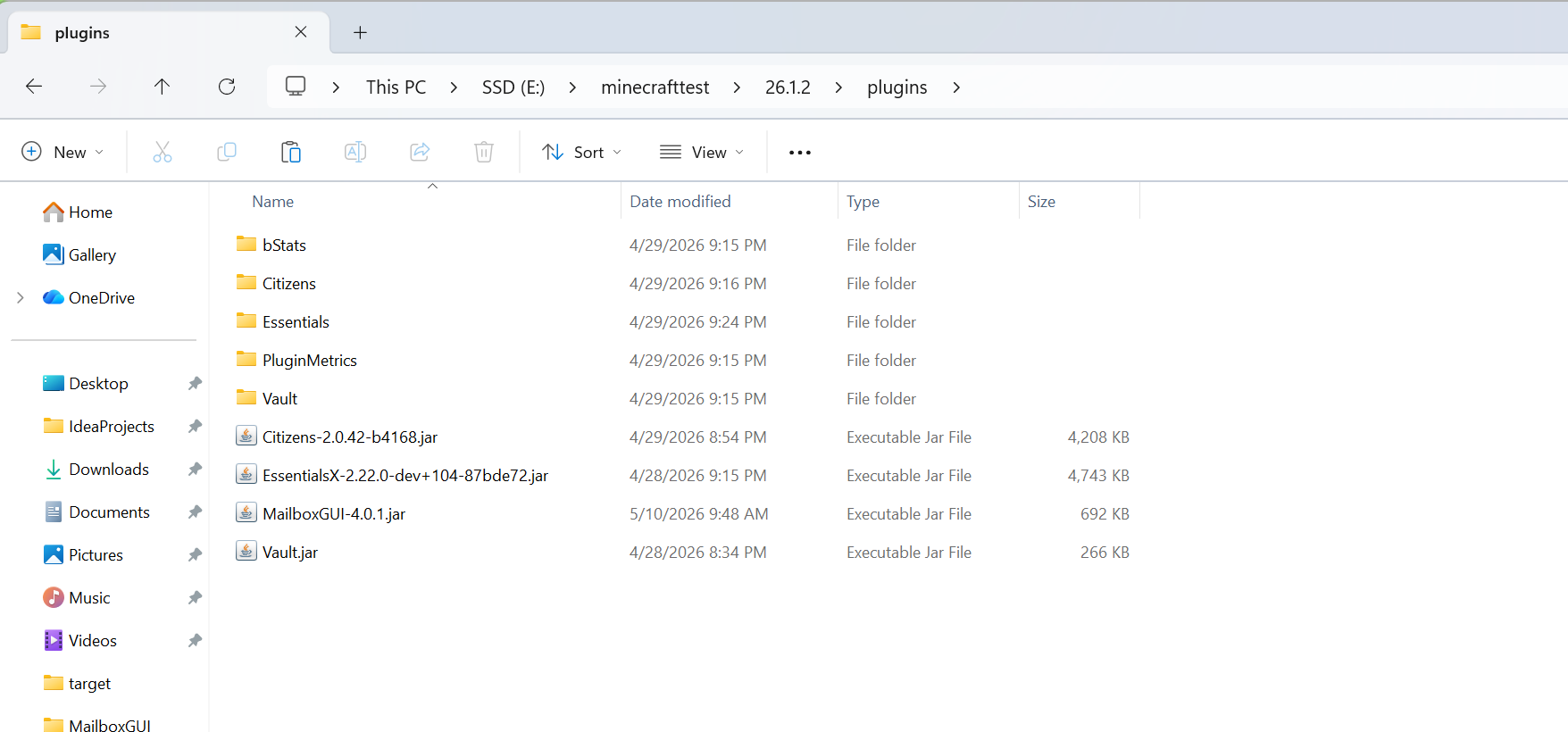
  2. Place the MailboxGUI jar in the server plugins folder.
  3. Start the server.
  4. Let MailboxGUI generate its config, language, and data files.
  5. Stop the server again before making larger config changes.
  6. Configure storage, economy features, permissions, post offices, and language settings as needed.
  7. Start the server again and test with a small group before public release.
MailboxGUI jar installed in the Minecraft server plugins folder
Place the MailboxGUI jar in the server plugins folder before startup.

First Things to Check

  • Confirm the plugin enabled successfully in console.
  • Confirm the MailboxGUI folder generated under plugins.
  • Confirm the correct storage mode is being used.
  • Confirm Vault and economy hooks if using money mail or COD.
  • Confirm players and admins have the permissions they need.
  • Confirm physical mailbox setup works before announcing it to players.
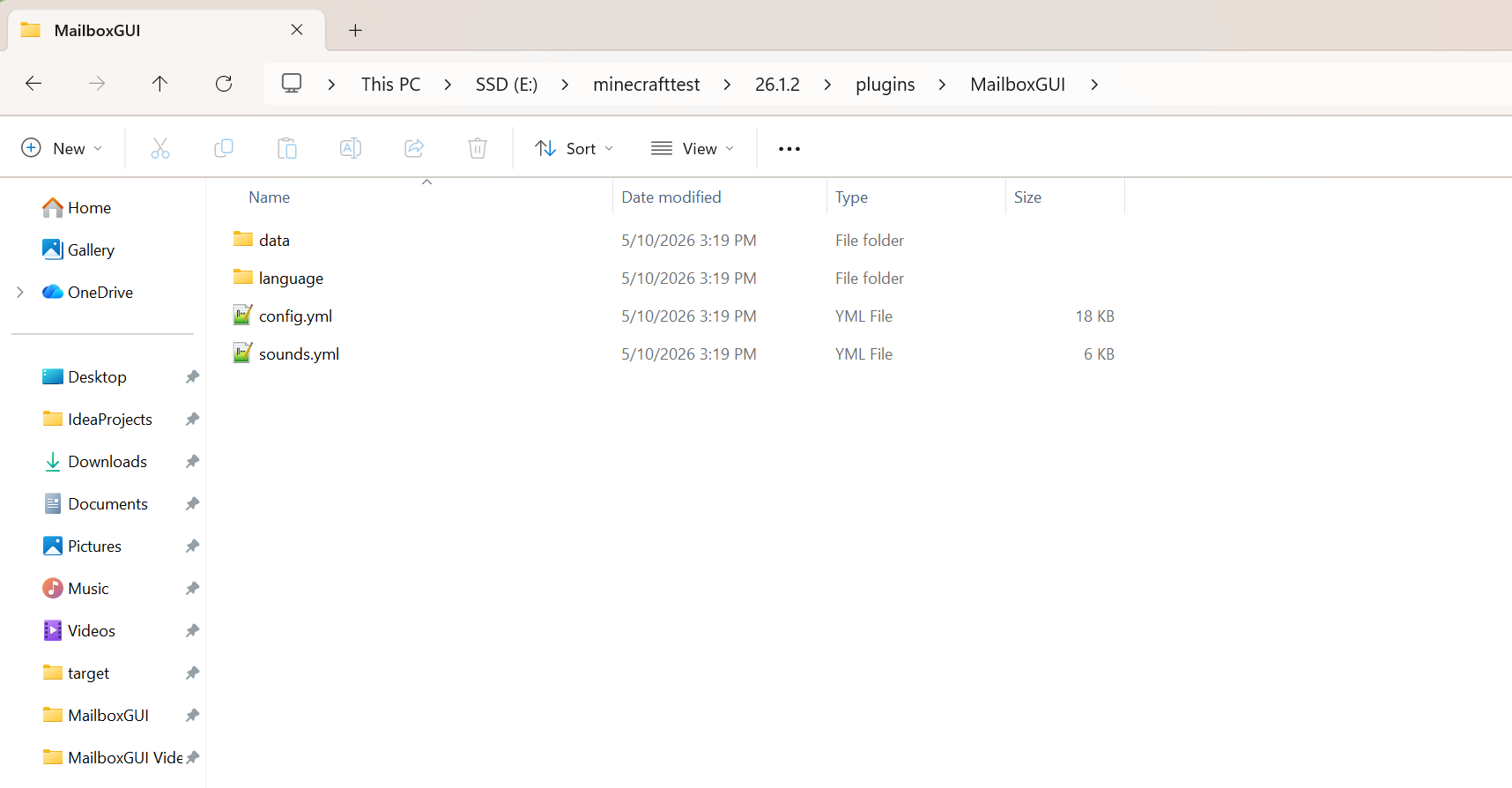
MailboxGUI generated files after first server startup
After first startup, confirm config, language, and data files generated correctly.

Good First Admin Setup

Review config.yml and language files, set up permissions, and create or test one physical mailbox before opening the system to players.

  • Test sending a letter.
  • Test sending a package.
  • Test COD and money mail only after economy support is confirmed.
  • Review admin tools and post office settings.
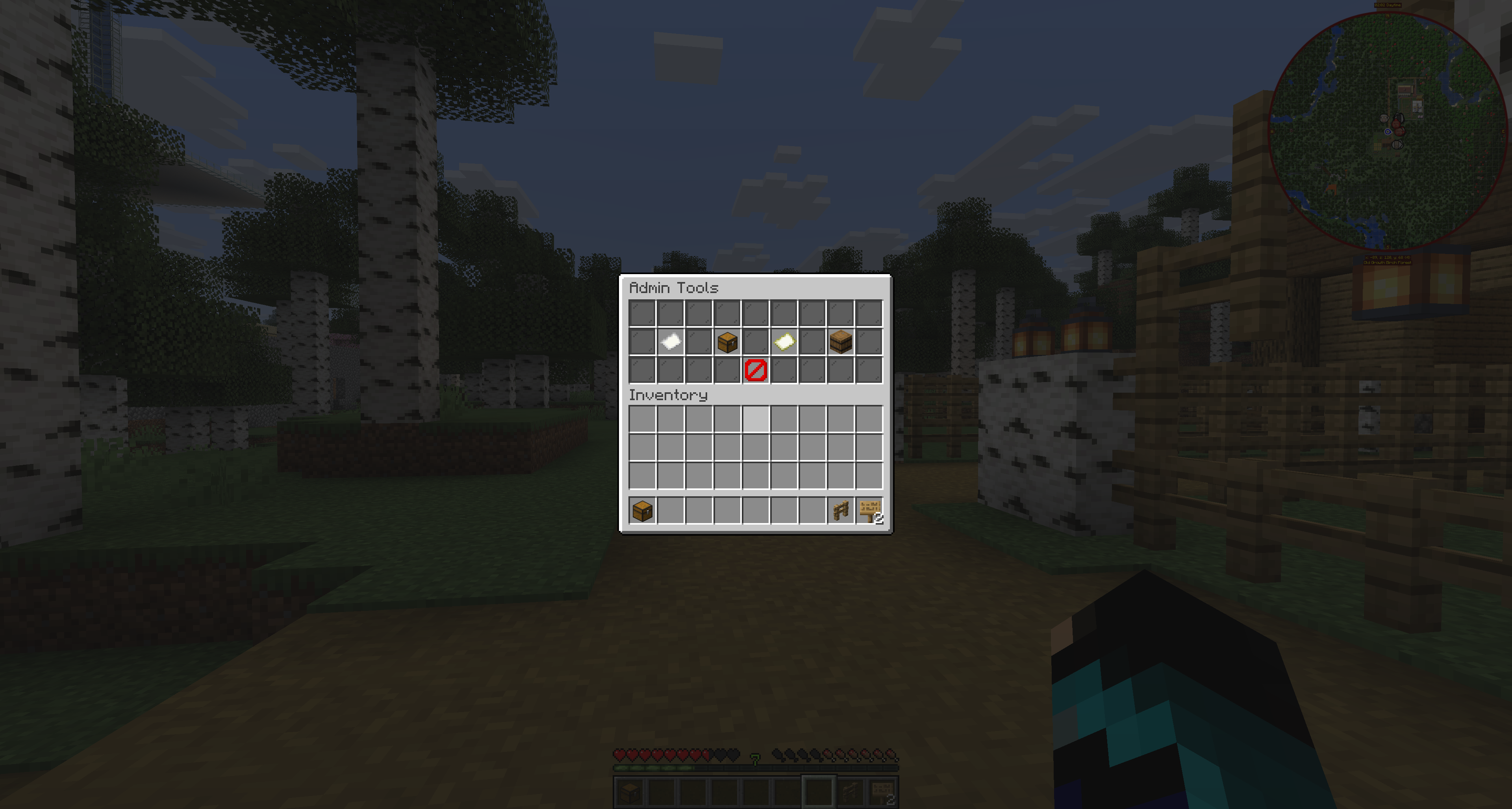
MailboxGUI admin tools menu
Use admin tools to review and support server mail workflows.

Commands

Command Overview

MailboxGUI uses /mailbox as the main command, with /mb as a player-friendly alias and /mba as the admin-focused alias. The plugin also supports /mailboxgui as an alias through plugin.yml.

  • Player commands require mailboxgui.player.use.
  • Admin commands require mailboxgui.admin or the specific admin permission.
  • Some admin commands can be used from console where the command source supports it.
  • Button names and messages can vary if language files are customized.

Player Commands

CommandPurpose
/mailbox
/mb
Opens the player command help/menu flow.
/mailbox help [page]
/mb help [page]
Shows player help.
/mailbox register
/mb register
Starts player physical mailbox registration mode.
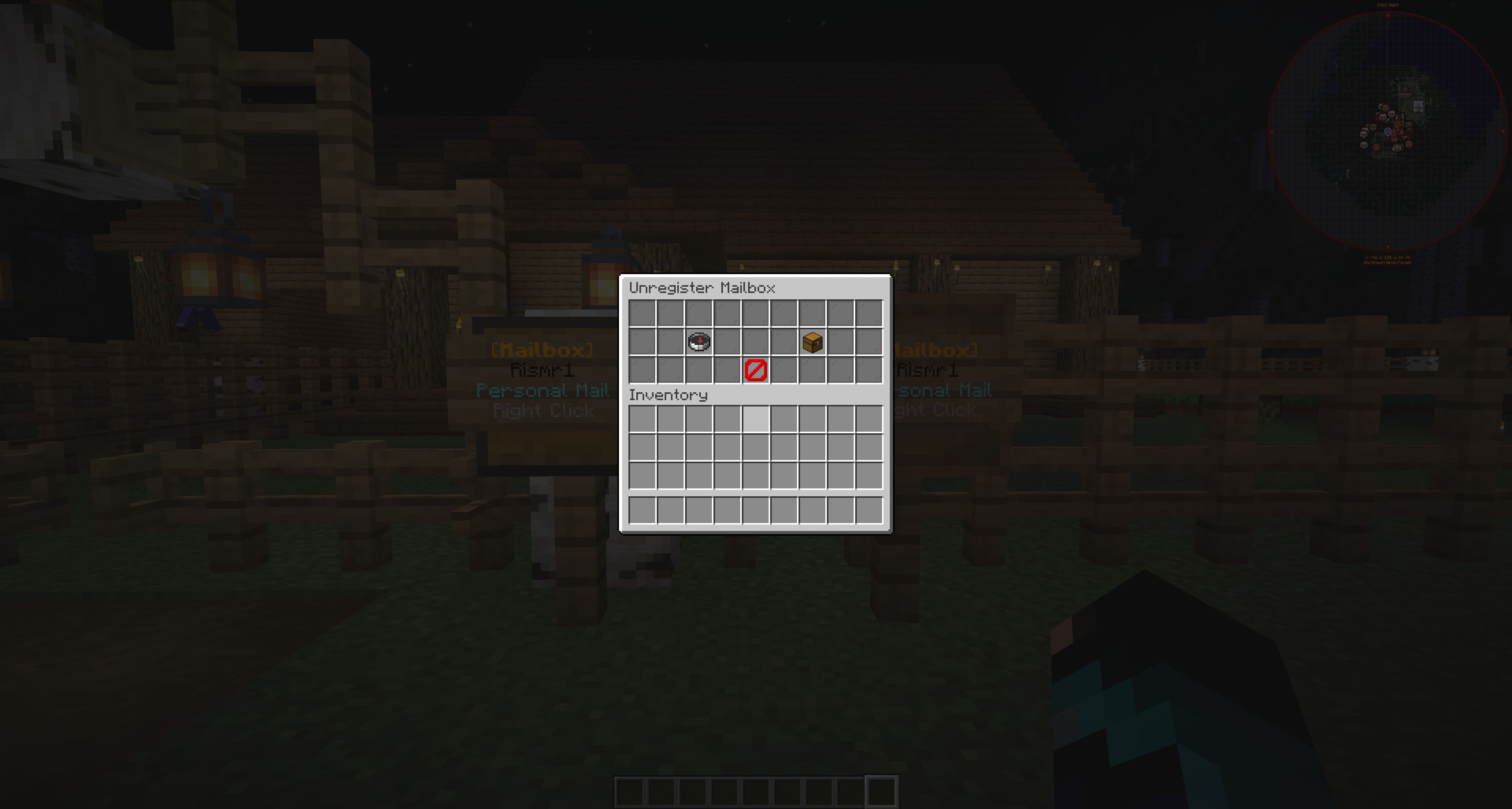
/mailbox unregister
/mb unregister
Starts player physical mailbox unregister mode.
  • Player registration uses a valid physical mailbox structure.
  • Player unregister mode lets the player select one of their registered mailboxes.
  • Player commands require mailboxgui.player.use.

Admin Dashboard and GUI Commands

CommandPurpose
/mailbox admin
/mba
Shows admin help.
/mailbox admin help [page]
/mba help [page]
Shows paged admin help.
/mailbox admin tools
/mba tools
Opens the Admin Tools GUI.
/mailbox admin register <player>
/mba register <player>
Starts admin mailbox registration flow for a selected player.
/mailbox admin unregister
/mba unregister
Starts admin mailbox unregister selector mode.
/mailbox admin reload
/mba reload
Reloads/synchronizes MailboxGUI config and language files.
  • /mailbox admin by itself shows admin help, not the Admin Tools GUI.
  • /mailbox admin tools opens the GUI.
  • Admin GUI access depends on mailboxgui.admin.tools.* or the specific admin tool permissions.

Player Data Import Commands

Manual playerdata import

/mailbox admin import player <name1>[,<name2>]
/mba import player <name1>[,<name2>]
  • Imports player serverdata into MailboxGUI data for players who have already joined the server.
  • Names are comma-separated.
  • The player must exist in the main world playerdata.
  • This is useful when an admin wants to prepare MailboxGUI data for players before they interact with mailboxes.
  • MailboxGUI 4.1.0 also uses auto-import in typed recipient and admin command send flows where a player has joined the server before.
  • PlayerDataImportManager reads the first loaded world's playerdata folder.

Storage Conversion Commands

Storage conversion

/mailbox admin convert <YAML|SQLITE|MYSQL> to <YAML|SQLITE|MYSQL>
/mba convert <YAML|SQLITE|MYSQL> to <YAML|SQLITE|MYSQL>

Examples:

/mailbox admin convert YAML to SQLITE
/mba convert SQLITE to MYSQL
/mba convert MYSQL to YAML
  • Requires mailboxgui.admin.convert or mailboxgui.admin.
  • Source type must match the active storage type.
  • Same-type conversion is refused.
  • Conversion creates backups.
  • Conversion to MYSQL validates MySQL first.

Admin Send-Mail Commands

Admin send shortcuts

/mba sl <recipient[,recipient2]> [from] '<message>' [--from <sender>] [--delay <seconds>]

/mba sp <recipient[,recipient2]> [from] <item:amount> [item:amount...] [--from <sender>] [--delay <seconds>]

/mba scod <recipient[,recipient2]> [from] <codPrice> [r:<returnPlayer>] <item:amount> [item:amount...] [--from <sender>] [--delay <seconds>]

/mba sm <recipient[,recipient2]> [from] <amount> [--from <sender>] [--delay <seconds>]
  • sl sends a letter, sp sends a package, scod sends a Cash-On-Demand package, and sm sends money mail.
  • Command send aliases can also be used through /mailbox admin when applicable.
  • Recipients are comma-separated.
  • from can be passed positionally or through --from.
  • --delay uses seconds and queues persistent delayed mail.
  • Admin command send uses API-backed send requests and RecipientPolicy.CREATE_IF_MISSING.
  • Recipients are resolved from online players, MailboxGUI data, or main-world server playerdata if the player has joined before.
  • If any recipient cannot be resolved/imported, the command fails and does not send partial mail.
  • /mba scod supports r:<returnPlayer> or return:<returnPlayer> to opt into a real COD return/payment recipient.

Admin Send-Mail Item Tokens

Package commands such as /mba sp and /mba scod support these item tokens.

Item token forms

material:amount
xp:amount
template:<id>:amount
t:<id>:amount

Examples

stone:64
diamond:3
xp:250
template:starter-kit:1
t:rare-sword:1
  • Materials use Bukkit/Minecraft material names.
  • xp:amount adds package experience.
  • template:<id>:amount uses a saved item template.
  • Package slot limits still apply.
  • Nested MailboxGUI packages are blocked.
  • Non-empty shulker boxes are blocked when configured.
  • Oversized command packages are rejected based on configured package slot count.

Item Template Commands

Item template commands

/mba itemtemplate save <id>
/mba itemtemplate list [page]
/mba itemtemplate delete <id>
/mba itemtemplate give <id> [player]

Aliases:

/mba it save <id>
/mba it list [page]
/mba it delete <id>
/mba it give <id> [player]

Shortcut aliases:

/mba itsave <id>
/mba itlist [page]
/mba itdelete <id>
/mba itgive <id> [player]
  • Saving requires holding the item in the player's main hand.
  • Templates are used in admin command packages as template:<id>:amount or t:<id>:amount.
  • Templates are stored in plugins/MailboxGUI/data/itemtemplates.yml.
  • Give is useful for testing saved templates.
  • Template IDs should follow the plugin's ID rules.

Command Permissions

  • mailboxgui.player.use
  • mailboxgui.admin
  • mailboxgui.admin.reload
  • mailboxgui.admin.import
  • mailboxgui.admin.convert
  • mailboxgui.admin.send
  • mailboxgui.admin.send.letter
  • mailboxgui.admin.send.package
  • mailboxgui.admin.send.cod
  • mailboxgui.admin.send.money
  • mailboxgui.admin.itemtemplate.*
  • mailboxgui.admin.tools.*

See the Permissions section for the complete permission reference.

Physical Mailbox Setup

What Counts as a Physical Mailbox

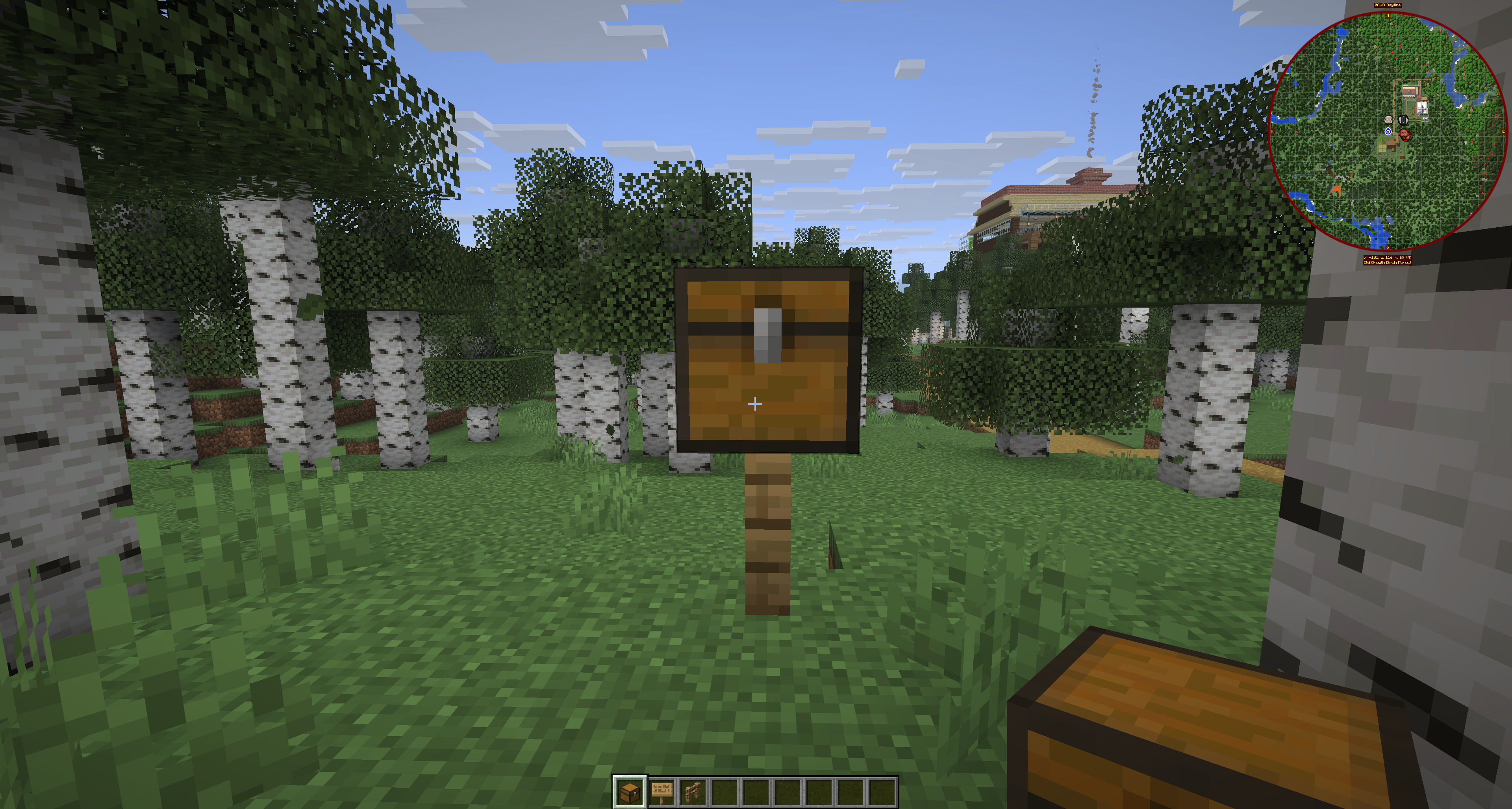
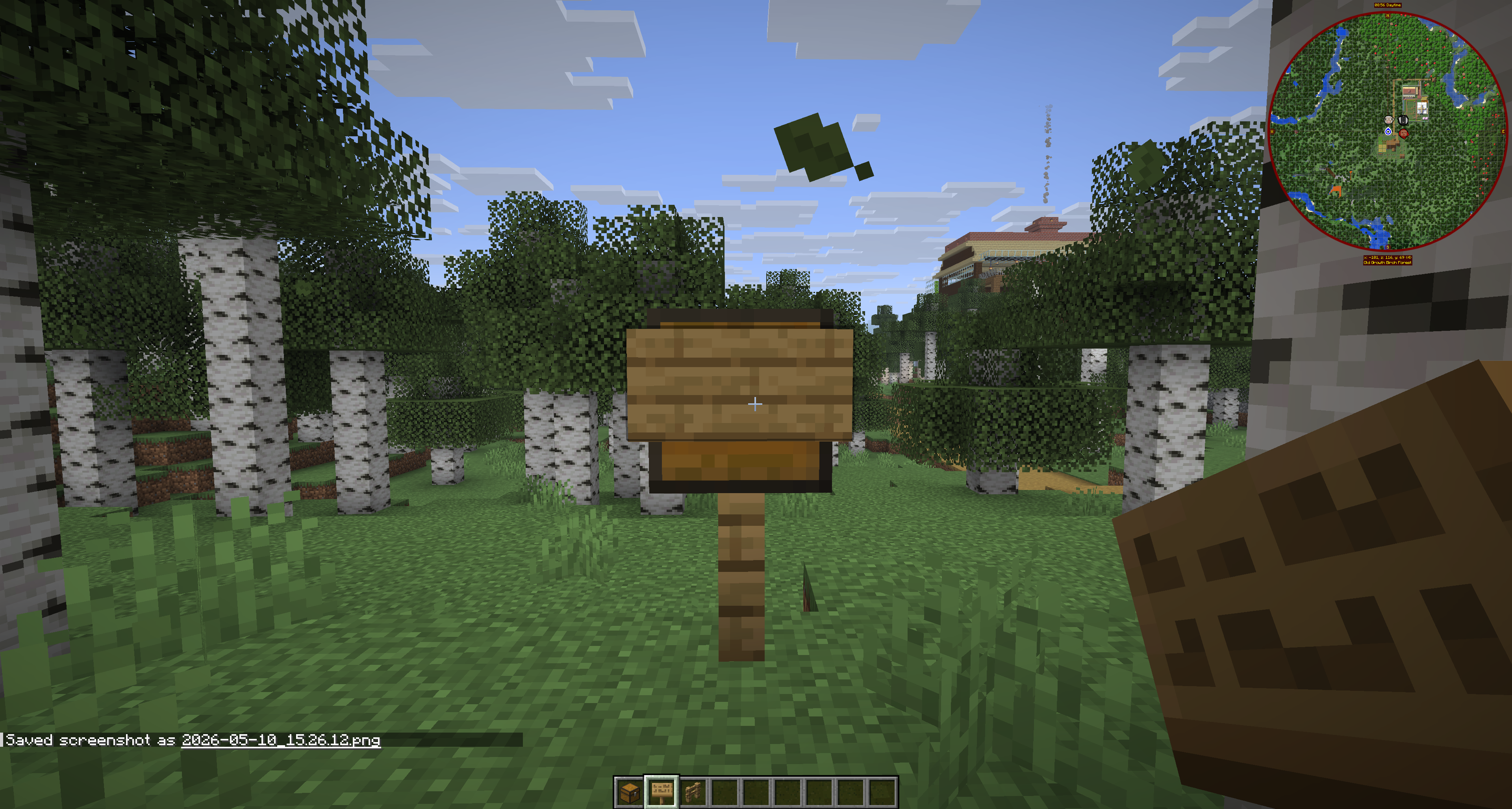
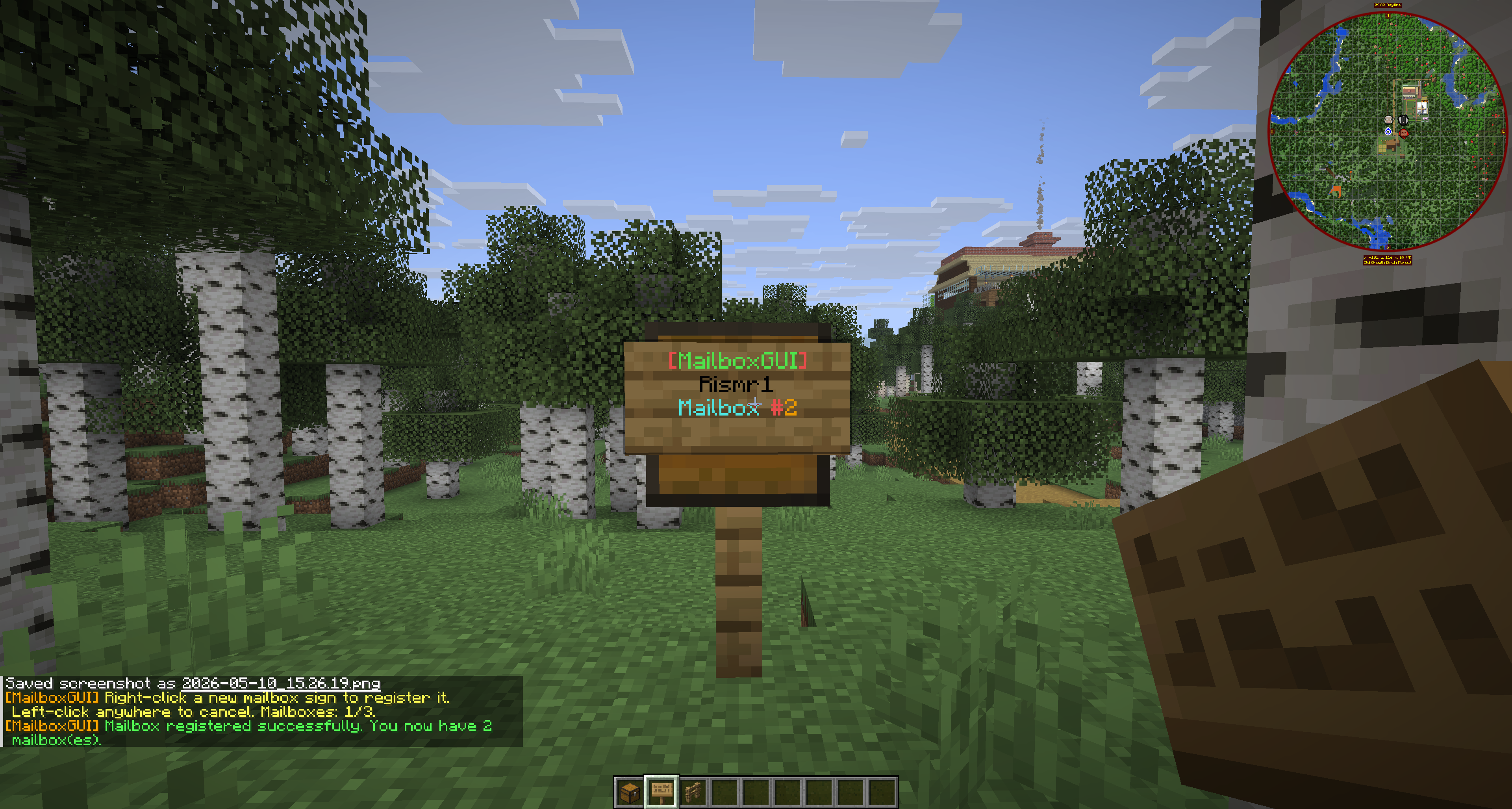
A physical mailbox is built with a fence post, a single chest on top, and a sign attached to the front of the chest.

The fence post is the base. The single chest is the storage and interaction point. The sign must be attached to the front face of the chest, not floating nearby or placed on the ground. Keep the structure simple and recognizable so players understand it is a mailbox.

Materials Needed

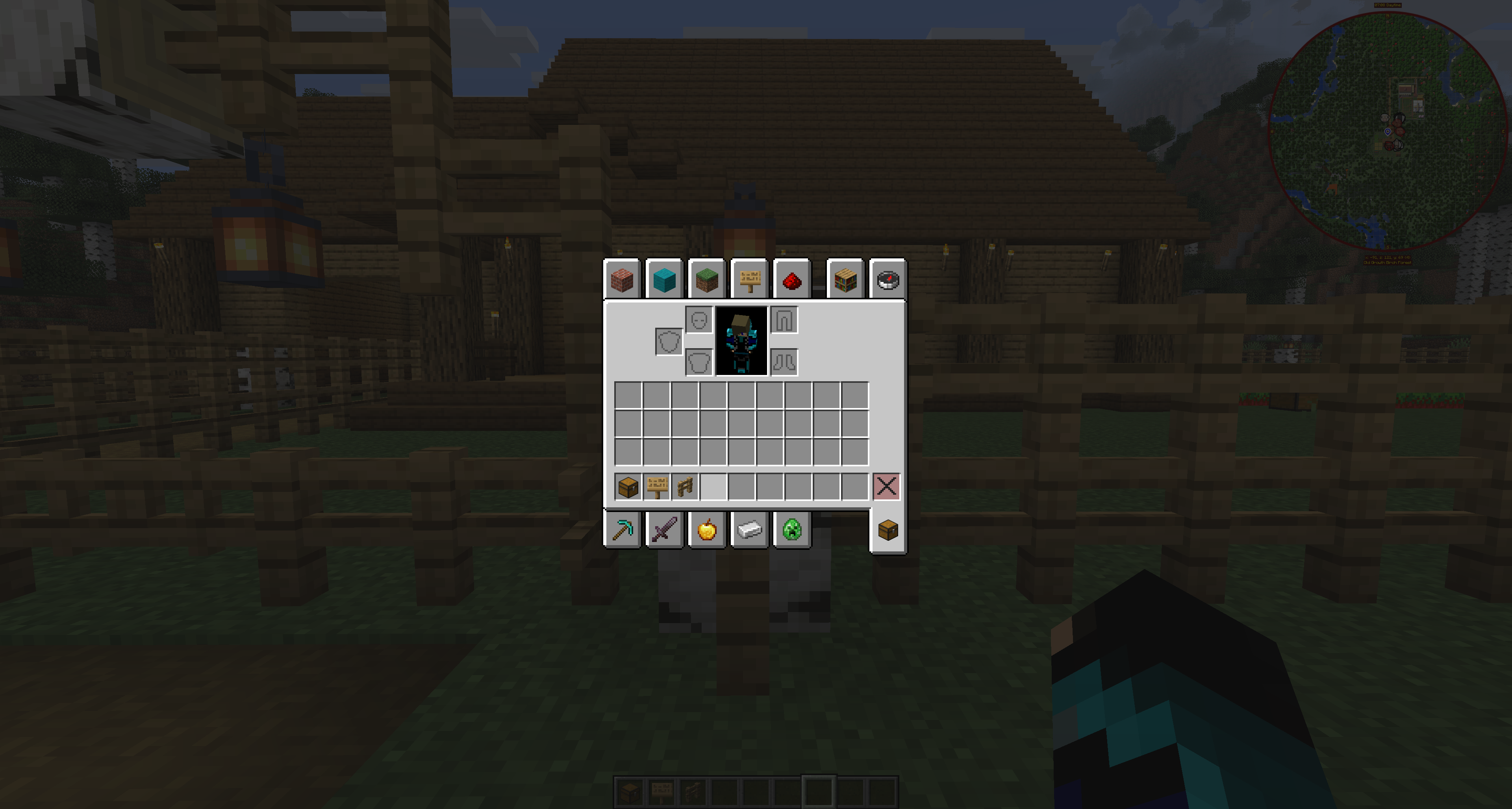
  • 1 fence post
  • 1 single chest
  • 1 sign
  • Optional decoration blocks around it, as long as the core mailbox structure remains valid.
Materials needed to build a MailboxGUI physical mailbox
The core mailbox materials are a fence post, one single chest, and a sign.

Step-by-Step Build

  1. Place the fence post where the mailbox should stand.
  2. Place one single chest directly on top of the fence post.
  3. Attach the sign to the front of the chest.
  4. Keep the sign on the chest face, not beside the chest.
  5. Make sure the chest remains a single chest and is not converted into a double chest.
  6. Finish any decoration around the mailbox after the core structure is correct.
  7. Use the server's MailboxGUI interaction or registration flow according to the server's permissions and configuration.
Fence post with a single chest placed directly on top
Start with the fence post base and one single chest directly on top.
Sign attached to the front face of the mailbox chest
The sign belongs on the front face of the chest, not beside it or on the ground.

Correct vs Incorrect Setup

Common mailbox build mistakes include:

  • Using a double chest instead of a single chest.
  • Placing the sign on the ground instead of attaching it to the front of the chest.
  • Attaching the sign to the wrong side if the server or admin expects a specific front-facing setup.
  • Missing the fence post under the chest.
  • Blocking access to the chest or sign with decoration blocks.
  • Building the mailbox in a protected region without the proper permission.

Player Usage

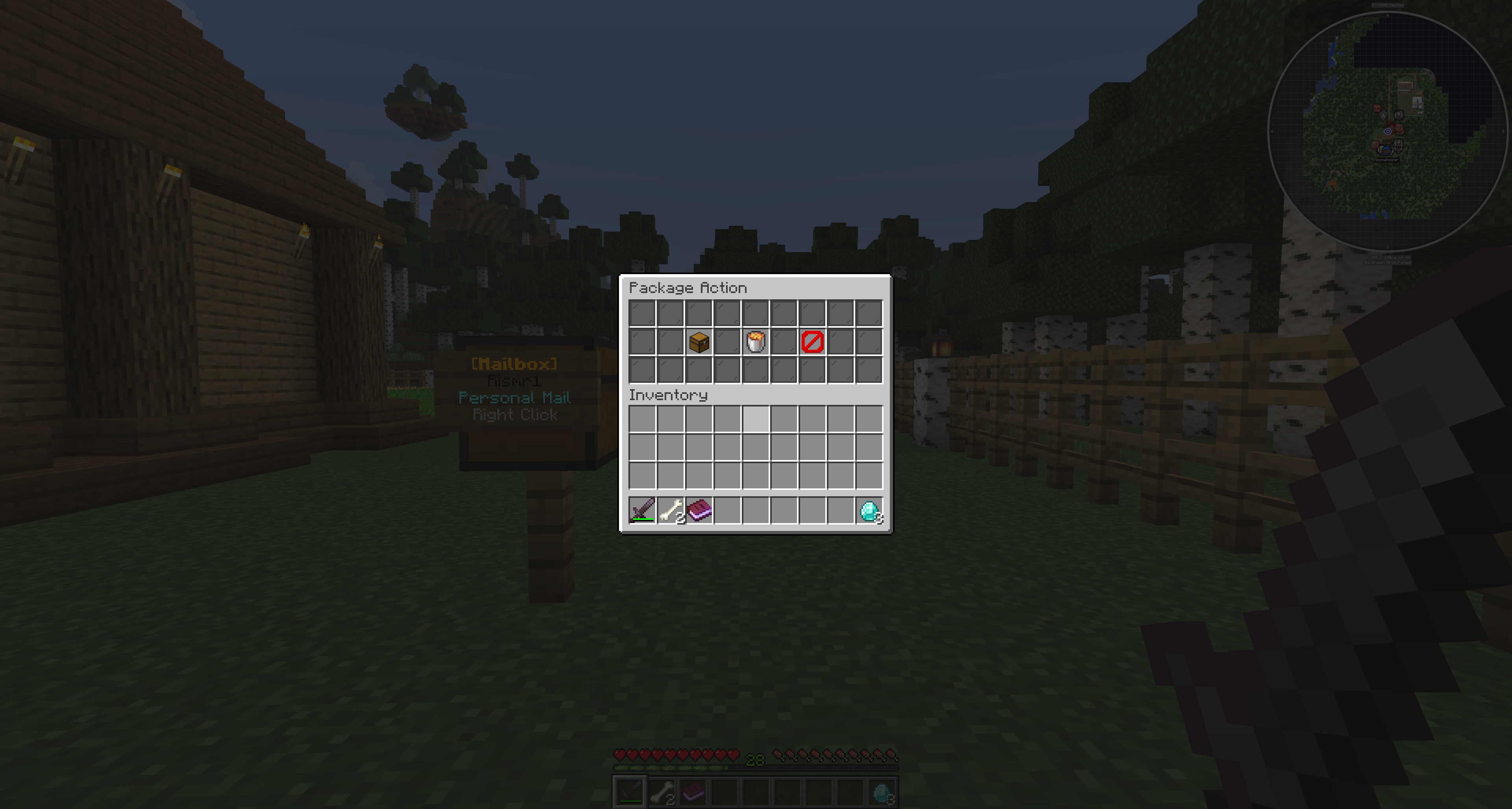
Once a mailbox is properly built and recognized by the server, players can use it to access mail features according to server settings. Available actions may include checking inbox mail, receiving letters, receiving packages, paying for COD packages, or interacting with post office systems depending on configuration.

Exact available actions depend on server permissions and enabled features.

Admin Notes

Admins should test one mailbox before allowing players to build many. Server protection plugins may affect whether players can place signs, place chests, or interact with mailboxes.

If a mailbox is not detected, verify the structure first before checking permissions or config. Keep a consistent mailbox design in public areas so players know what to look for.

Finished MailboxGUI physical mailbox build
A finished mailbox should be simple, readable, and easy for players to identify.
Screenshot guidance: The screenshots in this section are hosted from the official MailboxGUI GitHub repository under assets/wiki/physical-mailbox-setup/.

Letters

What Letters Are

Letters are player-to-player written messages sent through the MailboxGUI system. They are useful for player communication, roleplay, town and server notices, staff replies, shop messages, and general mailbox-based communication.

Letters keep communication tied to the mailbox system instead of relying only on public chat or direct messages. Server settings and permissions control who can send, receive, reply to, or manage letters.

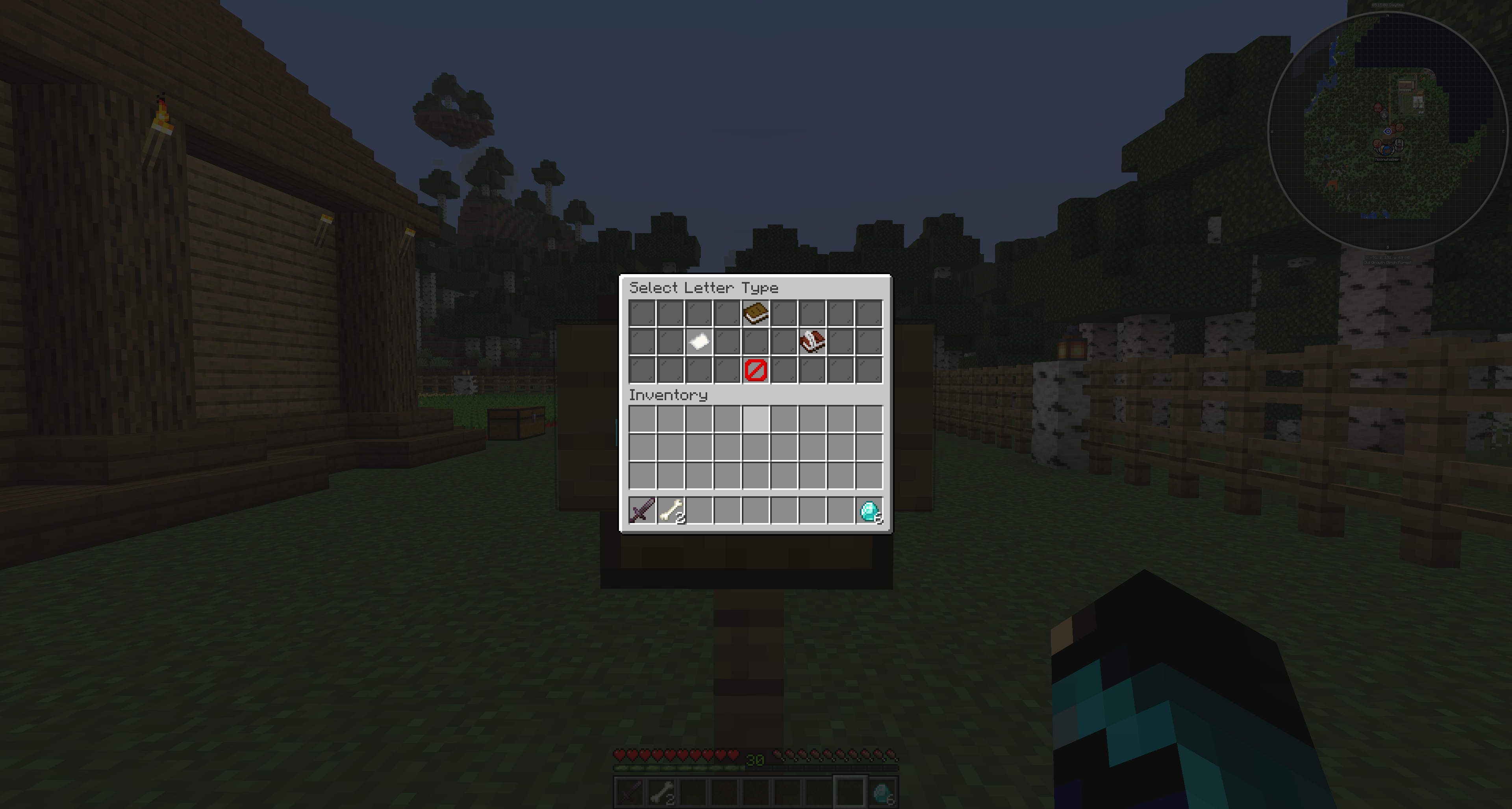
Sending a Letter

  1. Open the mailbox or mail sending interface.
  2. Choose the letter sending option.
  3. Select the recipient.
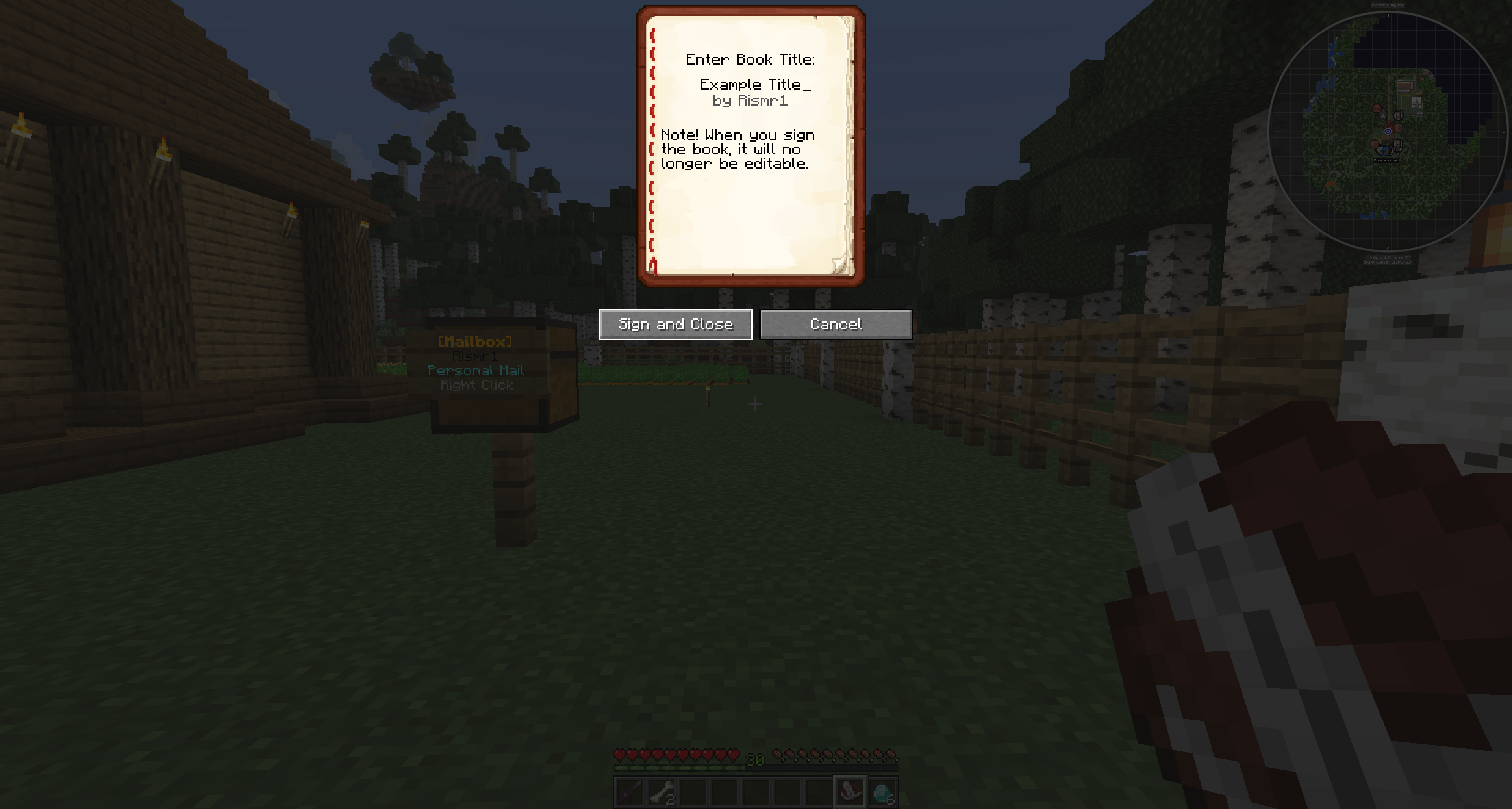
  4. Write the letter message or body.
  5. Confirm and send the letter.
  6. The recipient receives it in their mailbox inbox according to the server's enabled features and permissions.
Exact button names may vary depending on the server language file or custom configuration. Server owners can customize text through language and config files.
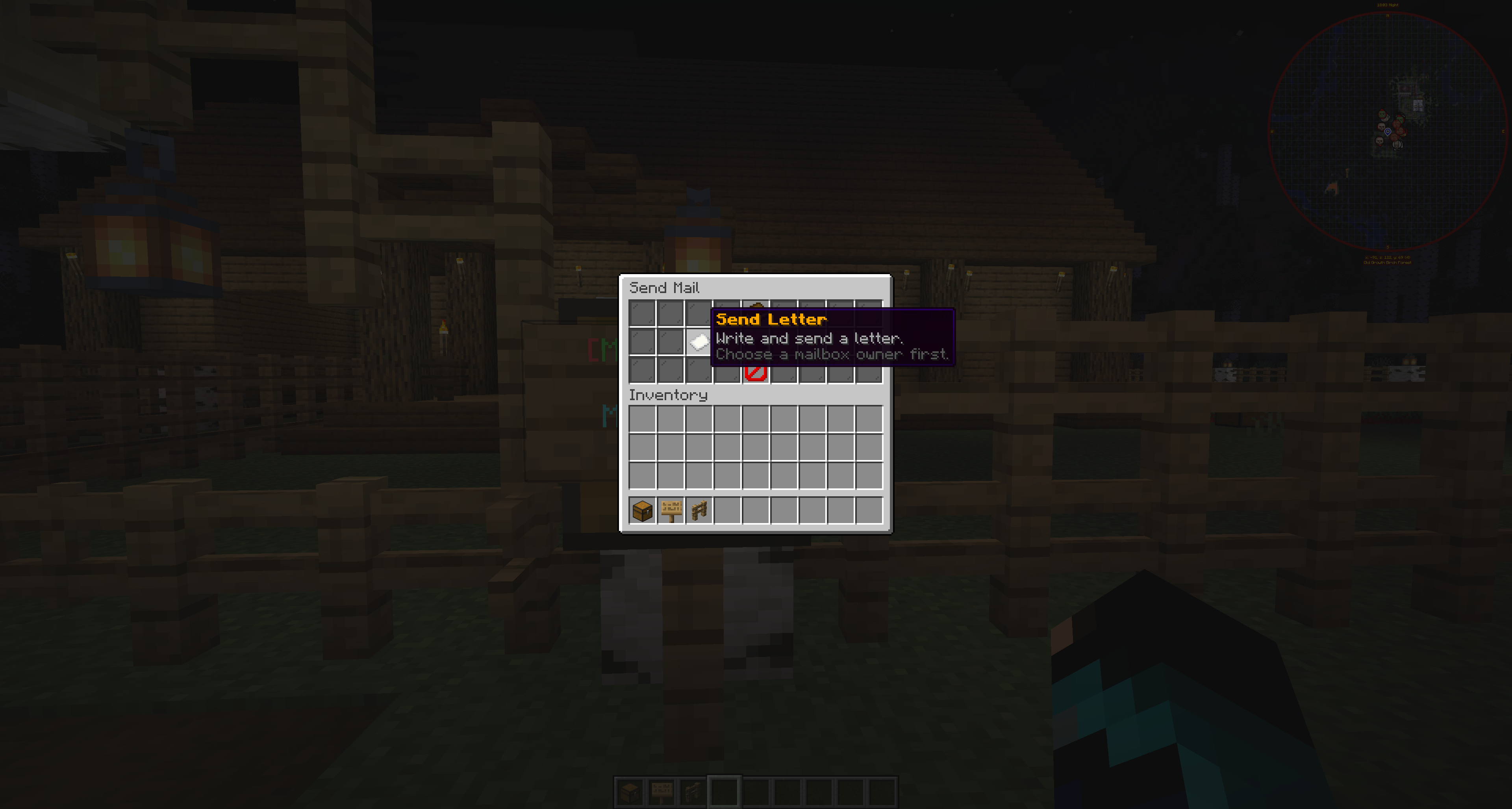
MailboxGUI interface for starting a new letter
Starting a new letter from the MailboxGUI send menu.

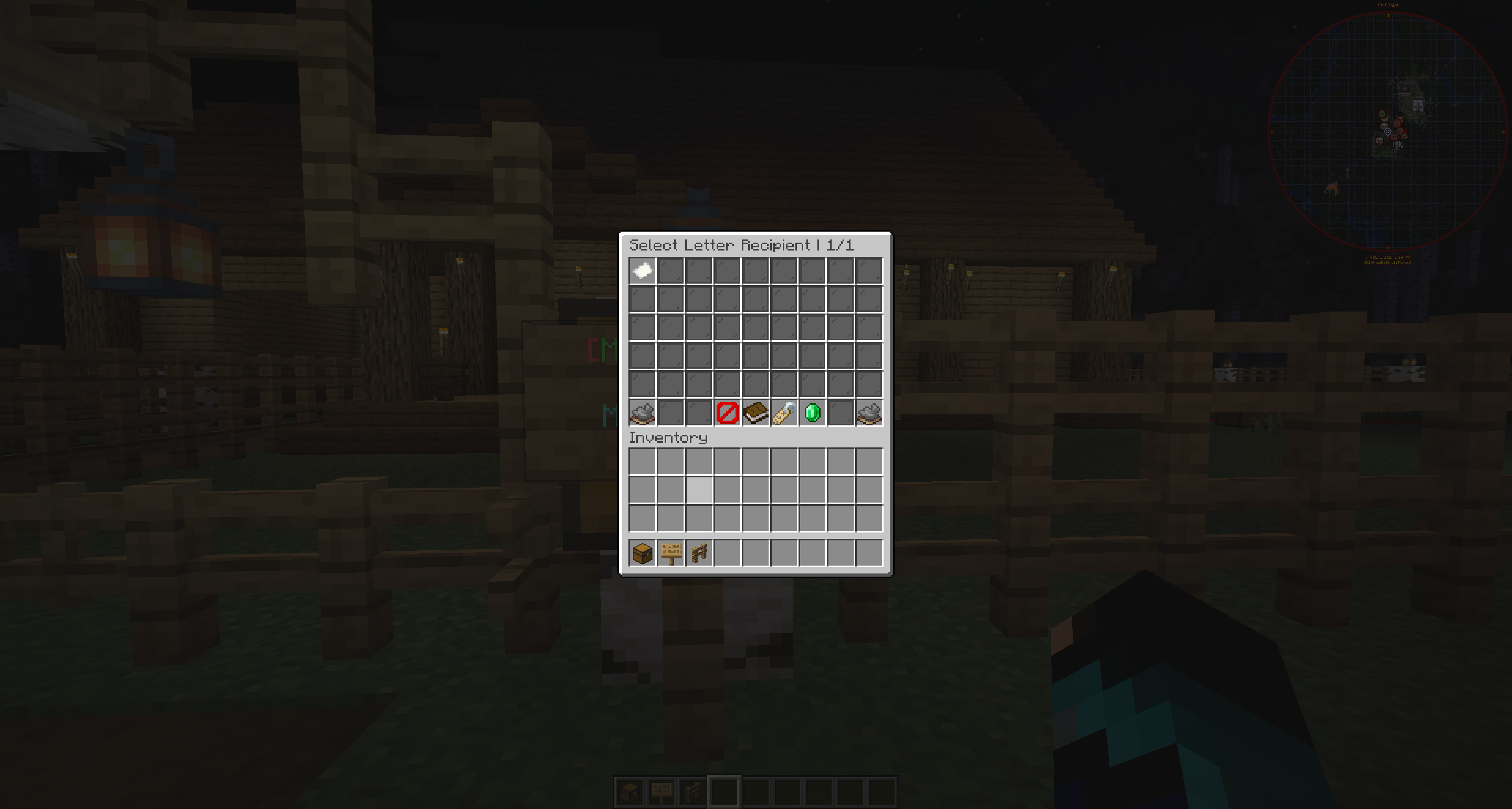
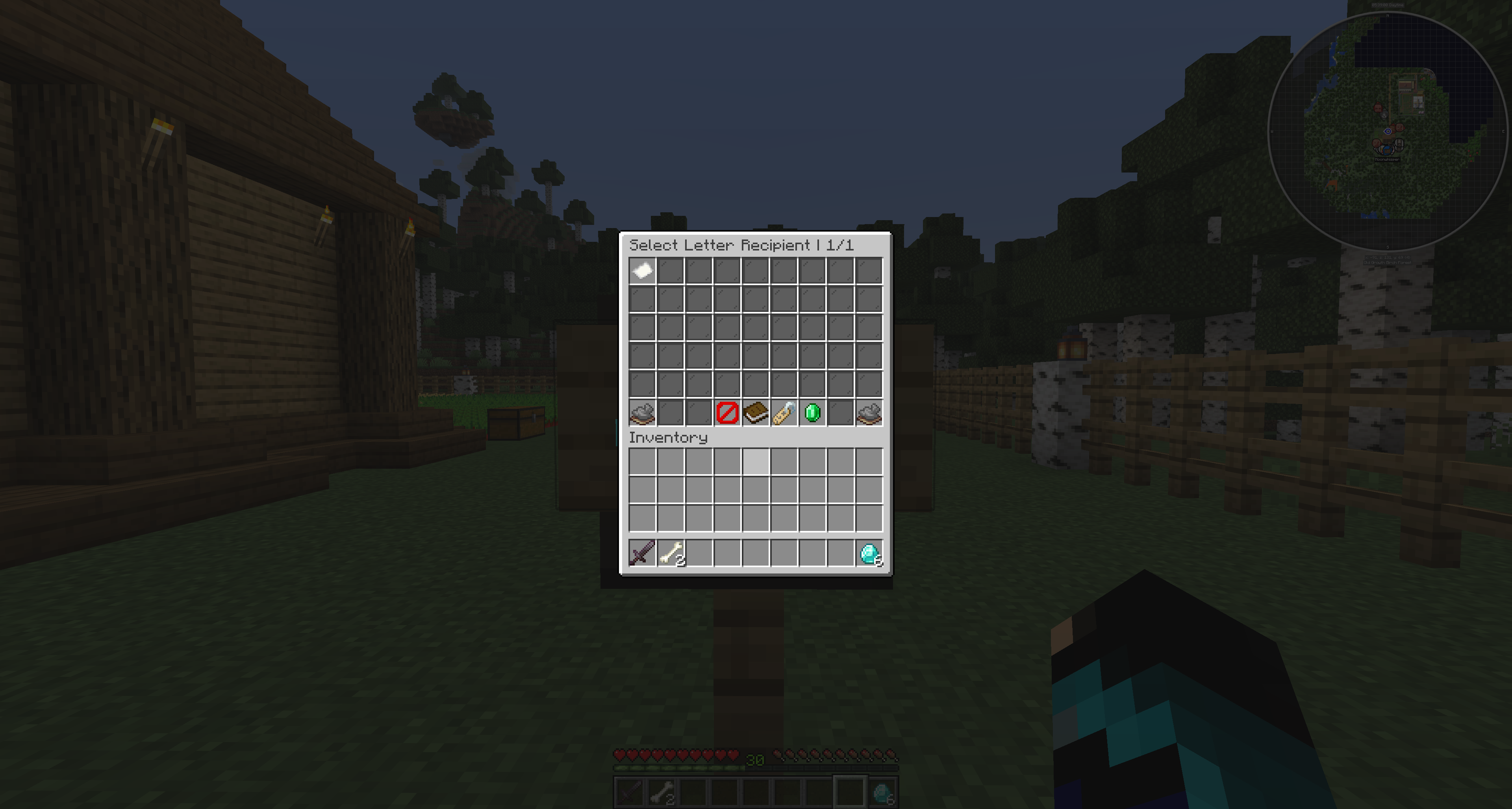
Choosing a Recipient

Players may choose a recipient through the recipient selection interface. Depending on server configuration and the current plugin setup, recipient selection may include online, offline, or all-player filtering.

Typed recipient entry may also be available where enabled. The selected recipient determines where the letter is delivered. In 4.1.0, typed name lookup can auto-import players from main-world playerdata when they have joined the server before.

Admin command and API letters can target created/imported recipient data through RecipientPolicy.CREATE_IF_MISSING where supported.

MailboxGUI recipient selection interface for letters
Selecting the player who should receive the letter.

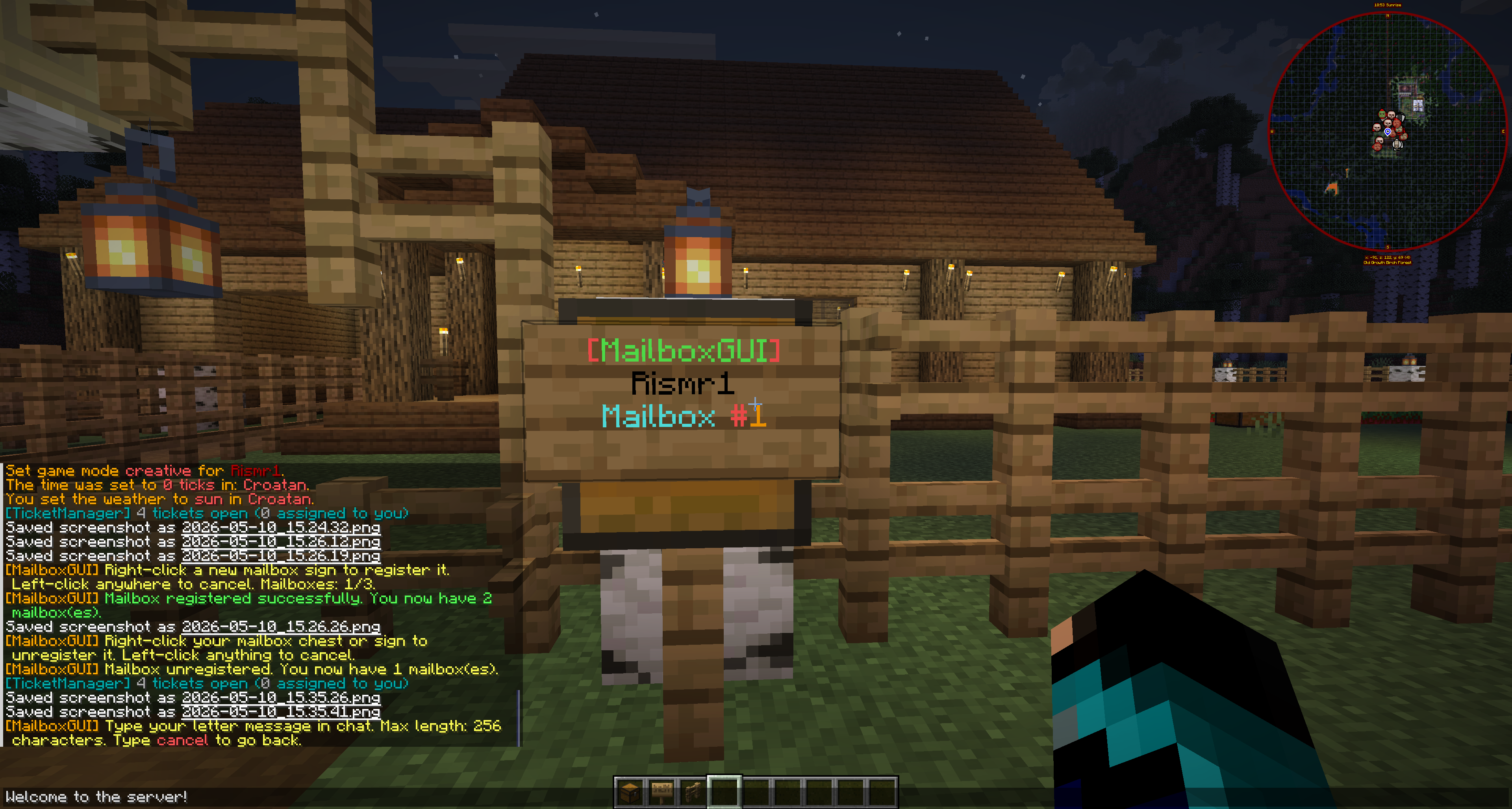
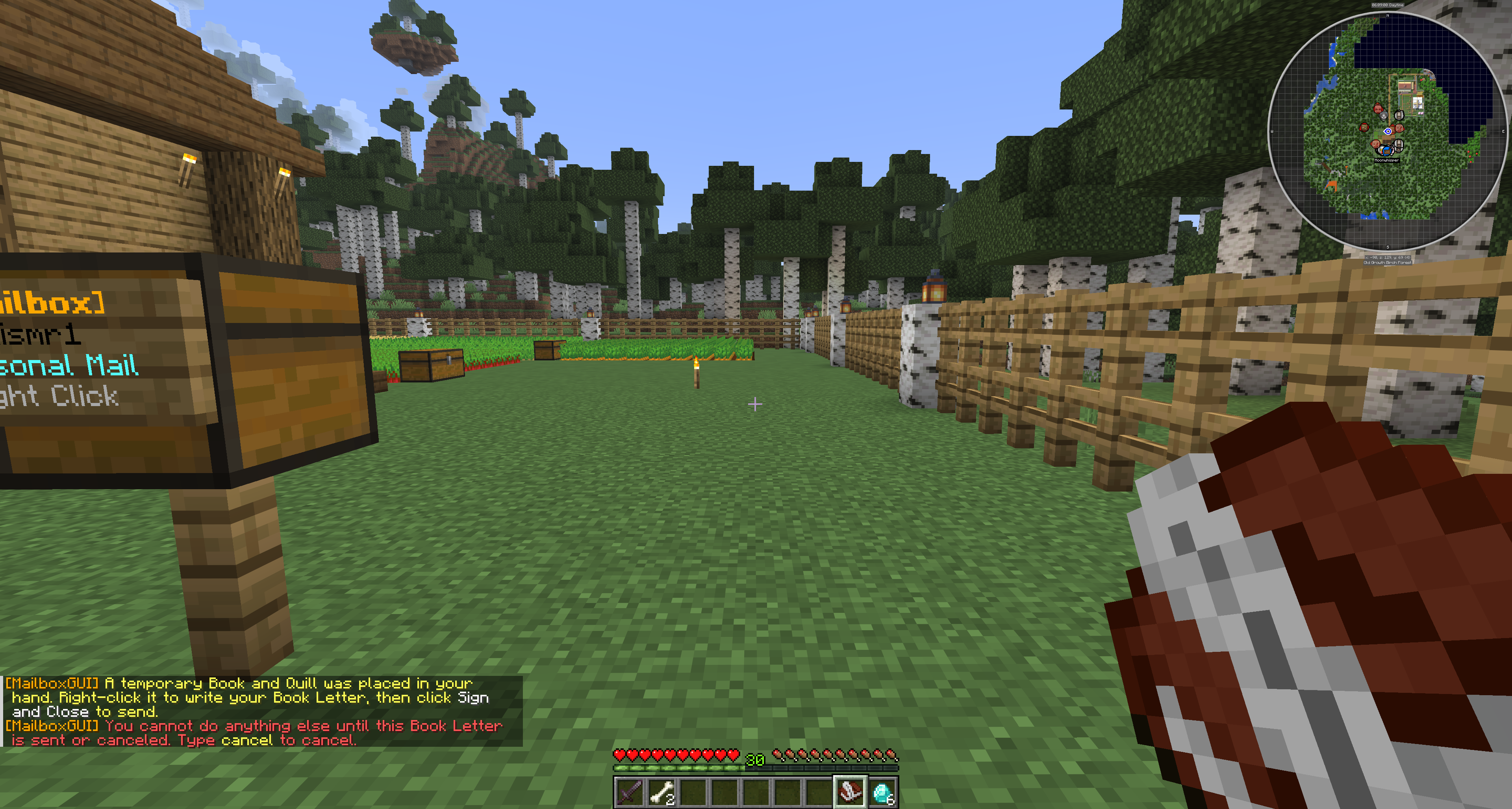
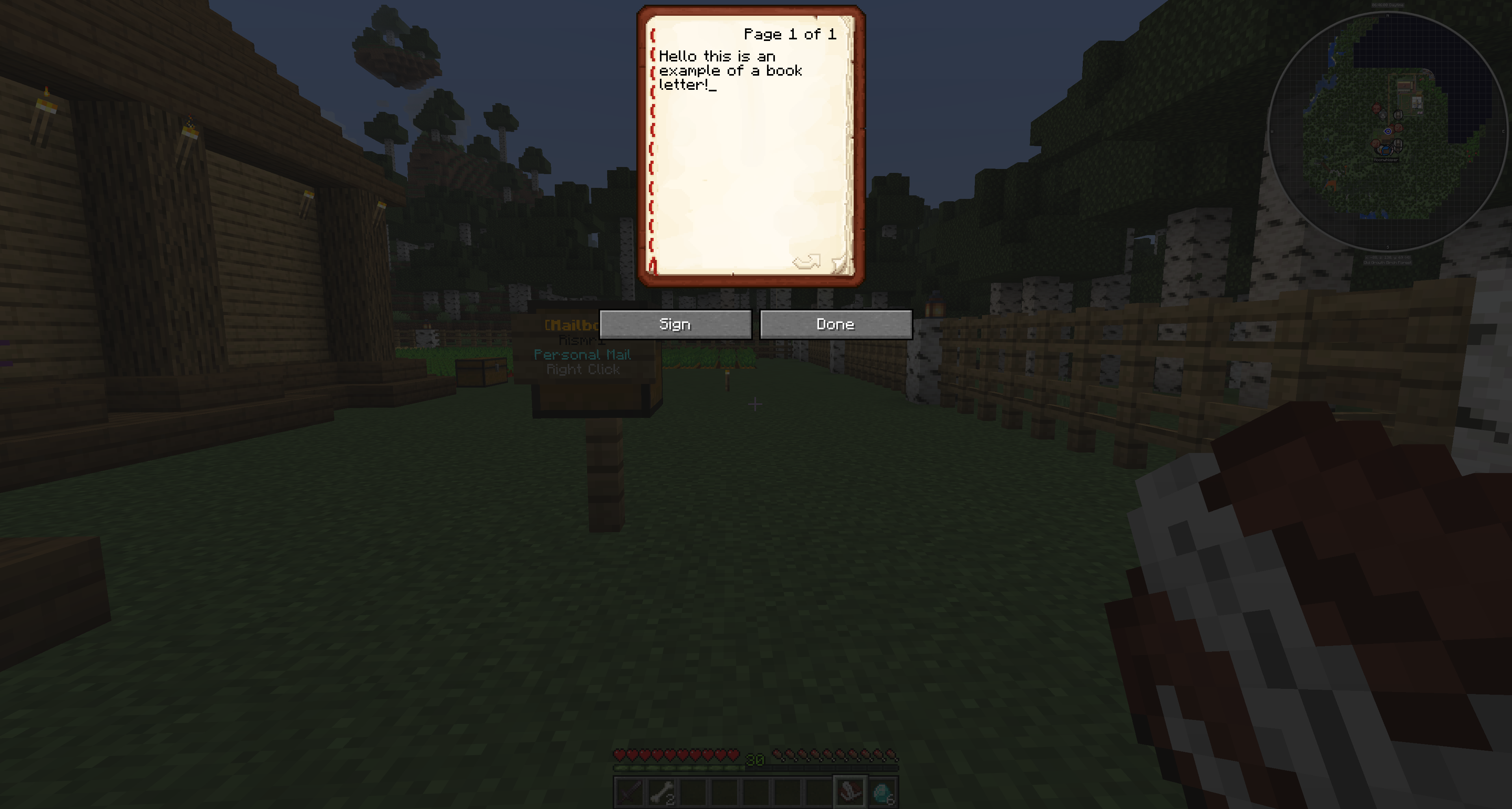
Writing the Message

The letter body is the message the recipient will read. Players should keep messages appropriate for the server rules.

Long messages may be shown across multiple lines depending on the plugin's formatting and GUI layout. Formatting and colors may depend on server configuration.

MailboxGUI letter message input step
Writing the message body for the letter.

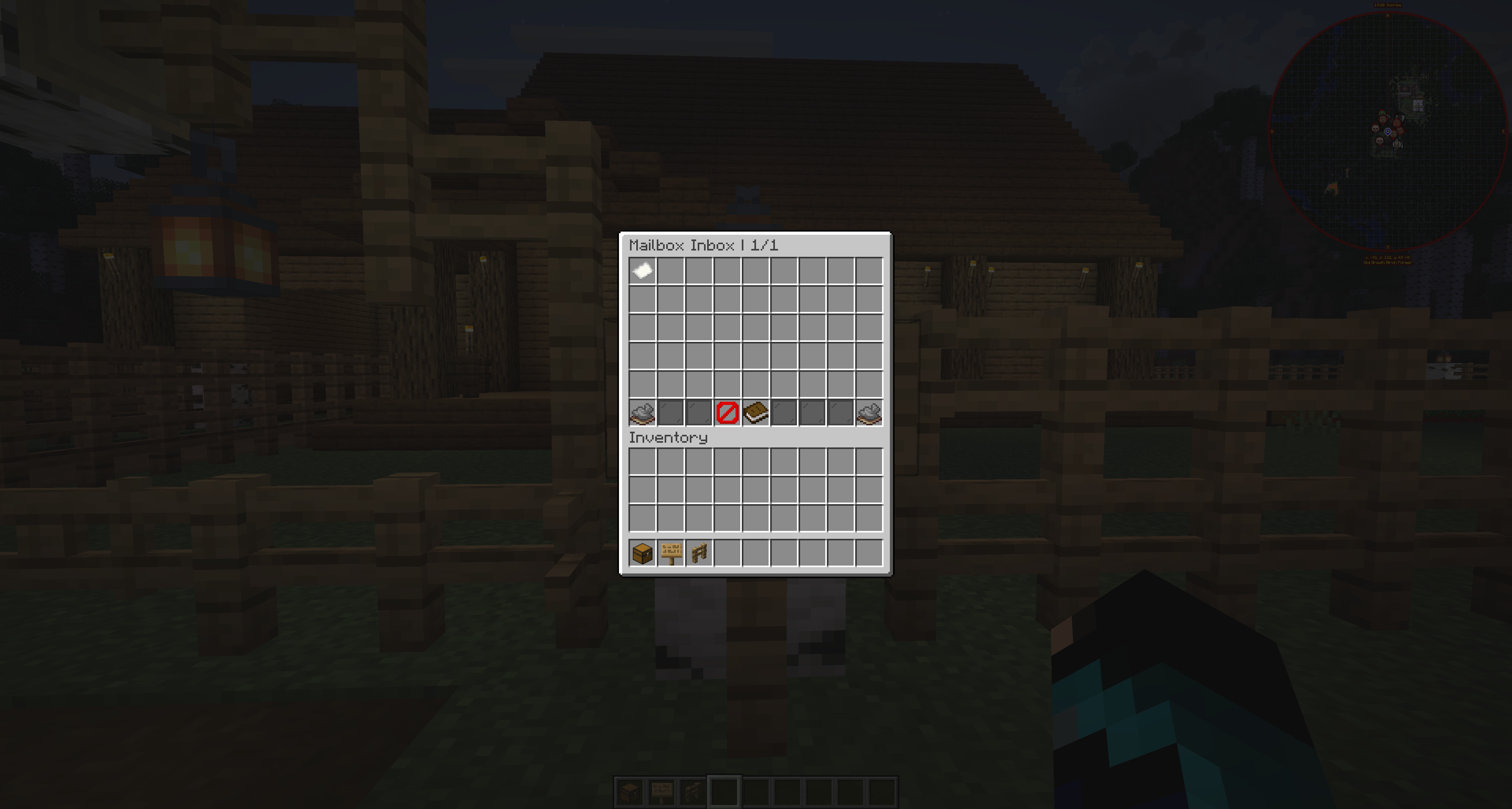
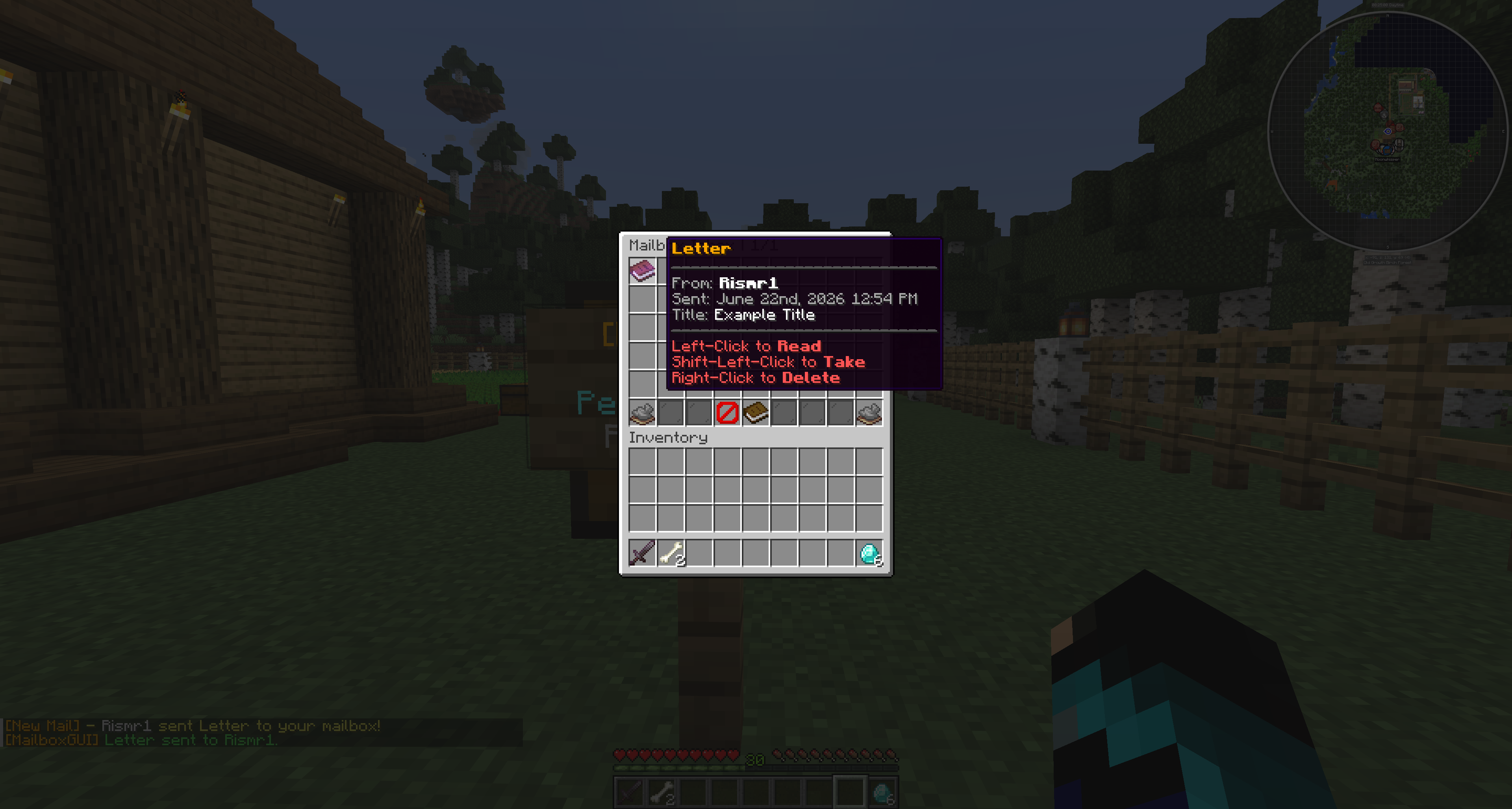
Receiving and Reading Letters

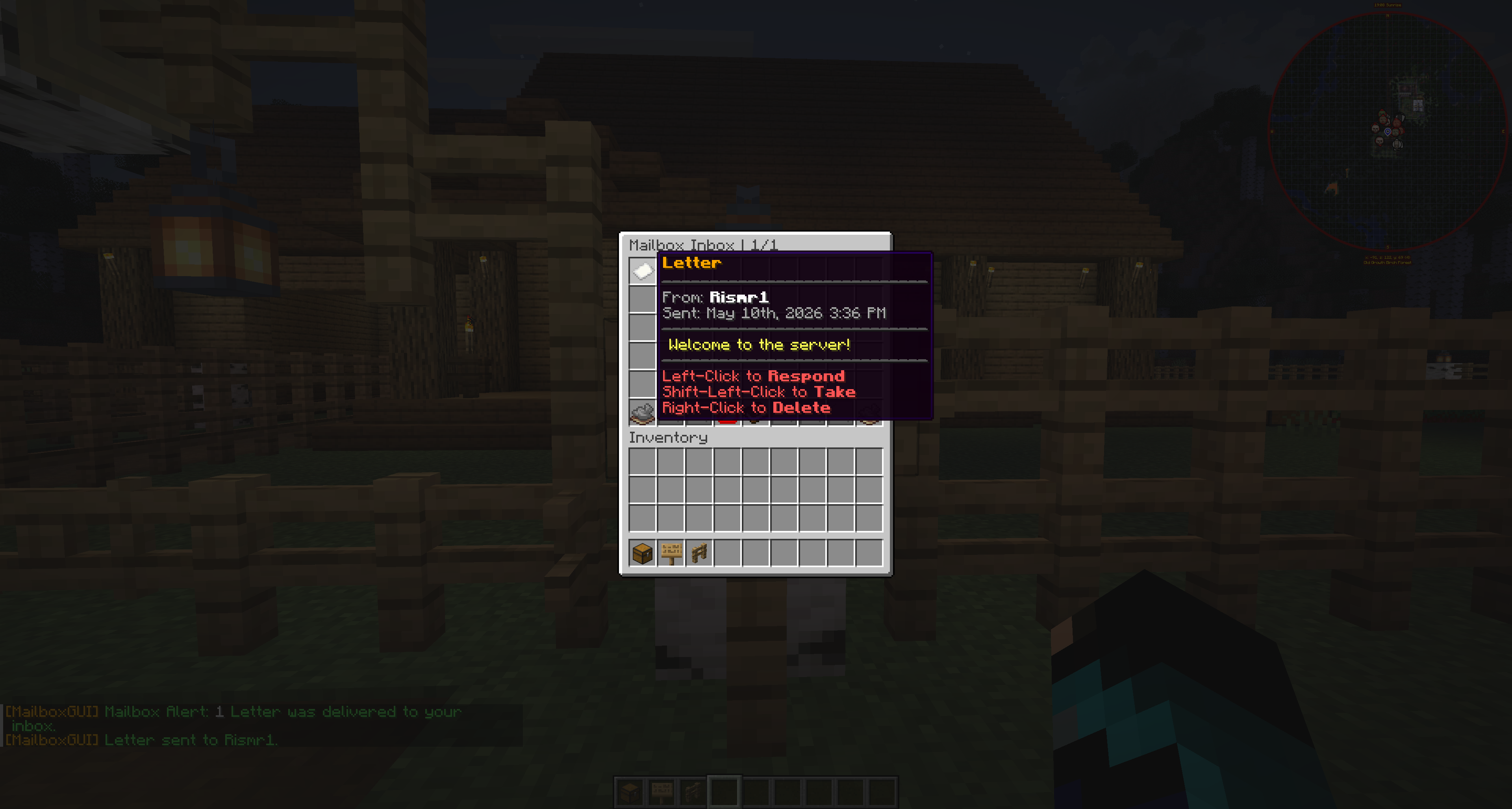
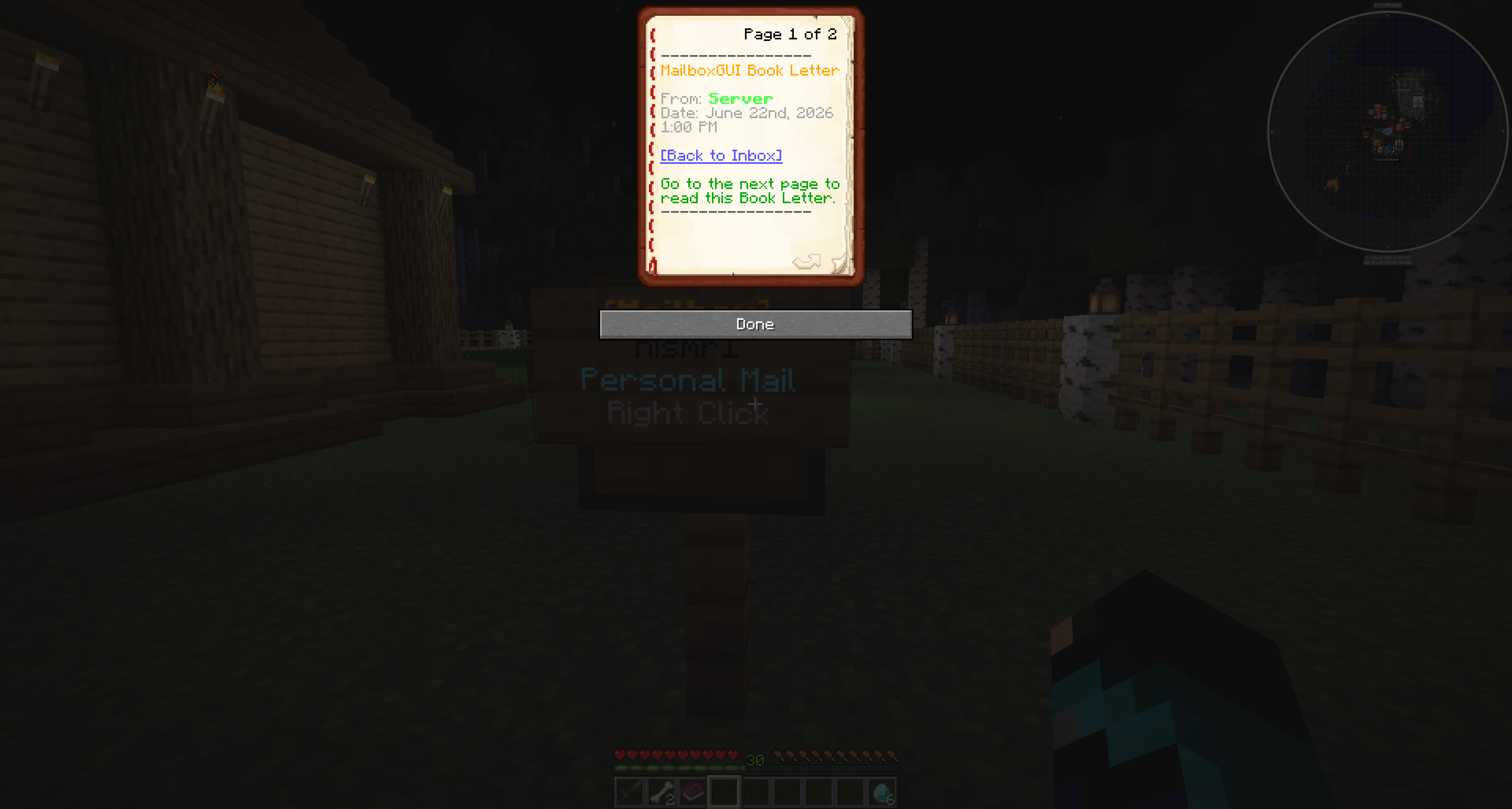
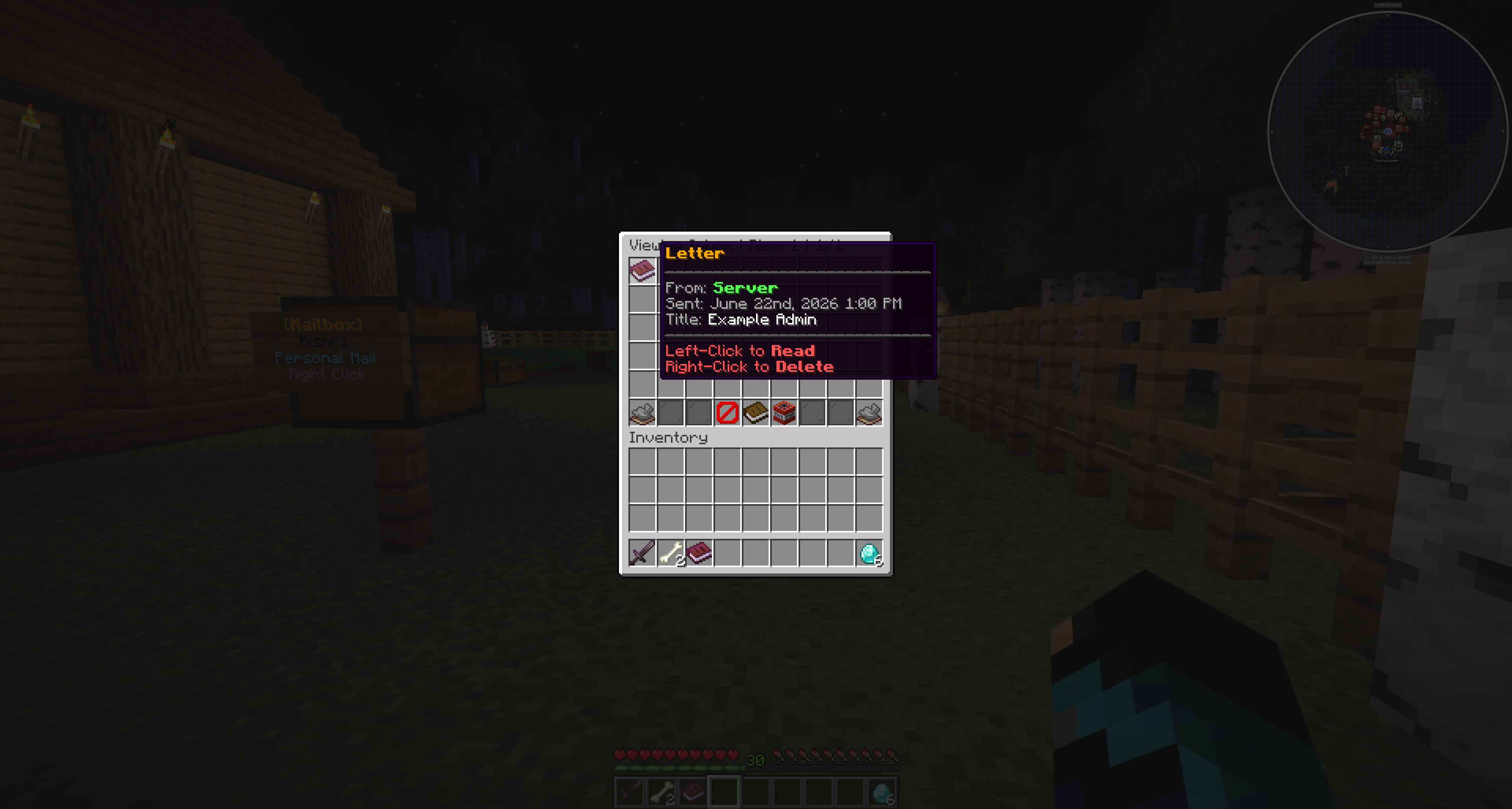
Received letters appear in the player's inbox. Opening a letter lets the player read the message and see who sent it.

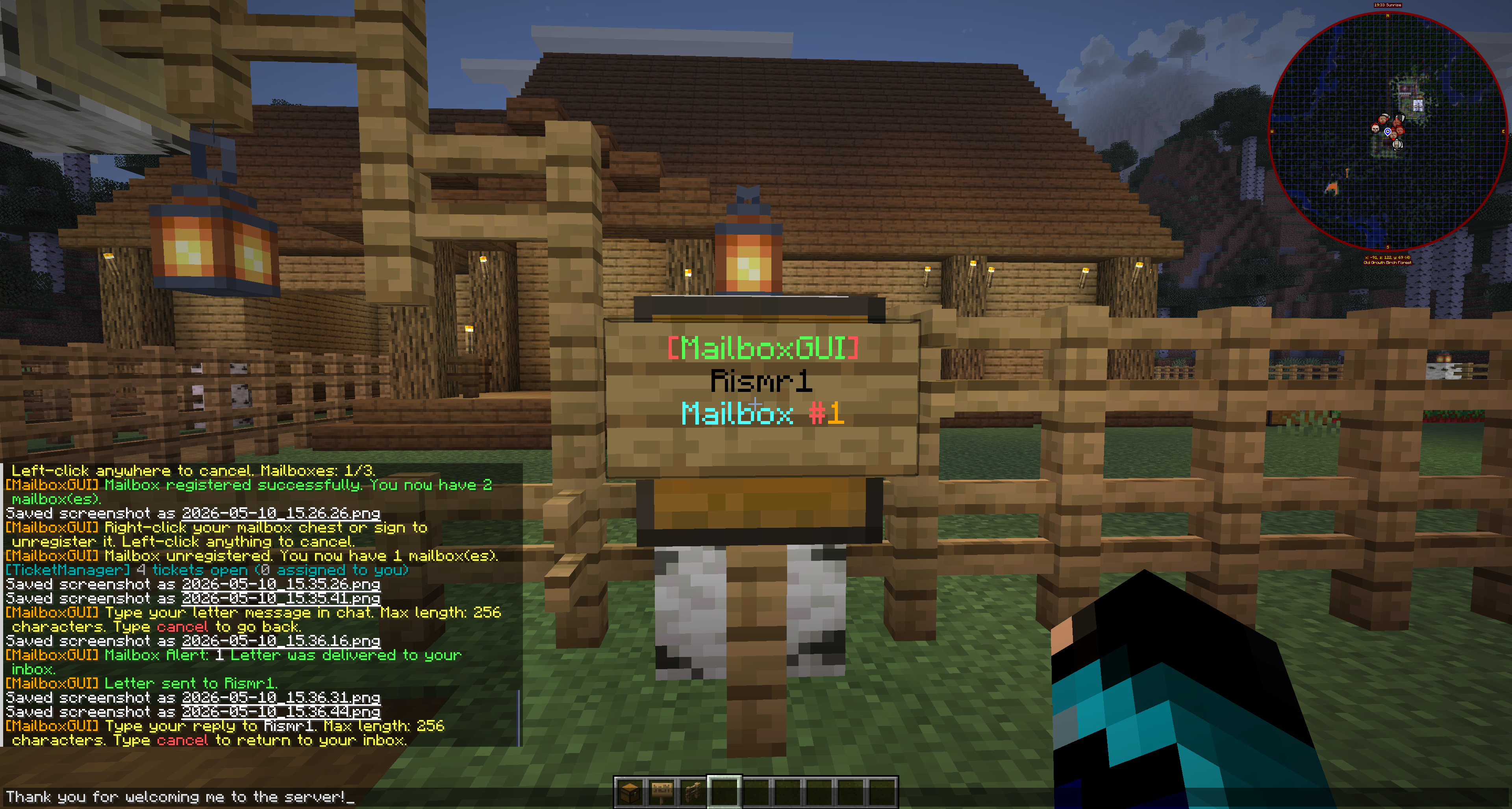
Letter lore and details may include sender information and sent time when available. The inbox is designed to keep mail organized after players take, delete, or handle mail.

Received MailboxGUI letter displayed inside the mailbox inbox
A received letter displayed inside the mailbox inbox.

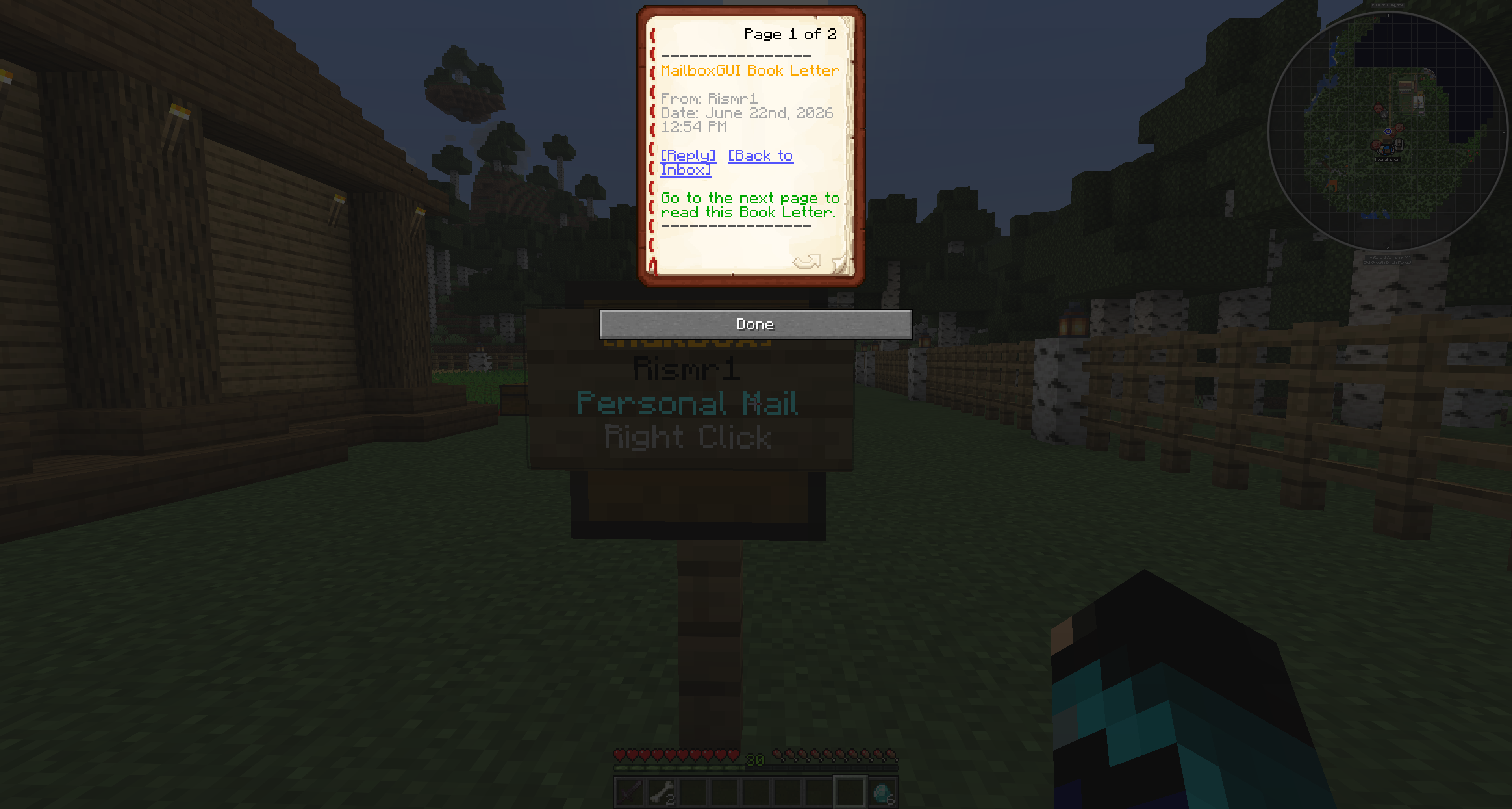
Letter Actions

Depending on server permissions and configuration, available letter actions may include:

  • Read or preview the letter.
  • Reply directly to the sender where reply support is available.
  • Take or keep the letter when the server allows players to claim a copy.
  • Delete or remove the letter when it is no longer needed.
MailboxGUI letter preview and action choices
Previewing a letter and choosing the next action.

Replies

Letter replies help continue a conversation from the received letter. Reply options are useful because players do not need to manually reselect the original sender.

If the sender is no longer available or the mail data is outdated, server behavior may depend on plugin configuration and stored player data.

MailboxGUI letter reply flow from a received letter
Replying directly from a received letter.

Admin and Server Notes

Admin and server letters may use configured server sender names. Staff can use MailboxGUI tools for server communication when enabled.

Test letter behavior after major config, language, or permission changes. Server owners should confirm players have the correct permissions before announcing letters publicly.

Troubleshooting Letter Issues

  • The player does not have permission to send letters.
  • The recipient has not joined before or is not known to the plugin, depending on server data.
  • Economy or post office settings may block sending if the server charges for mail actions.
  • Inventory or mailbox access may be blocked by region protection.
  • Server language or config changes may make button names look different from screenshots.
  • Restart the server after major plugin or config updates instead of relying only on reloads.

Packages

What Packages Are

Packages let players send item deliveries through MailboxGUI. A package can contain Minecraft items placed into the package compose slots, and servers can also allow package experience if that feature is enabled.

Packages are useful for gifts, shop deliveries, staff rewards, roleplay mail, event rewards, and organized player-to-player item delivery. Package availability depends on server permissions and configuration.

Payment-required package behavior is covered separately under COD Packages.

Starting a Package

  1. Open the mailbox or mail menu.
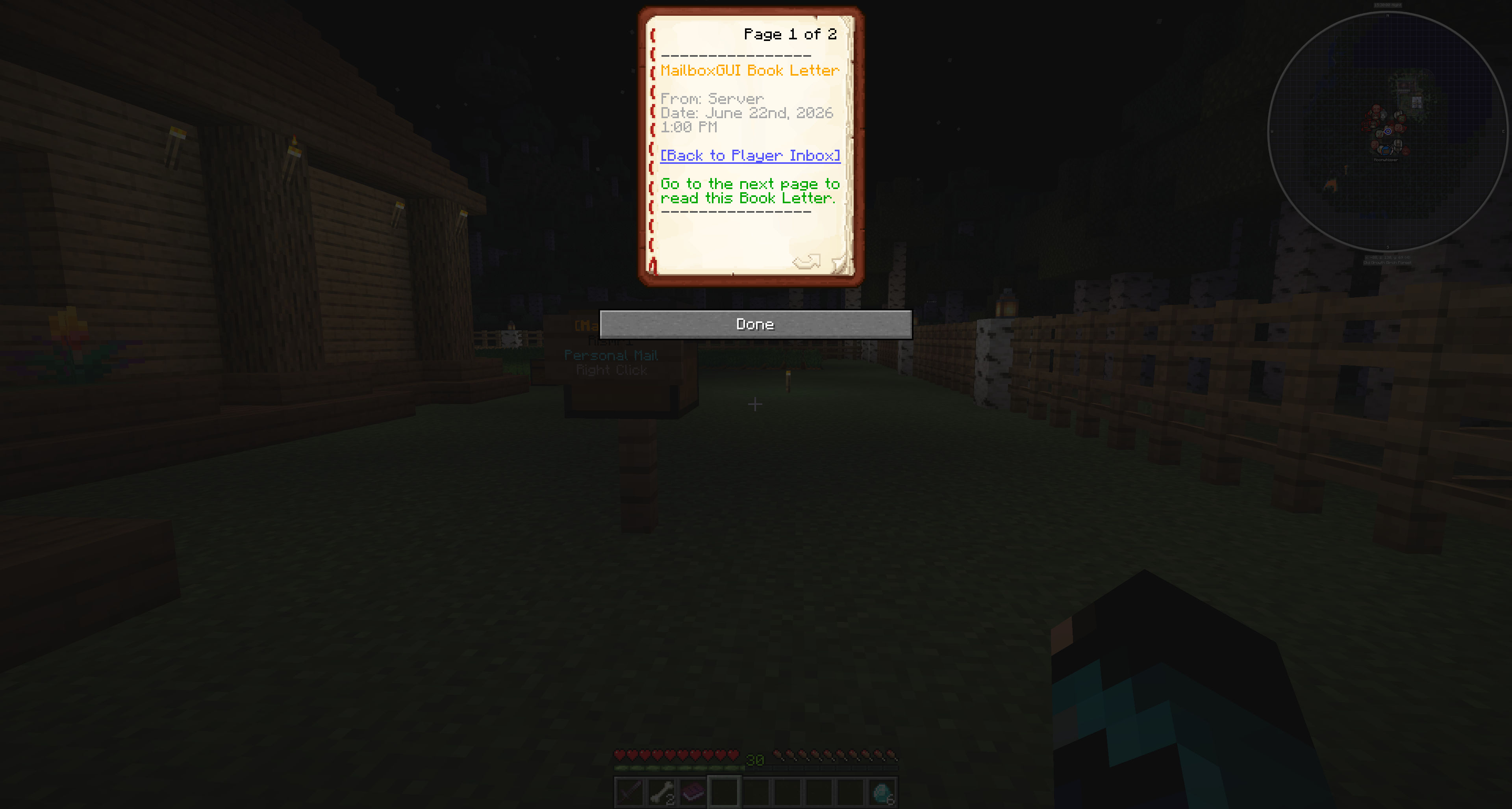
  2. Choose Send Mail.
  3. Click Send Package.
  4. Select the mailbox owner or recipient in the Select Mailbox GUI.

Recipient selection may include online, all, or offline filtering and typed recipient entry depending on the current plugin setup and permissions. Typed names can auto-import players from main-world playerdata when they have joined before.

MailboxGUI Send Mail menu with the Send Package option
The Send Mail menu with the Send Package option.
MailboxGUI Select Mailbox GUI for choosing a package recipient
Selecting the mailbox owner who should receive the package.

Create Package GUI

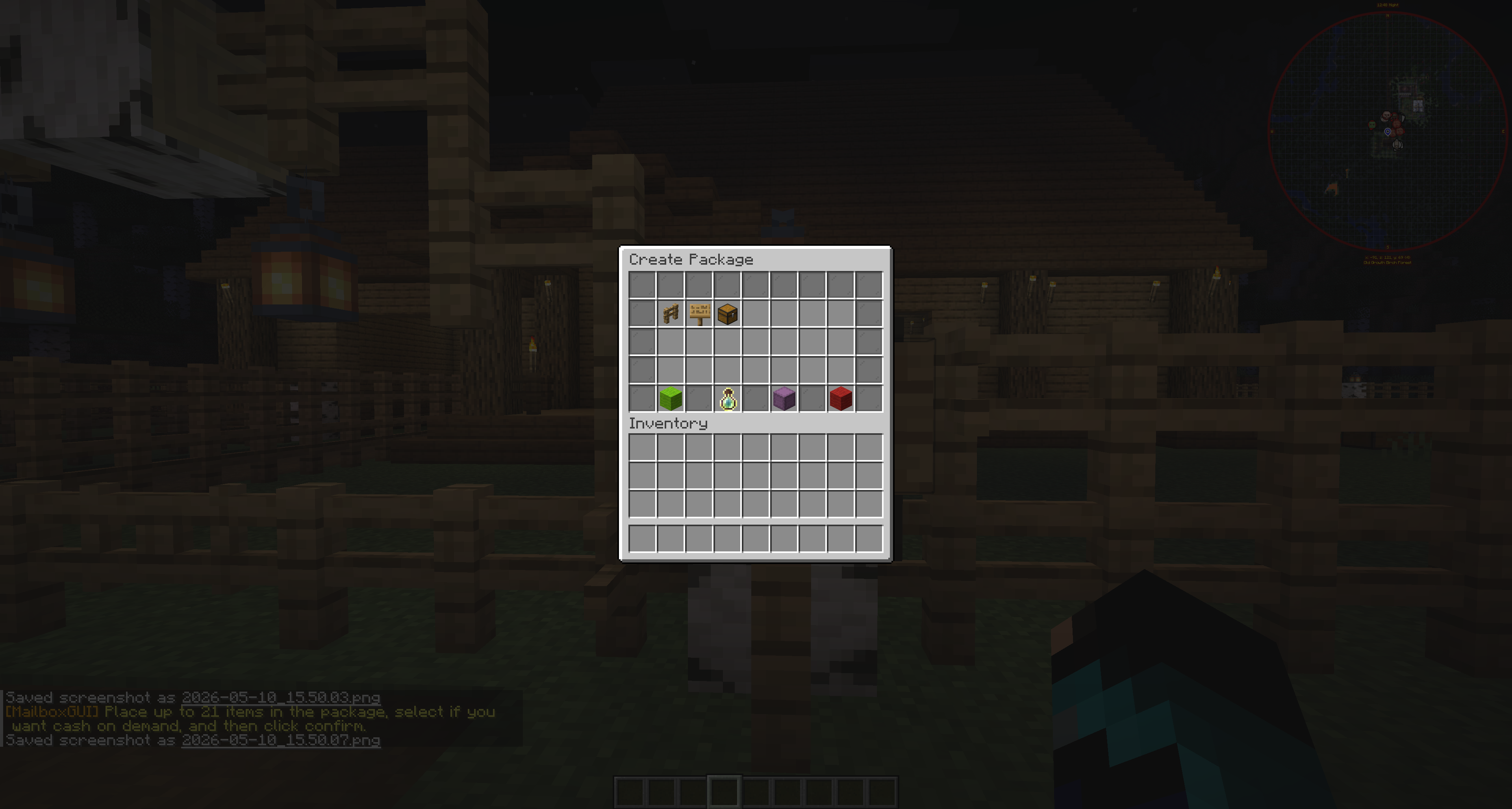
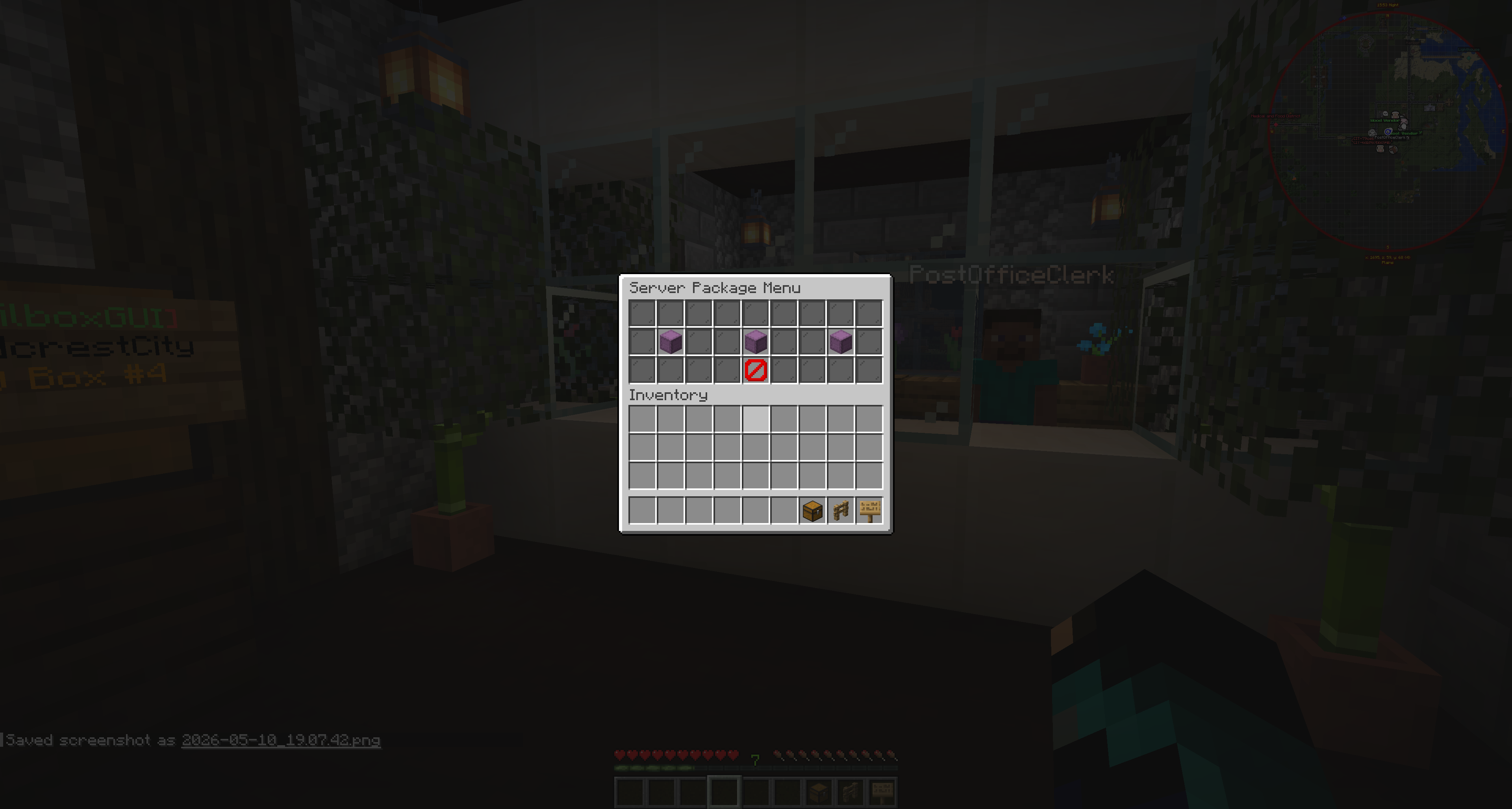
After choosing a recipient, the Create Package GUI opens. The main content area is where package items are placed, and the bottom row contains package controls.

  • Confirm Package: sends the package.
  • Add Experience: opens the experience amount prompt when package experience is enabled.
  • Cash-On-Demand: opens COD setup when economy and COD support are available.
  • Cancel: returns normal items and exits the compose flow.
COD setup appears in the package compose GUI, but detailed COD behavior belongs in the COD Packages section.
MailboxGUI Create Package GUI before items are added
The Create Package GUI before items are added.

Adding Items

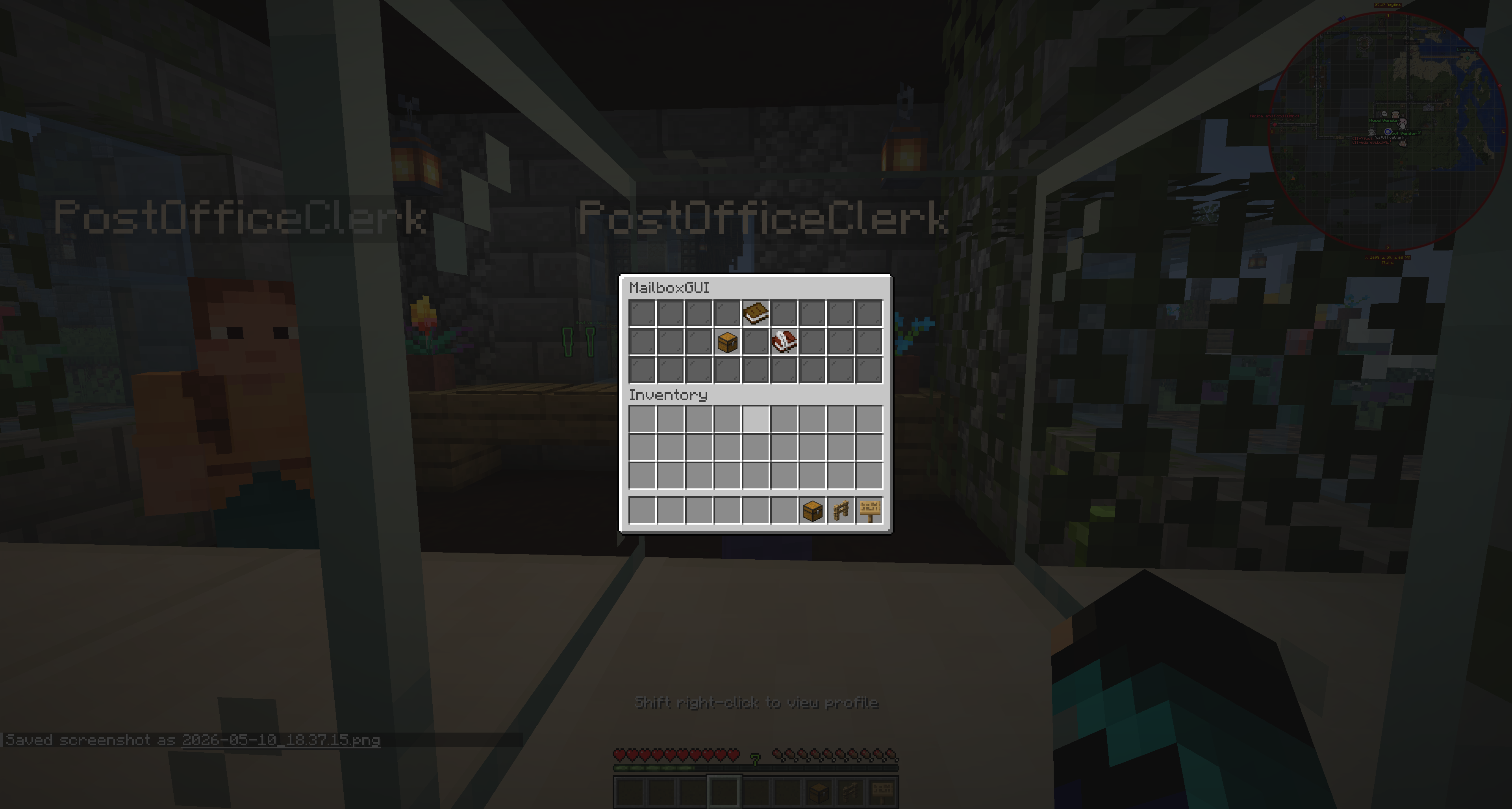
Place regular items directly into the package content slots. The number of slots depends on package.size-in-rows: 1 row gives 7 slots, 2 rows gives 14 slots, and 3 rows gives 21 slots.

The current default config uses 3 rows, giving 21 content slots. Empty slots are allowed, but at least one normal item or package experience must be included before sending.

MailboxGUI package compose GUI with items in package content slots
Items placed directly into the package content slots.

Package Experience

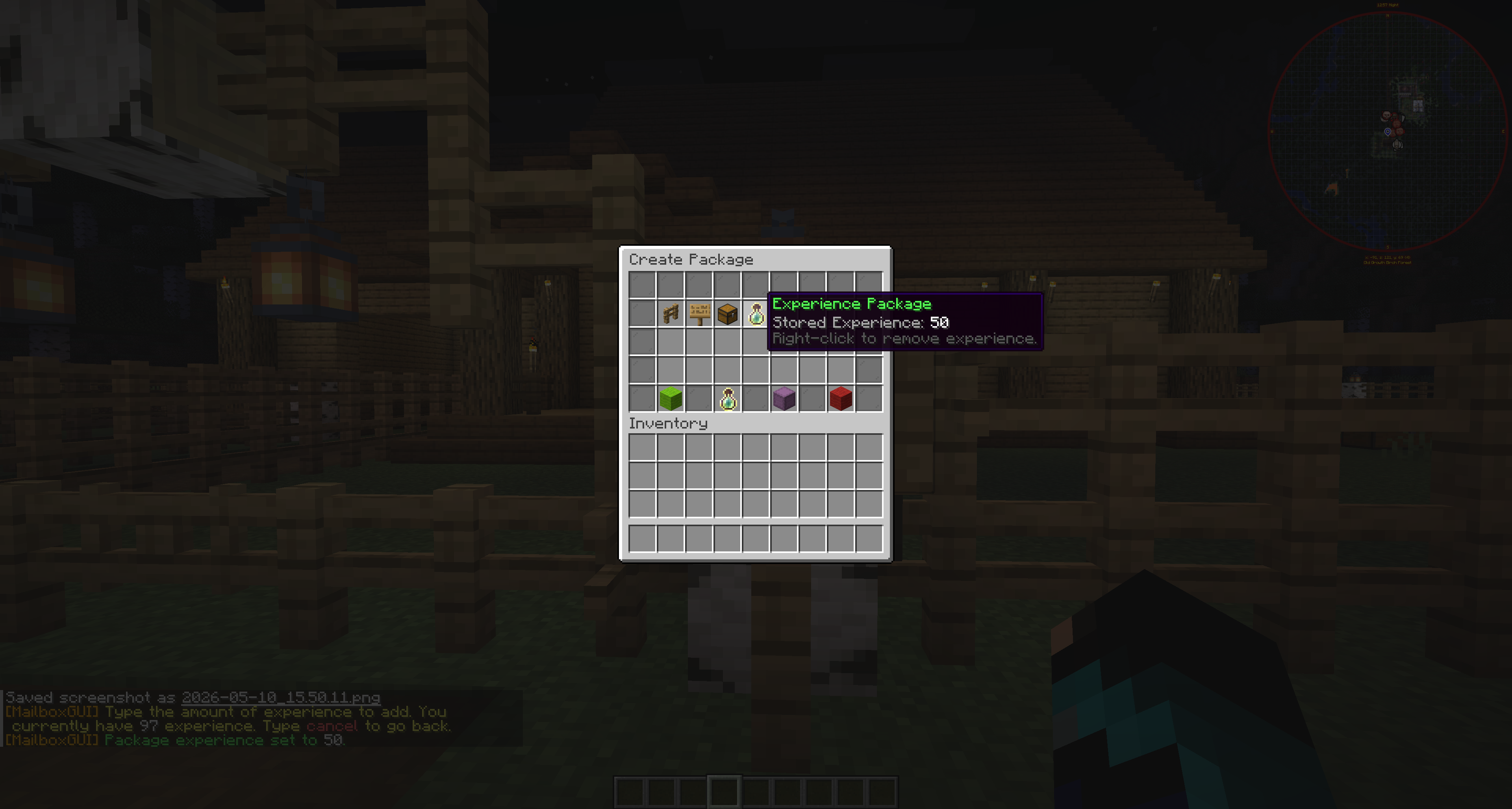
If enabled, players can add experience to a package. Clicking Add Experience closes the GUI and asks the player to type an experience amount in chat.

The player must have enough experience when sender withdrawal is enabled. The experience appears in the package as a special experience item.

  • In the compose GUI, right-clicking the experience item removes it from the package.
  • In a received package, the default experience item lore says &e&lAny click to claim.
MailboxGUI package compose GUI with package experience added
Package experience added as a special experience item.

Package Safety Rules

MailboxGUI blocks packages inside packages to prevent nesting. Servers can also block non-empty shulker boxes inside packages.

With the default configuration, loaded shulker boxes are blocked. If the sender cancels the package, normal items are returned to the sender inventory, and leftovers may drop naturally if inventory space is unavailable.

Server owners should test package behavior with their protection plugins and inventory rules.

Sending the Package

Confirm Package creates the package mail item and delivers it to the recipient. Delivery is immediate by default.

Servers can configure package.delivery-delay-seconds to delay package delivery. If a delivery delay is configured, the sender receives a scheduled delivery message.

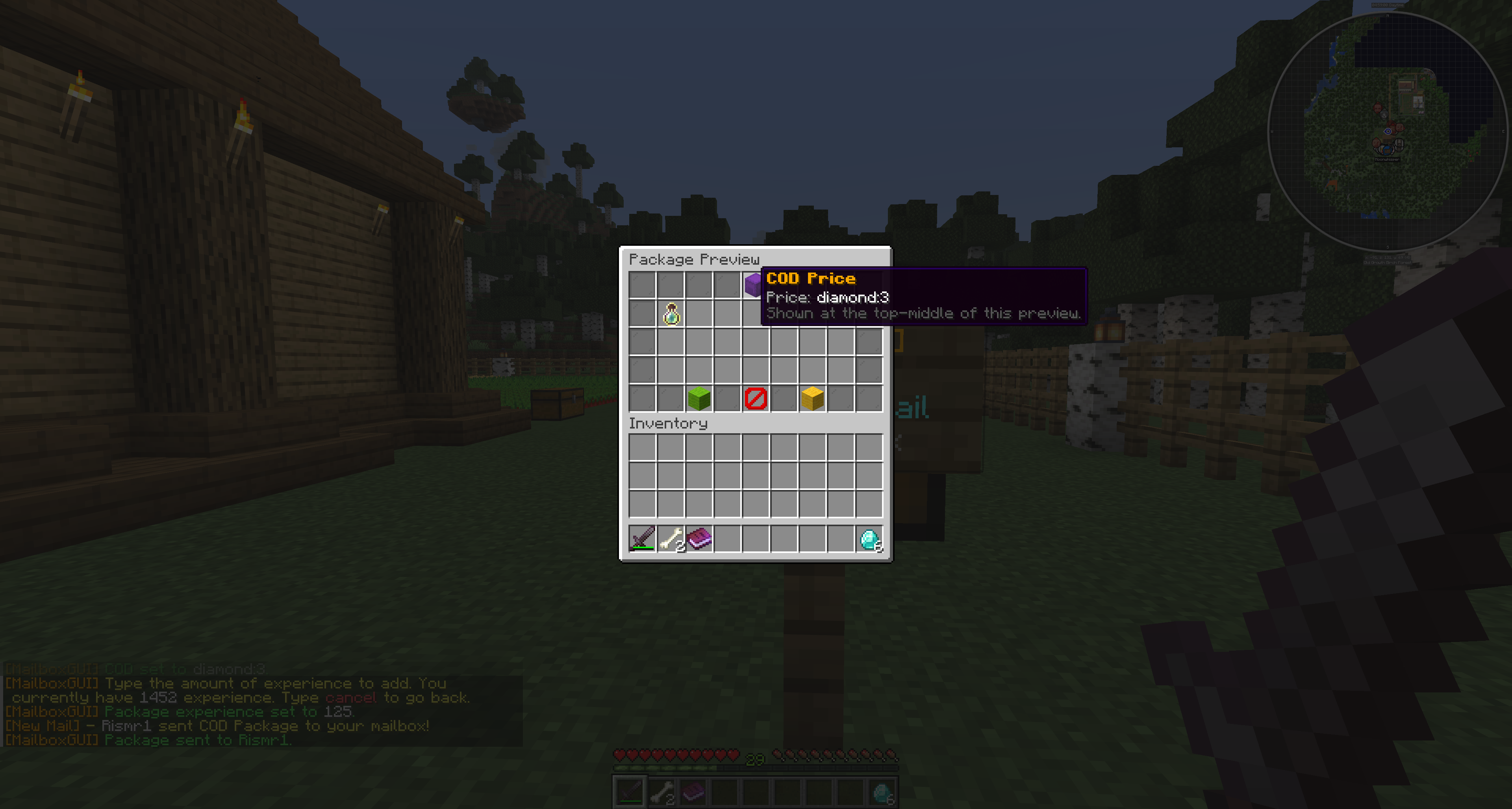
Admin command and API package sends can also set delivery delay. Command package item tokens support material:amount, xp:amount, template:<id>:amount, and t:<id>:amount. Item templates are for admin command package item specs, not normal player package GUI composition.

Receiving Packages

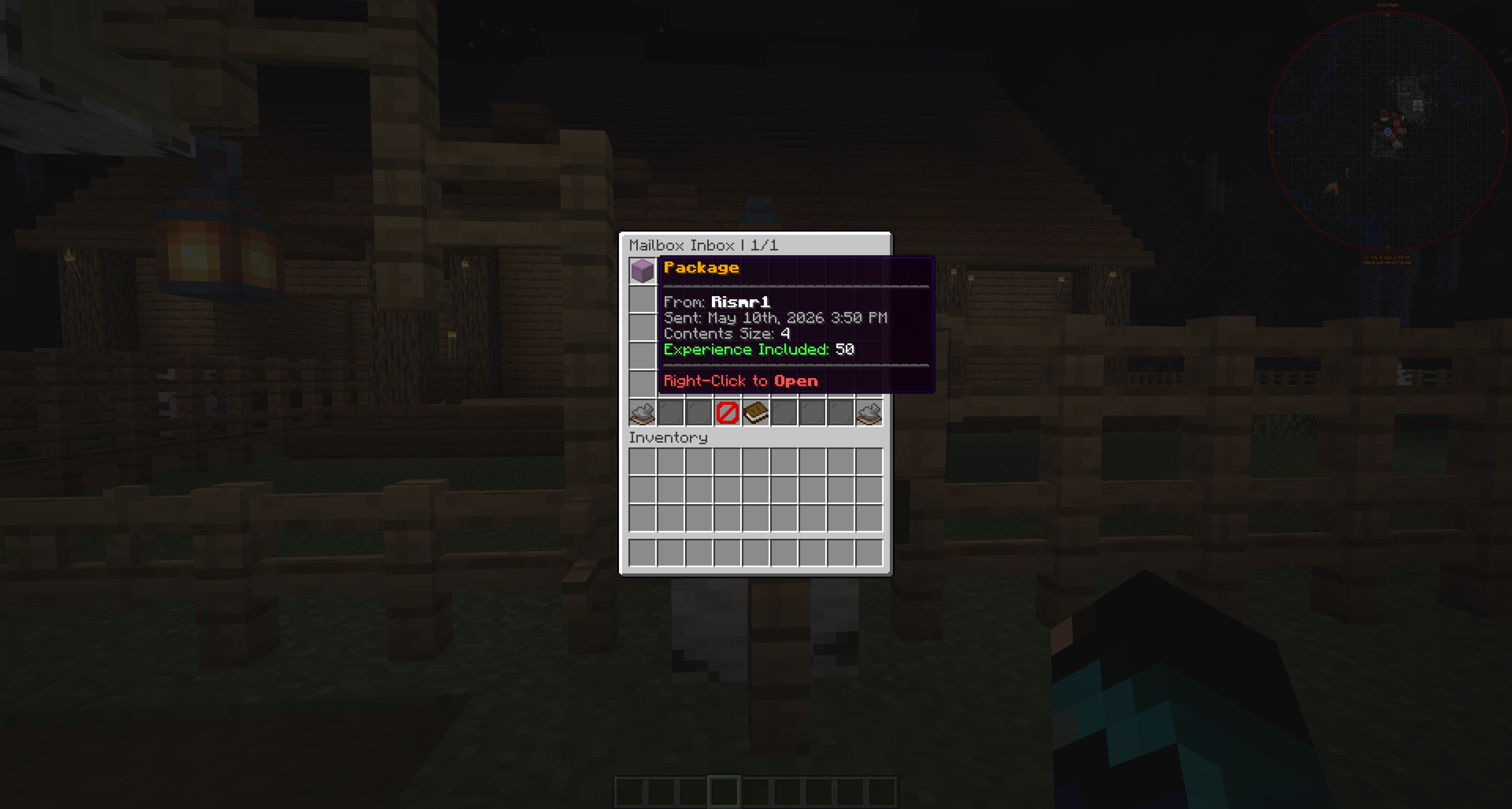
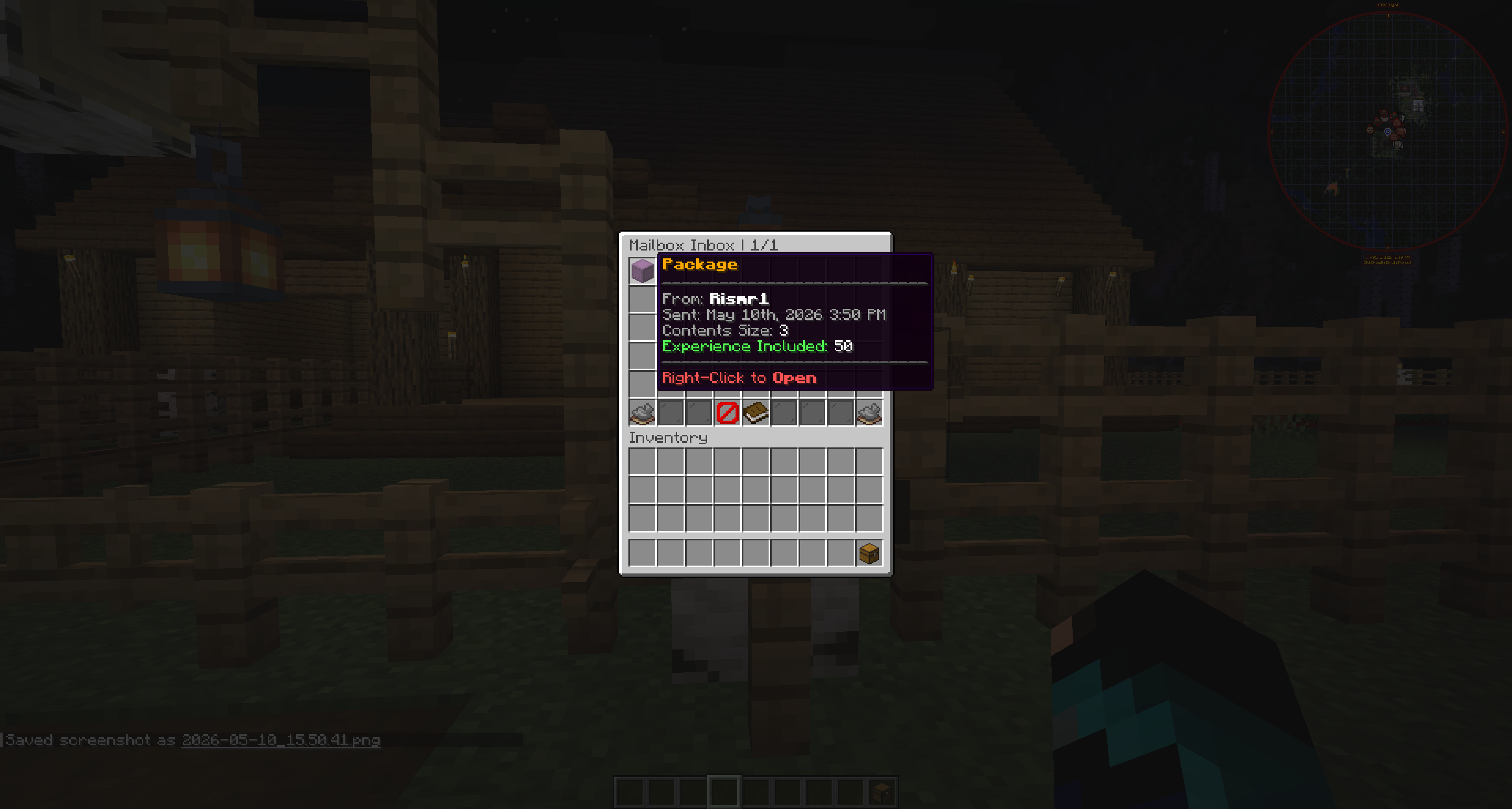
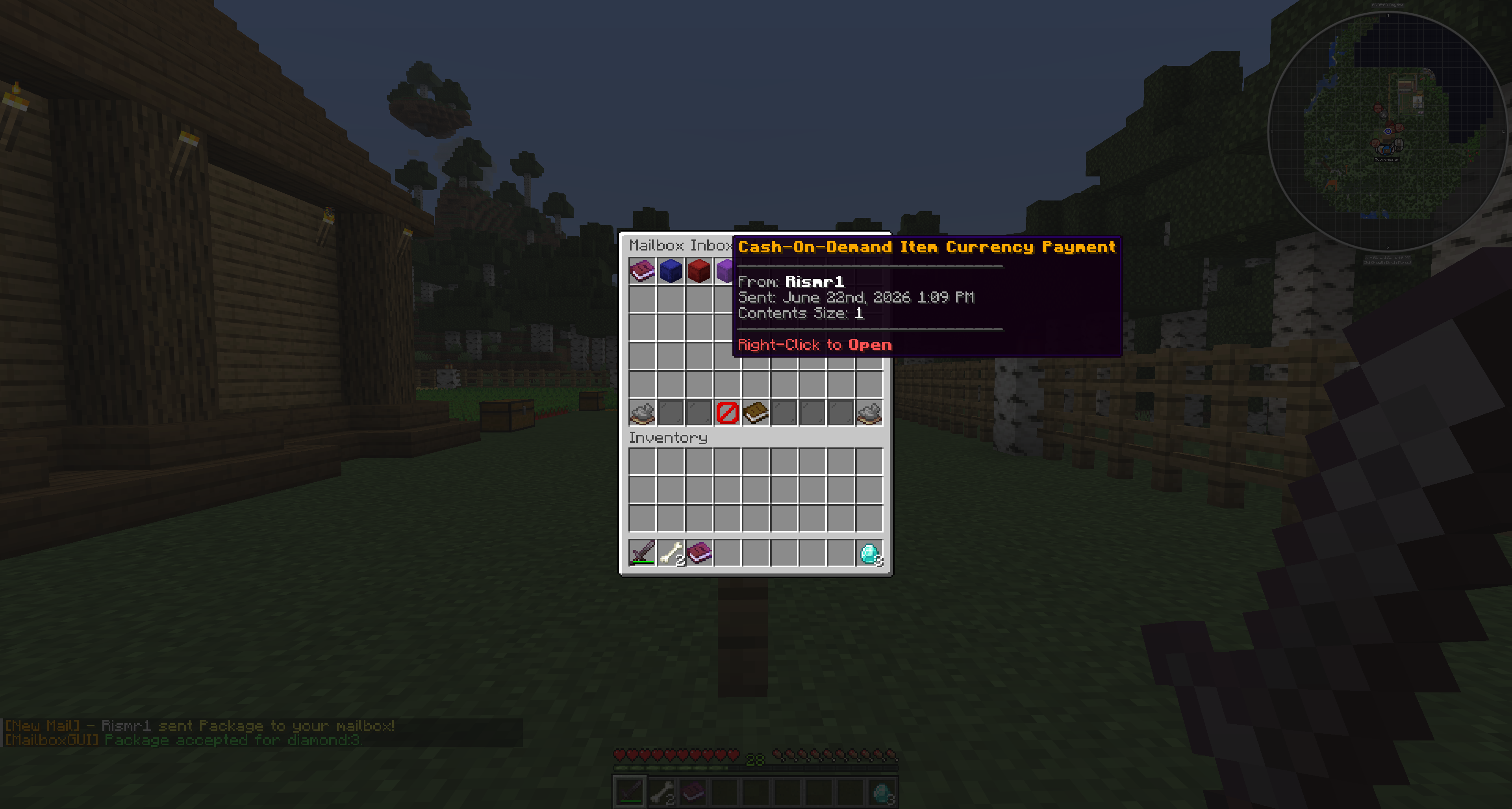
Regular packages appear in the recipient's inbox. Normal package inbox entries show package information such as sender, sent time, contents size, and experience included when applicable.

Normal packages are opened from the inbox into the Package Contents GUI. COD package preview and payment behavior is different and is covered in the COD Packages section.

Regular MailboxGUI package displayed in the recipient inbox
A regular package displayed in the recipient's inbox.

Package Contents GUI

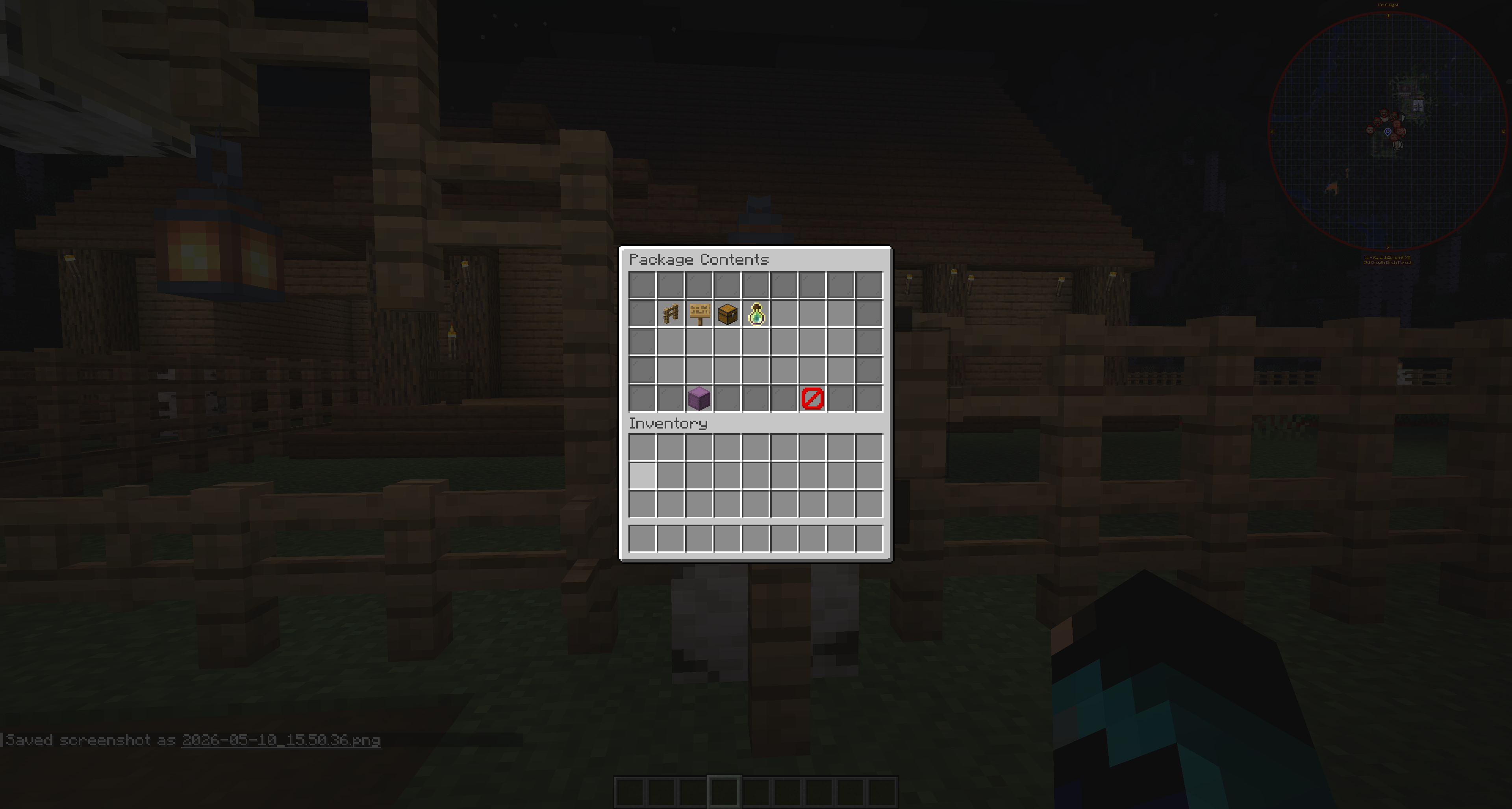
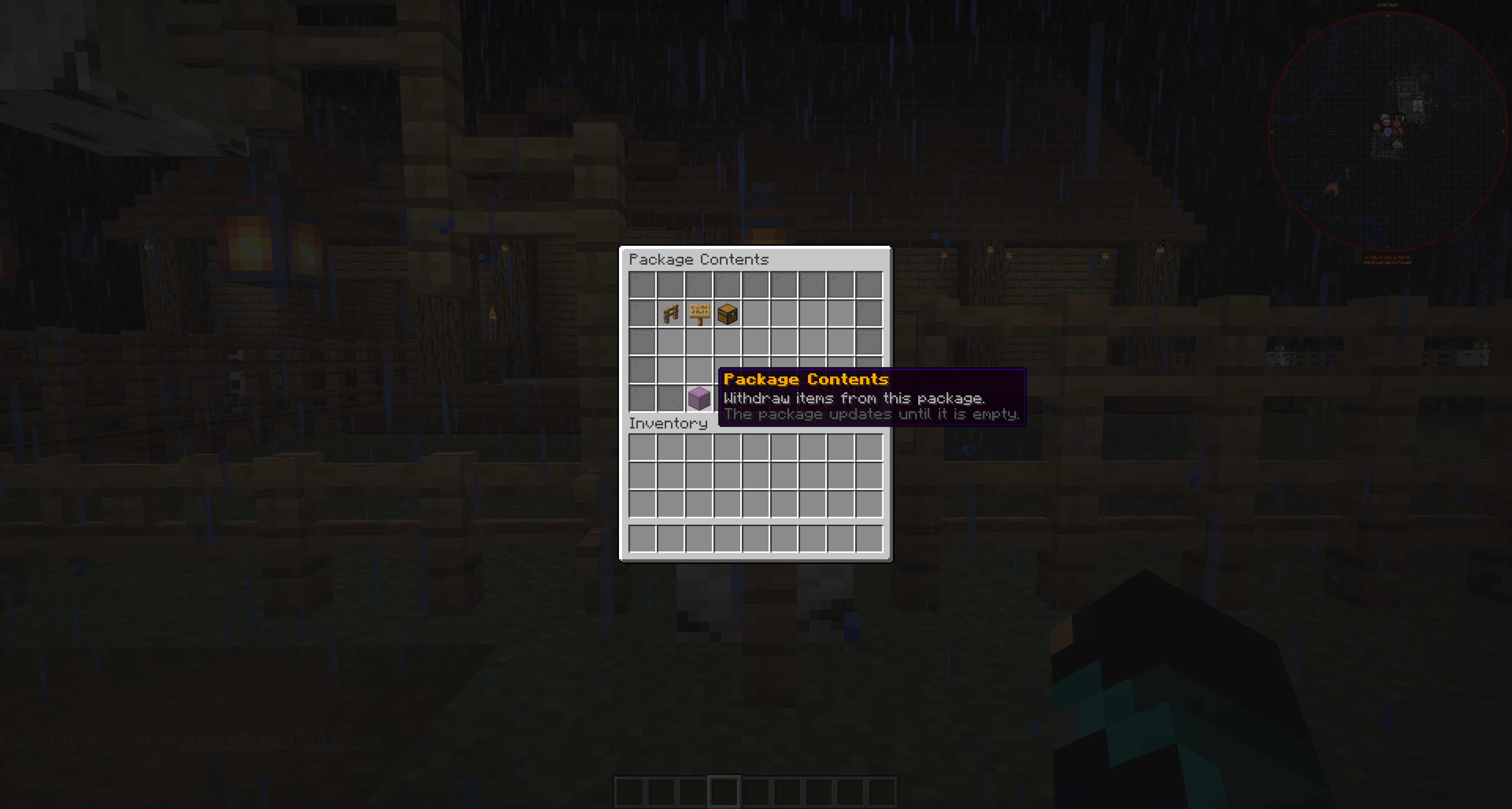
The Package Contents GUI displays the package contents in the content slots. The recipient withdraws the items manually from the GUI.

There is not a separate "claim package" button for regular packages. The close button saves any remaining contents and returns the player to the inbox.

If the package is emptied, the package is removed from the inbox. If only some items are removed, MailboxGUI rebuilds and saves the package with the remaining contents.

MailboxGUI Package Contents GUI where the recipient withdraws items
The Package Contents GUI where the recipient withdraws items.
MailboxGUI package saved with remaining contents after partial withdrawal
A partially emptied package saved with remaining contents.

Troubleshooting Package Issues

  • The player does not have permission to use package features.
  • Packages are disabled in config.
  • The recipient does not have a registered mailbox or is not known to MailboxGUI.
  • The package is empty.
  • A MailboxGUI package was placed inside another package.
  • A non-empty shulker box was placed in the package while loaded shulker boxes are blocked.
  • The player does not have enough experience for package experience.
  • Economy or COD support is unavailable when trying to use COD.
  • Inventory space is limited when cancelling or withdrawing items.
  • Region protection blocks mailbox or GUI interactions.
  • Server language customization may make button names look different from screenshots.

COD Packages

What COD Packages Are

COD packages are Cash-On-Demand packages. They are package deliveries that require the recipient to pay a configured price before the package can be accepted and opened.

They are useful for player shops, trade deliveries, auction-style delivery, marketplace purchases, roleplay merchants, and staff-controlled delivery systems.

COD packages are built on the normal package system, but unpaid COD packages open into a preview/payment screen instead of the normal Package Contents GUI.

Requirements

  • Package sending must be enabled.
  • COD must be enabled in config with package.cash-on-demand.enabled.
  • Vault must be installed and hooked.
  • A compatible economy plugin must be available.
  • The sender and recipient must have the needed MailboxGUI access based on the server's permissions.
  • The recipient must have enough money to accept the COD package.

Setting a COD Price

  1. Start a package normally.
  2. Choose the recipient.
  3. Add package contents.
  4. Click the Cash-On-Demand button in the Create Package GUI.
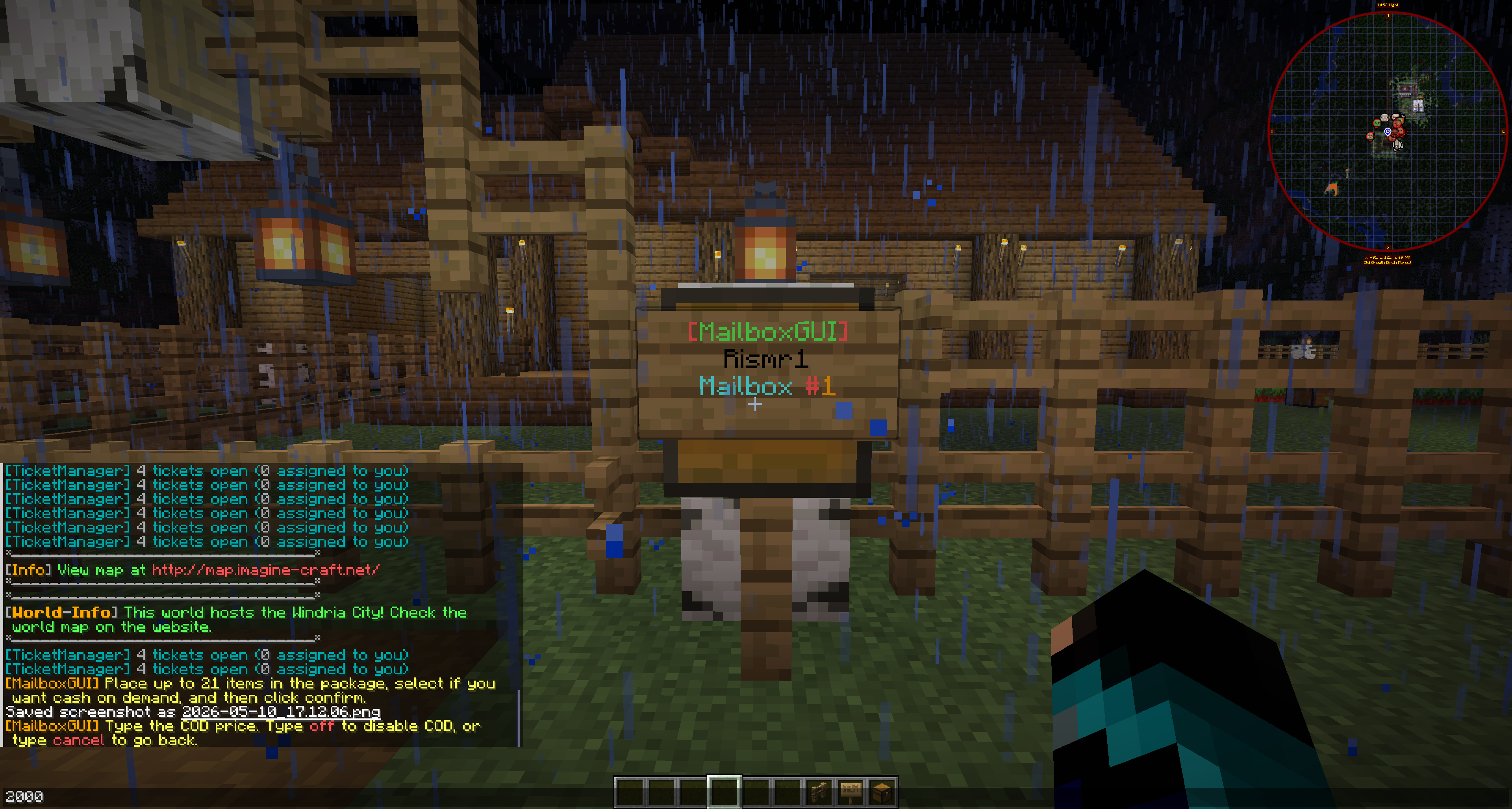
  5. Type the COD price in chat.
  6. Type off, none, or 0 to remove COD.
  7. Type cancel to return without changing the COD value.
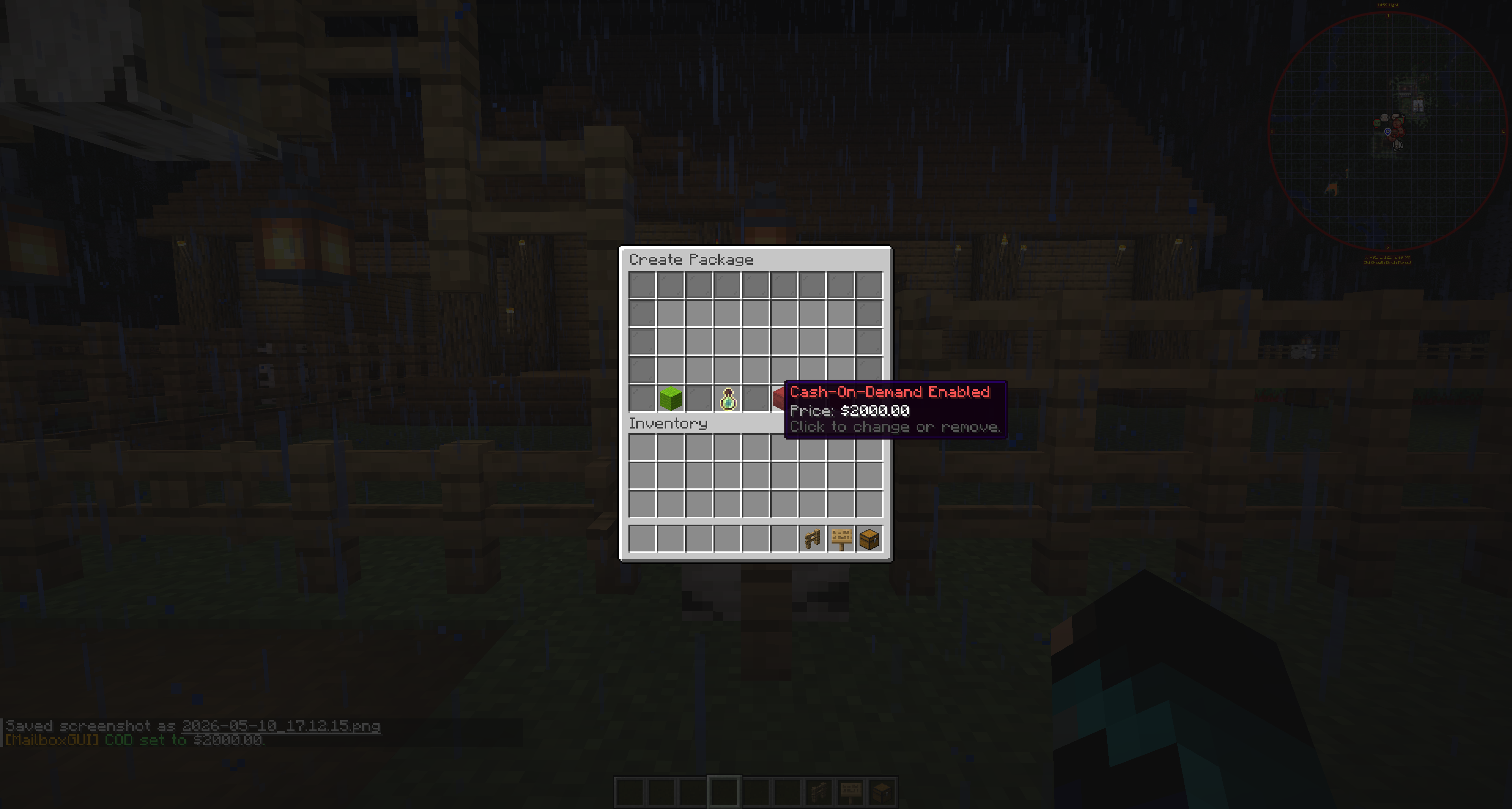
  8. After setting a valid amount, the Create Package GUI reopens and shows the enabled COD price.
  9. Click Confirm Package to send.

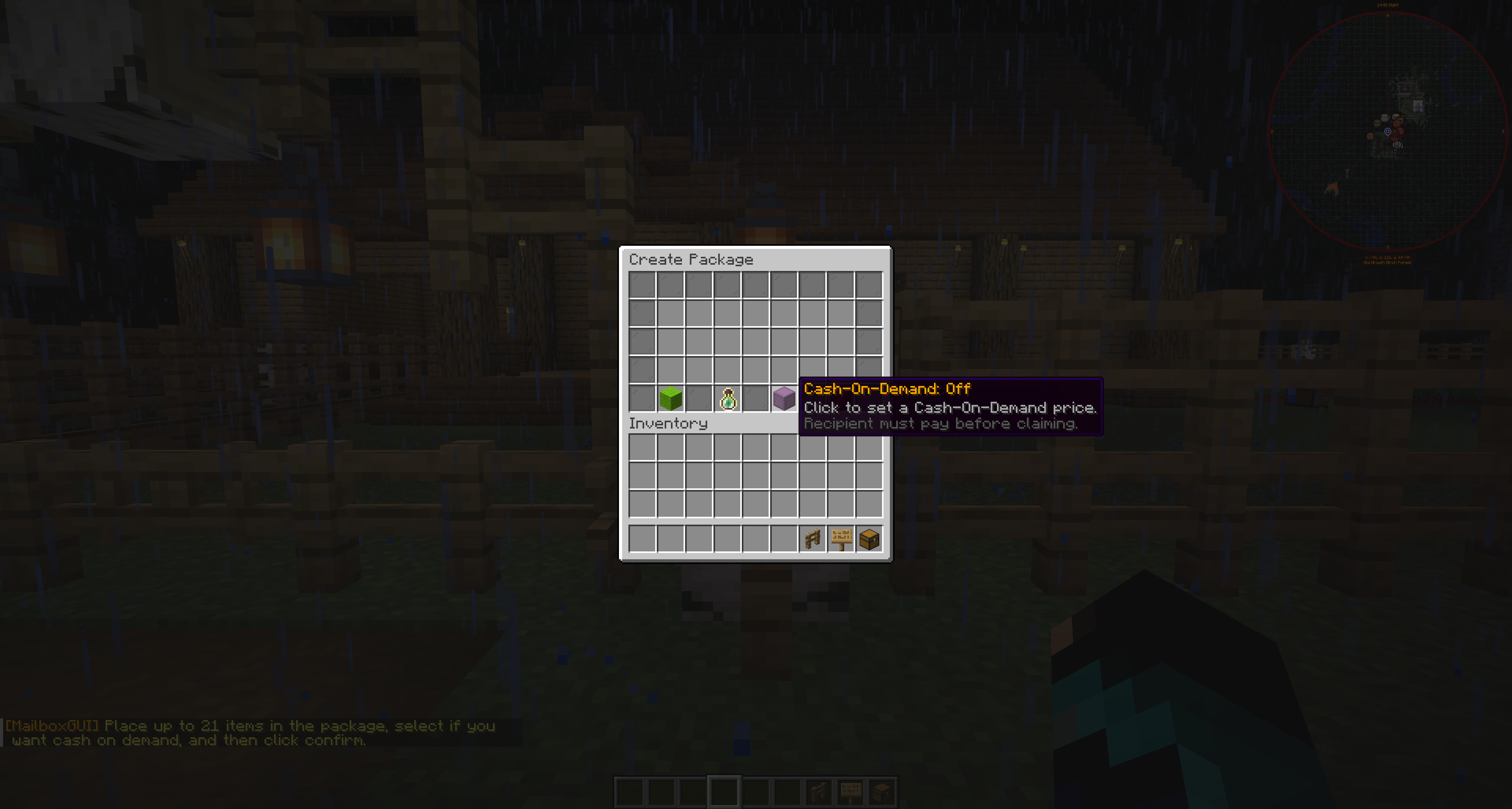
In the Create Package GUI, the COD control appears on the bottom row. If COD is unavailable, the GUI shows COD Disabled. If COD is available but off, the button shows Cash-On-Demand: Off.

Create Package GUI showing Cash-On-Demand available but off
Cash-On-Demand available from the Create Package GUI.
Chat prompt asking the sender to type a COD package price
Typing the COD price in chat after selecting the COD option.
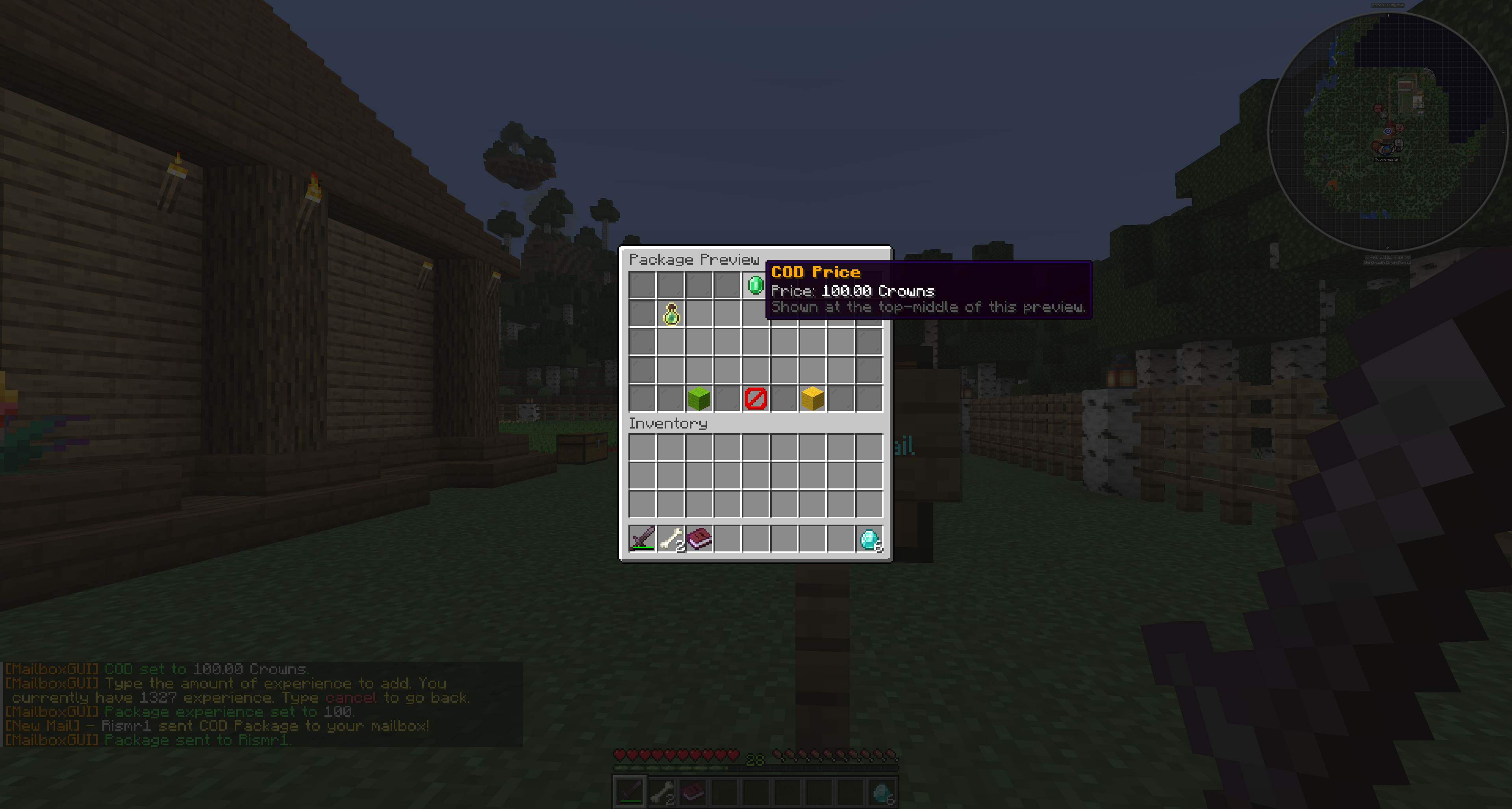
Create Package GUI showing Cash-On-Demand enabled with a visible price
A package with Cash-On-Demand enabled and a visible price.

Recipient Preview

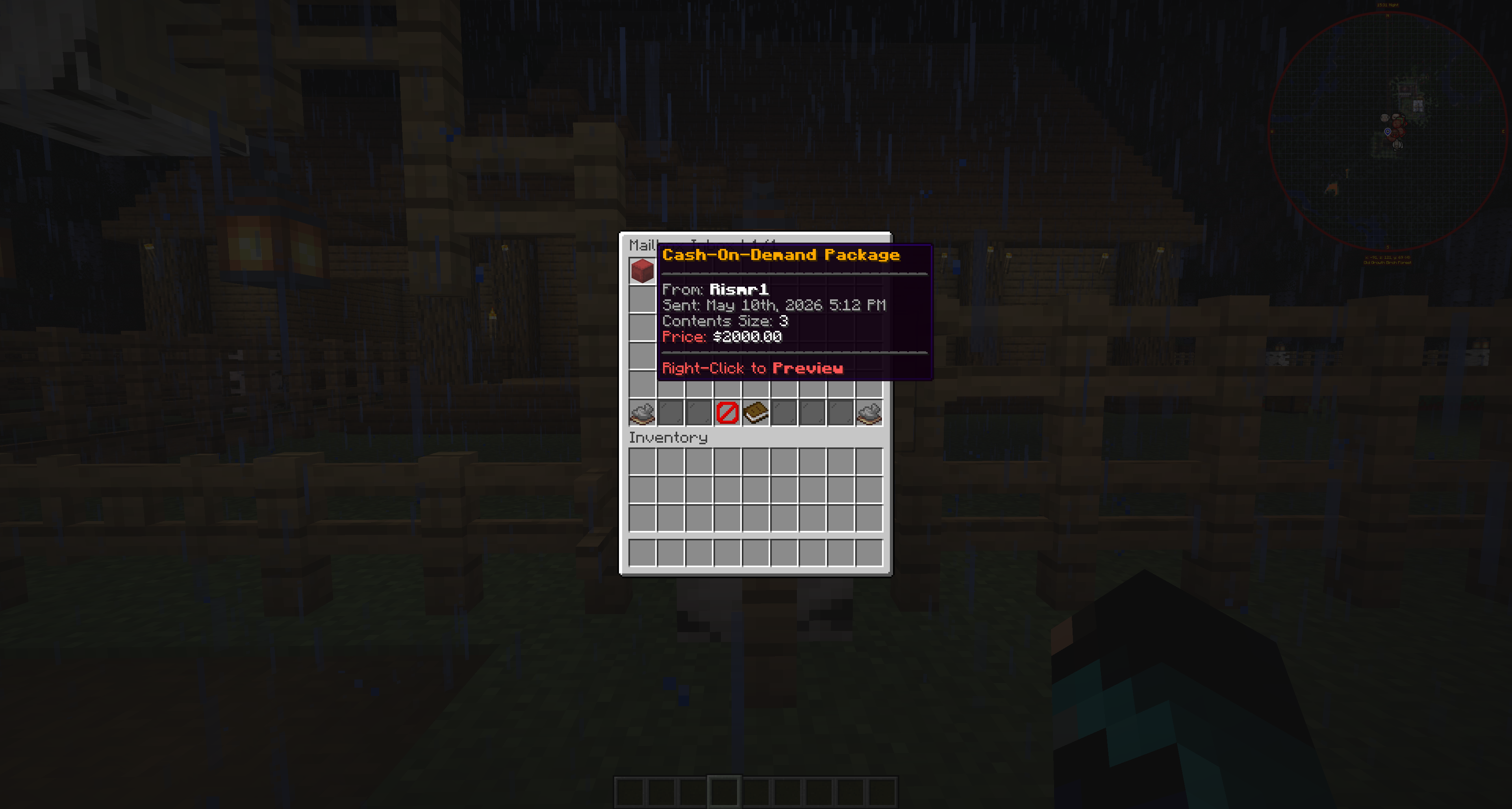
Unpaid COD packages appear in the recipient inbox as Cash-On-Demand Package. Opening the package shows Package Preview so the recipient can see what is inside before paying.

The preview has Accept, Cancel, and Decline/Return controls. Cancel returns to the inbox without making a payment or returning the package.

Package experience cannot be claimed from the unpaid preview; it must be accepted first.
Unpaid Cash-On-Demand package displayed in the recipient inbox
An unpaid Cash-On-Demand package in the recipient inbox.
COD Package Preview GUI with Accept, Cancel, and Decline controls
The Package Preview GUI before accepting or declining payment.

Accepting a COD Package

Accept checks the recipient's economy balance. If the recipient cannot afford the COD price, the package remains unpaid. If the recipient can afford it, the COD price is withdrawn.

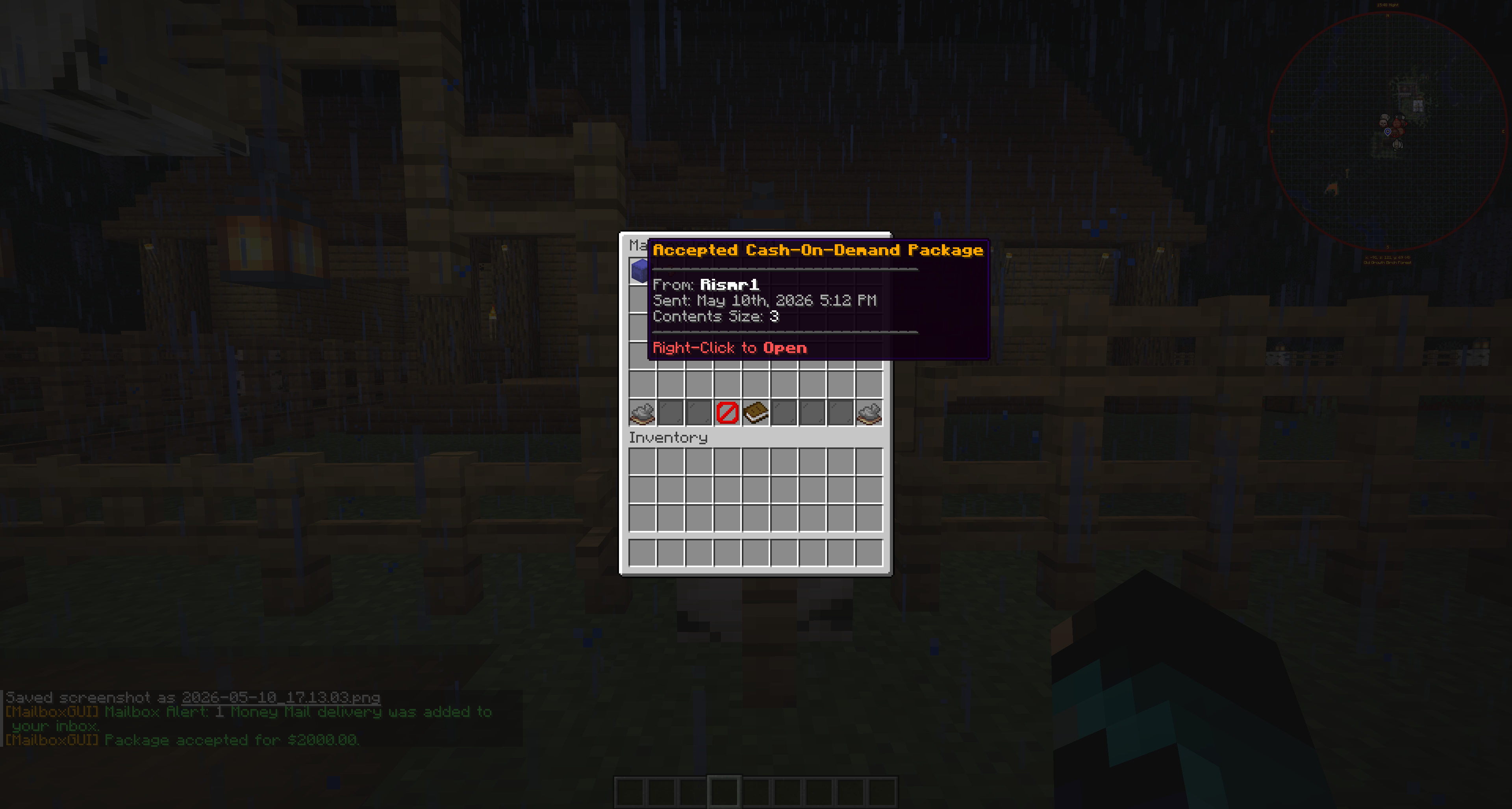
The unpaid COD package is replaced with an accepted COD package. The accepted COD package can then be opened like a package into the Package Contents GUI, where the recipient manually withdraws the items.

If the package contains experience, the accepted package allows that experience item to be redeemed normally.

Accepted COD package displayed in the recipient inbox after payment
The accepted COD package after payment is completed.
Accepted COD package opened in the Package Contents GUI
Opening the accepted COD package in the Package Contents GUI.

Sender Payment

For player-origin COD packages, payment handling depends on package.cash-on-demand.send-reward-in-mail. If true, the sender receives the payment as MailboxGUI money mail. If false, the money is deposited directly into the sender's economy account.

Admin-origin COD packages are different: they act as a sink cost and do not send a reward or payment back to the admin/server sender unless a real return recipient is explicitly configured through command/API return behavior.
MailboxGUI money mail containing COD package payment for the sender
The sender receiving the COD payment as money mail.

Declining and Returned COD Packages

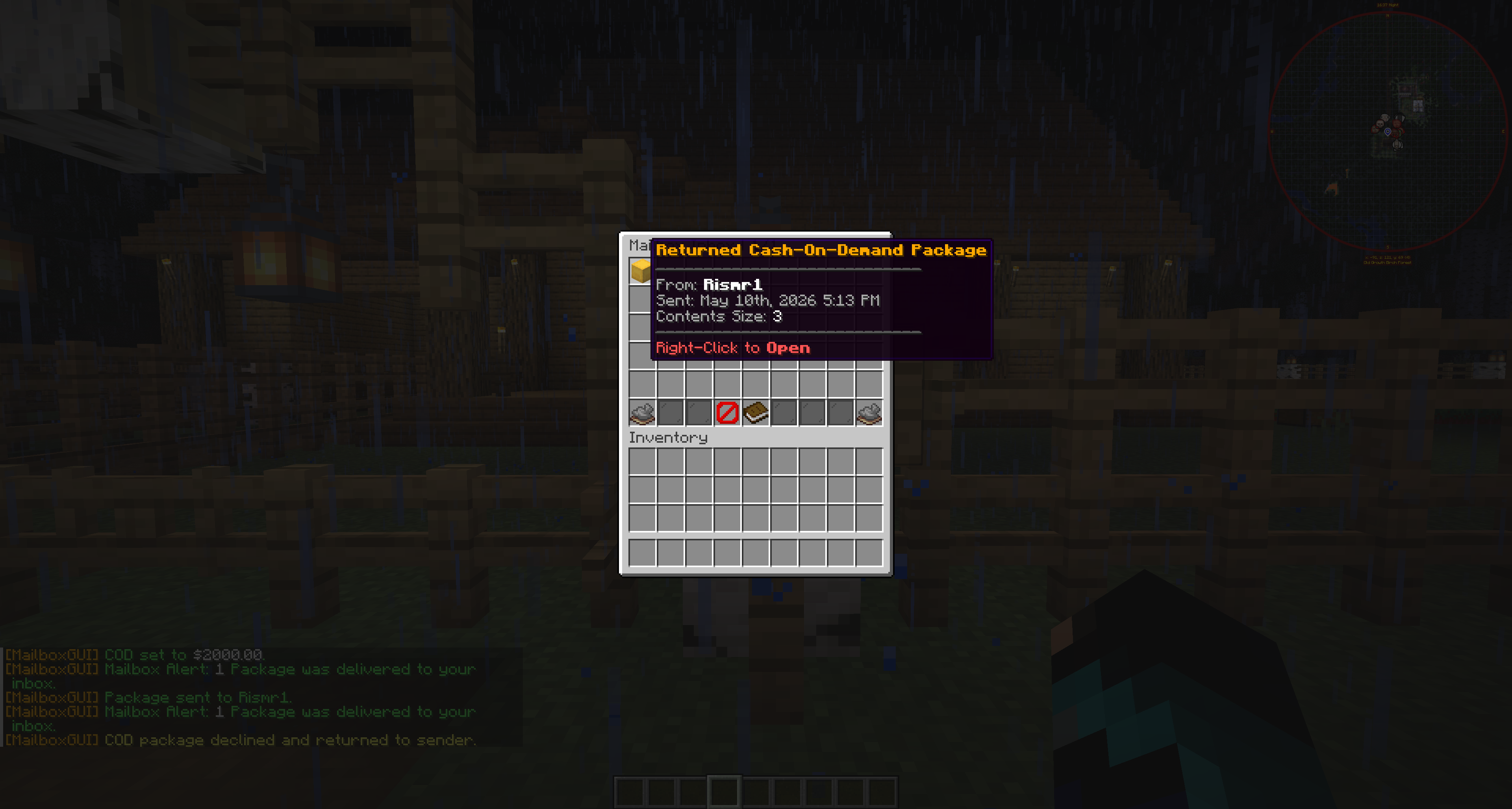
Decline/Return sends the package contents back to the original sender as a returned COD package. The recipient does not pay when declining.

The original sender receives a returned COD package in their inbox. Returned COD packages can be opened without payment.

If the COD package was admin-origin, declining removes the package instead of returning it to an admin/server sender unless the command/API send supplied a real return sender.

For /mba scod, r:<returnPlayer> or return:<returnPlayer> opts into returning COD payment and declined package contents to that player. The API equivalent is setting senderUuid with returnCodPaymentToSender(true).

Declined COD package returned to the original sender
A declined COD package returned to the original sender.

Package Experience in COD Packages

COD packages may contain package experience if package experience is enabled. In the unpaid preview, experience shows special preview lore telling the player to accept the COD package before claiming XP.

After accepting, the accepted COD package opens like a package and the experience item can be redeemed with right-click or Shift-left-click.

Troubleshooting COD Packages

  • COD button shows disabled because Vault or economy support is unavailable.
  • COD is disabled in config.
  • Recipient does not have enough money.
  • Sender typed an invalid COD amount.
  • Sender typed cancel, off, none, or 0 and expected a price to stay set.
  • The package has no valid contents.
  • Recipient previews the package but does not click Accept.
  • Admin-origin COD payments do not pay the admin because admin COD is a sink cost.
  • Server language customization may make button names look different from screenshots.

Money Mail

What Money Mail Is

Money Mail lets players send economy currency through the MailboxGUI inbox system. Instead of handing money directly through a command or trade, the sender chooses a mailbox recipient, enters an amount, and the recipient receives a money delivery item in their inbox.

Money Mail is useful for player payments, shop refunds, gifts, staff rewards, roleplay banking, town systems, and server-run delivery workflows.

Requirements

  • money.enabled must be true.
  • Vault must be installed.
  • A compatible economy plugin must be installed and hooked through Vault.
  • The sender must have enough money to send the chosen amount.
  • The recipient must be a valid MailboxGUI delivery target.
  • The server's permissions and mailbox setup must allow the players to access the mail system.
If Vault or the economy plugin is unavailable, Money Mail is unavailable even when the feature is enabled in configuration.

Sending Money

  1. Open the mailbox or mail interface.
  2. Open Send Mail.
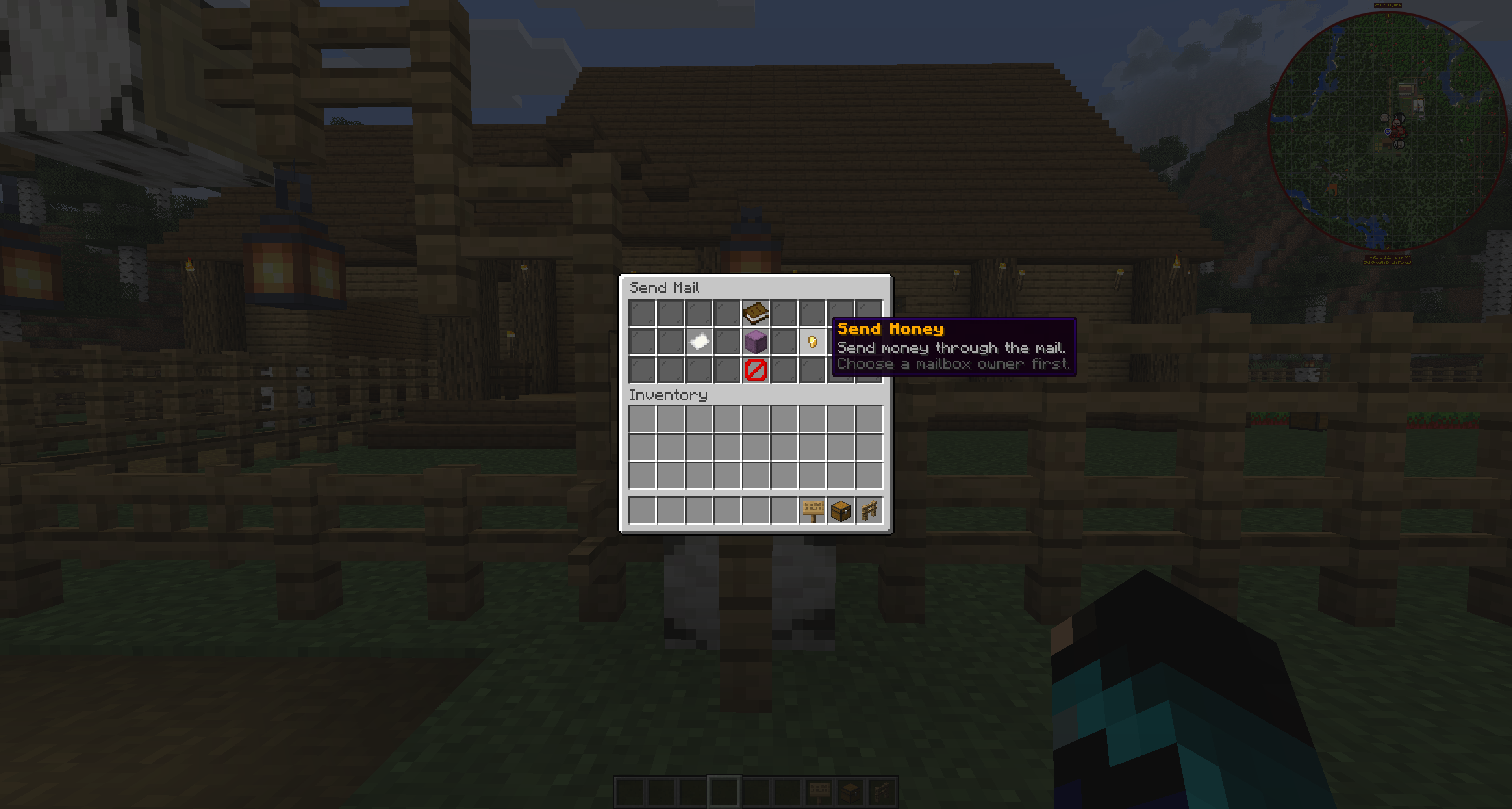
  3. Click Send Money.
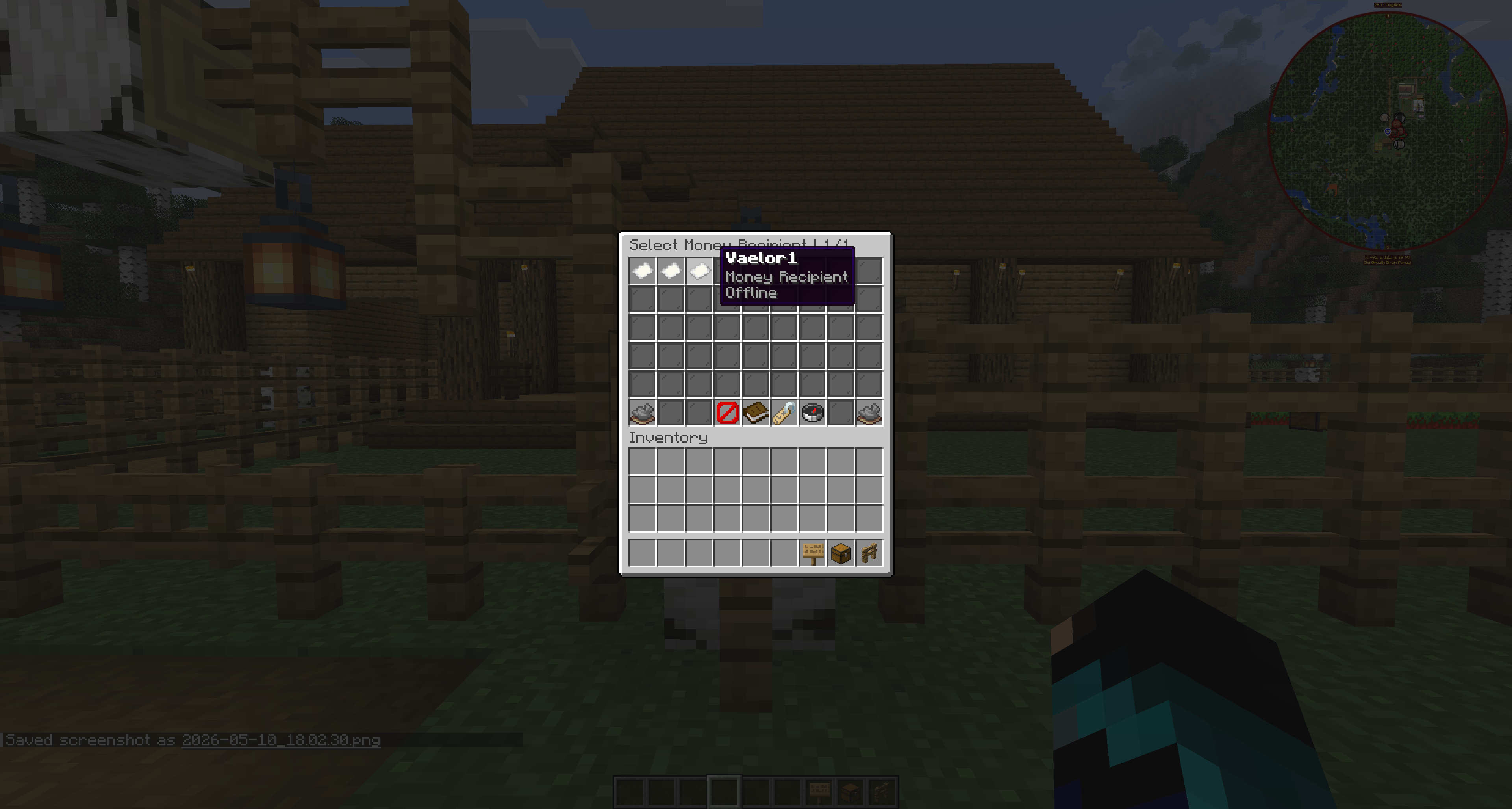
  4. Select the mailbox recipient from the Select Money Recipient GUI.
  5. Use filter or type-name tools if they are available on the server.
  6. After selecting a recipient, type the amount in chat.
  7. Type cancel to cancel the money send flow.

If the amount is valid and the sender has enough money, MailboxGUI withdraws the money and sends it to the recipient's inbox as money mail. There is not a separate confirm screen in this flow after a valid chat amount is entered.

Send Mail menu showing the Send Money option
The Send Mail menu with the Send Money option.

Choosing a Recipient

Money Mail uses a recipient selector similar to other mail types. The selector lists known mailbox delivery targets, and the selected recipient determines which inbox receives the money mail.

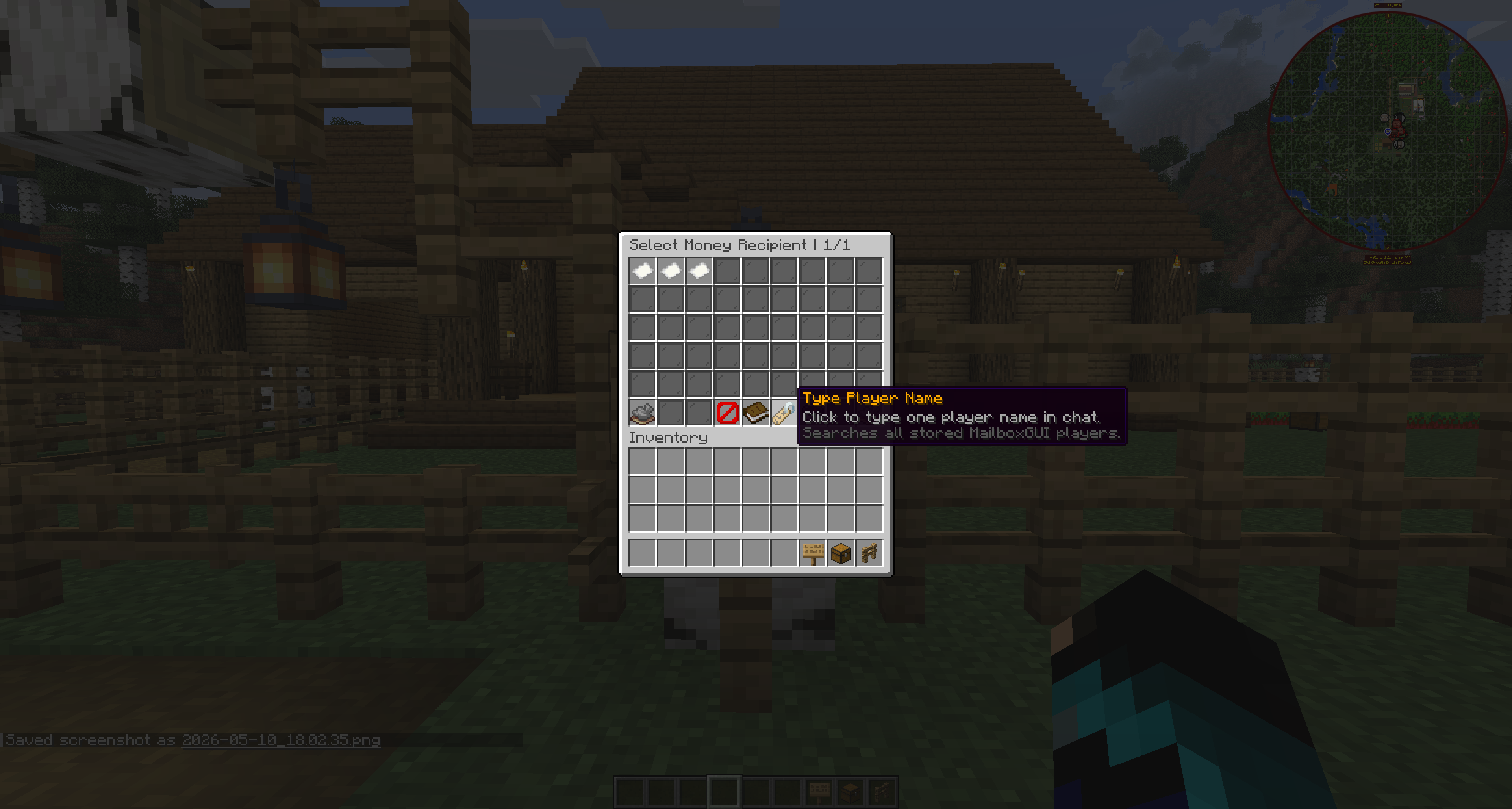
The list can be filtered between recipient groups according to the current filter system. Typed recipient entry can also be used where available in the current plugin flow. Typed names can auto-import players from main-world playerdata when they have joined before.

Select Money Recipient GUI listing mailbox delivery targets
Selecting the mailbox owner who should receive the money.
Typed recipient entry for MailboxGUI money mail
Using typed recipient entry for money mail.

Entering the Amount

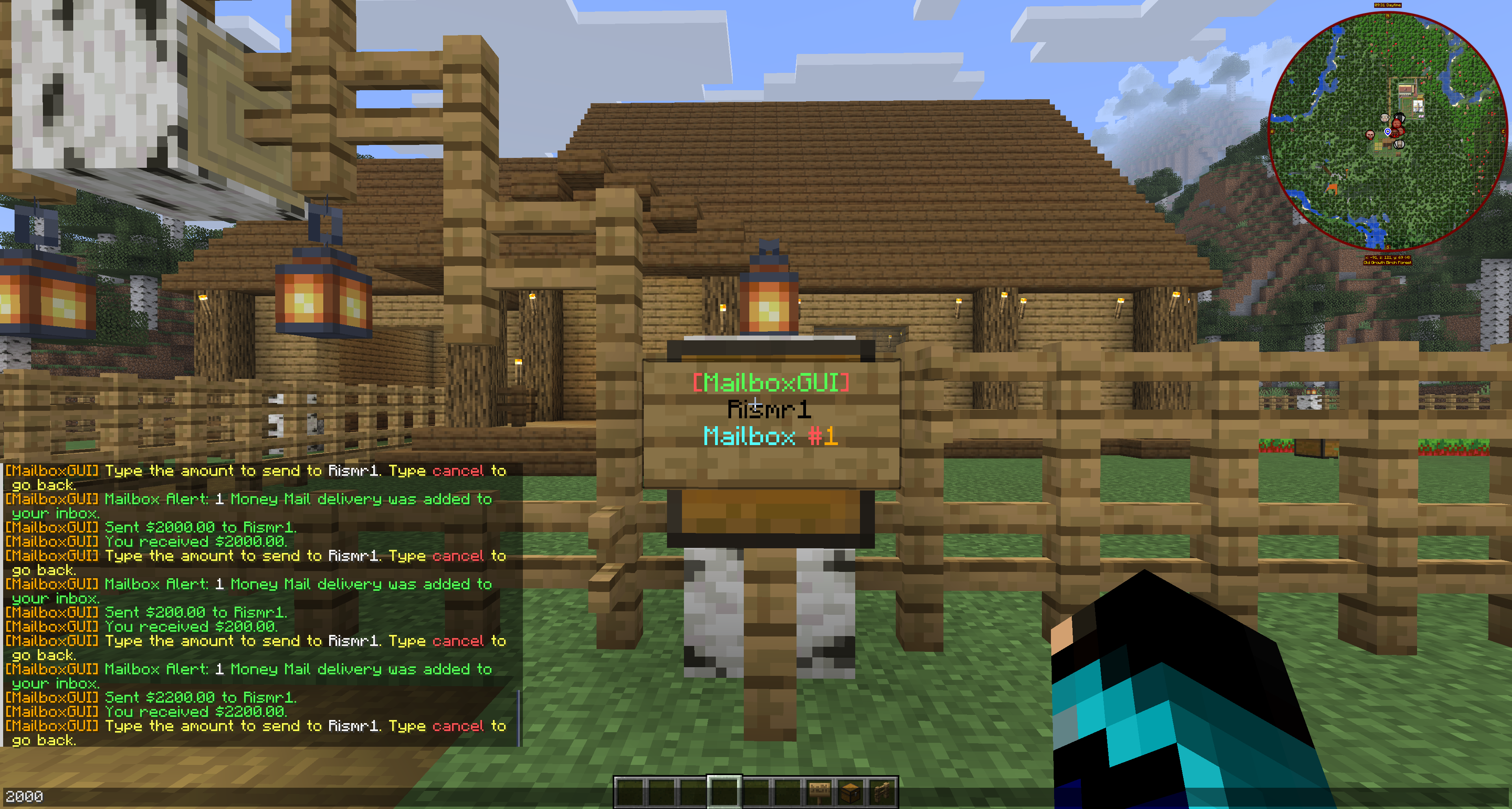
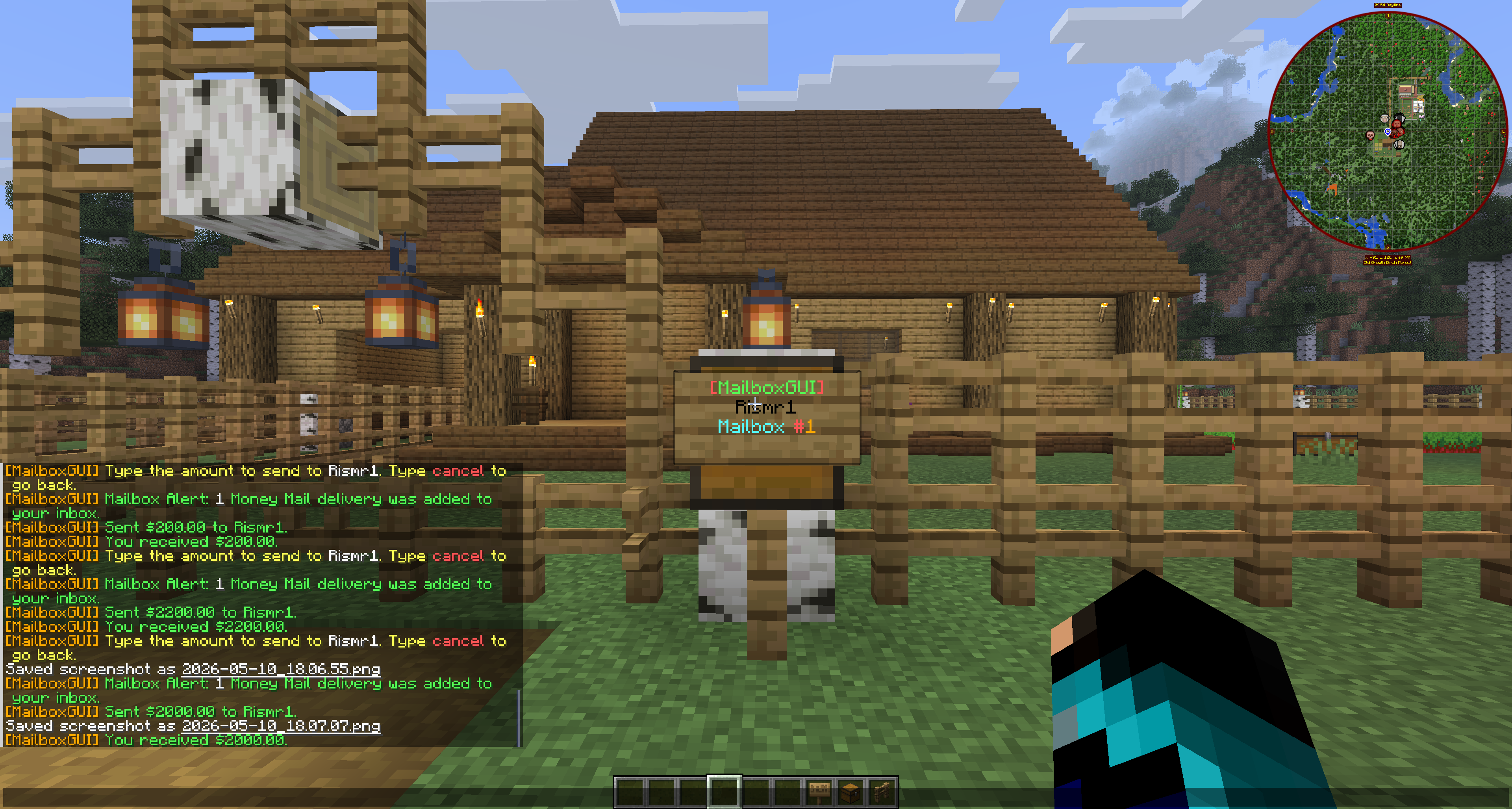
After selecting the recipient, the player types the amount in chat. The value must be greater than 0. The amount parser accepts normal decimals and also handles dollar signs and commas, such as 100, 100.50, $100, or 1,000.

Invalid amounts keep the session active and ask for a valid amount again. If the sender cannot afford the amount, the money is not sent. Typing cancel cancels and returns the player to recipient selection.

Chat prompt asking the player to type a money mail amount
Typing the money amount in chat after selecting a recipient.

Receiving and Claiming Money

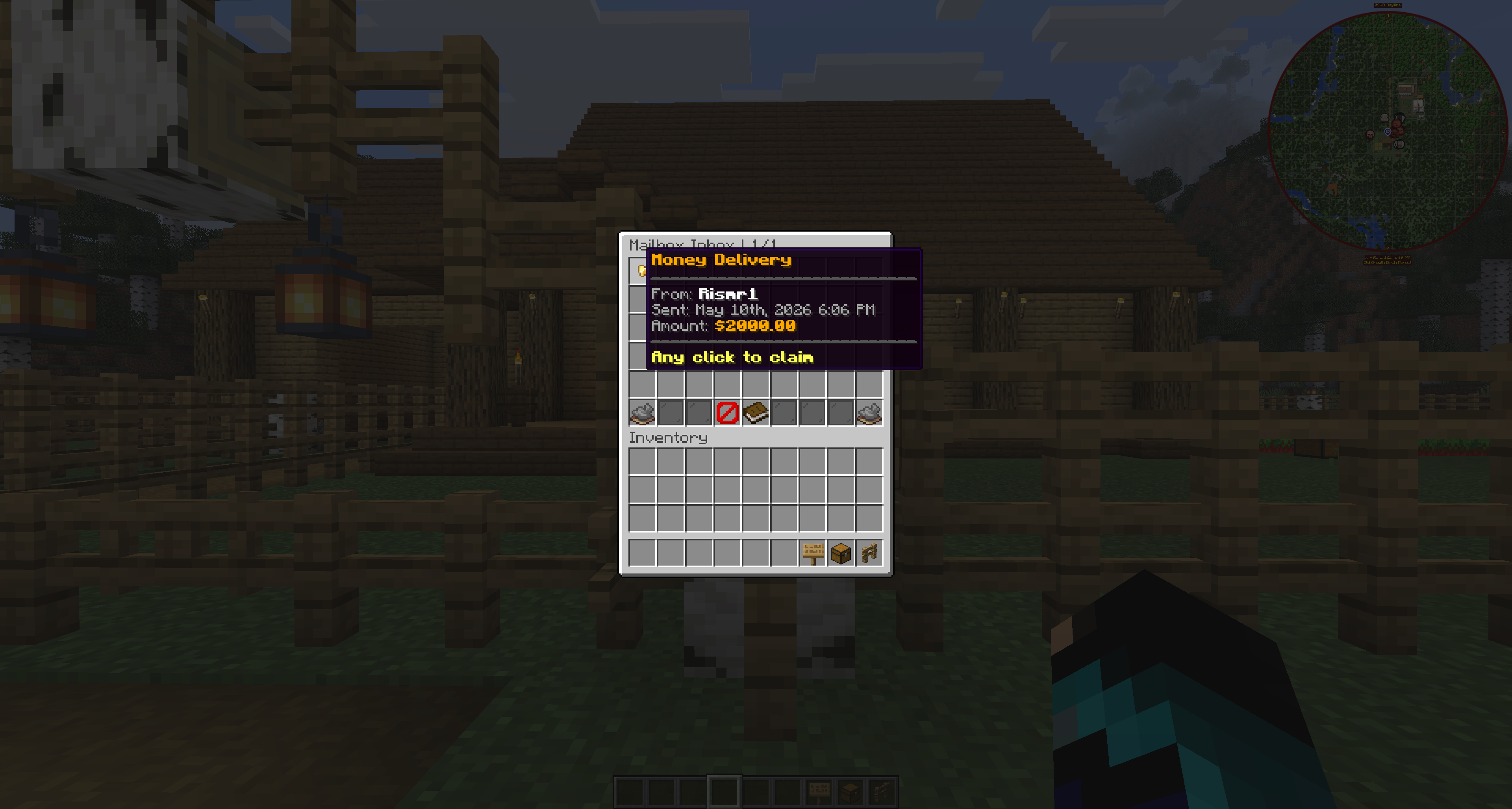
Received money mail appears in the inbox as a Money Delivery item. It is stored as a GOLD_NUGGET item with persistent money data, and its lore includes sender information, sent time, amount, and a claim instruction.

Clicking the money mail item in the inbox claims it. Claiming deposits the money into the recipient's economy balance. If the economy deposit succeeds, the recipient gets the received-money message and money claim sound.

If the economy hook is unavailable or the item is invalid, claiming can fail with an error message.
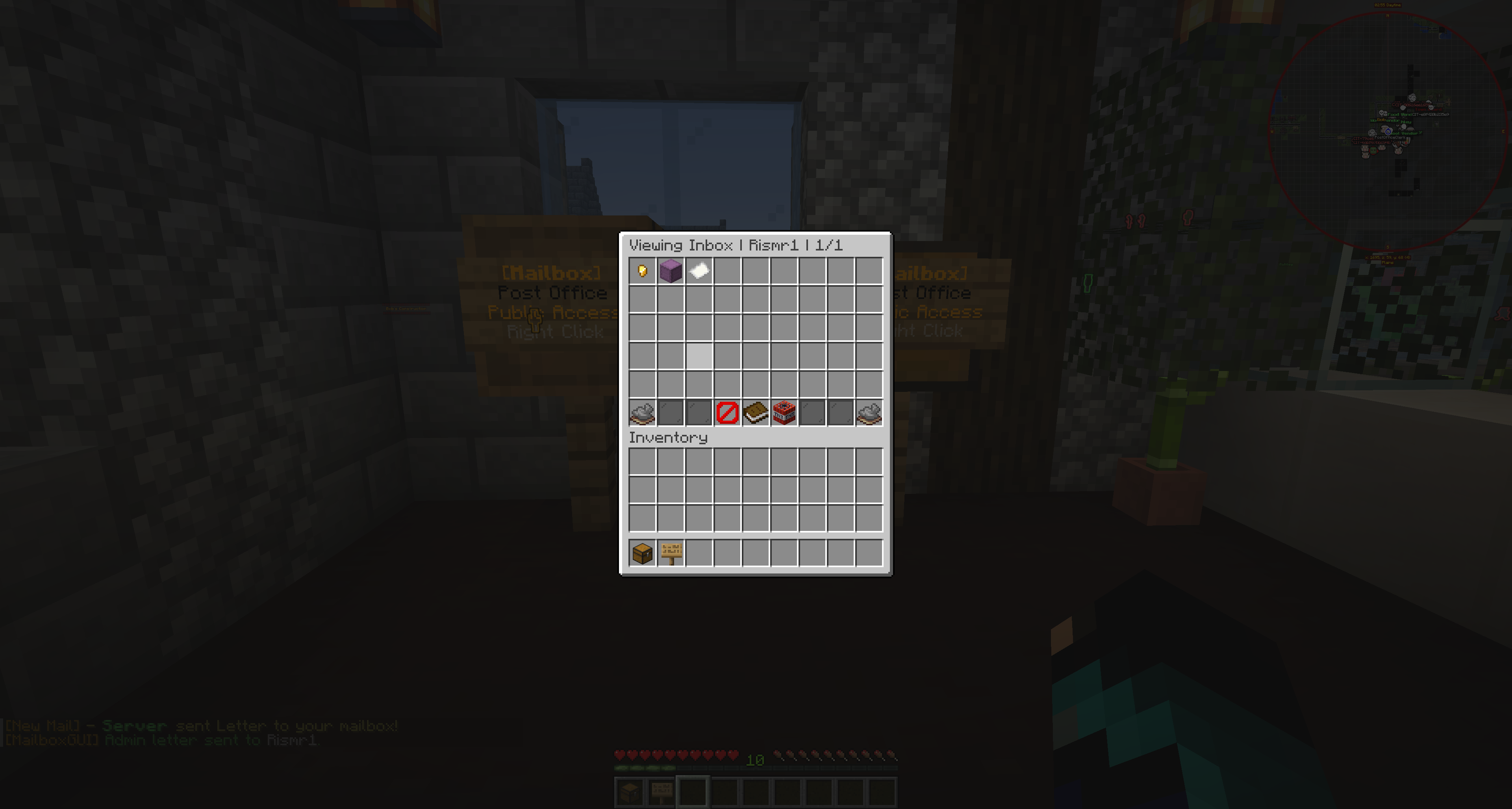
Money Delivery item displayed inside the recipient inbox
A Money Delivery item inside the recipient's inbox.
Recipient successfully claiming money from a MailboxGUI inbox item
The recipient claiming money from their inbox.

COD Payment Money Mail

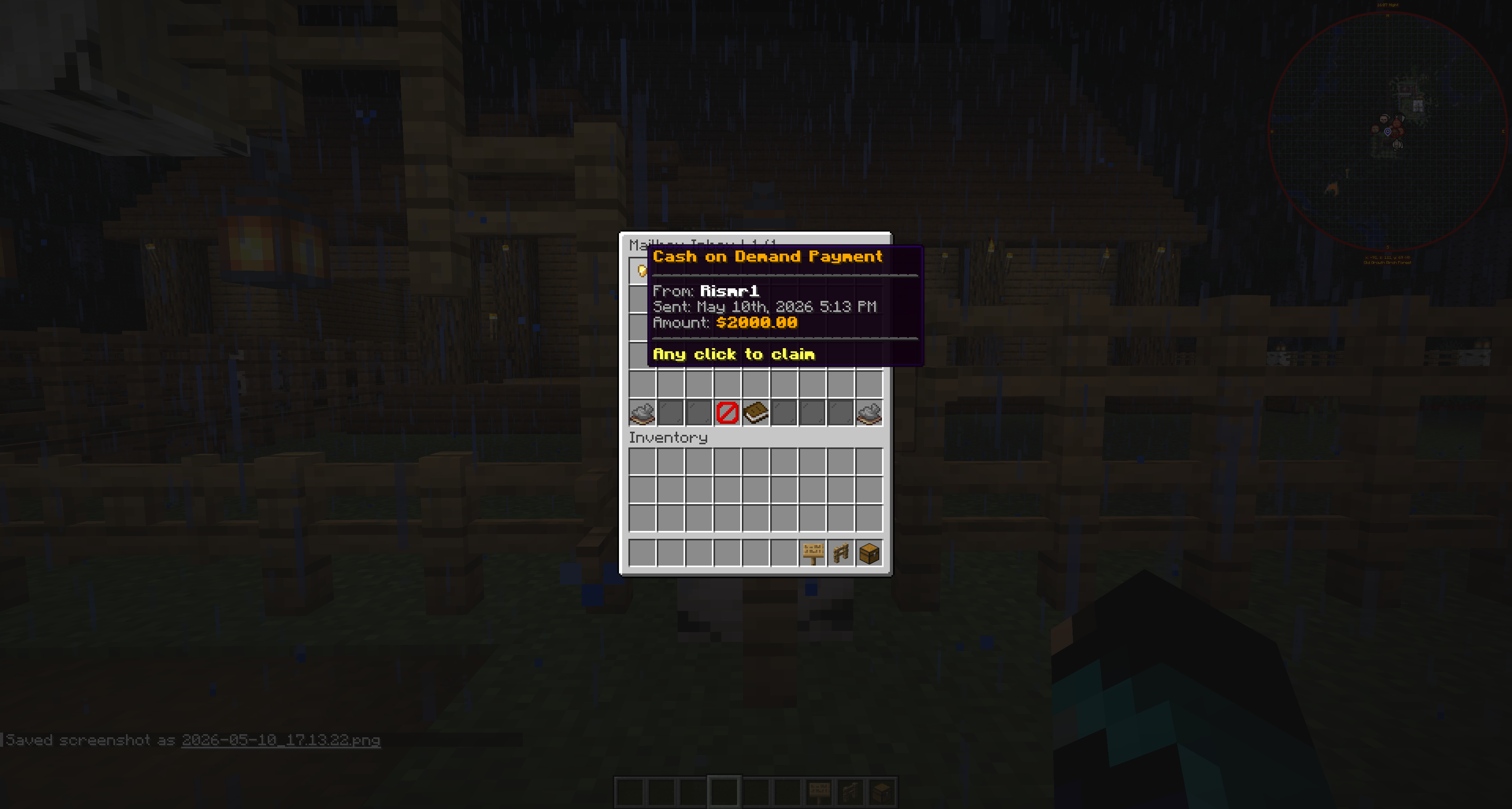
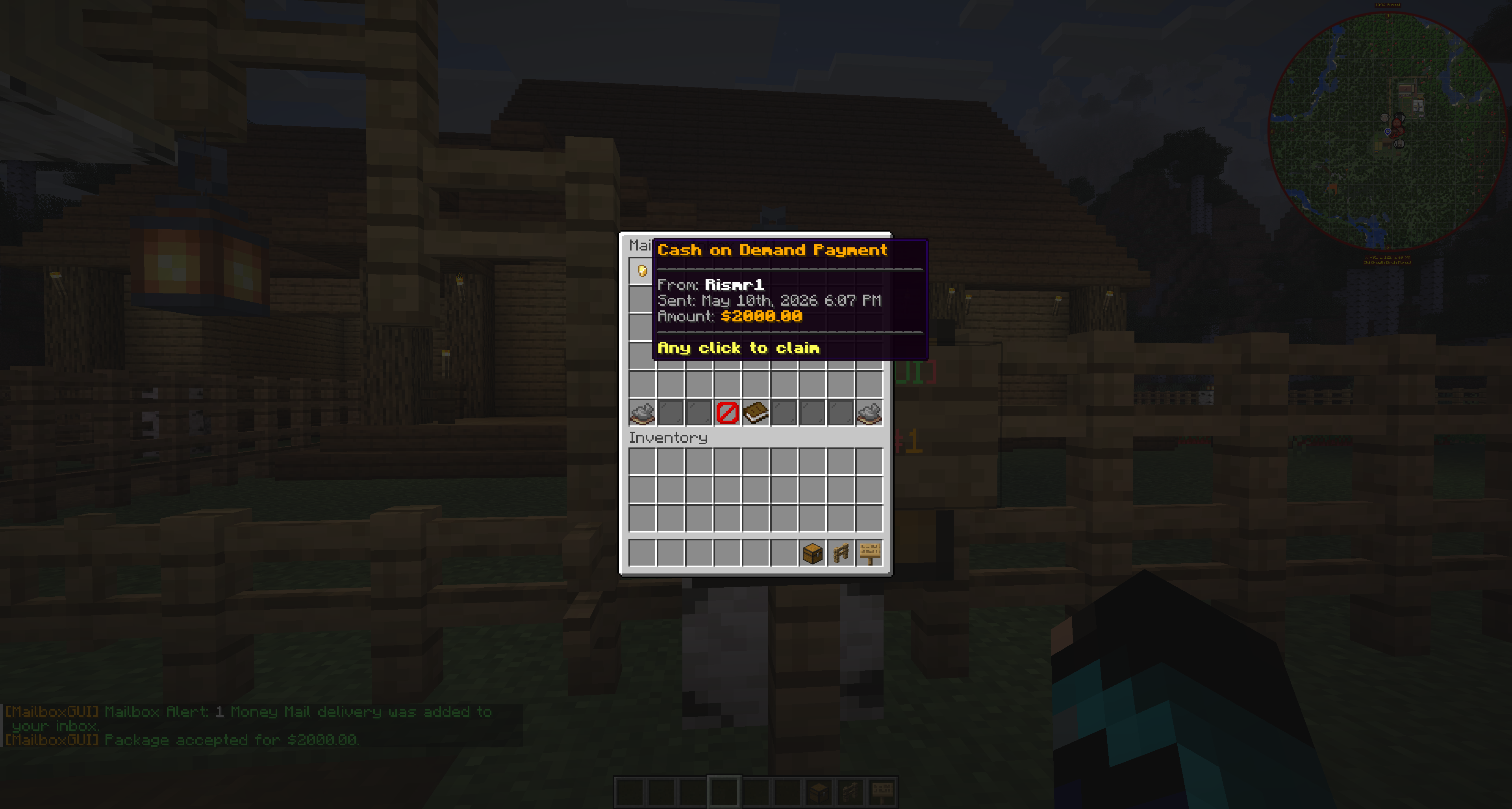
COD Packages can create money mail for the sender when package.cash-on-demand.send-reward-in-mail is true. In that case, the sender receives a Cash-On-Demand Payment money mail item.

This is different from normal player-sent money mail, but it is claimed from the inbox the same way. If COD payment-in-mail is disabled, the COD payment is deposited directly instead of delivered as money mail.

Admin-origin COD packages are sink costs and do not create a money reward for an admin/server sender.
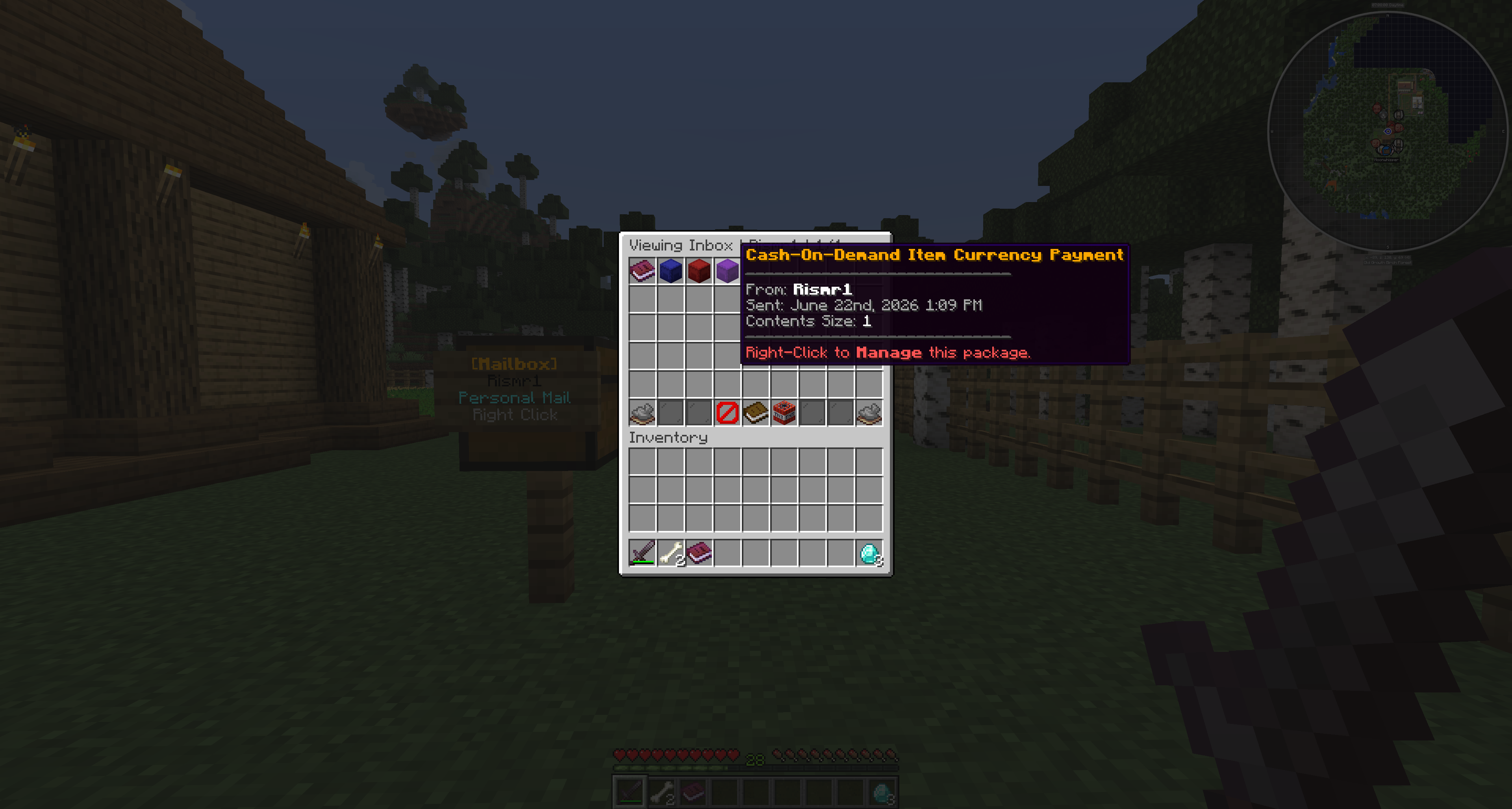
Cash-On-Demand Payment delivered as a MailboxGUI money mail item
A Cash-On-Demand Payment delivered as money mail.

Admin Money Mail

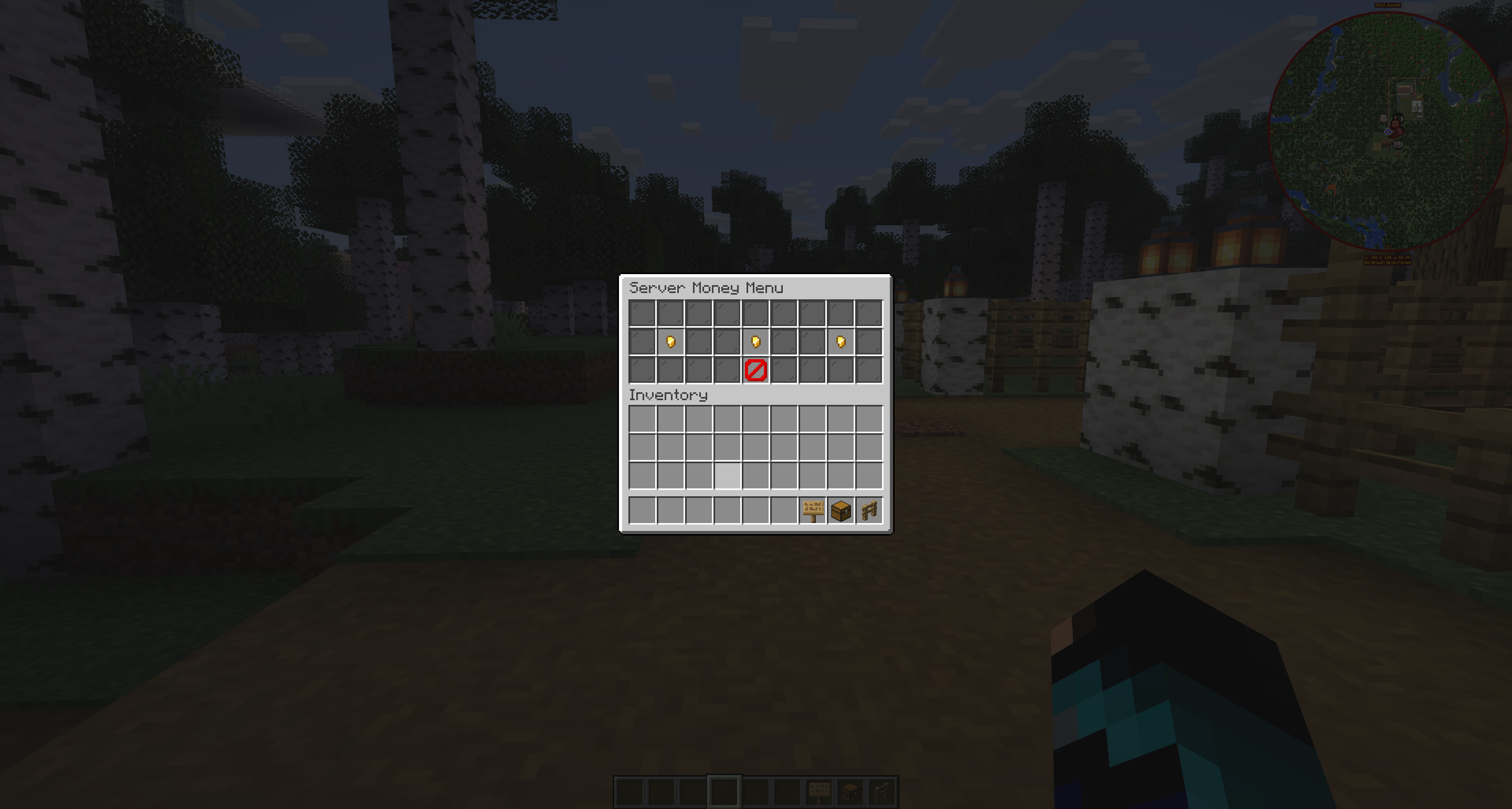
Admin tools can send server/admin money deliveries. Admin money can target all mailboxes, online mailbox owners, or a selected recipient depending on permissions.

Admin/server-created money mail uses the configured money.admin-server-name as the sender name. Admin money is useful for event rewards, compensation, server gifts, and staff-issued payments.

The /mba sm command and the API MoneyMailRequest can also create money mail. Command recipients can auto-import joined-before players from main-world playerdata when needed.

Admin money sending requires the proper admin send-mail money permissions and is separate from normal player money sending.
Admin tools for sending server money mail deliveries
Admin tools for sending server money deliveries.

Troubleshooting Money Mail

  • Money Mail is disabled in config.
  • Vault is missing.
  • The economy plugin is missing or not hooked.
  • The sender does not have enough money.
  • The amount is invalid or not greater than 0.
  • The recipient is not a valid mailbox delivery target.
  • The player typed cancel and expected the send to continue.
  • Economy deposit failed while claiming.
  • Server permissions or region protection prevent normal mailbox access.
  • Language customization may make button names look different from screenshots.

Post Offices

What Post Offices Are

Post Offices are shared public mailbox access points. Instead of every mailbox access point needing to be a player-owned physical mailbox, server owners can create registered PO Boxes in public areas such as towns, spawn buildings, markets, banks, or mail rooms.

A Post Office box opens the normal MailboxGUI menu for the player using it. It is a public access point, not a separate shared inbox.

Players use the PO Box to access their own mail features. Available actions still depend on permissions and enabled features. NPC-based Post Office access is handled separately in the NPC Support section.

Post Office Box Structure

Post Office boxes do not use the fence-post base used by normal physical mailboxes.

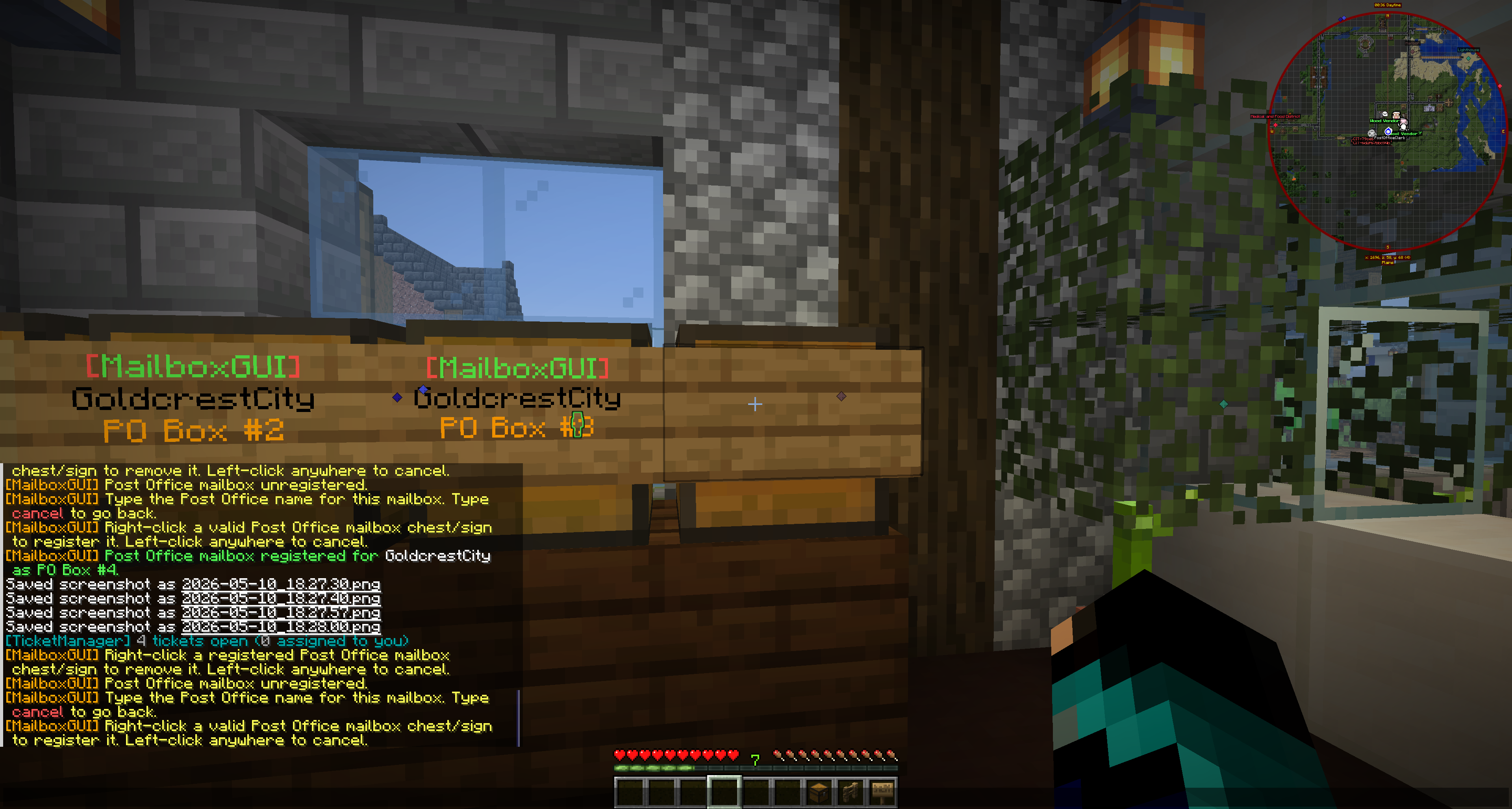
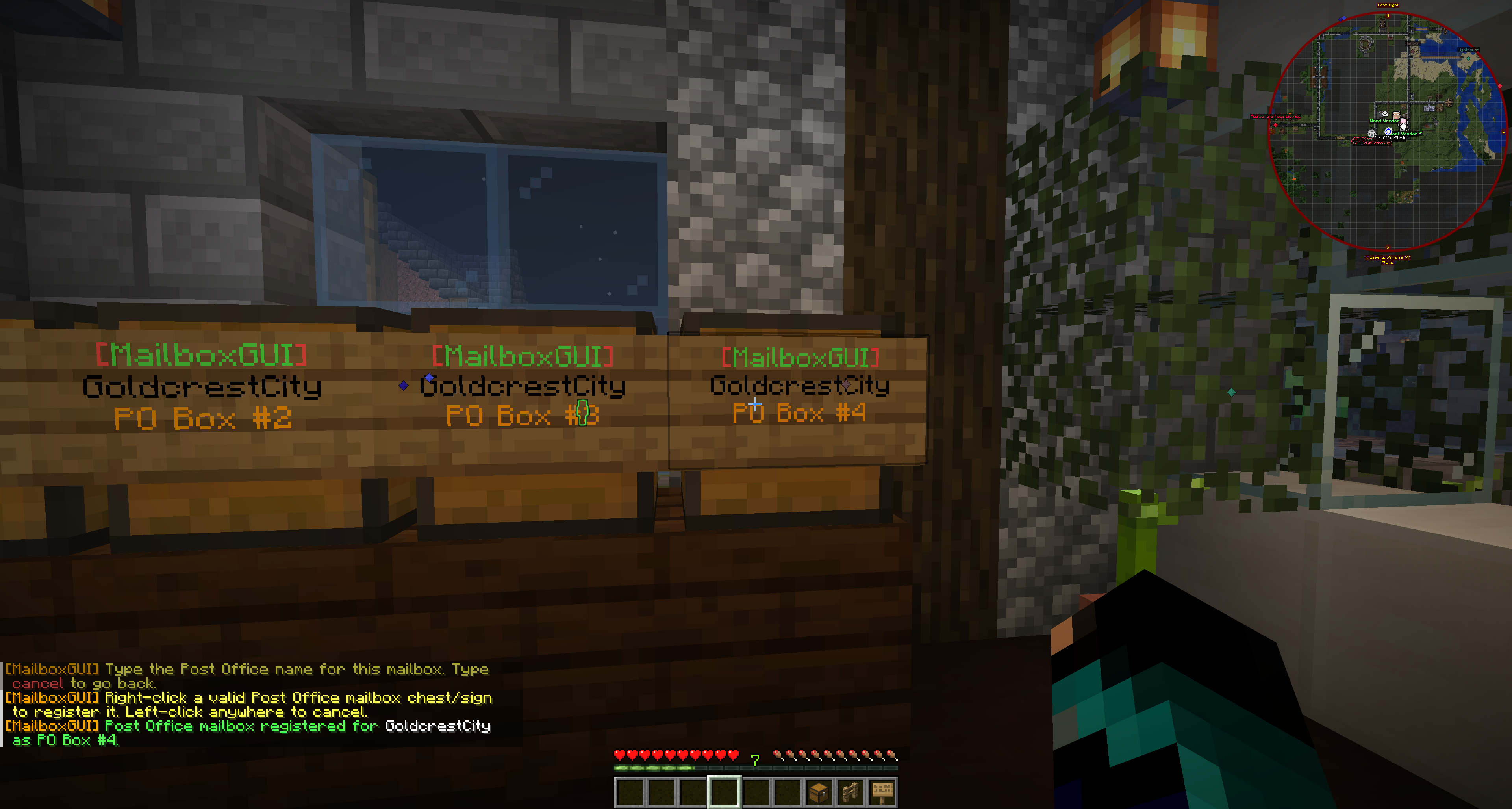
A Post Office box is a valid single chest with a sign attached to the front of the chest.

  • The chest must remain a single chest.
  • The sign must be attached to the front face of the chest.
  • The admin can select either the chest or the attached sign during registration.
  • The plugin must be able to resolve the sign/chest pair.
  • Decorative blocks can be added around it as long as the chest and front sign remain usable.

Creating a Post Office Box

  1. Open Admin Tools.
  2. Open Post Office Registration.
  3. Open Post Office Mailbox Set / Remove.
  4. Click Set Post Office Mailbox.
  5. Type the Post Office name in chat.
  6. Type cancel to cancel the name prompt.
  7. After typing a valid name, right-click the valid PO Box chest or front sign.
  8. Left-click anywhere during selector mode to cancel.

When successful, MailboxGUI registers the PO Box, updates the sign, stores the location, plays the registration sound, and sends a success message.

Post Office names can contain letters, numbers, spaces, apostrophes, underscores, and hyphens, and must be 32 characters or fewer.
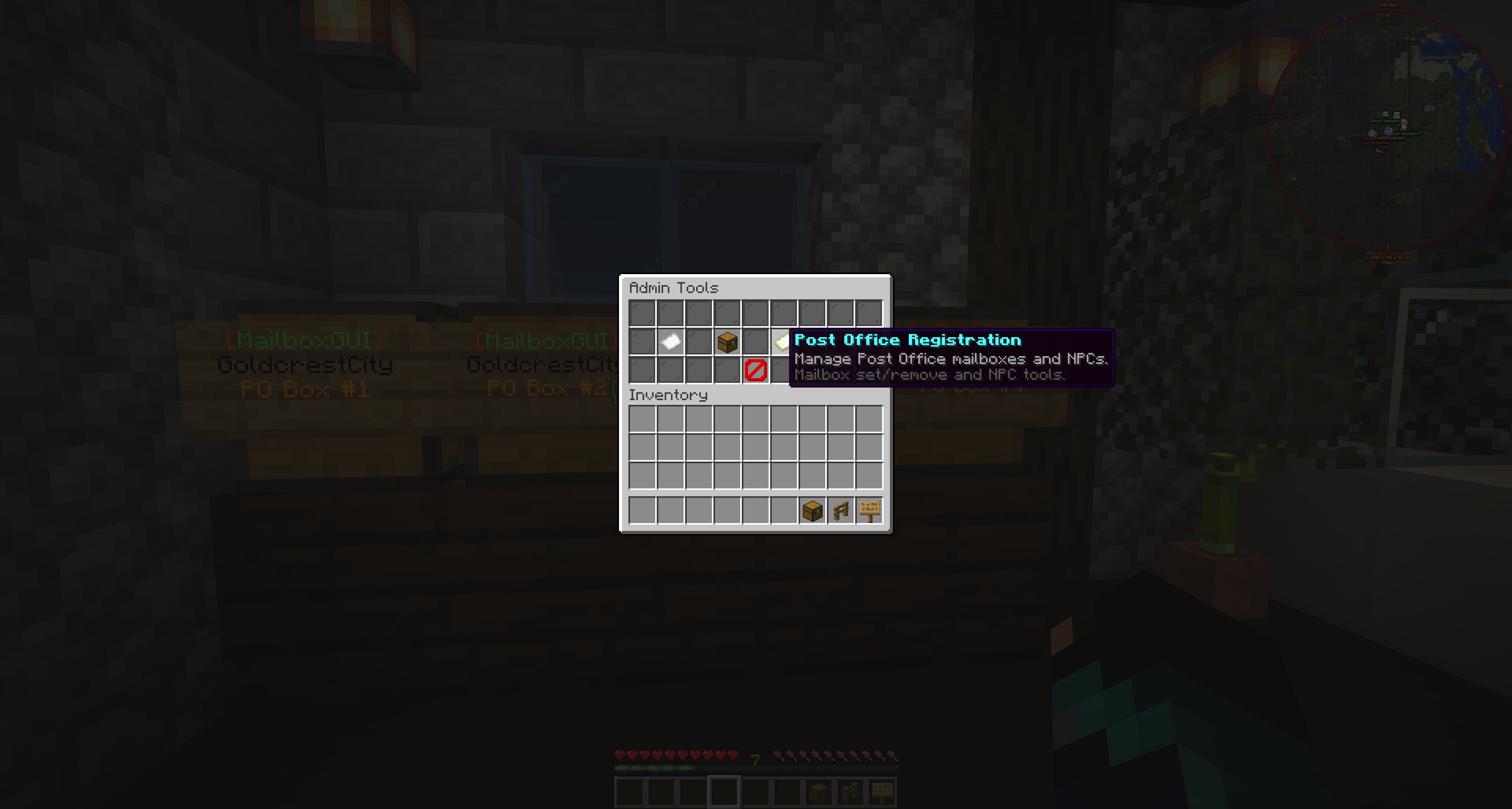
Admin Tools menu showing the Post Office Registration option
Admin Tools with the Post Office Registration option.
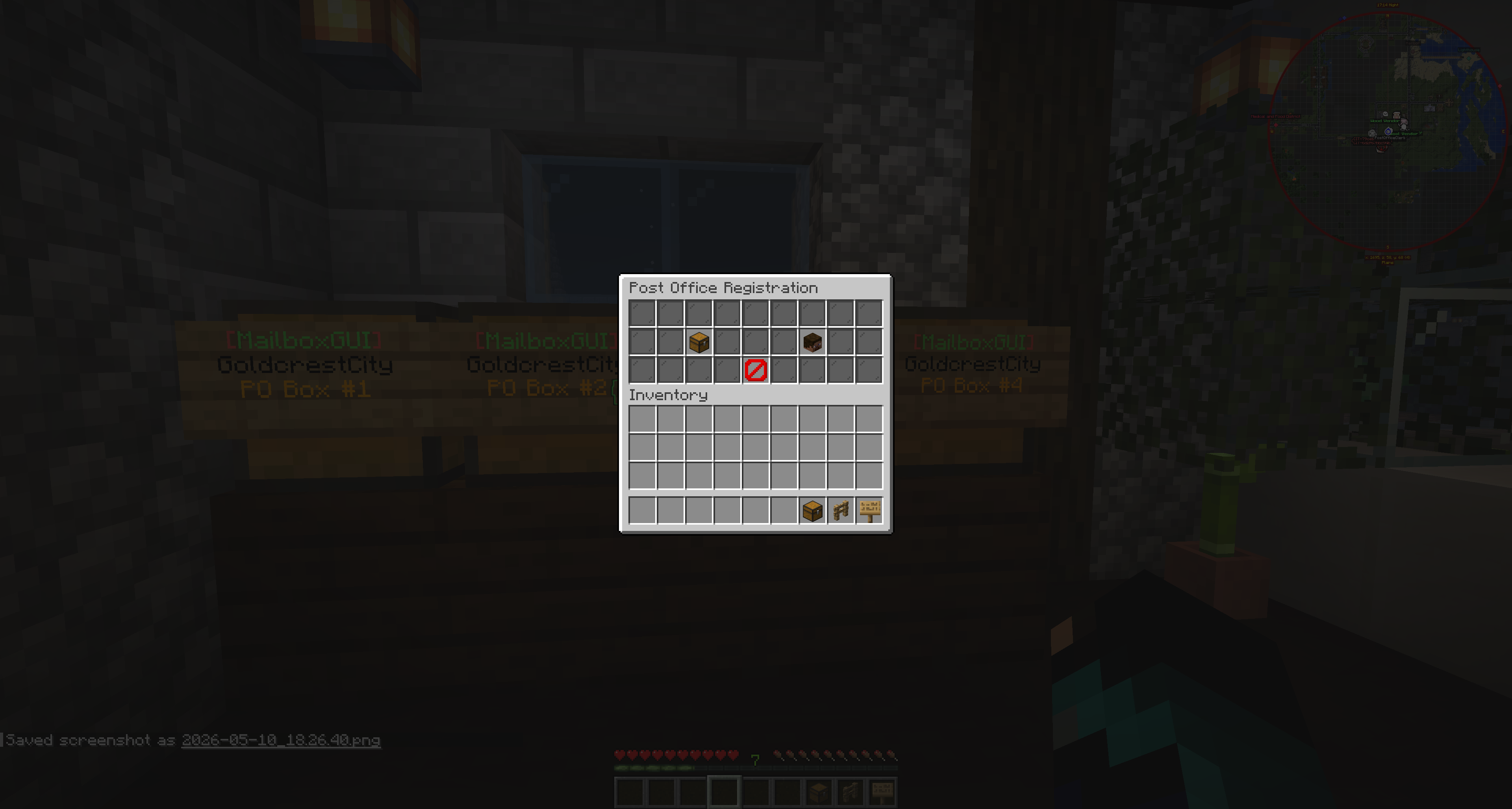
Post Office Registration menu with mailbox and NPC tools
The Post Office Registration menu for mailbox and NPC tools.
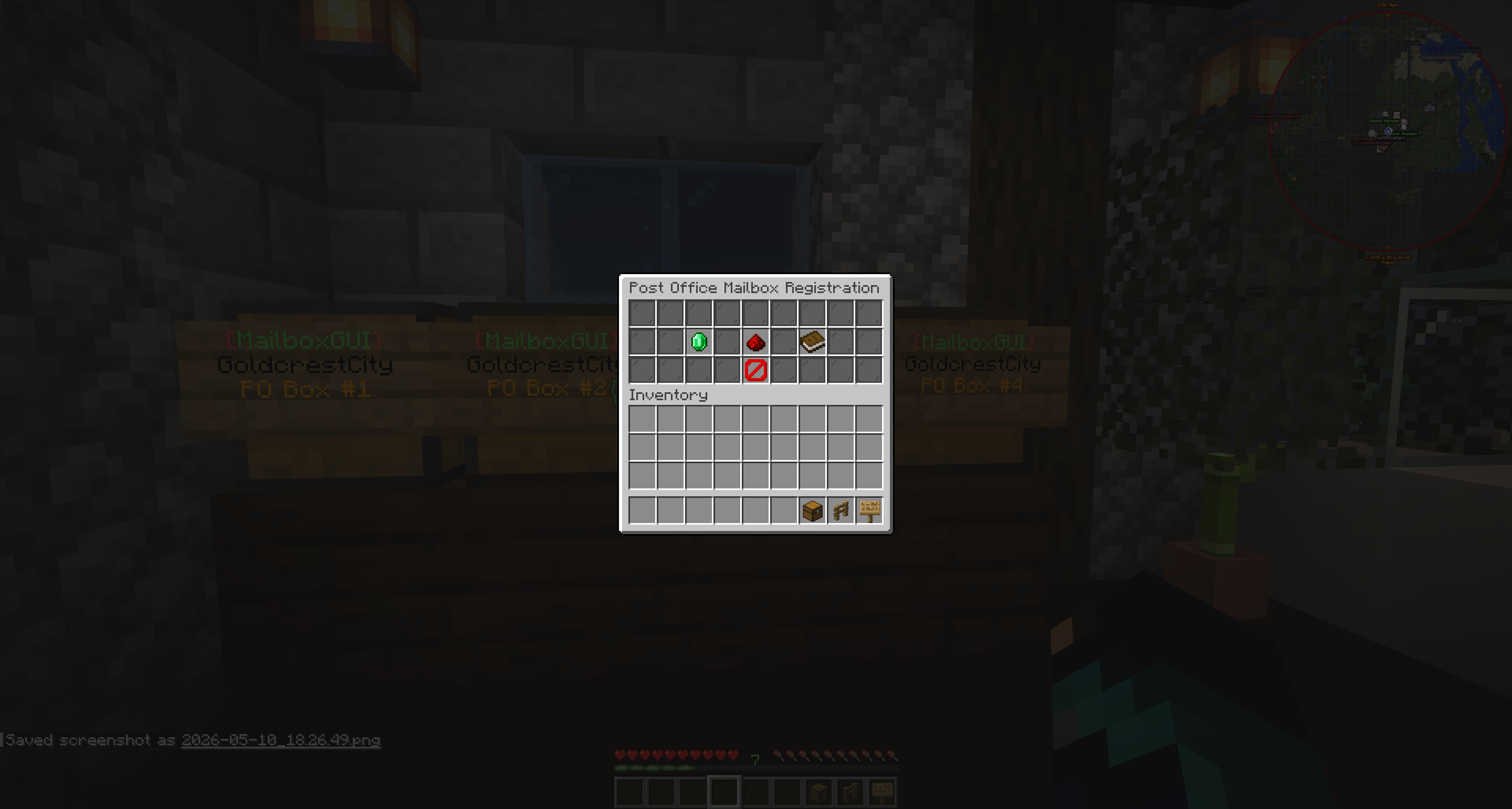
Post Office Mailbox Registration menu
The Post Office Mailbox Registration menu.
Chat prompt for typing a Post Office name before selecting a PO Box
Typing the Post Office name before selecting a PO Box.
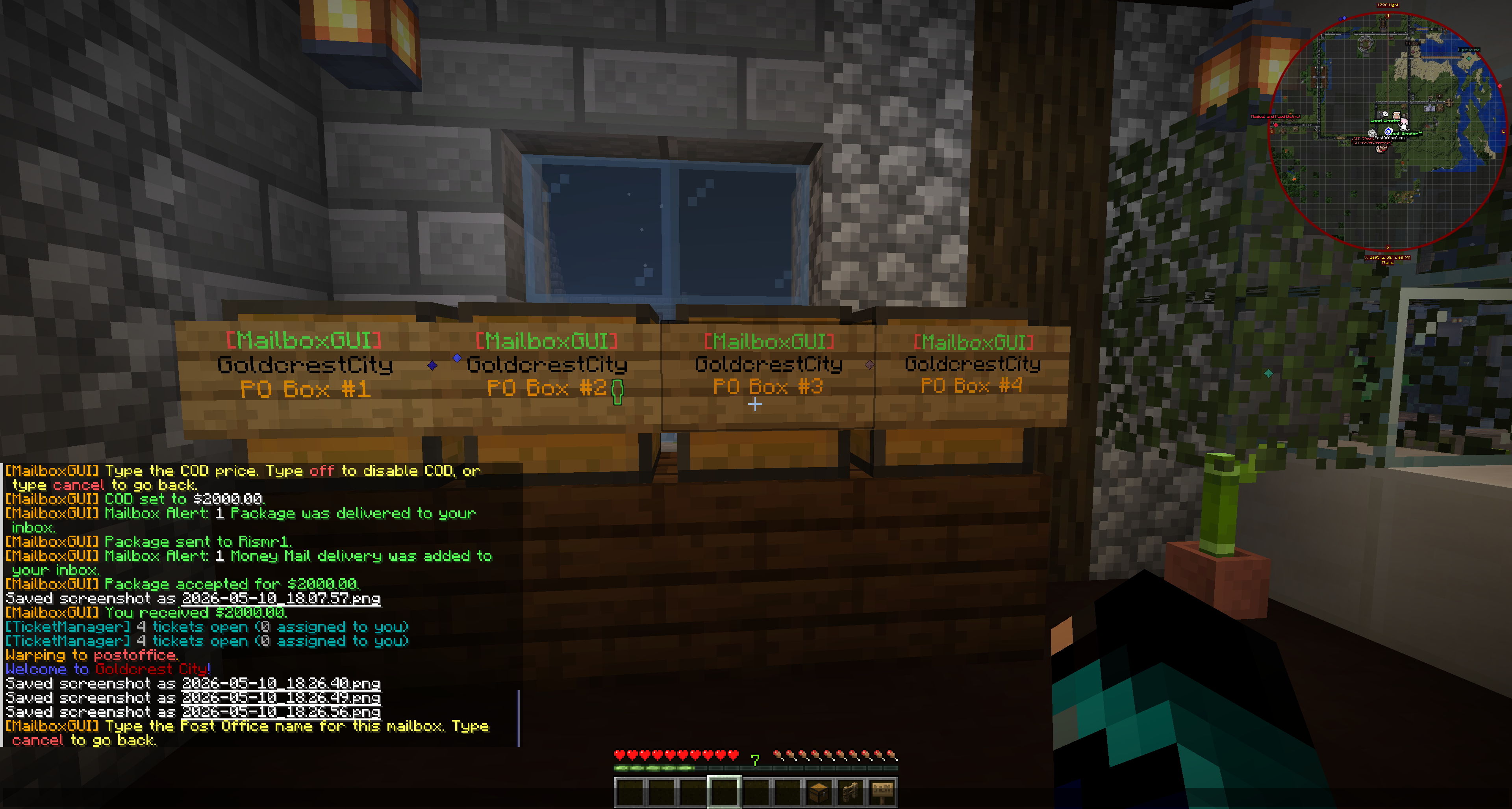
Selector mode prompt for registering a valid PO Box chest or sign
Selector mode for registering a valid PO Box chest/sign.

Sign Format and Numbering

Registered PO Box signs are updated using post-office.mailboxes.sign-format. The sign supports %postofficename% and %number%.

The default format includes the MailboxGUI header, the Post Office name, and PO Box number. PO Box numbering is grouped by Post Office name. Removing a PO Box can renumber the remaining boxes for that Post Office when renumber-after-remove is enabled.

Registered Post Office box sign updated by MailboxGUI
A registered PO Box with the sign updated by MailboxGUI.

Player Access

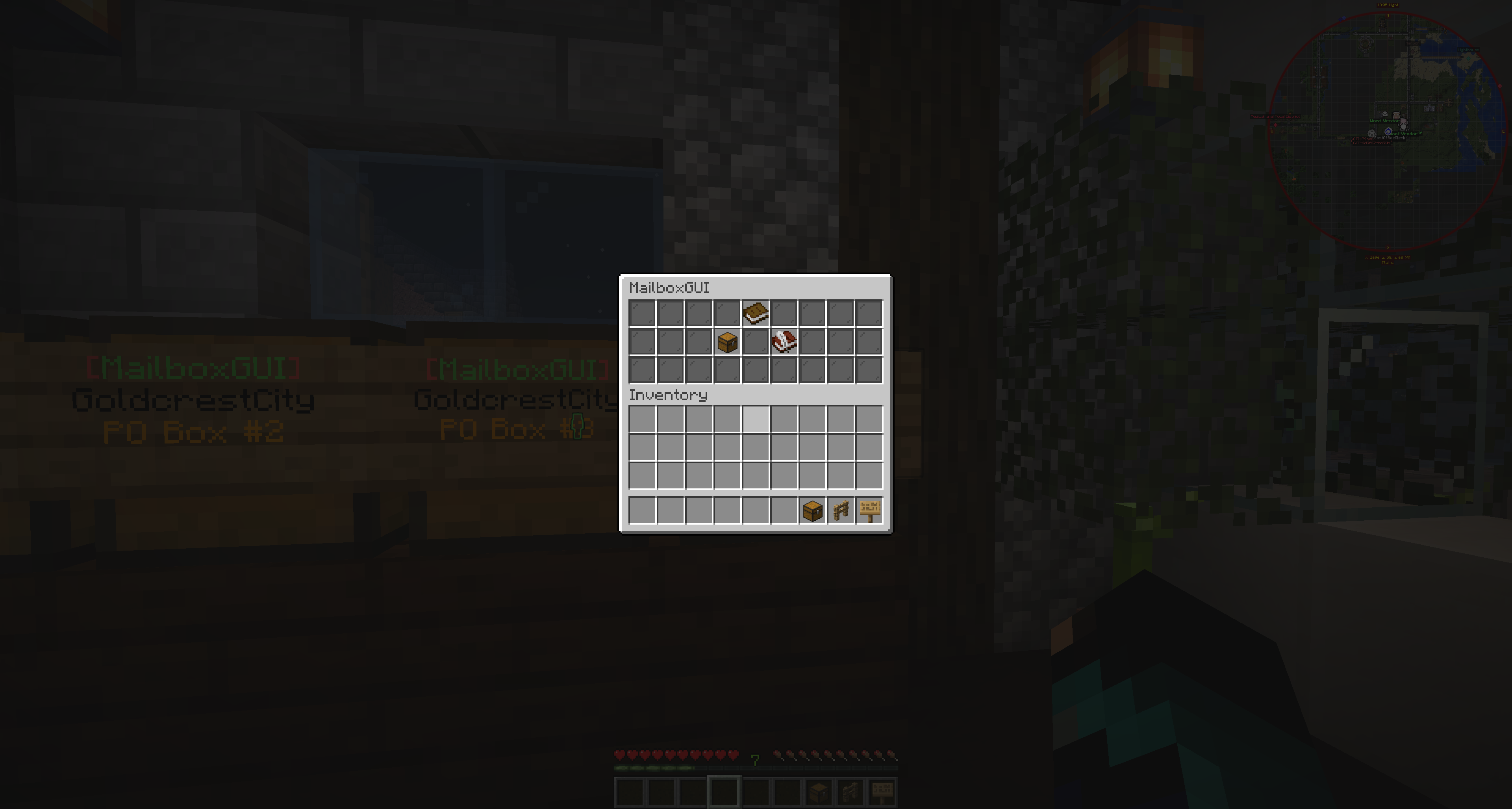
Players right-click a registered Post Office chest or sign. If allowed, MailboxGUI opens the main mailbox menu. The player is accessing their own mail through the public PO Box.

  • If post-office.mailboxes.allow-any-player-open is true, any player can open a registered PO Box.
  • If it is false, players need mailboxgui.player.postoffice.pobox.
  • If post-office.enabled or post-office.mailboxes.enabled is false, PO Box access is disabled.
Player opening the MailboxGUI main menu from a public Post Office box
A player opening the MailboxGUI menu from a public PO Box.

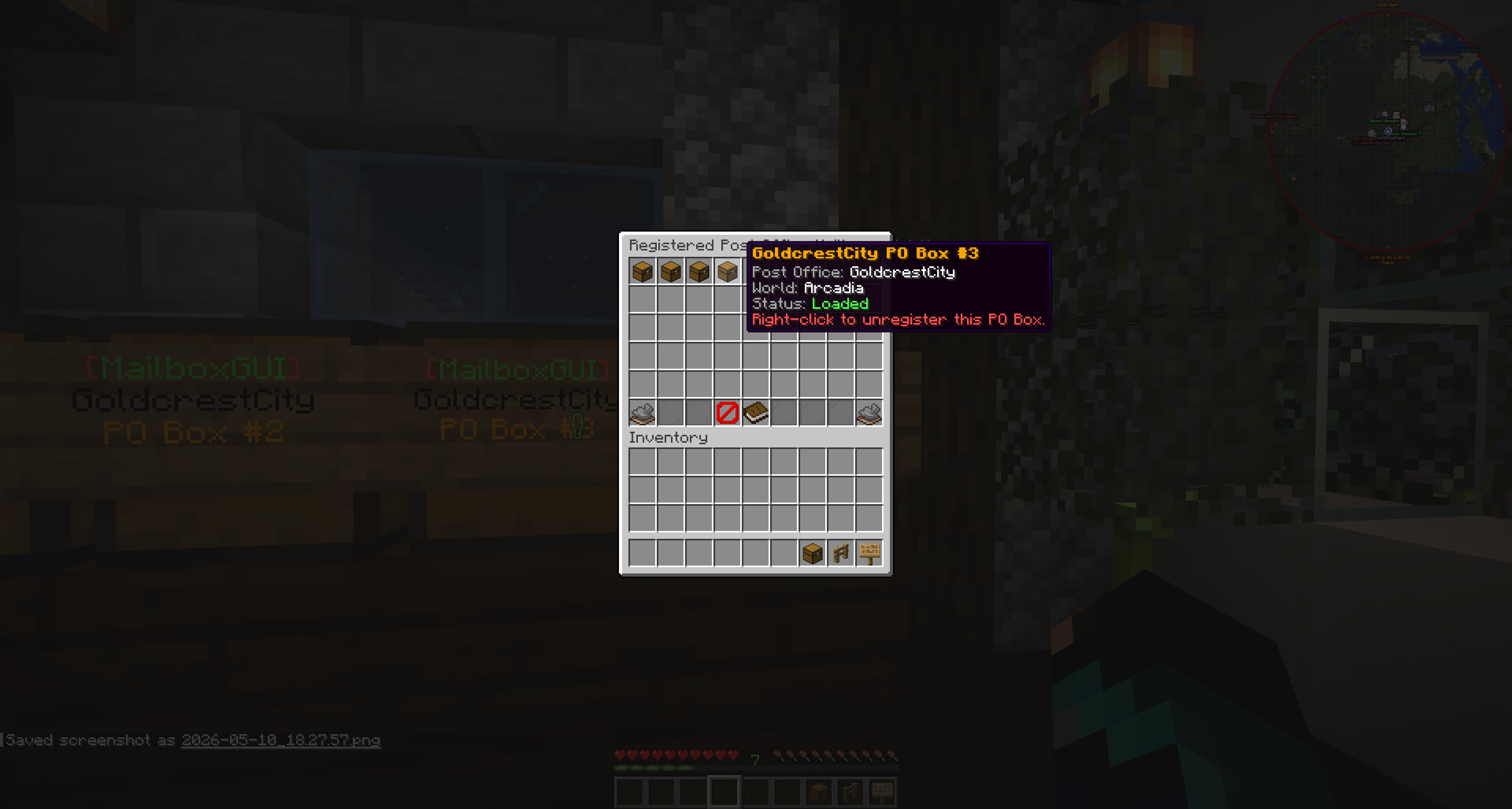
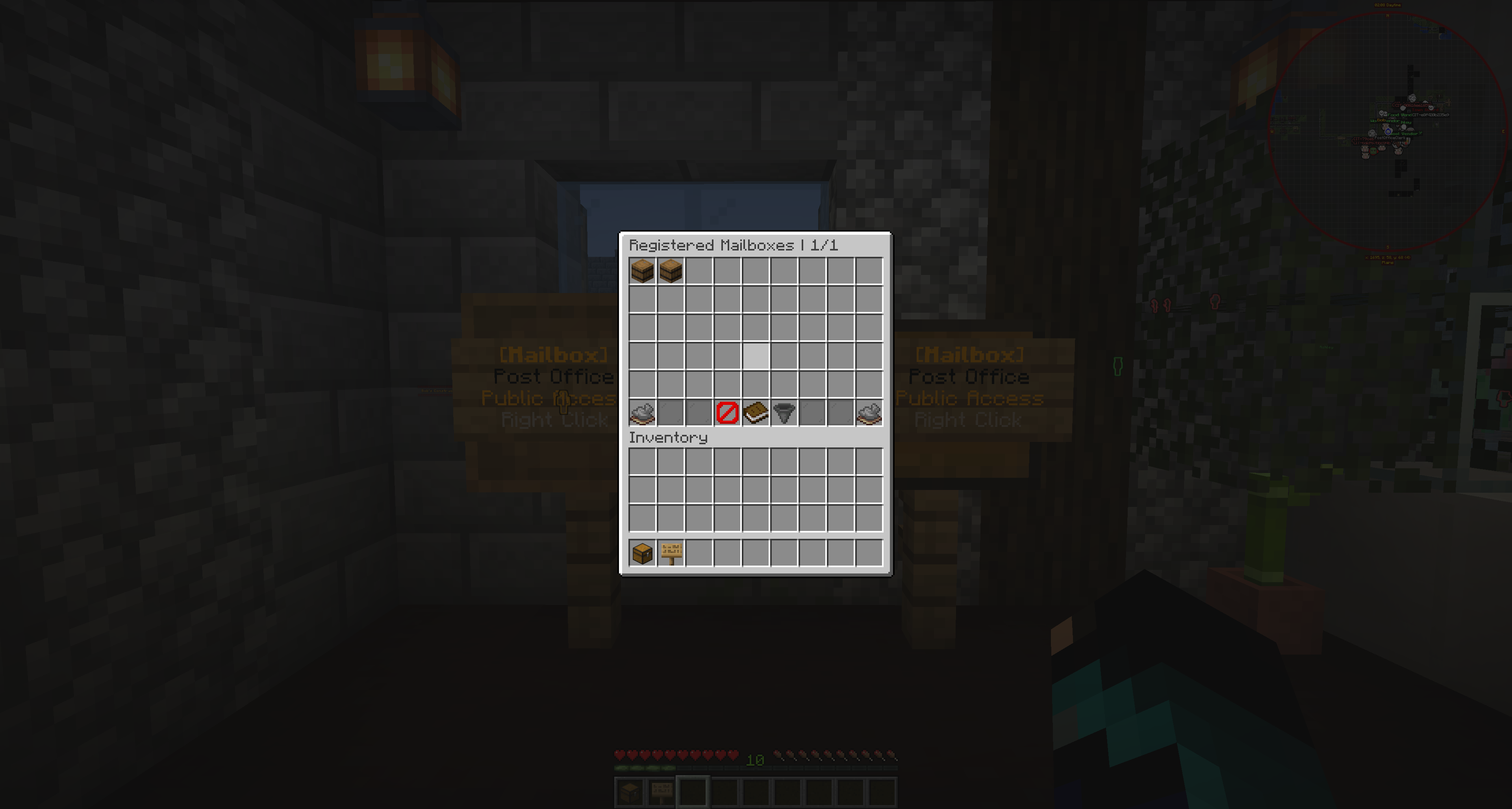
Registered Mailbox List

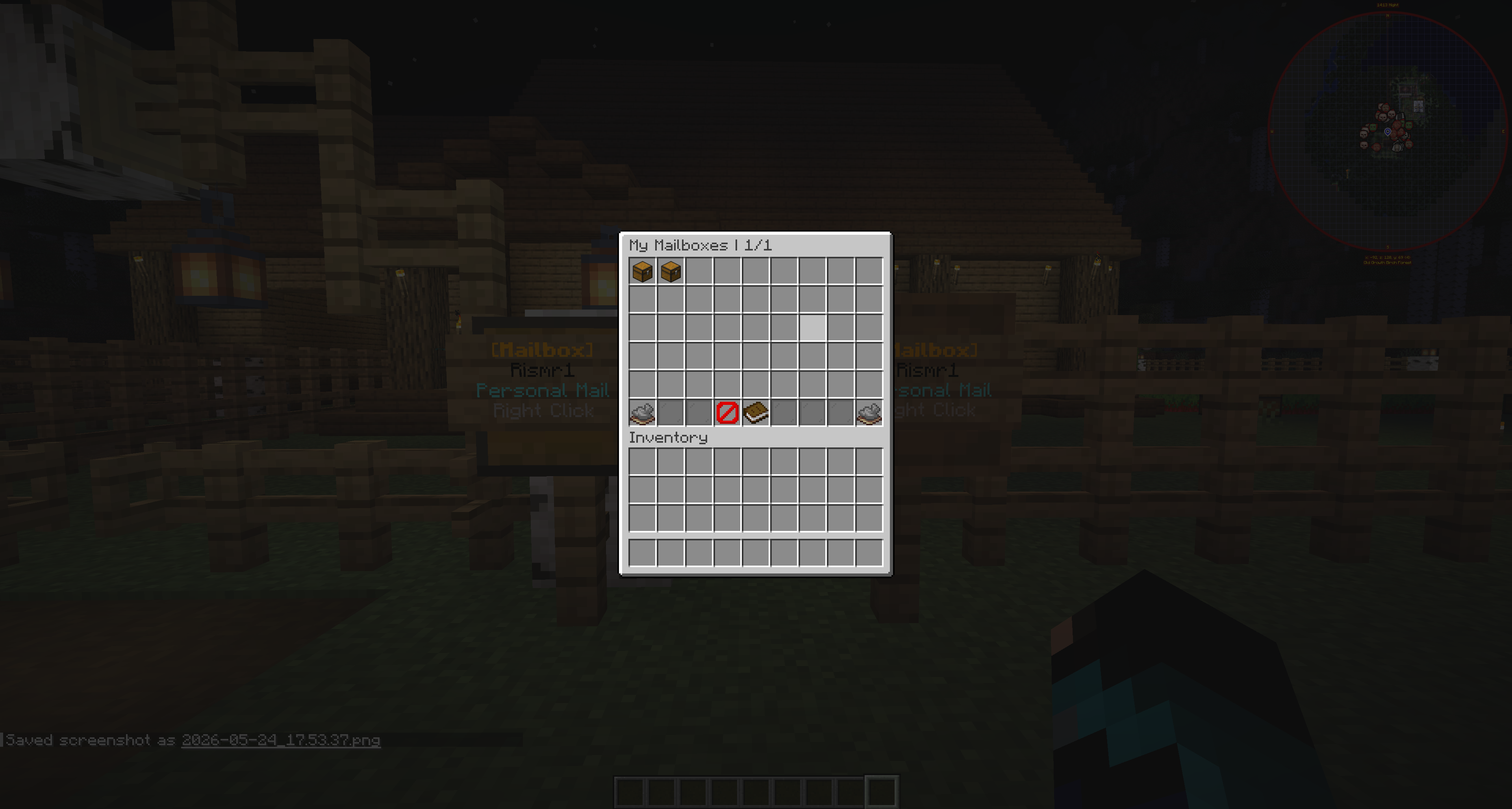
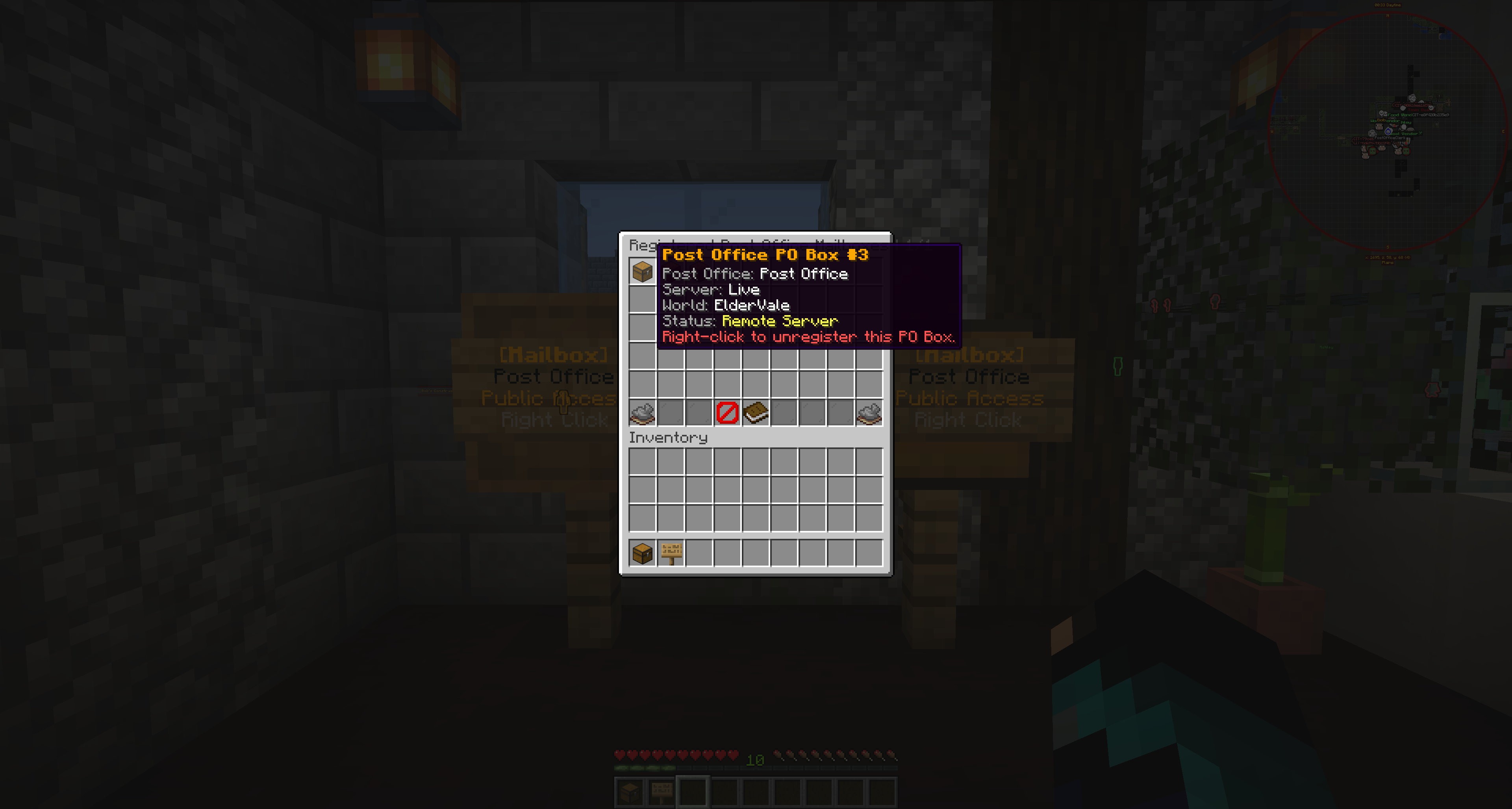
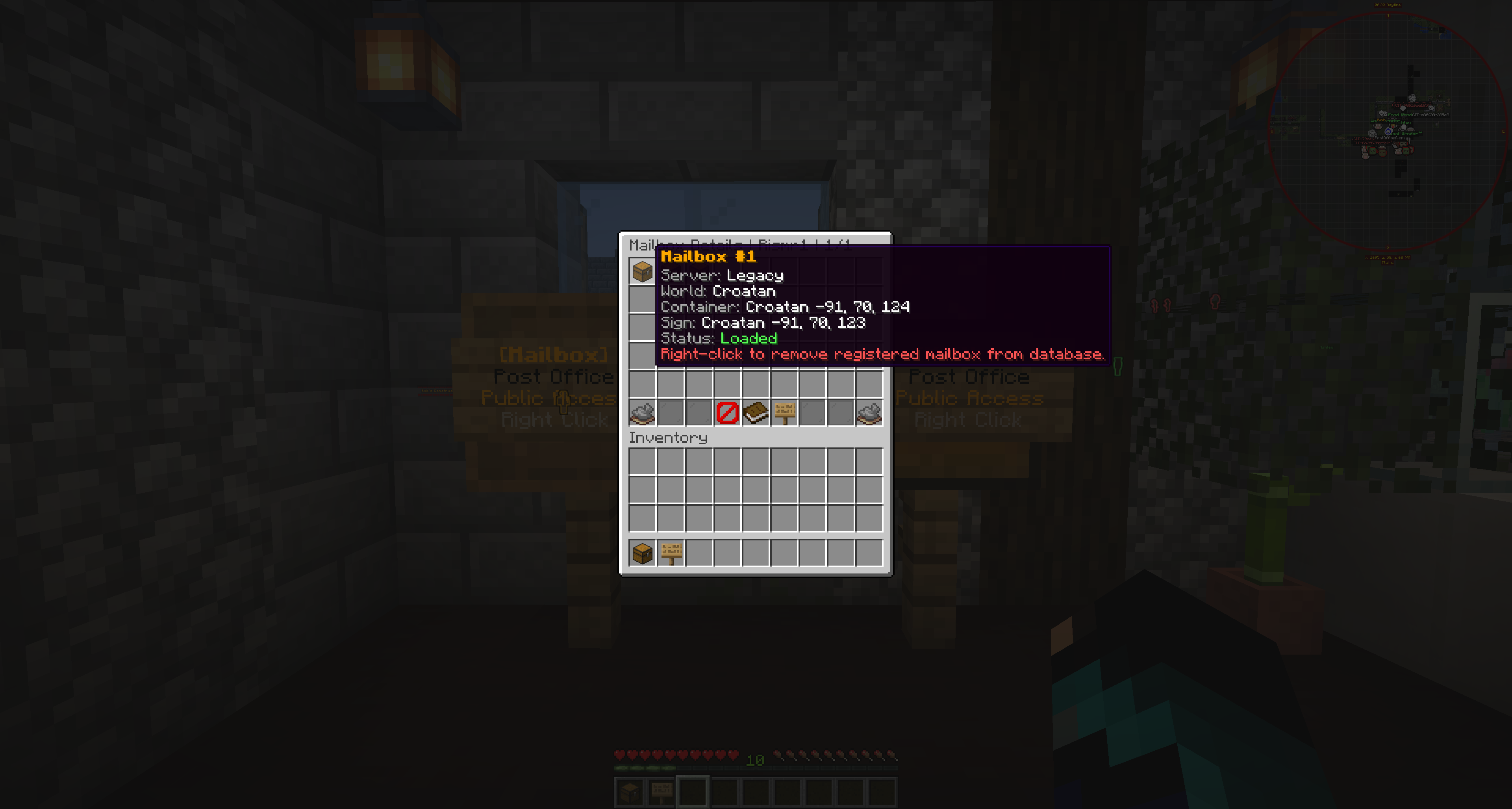
Admins can open the Registered Post Office Mailboxes list from the Post Office Mailbox Registration menu. The list shows registered PO Boxes with the Post Office name, world, and loaded/unloaded physical status.

Right-clicking an entry unregisters that PO Box if the admin has the removal permission. The list has pagination controls when needed.

Registered Post Office Mailboxes admin list
The Registered Post Office Mailboxes admin list.

Removing a Post Office Box

Admins can remove PO Boxes through remove selector mode or from the registered mailbox list. In remove selector mode, right-click a registered PO Box chest/sign to unregister it. Left-click anywhere during selector mode to cancel.

When removed, MailboxGUI clears the sign if loaded, removes the saved entry, refreshes signs/numbering when configured, and refreshes markers if Dynmap support is active. Normal players cannot break registered PO Box blocks directly because they are protected.

Removing a registered Post Office box through admin tools
Removing a registered PO Box through admin tools.

Protection and Safety

  • Registered PO Box chests and signs are protected from normal block breaking.
  • Registered PO Box blocks are filtered from block and entity explosions.
  • To remove a PO Box properly, admins should unregister it instead of breaking it.
  • Post Office boxes cannot be registered on top of already claimed player mailboxes.
  • If region protection is installed, admins should make sure players can still right-click PO Boxes.

Troubleshooting Post Offices

  • post-office.enabled is false.
  • post-office.mailboxes.enabled is false.
  • The chest is not a valid single chest.
  • The sign is not attached to the front of the chest.
  • The selected box is already registered.
  • The selected box is already a claimed player mailbox.
  • The player lacks mailboxgui.player.postoffice.pobox when allow-any-player-open is false.
  • The world/chunk for a saved PO Box is not loaded, so physical status may show unloaded.
  • A region protection plugin blocks right-click interaction.
  • Server language customization may make button names look different from screenshots.
  • Use the registered mailbox list to verify saved PO Boxes.

NPC Support

What NPC Support Is

NPC Support lets server owners turn Citizens NPCs into public MailboxGUI access points. When a player right-clicks a marked Post Office NPC, MailboxGUI opens the normal mailbox menu for that player.

A Post Office NPC is an access point for the player's own mail. It is not a shared NPC inbox.

NPCs are useful at spawn, cities, markets, banks, town halls, quest hubs, and Post Office buildings. NPC access is separate from physical Post Office boxes, and available mail actions still depend on the server's enabled features and permissions.

Requirements

  • Citizens must be installed and enabled.
  • MailboxGUI must detect the Citizens API successfully.
  • The NPC must be marked as a MailboxGUI Post Office NPC through Admin Tools.
  • Players need mailboxgui.player.postoffice.npc to use Post Office NPCs.
  • Admins need the proper mailboxgui.admin.tools.postoffice.npc permissions to set or remove NPCs.
  • Dynmap is optional and only affects map markers when supported.
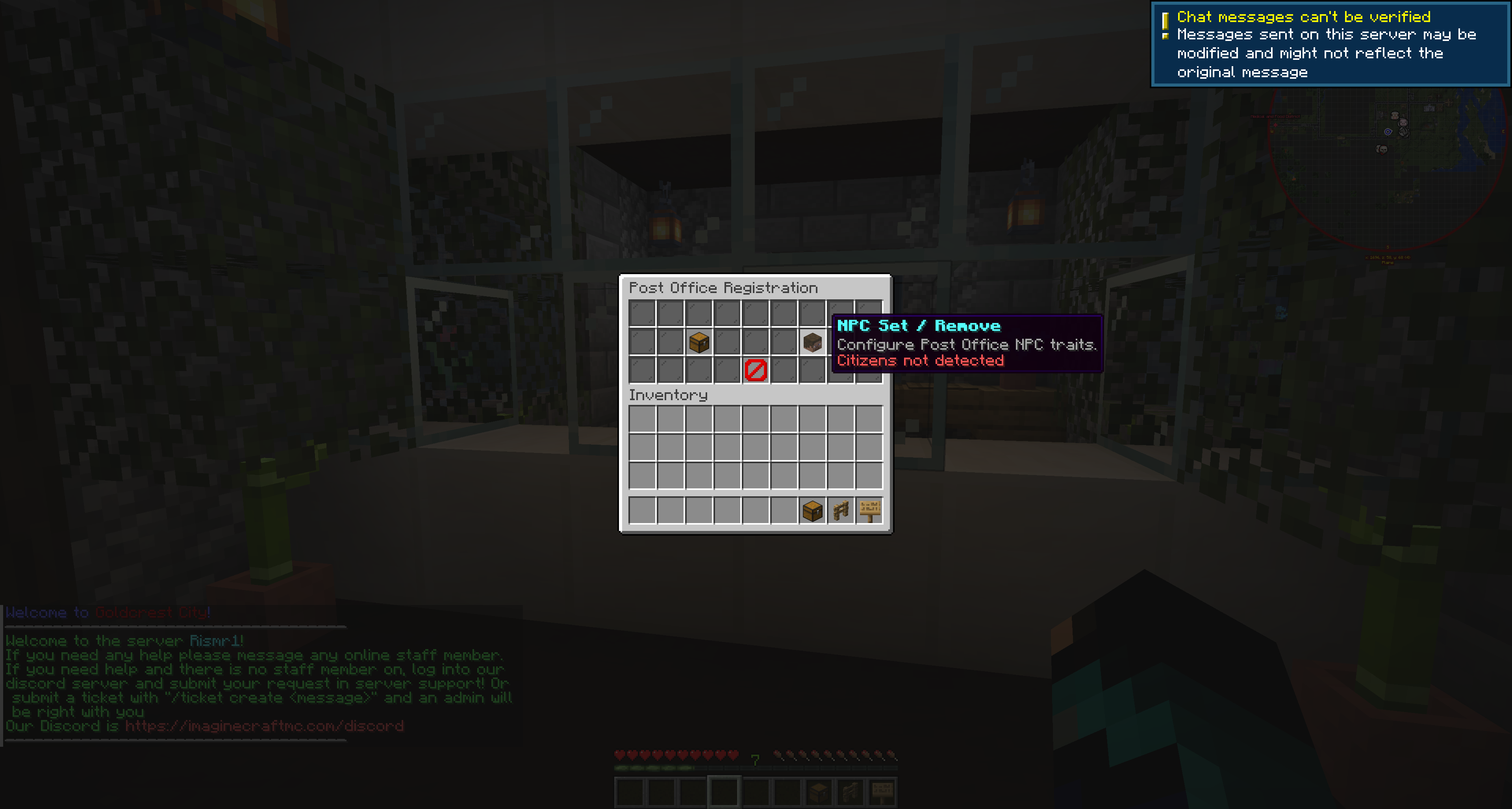
NPC Support does not have a separate core on/off config option. If Citizens is not installed or not available, NPC tools are unavailable and MailboxGUI continues to run normally.
NPC tools showing Citizens unavailable when Citizens is not detected
NPC tools showing Citizens unavailable when Citizens is not detected.

Opening NPC Tools

  1. Open Admin Tools.
  2. Open Post Office Registration.
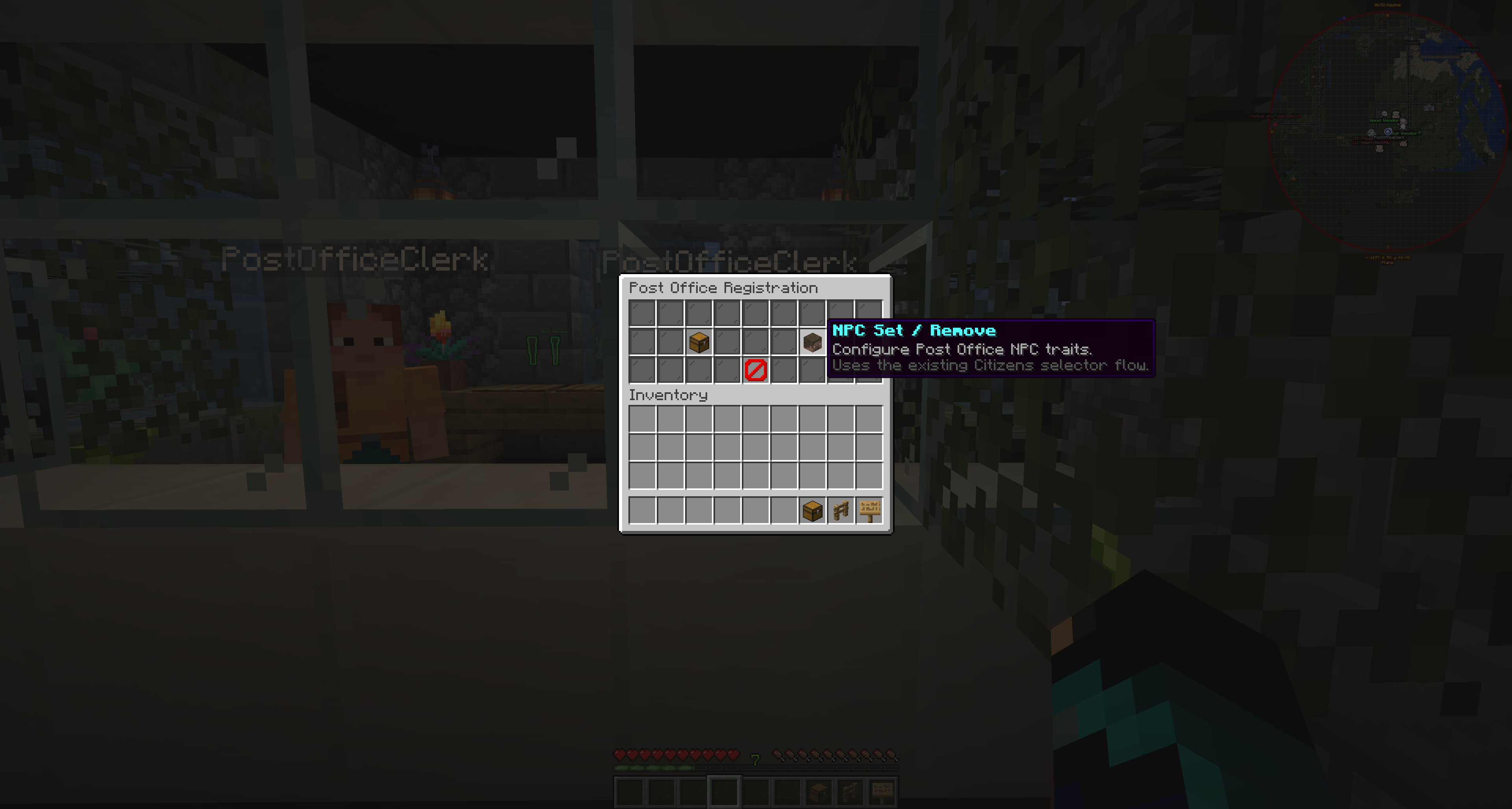
  3. Click NPC Set / Remove.

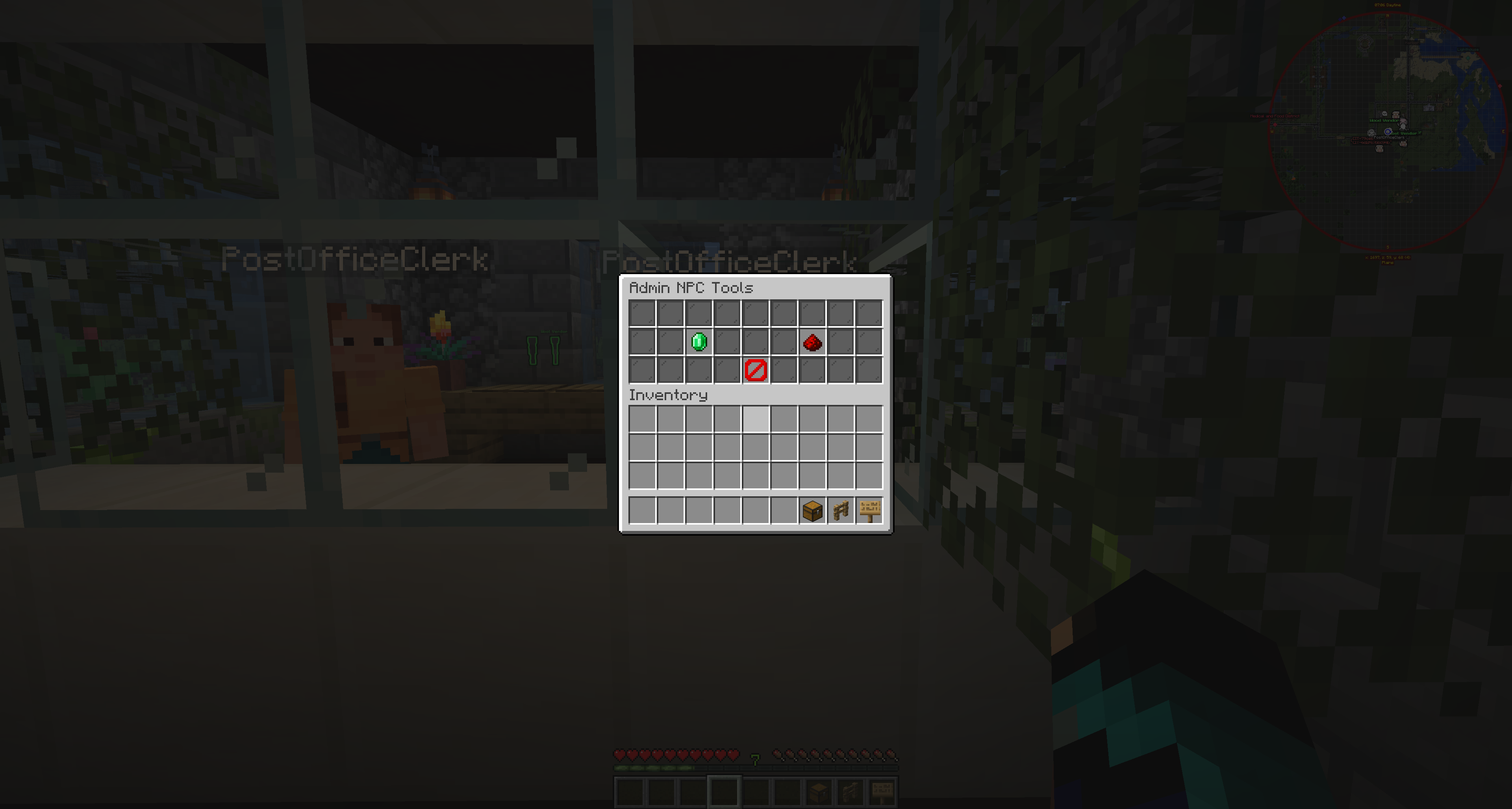
If Citizens is available, the Admin NPC Tools menu opens. If Citizens is unavailable, the NPC option shows a Citizens missing/unavailable message and clicking it sends the Citizens unavailable message.

The Admin NPC Tools menu contains Set Post Office NPC, Remove Post Office NPC, and Back.

Post Office Registration menu with NPC Set / Remove option
The Post Office Registration menu with NPC Set / Remove.
Admin NPC Tools menu with Set and Remove options
Admin NPC Tools with Set and Remove options.

Setting a Post Office NPC

Click Set Post Office NPC to enter NPC add/select mode. Right-click a Citizens NPC to mark it as a Post Office NPC, or left-click anywhere to cancel and return to Admin NPC Tools.

If the NPC is already a Post Office NPC, MailboxGUI sends the already-marked message. On success, MailboxGUI stores persistent NPC data, sends a success message, plays the selector sound, and refreshes Dynmap markers when Dynmap support is active.

The persistent NPC key is internal plugin data. Admins should manage NPCs through Admin NPC Tools rather than editing persistent data manually.
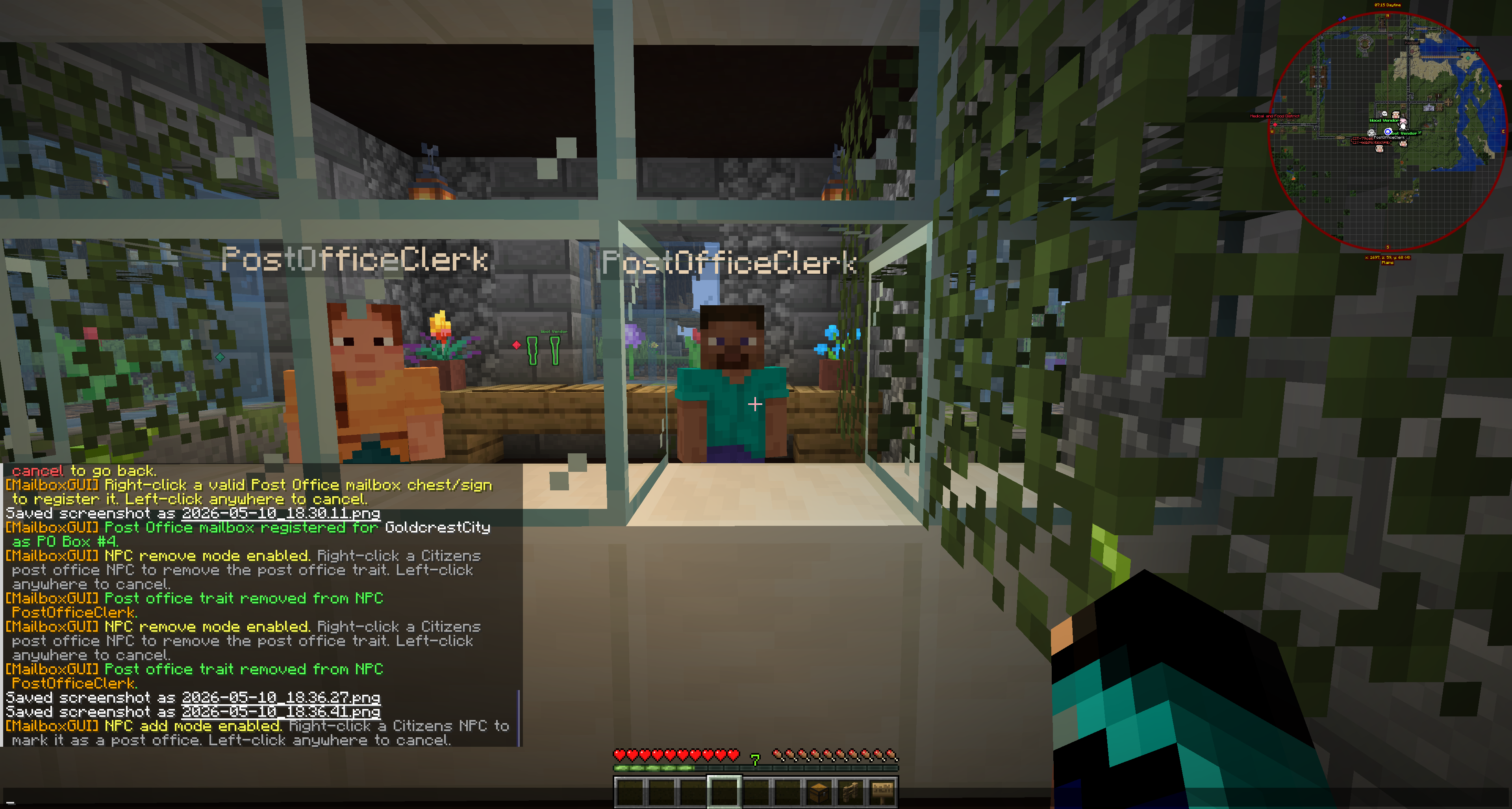
NPC add mode prompt after selecting Set Post Office NPC
NPC add mode prompt after selecting Set Post Office NPC.
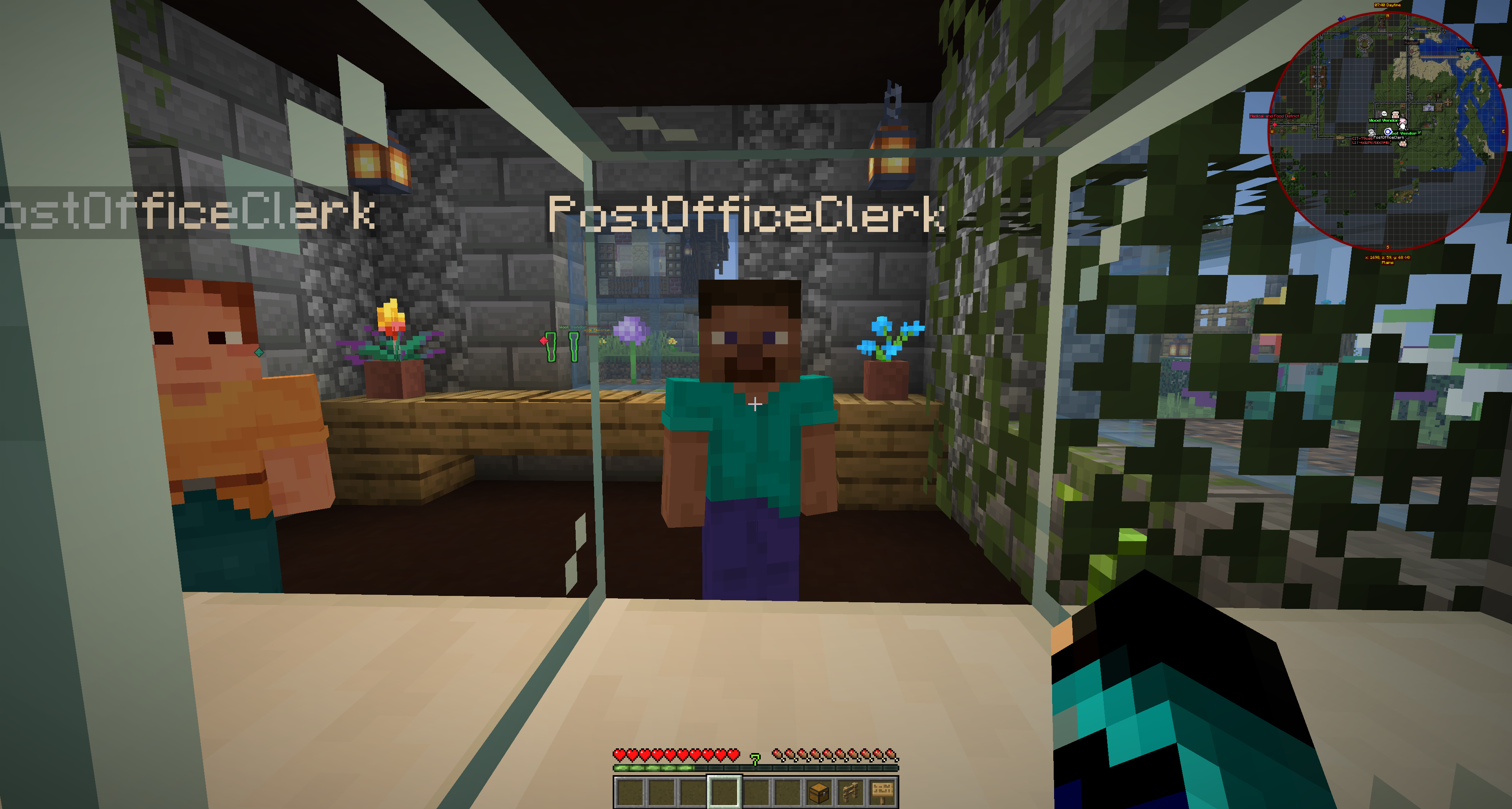
Right-clicking a Citizens NPC to mark it as a Post Office NPC
Right-clicking a Citizens NPC to mark it as a Post Office NPC.
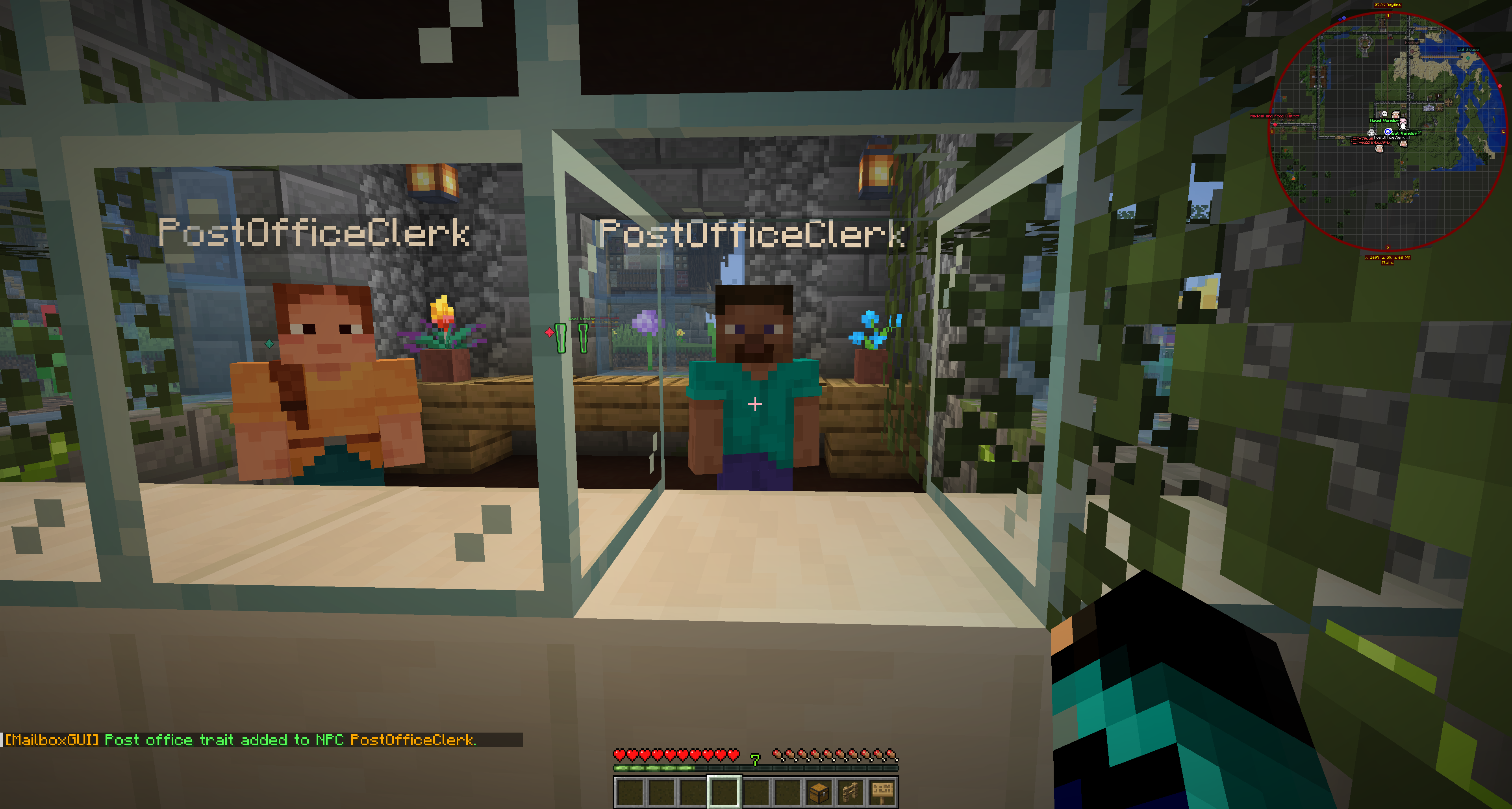
Success message after adding the Post Office NPC marker
Success message after adding the Post Office NPC marker.

Removing a Post Office NPC

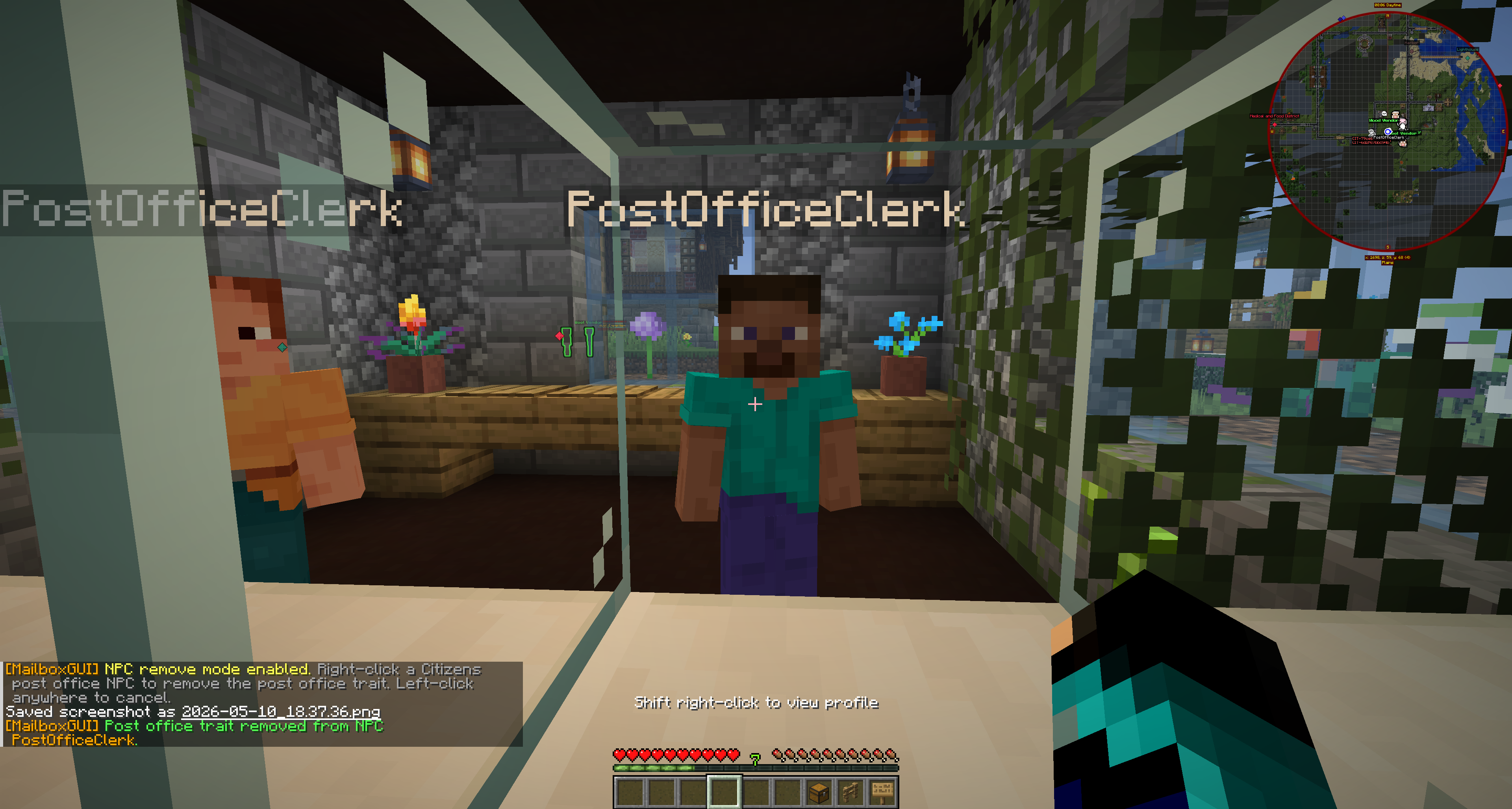
Click Remove Post Office NPC to enter NPC remove/select mode. Right-click a marked Citizens Post Office NPC to remove the MailboxGUI marker data, or left-click anywhere to cancel and return to Admin NPC Tools.

If the NPC is not a Post Office NPC, MailboxGUI sends the not-marked message. On success, MailboxGUI removes the marker data, sends a success message, plays the selector sound, and refreshes Dynmap markers when Dynmap support is active.

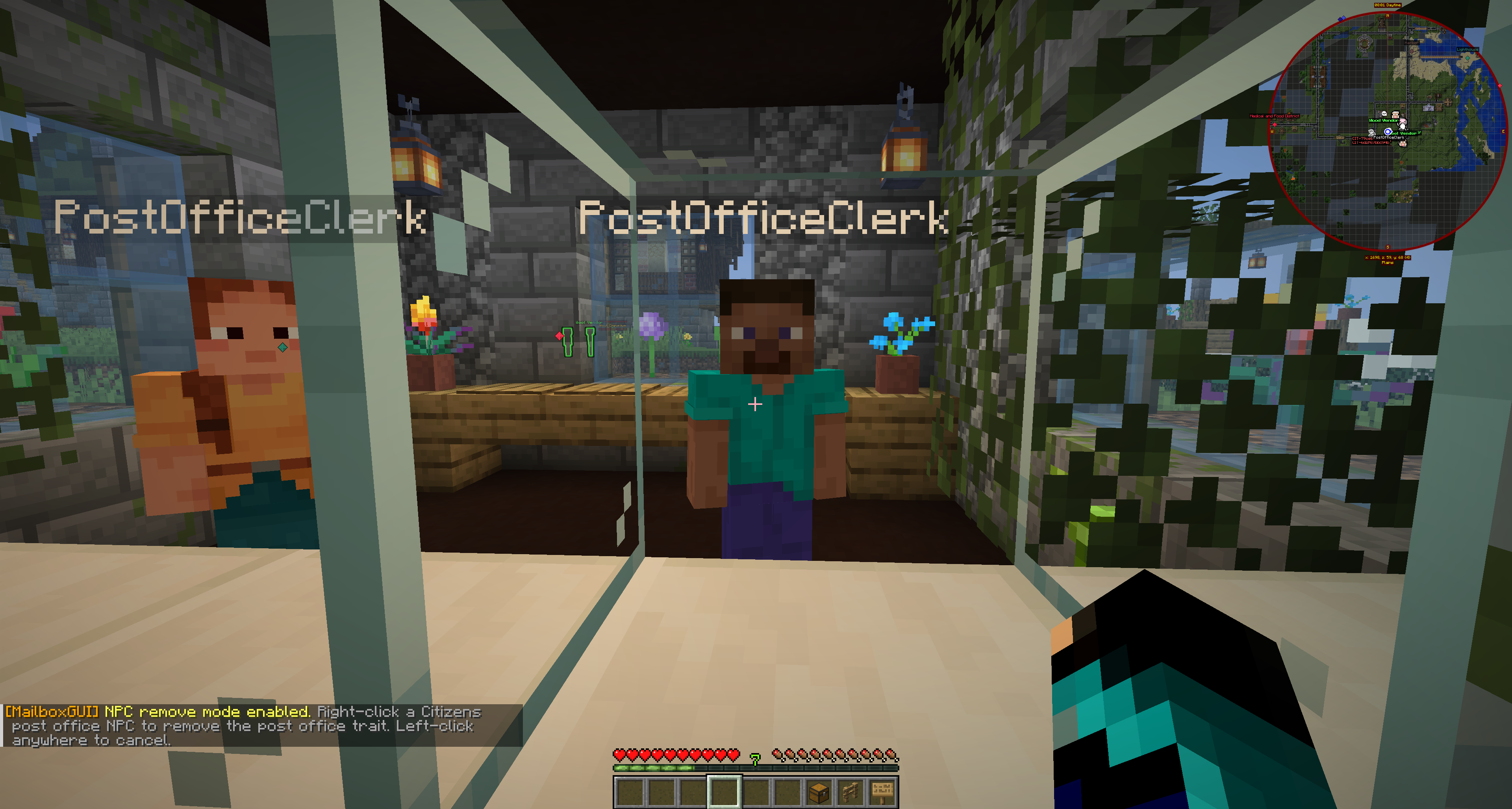
NPC remove mode prompt after selecting Remove Post Office NPC
NPC remove mode prompt after selecting Remove Post Office NPC.
Success message after removing the Post Office NPC marker
Success message after removing the Post Office NPC marker.

Player Access

Players right-click a marked Post Office NPC. MailboxGUI checks mailboxgui.player.postoffice.npc. If allowed, the normal MailboxGUI main menu opens, and the player is accessing their own mailbox/mail menu through the NPC.

If the player lacks permission, the no-permission message is sent. If the NPC is not marked as a Post Office NPC, MailboxGUI ignores the NPC for mailbox access.

Player opening MailboxGUI through a marked Post Office NPC
A player opening MailboxGUI through a marked Post Office NPC.

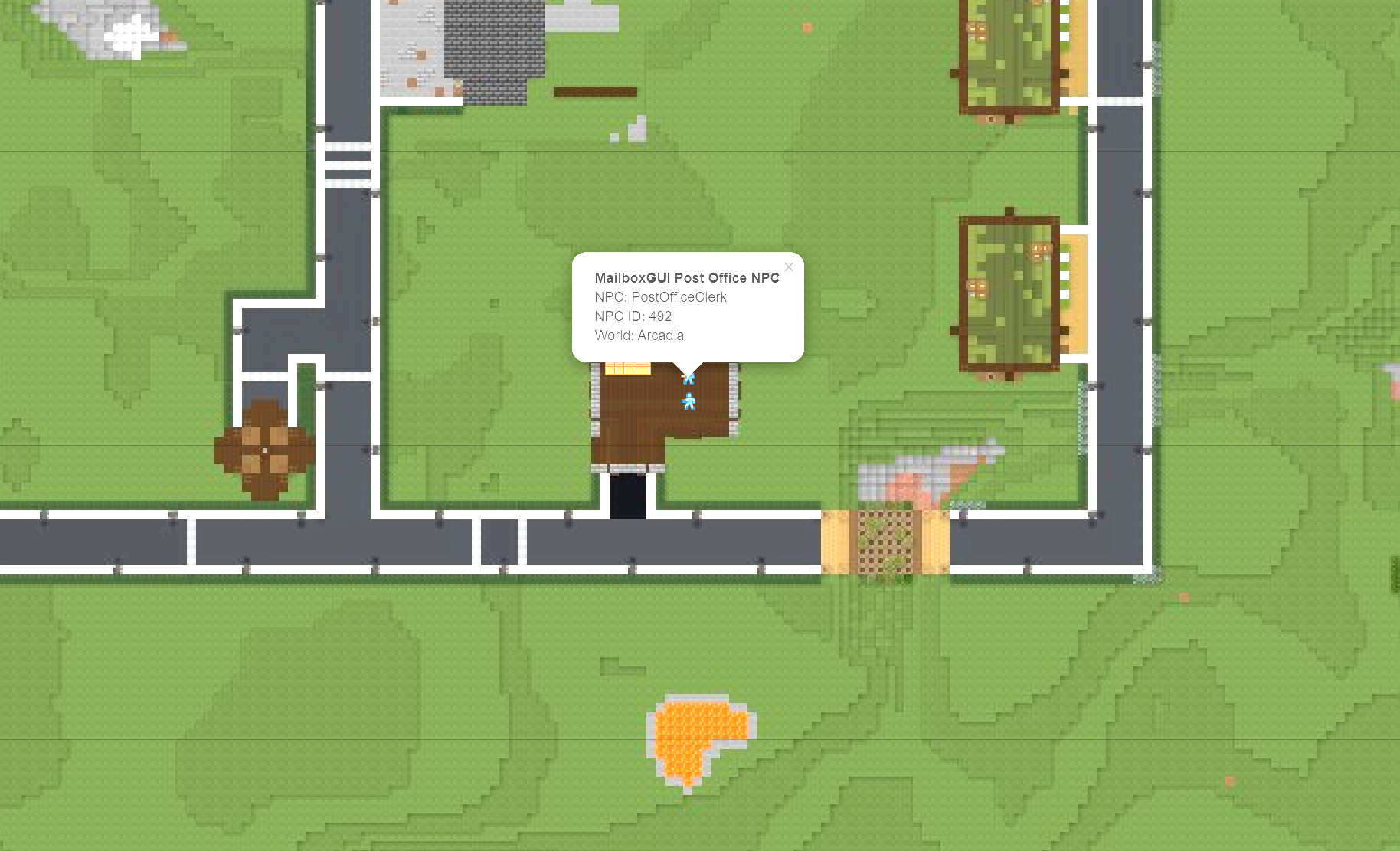
Dynmap Markers

When Dynmap support is enabled and compatible, Post Office NPCs can appear on the MailboxGUI Dynmap marker layer. Marker data is based on Citizens NPC ID, name, world, and stored location.

Markers refresh after NPCs are marked or unmarked. Dynmap is optional; MailboxGUI does not require Dynmap for NPC access.

Minecraft 26.1.x marker support depends on Dynmap having a compatible build. If Dynmap does not provide a compatible build for that version range, NPC markers are unavailable there even though MailboxGUI can still run without Dynmap.
Optional Dynmap marker for a MailboxGUI Post Office NPC
Optional Dynmap marker for a MailboxGUI Post Office NPC.

NPC Support vs Post Office Boxes

Post Office NPCs and Post Office boxes both provide public access to MailboxGUI. Post Office boxes are physical chest/sign structures registered as PO Boxes. Post Office NPCs are Citizens NPCs marked through Admin NPC Tools.

Both open the player's normal mailbox menu when allowed. They are managed through different admin tools and have different setup requirements.

Troubleshooting NPC Support

  • Citizens is not installed.
  • Citizens is installed but not enabled.
  • The Citizens API is unavailable or incompatible.
  • The admin lacks mailboxgui.admin.tools.postoffice.npc.set or remove permissions.
  • The player lacks mailboxgui.player.postoffice.npc.
  • The NPC was never marked as a Post Office NPC.
  • The admin right-clicked while not in add/remove selector mode.
  • The admin left-clicked and cancelled selector mode.
  • The NPC already has the Post Office marker when trying to add.
  • The NPC does not have the marker when trying to remove.
  • Dynmap markers do not show because Dynmap is missing, disabled, incompatible, or marker display is disabled.
  • Server language customization may make button names look different from screenshots.

Admin Tools

What Admin Tools Are

Admin Tools are MailboxGUI's staff-facing GUI tools for sending server mail, checking player inboxes, managing registered player mailboxes, and opening Post Office management tools.

  • Open them with /mailbox admin tools or /mba tools.
  • /mailbox admin opens admin help, not the Admin Tools GUI.
  • Access depends on the admin permission nodes granted to the staff member.
Post Office Registration and NPC tools are documented in the Post Offices and NPC Support sections. Admin Tools is the entry point, but those flows have their own setup details.

Opening Admin Tools

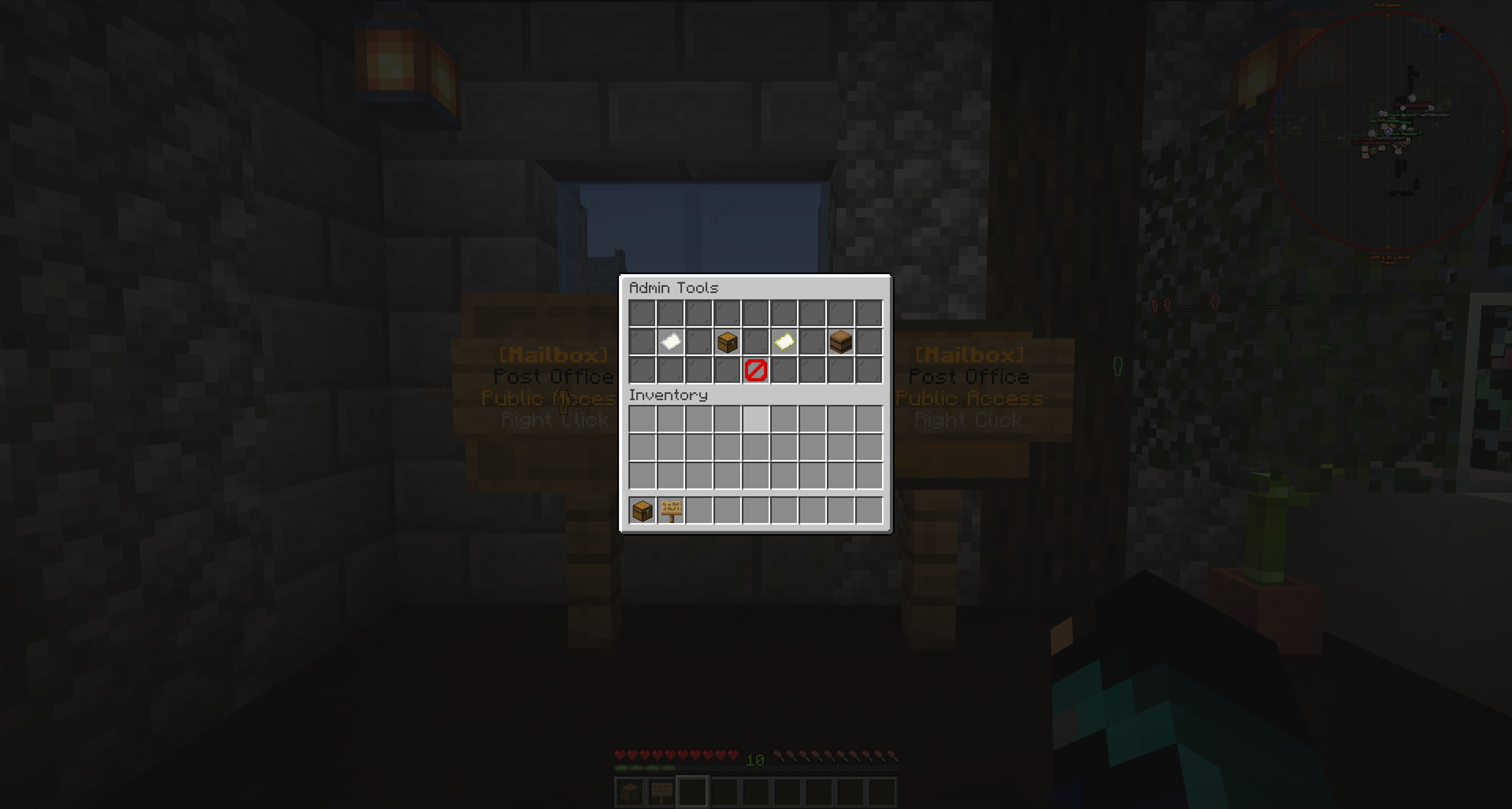
Run /mailbox admin tools, or use the admin alias /mba tools. The main Admin Tools menu contains Send Mail, Inbox Check, Post Office Registration, Registered Mailboxes, and Close.

If a staff member lacks the required admin tools permission, MailboxGUI sends the admin no-permission message instead of opening the tool.

Main MailboxGUI Admin Tools menu with Send Mail, Inbox Check, Post Office Registration, Registered Mailboxes, and Close
The main Admin Tools menu.

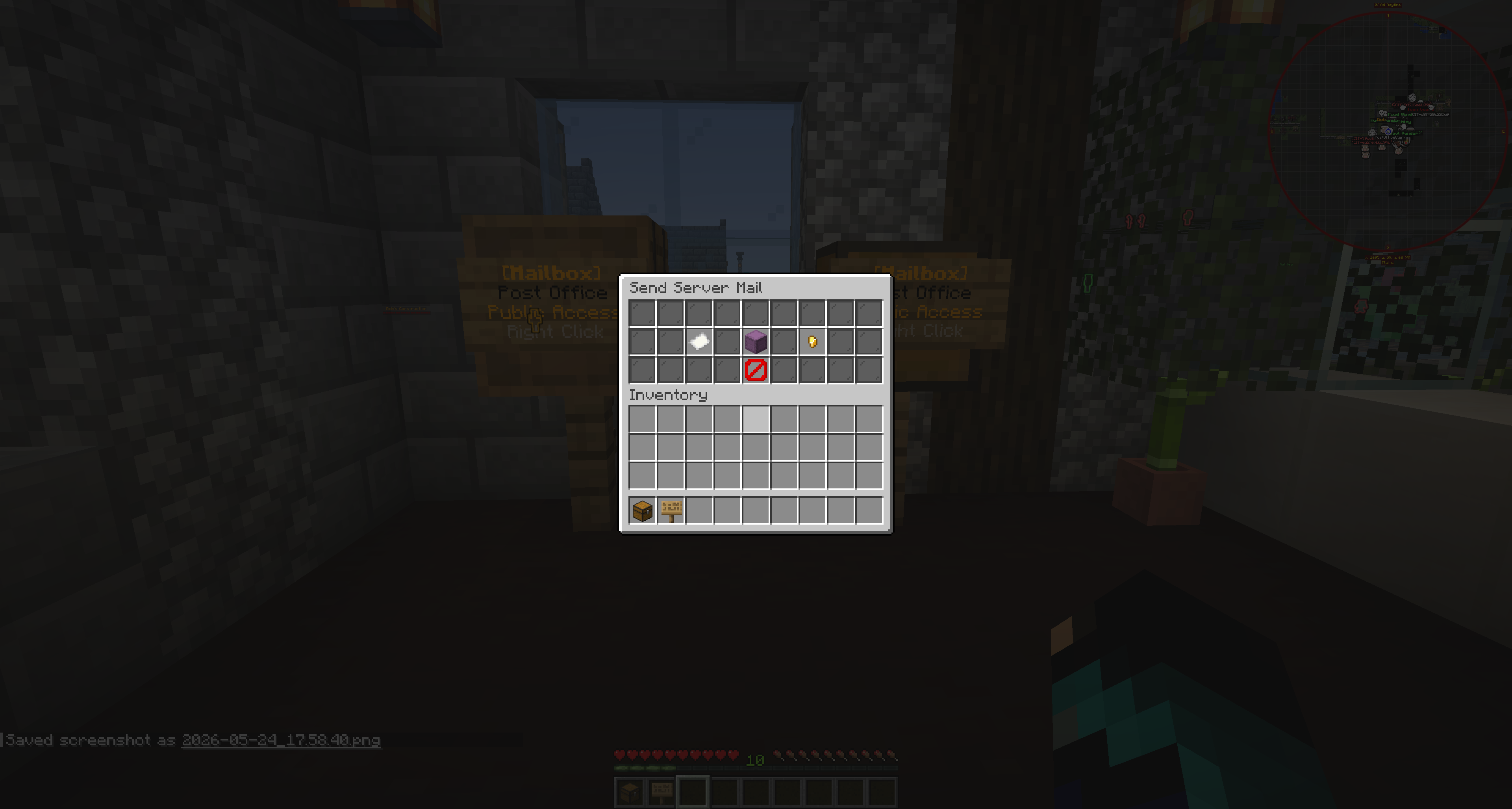
Admin Send Mail

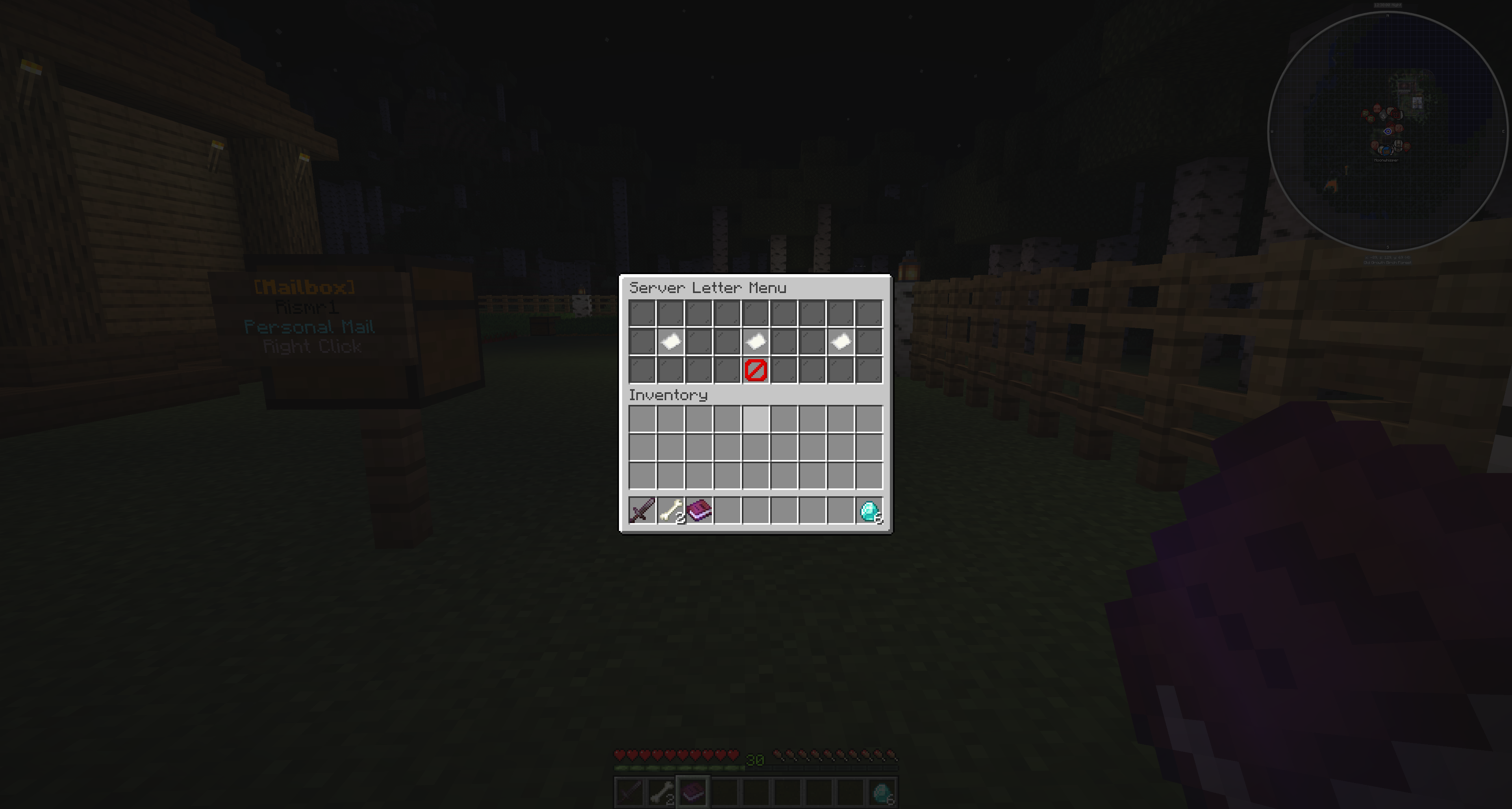
Send Mail opens Admin Send Mail. From there, staff choose Letter, Package, or Money, and each type opens an audience selector.

  • All Mailboxes
  • Online Mailboxes
  • Selected Recipient
  • Back

All Mailboxes and Online Mailboxes are bulk targets. Selected Recipient opens the relevant target selector for choosing one or more known mailbox players. Back returns to the previous admin screen.

The admin command shortcuts /mba sl, /mba sp, /mba scod, and /mba sm use the same API-backed send layer for command-driven delivery and can be used by console where supported.

Admin Send Mail menu with Letter, Package, Money, and Back options
Admin Send Mail with Letter, Package, and Money options.
Admin mail audience selector with All Mailboxes, Online Mailboxes, Selected Recipient, and Back
Selecting the audience for admin mail.

Sending Admin Letters

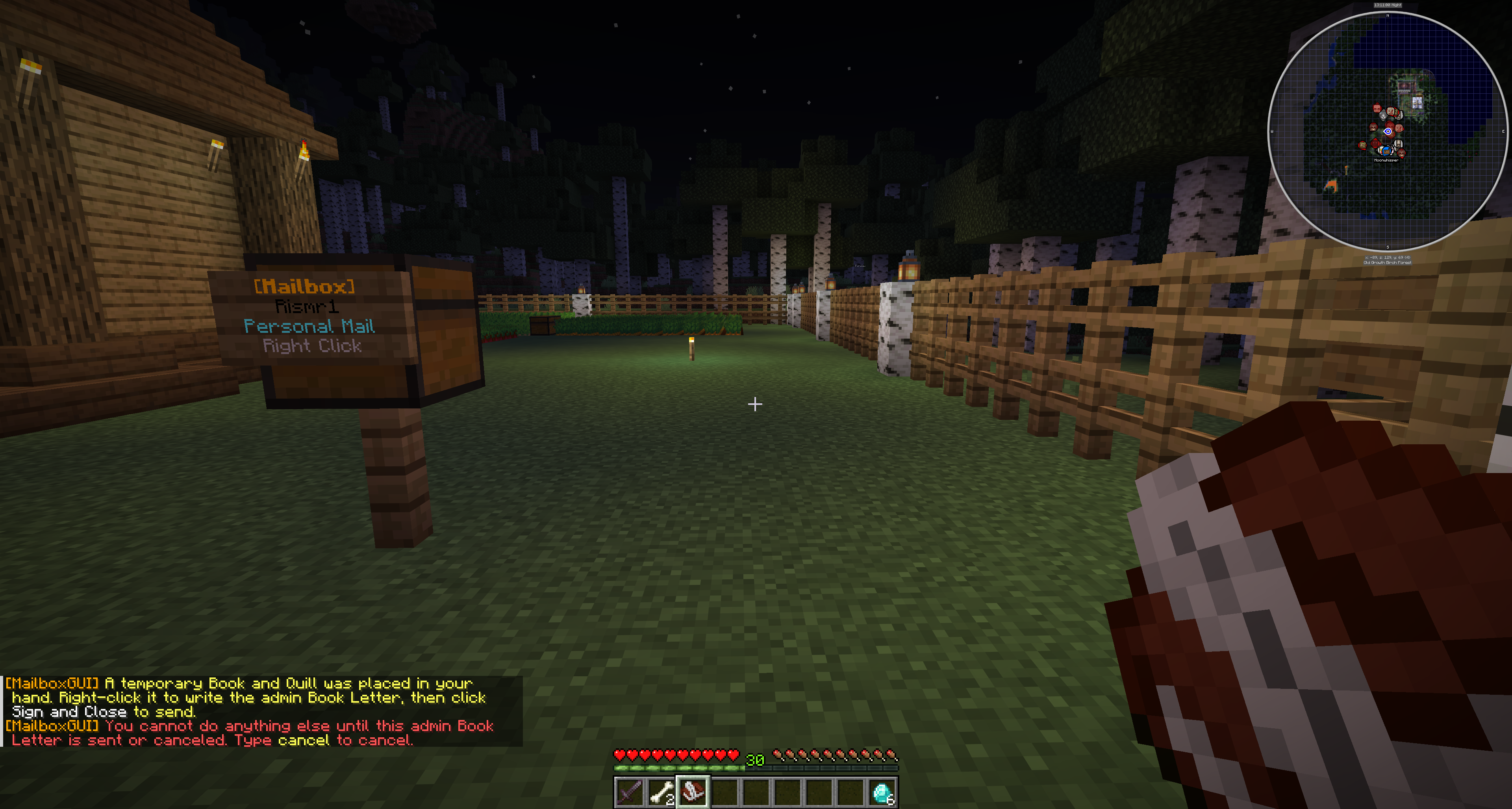
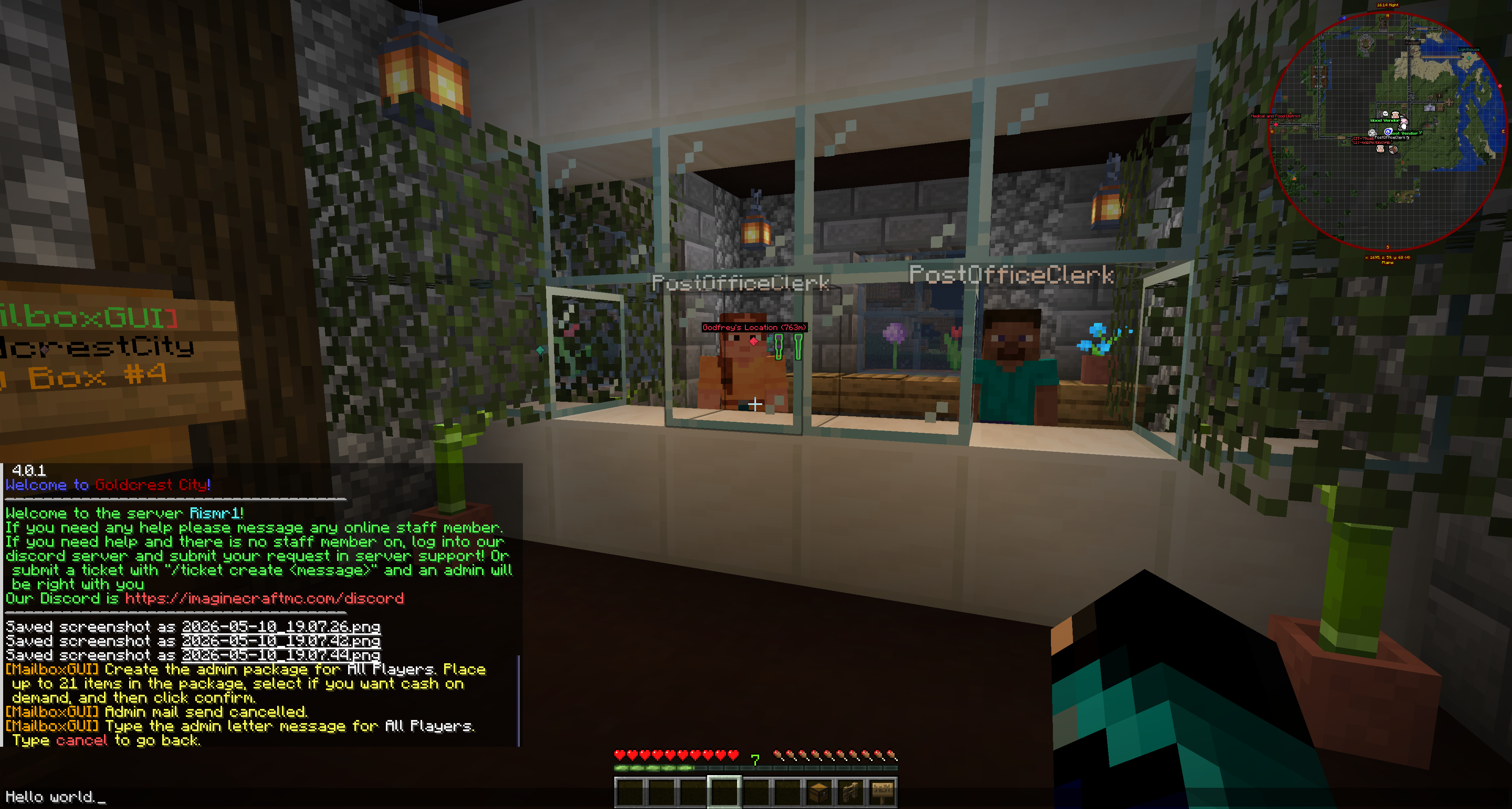
Admin letters are server-origin letters. The admin chooses Letter, then chooses an audience. For bulk audiences, the admin types the message in chat after choosing the audience. For selected recipients, the admin selects target(s), then types the message in chat.

Typing cancel cancels the prompt and returns to the previous screen. Admin letters use the configured letter.admin-server-name as the sender name.

Admin letters are useful for announcements, staff replies, rewards, warnings, event notices, and server communication.
Chat prompt for typing the body of an admin letter
Typing the admin letter message in chat.

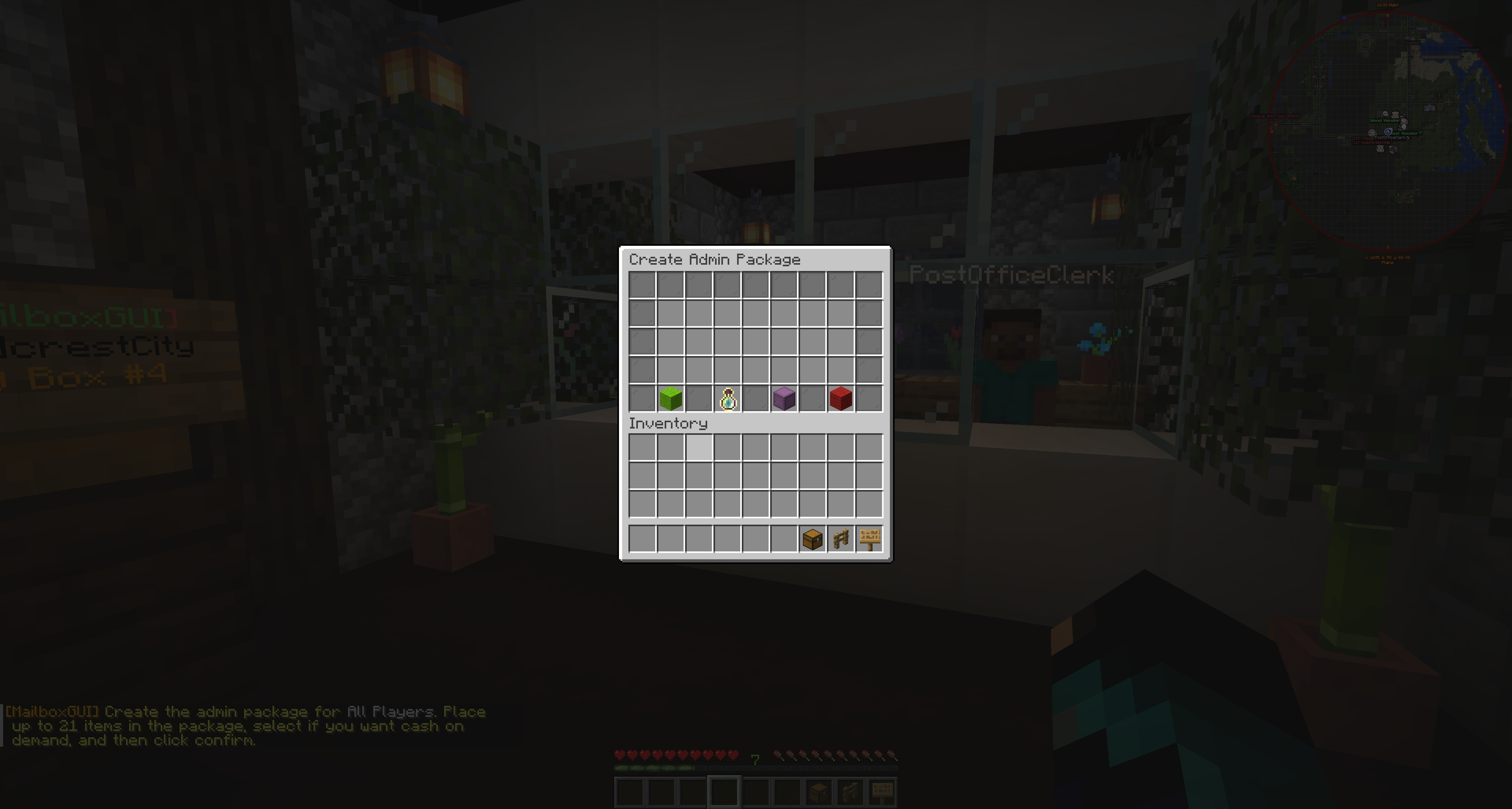
Sending Admin Packages

Admin packages are server-origin package deliveries. The admin chooses Package, then an audience. For selected recipients, the target selector opens first. Package compose opens after the audience or recipient is selected.

  • The admin places items into the package slots.
  • The package cannot be empty.
  • Package nesting is blocked.
  • Non-empty shulker boxes are blocked when the loaded shulker protection setting is enabled.
  • Admin package experience can be used when package experience is enabled and the admin has permission.
  • Admin package COD can be used when COD/economy support is available.
  • Admin-origin COD packages act as sink costs and do not pay an admin/server sender.
  • Admin packages use package.admin-server-name as the sender name.
  • Admin command packages can use saved item templates through template:<id>:amount or t:<id>:amount.
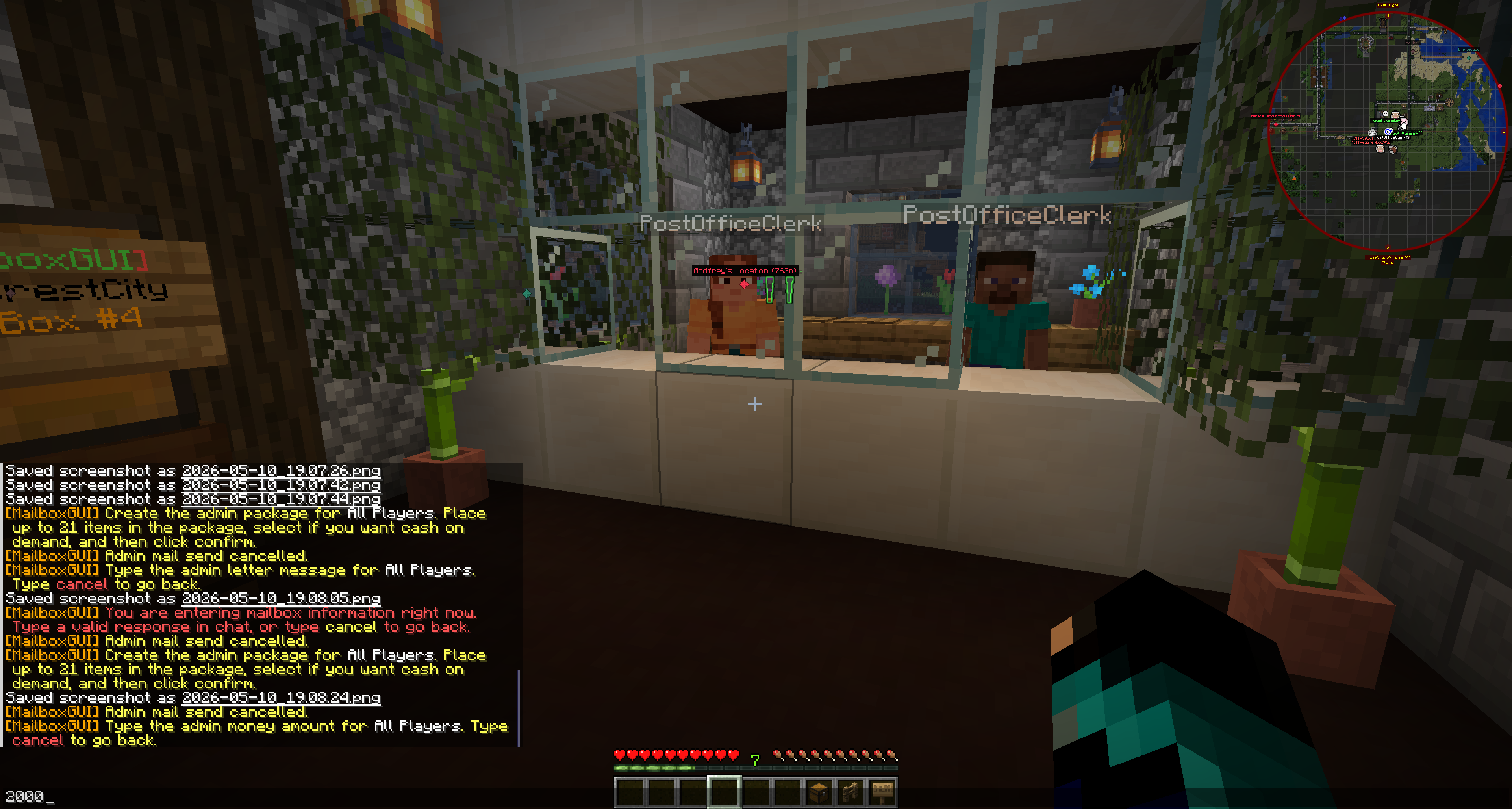
Admin package compose GUI for creating a server-origin package
Creating a server-origin admin package.

Sending Admin Money

Admin money mail creates server-origin money deliveries. Money mail requires money.enabled and Vault/economy support.

The admin chooses Money, selects an audience, then types an amount in chat. Typed amounts must be valid and greater than 0. Admin money mail uses money.admin-server-name as the sender name.

Admin money is useful for event rewards, compensation, gifts, and server-issued payments.
Chat prompt for typing the admin money amount
Typing the admin money amount in chat.

Bulk Audience Behavior

  • All Mailboxes sends to available mailbox delivery targets.
  • Online Mailboxes sends to online players.
  • Selected Recipient lets the admin choose target(s) from a selector.
  • admin-mail.include-sender-in-bulk-audiences controls whether the admin sender can be included in All Mailboxes and Online Mailboxes.
  • Bulk mail only sends to targets that can accept the created mail item.

Inbox Check

Inbox Check opens a player target selector. The selector supports filter cycling and typed player name entry; it starts with the Online filter by default and can cycle Online, All, and Offline.

Admins with mailboxgui.admin.tools.inboxcheck.see can inspect a player inbox. Admins with mailboxgui.admin.tools.inboxcheck.edit can make changes. In edit mode, right-clicking letters or money mail removes them, and clicking a package opens Admin Package Action. The target inbox is saved when edits are made.

Admin target selector for choosing a player inbox to inspect
Selecting a player inbox to inspect.
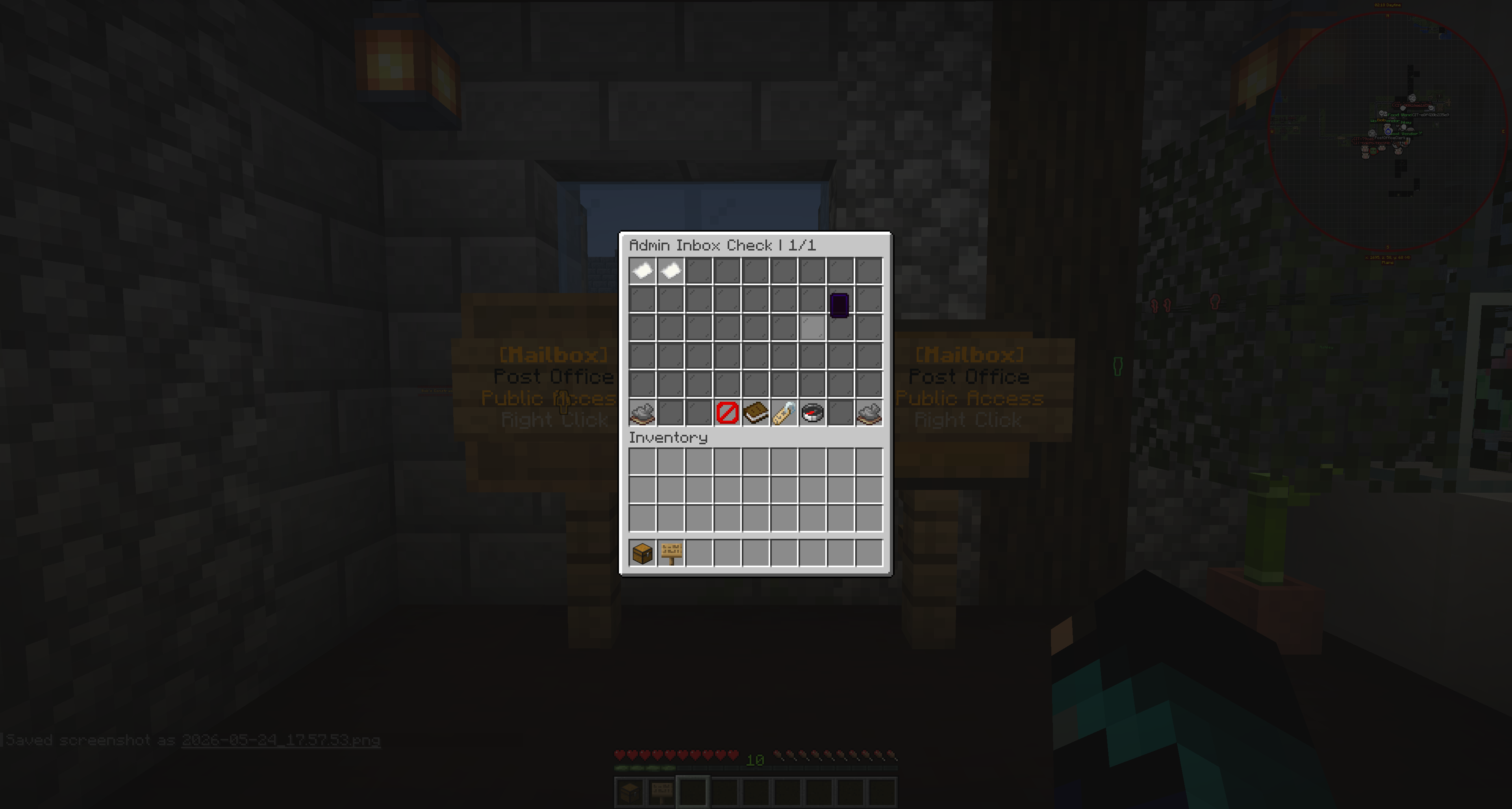
Admin viewing a player inbox through MailboxGUI Admin Tools
Viewing a player inbox through Admin Tools.

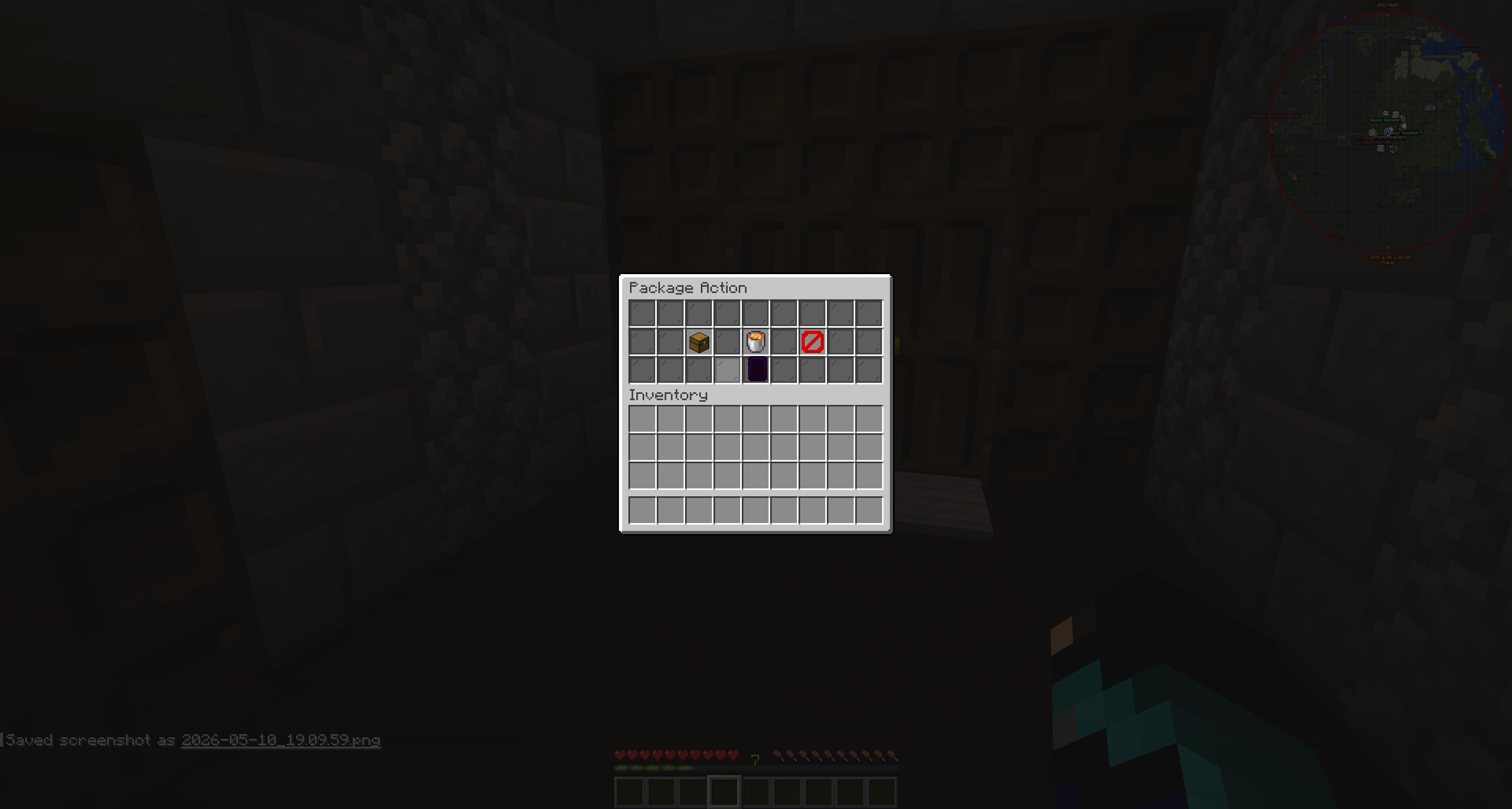
Admin Package Action

When editing a player inbox, clicking a package opens the Admin Package Action GUI. This is an admin inbox editing tool, not the normal player package receive flow.

  • Take Package Contents gives the package contents to the admin and removes the package from the target inbox.
  • Delete Package removes the package from the target inbox.
  • Cancel returns to the player inbox view.
Admin Package Action GUI for taking contents, deleting a package, or cancelling
Admin Package Action for a package in a player inbox.

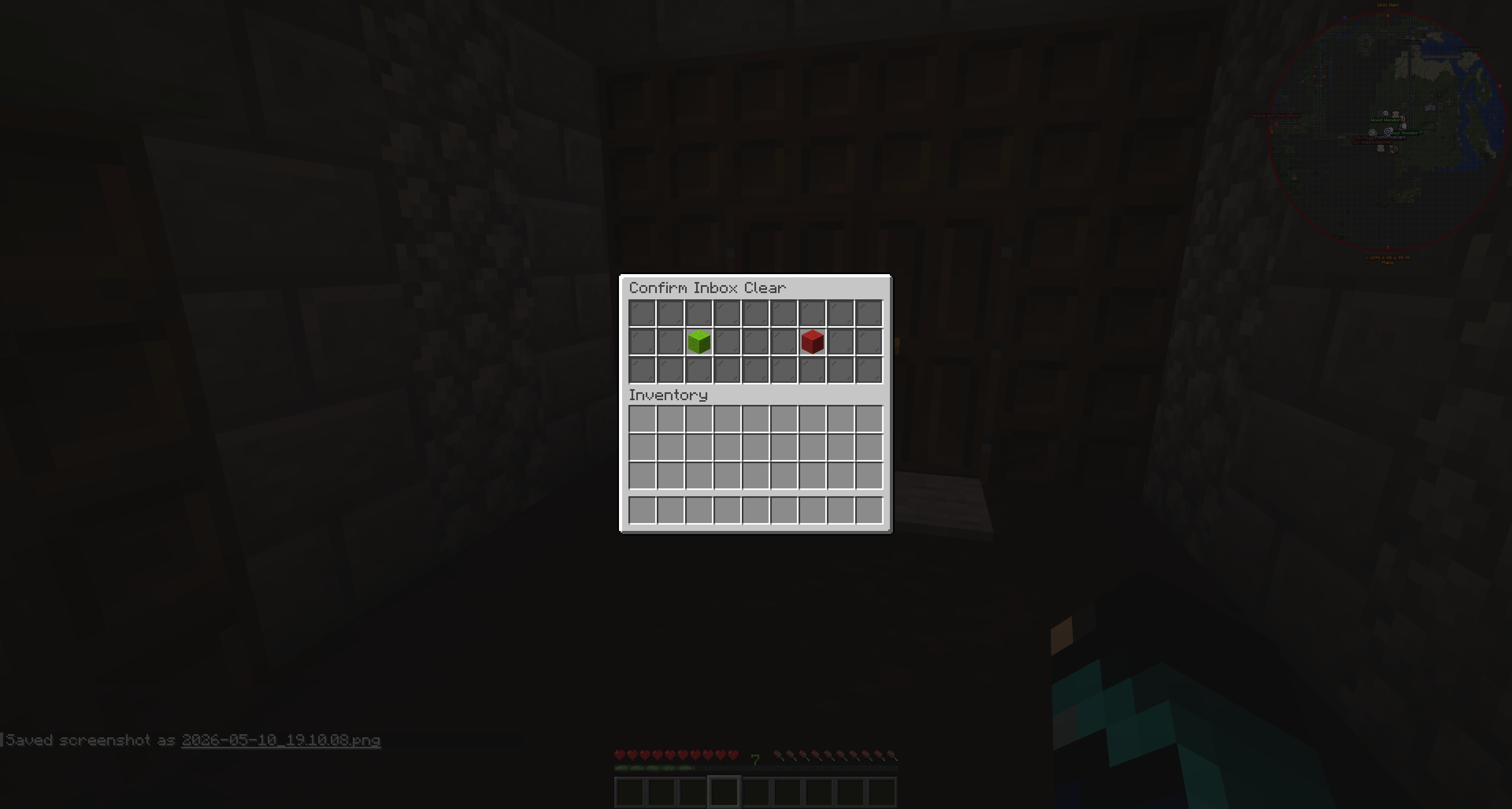
Clear Player Inbox

Admin Inbox View includes a clear inbox option for editors. Clicking it opens a confirmation GUI. Confirming clears the target player's inbox, while declining returns without clearing.

Use this carefully because it removes stored inbox contents.
Confirmation GUI before clearing a player's inbox
Confirming before clearing a player inbox.

Registered Mailboxes

Registered Mailboxes lets admins inspect and manage saved player mailbox registrations. The target selector can show players with registered mailboxes or all known players depending on the filter. Selecting a player opens that player's registered mailbox detail list.

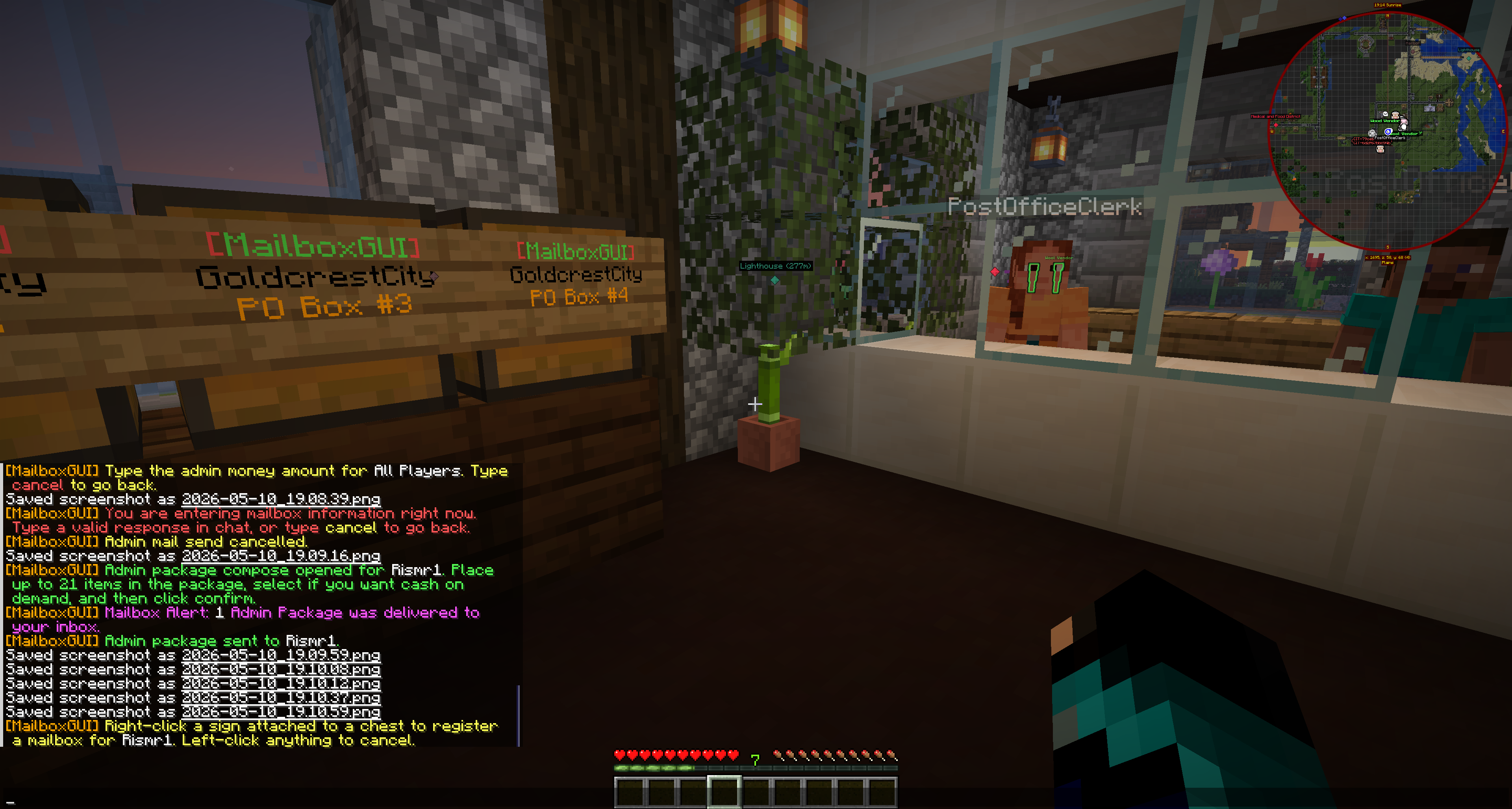
  • Admins can add/register a mailbox for that player through the admin registration prompt.
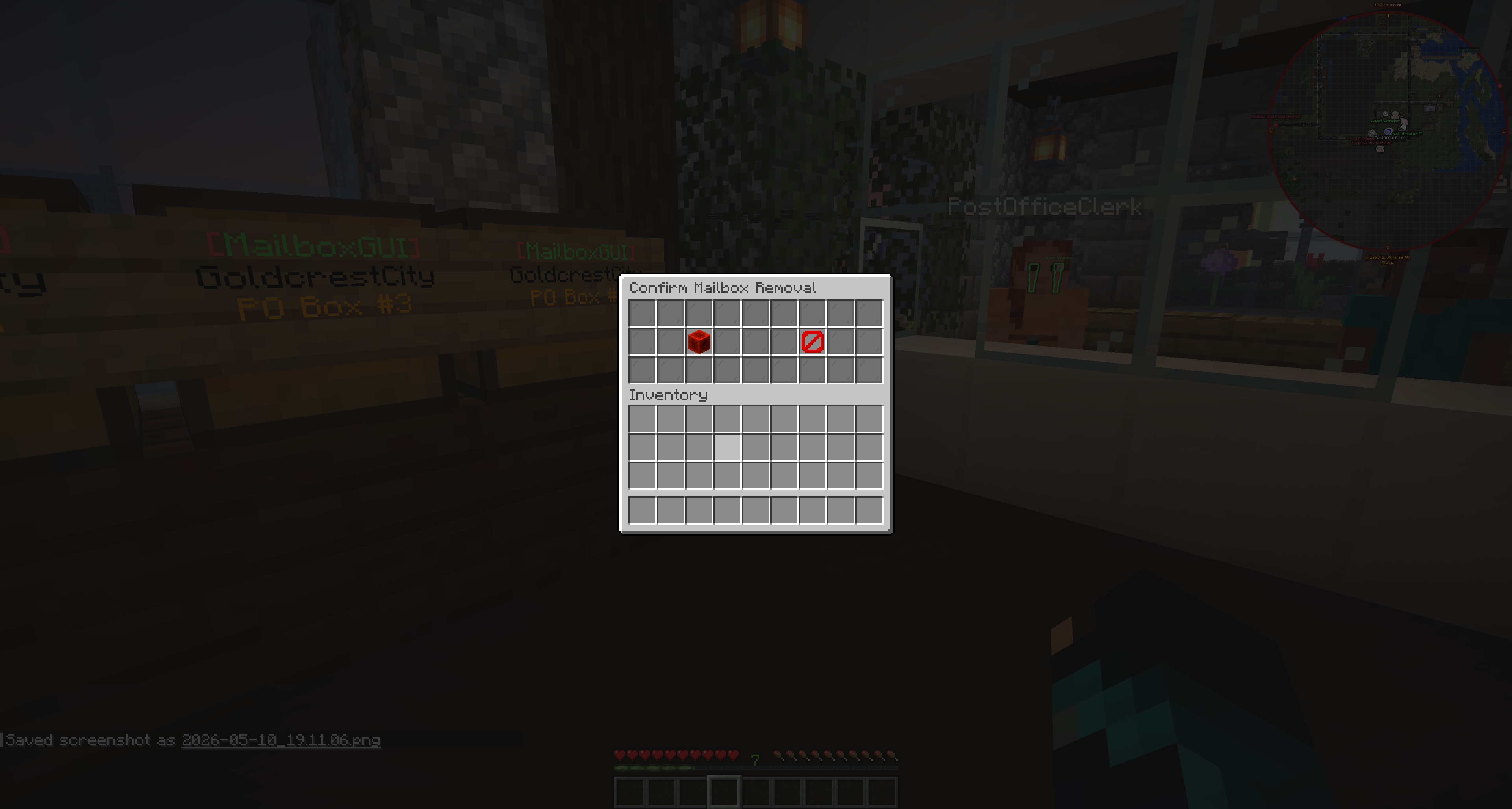
  • Admins can right-click a listed mailbox to open the unregister confirmation flow.
  • Confirming removal unregisters that saved mailbox and clears the sign if loaded.
Admin target selector for registered mailbox management
Selecting a player for registered mailbox management.
Admin view of a player's registered MailboxGUI mailboxes
Viewing a player's registered mailboxes.
Admin registration prompt for adding a mailbox to a selected player
Admin registration prompt for adding a mailbox to a player.
Confirmation GUI for removing a registered player mailbox
Confirming registered mailbox removal.
  • /mailbox admin shows admin help.
  • /mailbox admin tools opens the Admin Tools GUI.
  • /mba tools is the admin alias flow for opening Admin Tools.
  • /mailbox admin reload reloads MailboxGUI config/language synchronization.
  • /mailbox admin import player <name...> imports player data into MailboxGUI data.
  • /mailbox admin convert <YAML|SQLITE|MYSQL> to <YAML|SQLITE|MYSQL> runs storage conversion.
  • /mba sl, /mba sp, /mba scod, and /mba sm are admin/API-backed command send flows.
  • /mba itemtemplate and /mba it manage item templates for command package item specs.
  • Console can use supported admin reload/convert command flows where the source permits it.

Admin command send resolves recipients before sending. If any requested command recipient cannot be resolved/imported, the whole send fails instead of sending partial mail.

Troubleshooting Admin Tools

  • Staff member lacks mailboxgui.admin or the specific admin tool permission.
  • /mailbox admin was used instead of /mailbox admin tools.
  • Money mail is unavailable because Vault/economy is missing.
  • Package COD is unavailable because COD/economy support is missing.
  • No valid targets exist for the selected audience.
  • A selected player is not known to MailboxGUI.
  • A command send recipient could not be resolved/imported, so no partial send was performed.
  • Admin typed cancel during a chat prompt.
  • Admin package is empty.
  • Package contains a nested MailboxGUI package.
  • Package contains a blocked non-empty shulker box.
  • Inbox editing requires edit permission, not just see permission.
  • Server language customization may make button names look different from screenshots.

Storage Setup

MailboxGUI supports YAML, SQLite, and MySQL storage. YAML can be useful for simple setups, SQLite is a strong default for fresh installs, and MySQL fits larger servers or environments that need database-backed storage.

What Storage Controls

Storage controls where MailboxGUI saves persistent plugin data, including player mailbox data, inbox mail data, delayed mail queue data, and Post Office mailbox data. MailboxGUI supports YAML, SQLite, and MySQL so servers can choose the storage backend that fits their size and maintenance style.

The delayed mail queue is persistent and supports delayed letter, package, and money delivery through config, commands, and API calls. Delayed mail data is handled through the active storage provider, and standalone YAML delayed mail can import when needed.

Storage is not cosmetic. Changing storage incorrectly can make existing mailboxes or mail appear missing until the correct backend is restored or the data is converted. Back up before changing storage settings.
Storage Config Example

Example storage config

storage:
  # Valid types: YAML, SQLITE, MYSQL
  # Fresh installs default to SQLITE.
  # Legacy YAML upgrades may stay on YAML automatically for safety.
  type: SQLITE

  sqlite:
    # Path is relative to plugins/MailboxGUI/
    file: data/data.db

  mysql:
    host: localhost
    port: 3306
    database: mailboxgui
    username: root
    password: ''
    use-ssl: false
  • storage.type controls the active backend.
  • SQLITE uses a local database file.
  • YAML uses the data/playerdata and data/postofficedata folders.
  • MYSQL uses the configured database connection.
  • Changing storage.type alone does not copy existing data. Use the conversion command for that.

Available Storage Types

  • YAML: flat YAML files under plugins/MailboxGUI/data/playerdata and plugins/MailboxGUI/data/postofficedata.
  • SQLITE: local SQLite database file under plugins/MailboxGUI/data/data.db.
  • MYSQL: MySQL database storage using the configured database connection.

Fresh installs default to SQLITE. Legacy YAML upgrades can remain on YAML automatically for safety. MySQL is useful for servers that specifically want database-backed storage and have a reliable MySQL server.

SQLite Startup Example

This is an example of the kind of startup information a server owner may see. The exact wording can vary by MailboxGUI version and configuration.

Example SQLite startup console output

[MailboxGUI] Storage Backend: SQLITE
[MailboxGUI] SQLite database file: plugins/MailboxGUI/data/data.db
[MailboxGUI] Player data path: plugins/MailboxGUI/data/playerdata
[MailboxGUI] Post Office data path: plugins/MailboxGUI/data/postofficedata
[MailboxGUI] MailboxGUI storage provider initialized successfully.

Fresh Installs and Legacy Upgrades

  • New installs use SQLITE by default.
  • Upgrades from older YAML-based MailboxGUI versions may be kept on YAML when legacy data is detected.
  • Legacy player data from plugins/MailboxGUI/mailboxdata is copied into plugins/MailboxGUI/data/playerdata.
  • Legacy Post Office data from plugins/MailboxGUI/postofficedata/mailboxes.yml is copied into plugins/MailboxGUI/data/postofficedata/mailboxes.yml.
  • Legacy copy migration does not overwrite existing new-layout files.
  • This helps prevent old data from being ignored by a fresh SQLite default.

YAML Storage Folder Structure

YAML storage folder structure

plugins/
└── MailboxGUI/
    └── data/
        ├── playerdata/
        │   ├── 00000000-0000-0000-0000-000000000000.yml
        │   ├── 11111111-1111-1111-1111-111111111111.yml
        │   └── ...
        └── postofficedata/
            └── mailboxes.yml
  • playerdata contains per-player YAML files named by UUID.
  • postofficedata/mailboxes.yml stores Post Office mailbox data.
  • Manual edits should only be done while the server is stopped.

SQLite Storage Layout

  • SQLite file path defaults to plugins/MailboxGUI/data/data.db.
  • SQLite is the default for fresh installs.
  • SQLite keeps plugin data in a local database file instead of many individual YAML files.
  • SQLite is a good default for most single-server setups.
  • Server owners should back up data/data.db before major upgrades or conversions.

SQLite database path

plugins/MailboxGUI/data/data.db

MySQL Configuration Example

Example MySQL storage config

storage:
  type: MYSQL

  mysql:
    host: 127.0.0.1
    port: 3306
    database: mailboxgui
    username: mailboxgui_user
    password: 'change-this-password'
    use-ssl: false
  • The database and user should exist before switching to MYSQL.
  • MailboxGUI validates the connection and creates or validates tables.
  • Required tables are mailboxgui_playerdata and mailboxgui_postoffice.
  • The Post Office data row uses the internal id mailboxes.
  • If MySQL validation fails on startup, MailboxGUI falls back to SQLITE.

Changing Storage Type Safely

  • Do not simply change storage.type on a live server and expect data to move automatically.
  • Use the storage conversion command to move data between storage backends.
  • Stop and back up the server before production storage changes when possible.
  • Confirm the current active storage type first.
  • Convert from the active type to the target type.
  • Verify data after conversion before deleting old backups or old data.

Storage Conversion Command

Storage conversion command

/mailbox admin convert <YAML|SQLITE|MYSQL> to <YAML|SQLITE|MYSQL>

Examples:

/mailbox admin convert YAML to SQLITE
/mailbox admin convert SQLITE to MYSQL
/mba convert MYSQL to YAML
  • The source type must match the configured active storage type.
  • Same-type conversion is refused.
  • Conversion requires mailboxgui.admin.convert or mailboxgui.admin.
  • Conversion to MYSQL validates MySQL before copying data or changing config.

Storage Conversion Success Example

This example shows the conversion flow admins should expect conceptually. It is not a guaranteed exact console copy for every version.

Example successful conversion output

[MailboxGUI] Starting storage conversion: YAML -> SQLITE
[MailboxGUI] Saving loaded mailbox and Post Office data before conversion...
[MailboxGUI] Backup created: plugins/MailboxGUI/backups/storage-conversions/20260510-184522-YAML-to-SQLITE
[MailboxGUI] Copied player data entries: 42
[MailboxGUI] Copied Post Office data: yes
[MailboxGUI] Updated config.yml storage.type to SQLITE
[MailboxGUI] Reloaded storage provider and mailbox data.
[MailboxGUI] Storage conversion completed successfully.

Conversion Backup Folder Structure

Conversion backup folder structure

plugins/
└── MailboxGUI/
    └── backups/
        └── storage-conversions/
            └── 20260510-184522-YAML-to-SQLITE/
                ├── config.yml
                ├── source/
                │   ├── playerdata/
                │   └── postofficedata/
                └── target-before-clear/
                    └── ...
  • The timestamp and conversion direction are included in the folder name.
  • The backup includes config.yml.
  • The backup includes a source provider snapshot.
  • If target data already existed, the target snapshot is backed up before it is cleared.
  • This backup is important because conversion clears the target before copying data.

MySQL Validation and Fallback

  • MYSQL startup validates connection and table creation.
  • If validation fails, MailboxGUI logs severe/red console messages.
  • The plugin changes storage.type back to SQLITE and starts on SQLite instead of failing the whole plugin startup.
  • Conversion to MYSQL also validates first.
  • If MySQL validation fails during conversion, config.yml is not changed and data is not copied to the failed target.

This is an example fallback log to show the behavior. Exact wording may vary by version and configuration.

Example MySQL fallback console output

[MailboxGUI ERROR] Failed to connect to MYSQL storage.
[MailboxGUI ERROR] MySQL validation failed during startup.
[MailboxGUI ERROR] Falling back to SQLITE so MailboxGUI can continue loading.
[MailboxGUI] Updated config.yml storage.type to SQLITE.
[MailboxGUI] Storage Backend: SQLITE
[MailboxGUI] SQLite database file: plugins/MailboxGUI/data/data.db
  • Use SQLITE for most fresh single-server installs.
  • Use YAML when upgrading older YAML installs and you want the simplest compatibility path.
  • Use MYSQL only when you have a maintained database server and want database-backed storage.
  • Always test conversions on a backup before relying on them for a production server.

Troubleshooting Storage

  • storage.type is misspelled or invalid, causing fallback to SQLITE.
  • MySQL host, port, database, username, password, or SSL setting is wrong.
  • MySQL database/user does not exist or lacks permissions.
  • MySQL conversion fails validation, so config is not changed.
  • The wrong source type was used in the conversion command.
  • Source and target types are the same.
  • Source storage has no readable player or Post Office data.
  • Server was not stopped/backed up before manual file edits.
  • YAML files were edited while the server was running.
  • Data appears missing because the server is pointed at a different storage backend than the one containing the data.

Permissions

Permissions should be assigned based on the workflows you want players, moderators, and admins to use. Keep basic mail actions available to players, then reserve mailbox management and server-side support commands for trusted staff.

Player Permissions

Use these permissions for normal player-facing mailbox access.

  • mailboxgui.player.use: Allows normal player access to MailboxGUI commands and player workflows.
  • mailboxgui.player.postoffice.pobox: Allows opening public Post Office boxes when post-office.mailboxes.allow-any-player-open is false.
  • mailboxgui.player.postoffice.npc: Allows opening mailbox access through marked Citizens Post Office NPCs.

Admin Tools Permissions

Use these permissions to control MailboxGUI admin commands and GUI tools.

Base/admin

  • mailboxgui.admin: Full access to all MailboxGUI admin commands, tools, import, reload, conversion, and admin functions.
  • mailboxgui.admin.reload: Allows reloading MailboxGUI config and language files.
  • mailboxgui.admin.import: Allows importing player serverdata into MailboxGUI data.
  • mailboxgui.admin.convert: Allows converting MailboxGUI storage between YAML, SQLite, and MySQL.

Admin command/API-backed send

  • mailboxgui.admin.send: Access to all admin command/API-backed send shortcuts.
  • mailboxgui.admin.send.letter: Allows admin letter send commands.
  • mailboxgui.admin.send.package: Allows admin package send commands.
  • mailboxgui.admin.send.cod: Allows admin COD package send commands.
  • mailboxgui.admin.send.money: Allows admin money mail send commands.

Item templates

  • mailboxgui.admin.itemtemplate: Access to item template commands.
  • mailboxgui.admin.itemtemplate.save: Allows saving the held main-hand item as a template.
  • mailboxgui.admin.itemtemplate.delete: Allows deleting item templates.
  • mailboxgui.admin.itemtemplate.list: Allows listing item templates.
  • mailboxgui.admin.itemtemplate.give: Allows giving a saved item template to a player.

Admin tools

  • mailboxgui.admin.tools.*: Access to all MailboxGUI admin GUI tools.

Admin send mail

  • mailboxgui.admin.tools.sendmail.*: Access to all admin send-mail options.
  • mailboxgui.admin.tools.sendmail.letter.*: Access to all admin letter send options.
  • mailboxgui.admin.tools.sendmail.letter.allmailboxes: Send admin letters to all mailbox players.
  • mailboxgui.admin.tools.sendmail.letter.onlinemailboxes: Send admin letters to online mailbox players.
  • mailboxgui.admin.tools.sendmail.letter.selectrecipient: Send admin letters to selected recipients.
  • mailboxgui.admin.tools.sendmail.package.*: Access to all admin package send options.
  • mailboxgui.admin.tools.sendmail.package.allmailboxes: Send admin packages to all mailbox players.
  • mailboxgui.admin.tools.sendmail.package.onlinemailboxes: Send admin packages to online mailbox players.
  • mailboxgui.admin.tools.sendmail.package.selectrecipient: Send admin packages to selected recipients.
  • mailboxgui.admin.tools.sendmail.money.*: Access to all admin money send options.
  • mailboxgui.admin.tools.sendmail.money.allmailboxes: Send admin money to all mailbox players.
  • mailboxgui.admin.tools.sendmail.money.onlinemailboxes: Send admin money to online mailbox players.
  • mailboxgui.admin.tools.sendmail.money.selectrecipient: Send admin money to selected recipients.

Admin inbox check

  • mailboxgui.admin.tools.inboxcheck.*: Access to all admin inbox check controls.
  • mailboxgui.admin.tools.inboxcheck.see: View player inboxes.
  • mailboxgui.admin.tools.inboxcheck.edit: Edit player inboxes.

Registered mailbox management

  • mailboxgui.admin.tools.managemailbox.*: Access to all mailbox management controls.
  • mailboxgui.admin.tools.managemailbox.see: View registered player mailboxes.
  • mailboxgui.admin.tools.managemailbox.register: Register a mailbox for a specific player through admin tools or command.
  • mailboxgui.admin.tools.managemailbox.unregister: Unregister player mailboxes through admin tools or command.
Post Office and NPC permissions are documented in the Post Offices and NPC Support sections, but they are also part of mailboxgui.admin.tools.postoffice.*.

Storage Permissions

Use these permissions for storage conversion maintenance.

  • mailboxgui.admin.convert: Allows converting MailboxGUI storage between YAML, SQLite, and MySQL.
  • mailboxgui.admin: Includes all admin access, including storage conversion.

Post Office Permissions

Use these permissions to control player PO Box access and admin Post Office tools.

Player permissions

  • mailboxgui.player.postoffice.pobox: Allows players to open public Post Office boxes when post-office.mailboxes.allow-any-player-open is false.
  • mailboxgui.player.postoffice.npc: Allows players to open mailbox access through Post Office NPCs.

Admin permissions

  • mailboxgui.admin.tools.postoffice.*: Access to all Post Office registration tools.
  • mailboxgui.admin.tools.postoffice.mailbox.*: Access to all Post Office box registration tools.
  • mailboxgui.admin.tools.postoffice.mailbox.set: Allows registering Post Office boxes.
  • mailboxgui.admin.tools.postoffice.mailbox.remove: Allows removing Post Office boxes through selector mode or registered list actions.
  • mailboxgui.admin.tools.postoffice.mailbox.list: Allows viewing registered Post Office boxes.
  • mailboxgui.admin.tools.postoffice.npc.*: Access to all Post Office NPC tools.
  • mailboxgui.admin.tools.postoffice.npc.set: Allows marking Citizens NPCs as Post Office NPCs.
  • mailboxgui.admin.tools.postoffice.npc.remove: Allows removing the Post Office trait from Citizens NPCs.

NPC Support Permissions

Use these permissions to control access to marked Citizens Post Office NPCs and the related admin tools.

Player permission

  • mailboxgui.player.postoffice.npc: Allows players to open mailbox access through marked Post Office NPCs.

Admin permissions

  • mailboxgui.admin.tools.postoffice.npc.*: Access to all Post Office NPC tools.
  • mailboxgui.admin.tools.postoffice.npc.set: Allows admins to mark Citizens NPCs as Post Office NPCs.
  • mailboxgui.admin.tools.postoffice.npc.remove: Allows admins to remove the Post Office marker from Citizens NPCs.

Related admin permission

  • mailboxgui.admin.tools.postoffice.*: Access to Post Office registration tools, including Post Office mailbox tools and NPC tools.

Configuration

This section is a clean reference for the current default MailboxGUI config.yml. Edit the generated config file on your server and keep a backup before changing production settings.
Complete Default config.yml

This example shows the current default MailboxGUI config.yml values without comments. Server owners can use it as a quick reference, but should still edit their own generated config.yml instead of blindly replacing it.

Complete default config.yml

config-version: 8

storage:
  type: SQLITE

  sqlite:
    file: data/data.db

  mysql:
    host: localhost
    port: 3306
    database: mailboxgui
    username: root
    password: ''
    use-ssl: false

mailbox:
  max-mailboxes-per-player: 3

  allow-player-self-send: true

  new-mail-notification:
    enabled: true
    item: PAPER
    vertical-offset: 1.35
    refresh-interval-seconds: 60

  detection:
    refresh-signs-on-load: true

  sign-format:
    line-1: '&c[&aMailboxGUI&c]'
    line-2: '%player%'
    line-3: '&bMailbox &c#&6%number%'
    line-4: ''

chat-mail-notifications:
  offline-summary-mode: SIMPLE

  online-delivery-alerts: true

admin-mail:
  include-sender-in-bulk-audiences: true

post-office:
  enabled: true

  mailboxes:
    enabled: true

    allow-any-player-open: true

    renumber-after-remove: true

    refresh-signs-on-load: true

    sign-format:
      line-1: '&c[&aMailboxGUI&c]'
      line-2: '%postofficename%'
      line-3: '&6PO Box #%number%'
      line-4: ''

dynmap:
  enabled: true

  marker-set:
    id: 'mailboxgui-mailboxes'

    label: 'Mailboxes/PO Boxes/NPC'

    hide-by-default: false

    layer-priority: 10

  markers:
    player-mailboxes:
      enabled: true

      icon-id: 'chest'

      label-format: '%player% Mailbox #%number%'

      description:
        - '<b>MailboxGUI Player Mailbox</b>'
        - 'Player: %player%'
        - 'Mailbox: #%number%'
        - 'World: %world%'
        - 'Status: %status%'

    post-office-mailboxes:
      enabled: true

      icon-id: 'chest'

      label-format: '%postofficename% PO Box #%number%'

      description:
        - '<b>MailboxGUI Post Office Box</b>'
        - 'Post Office: %postofficename%'
        - 'PO Box: #%number%'
        - 'World: %world%'
        - 'Status: %status%'

    post-office-npcs:
      enabled: true

      icon-id: 'walk'

      label-format: 'Post Office NPC: %npc%'

      description:
        - '<b>MailboxGUI Post Office NPC</b>'
        - 'NPC: %npc%'
        - 'NPC ID: %id%'
        - 'World: %world%'

  update:
    refresh-on-startup: true

    refresh-on-reload: true

    refresh-on-register: true

    refresh-on-unregister: true

locale:
  default: en

  auto-detect-player-locale: true

letter:
  enabled: true

  delivery-delay-seconds: 0

  admin-server-name: '&a&lServer'

package:
  enabled: true

  deny-loaded-shulker-box: true

  size-in-rows: 3

  delivery-delay-seconds: 0

  admin-server-name: '&a&lServer'

  experience:
    enabled: true

    max-experience-per-package: -1

    withdraw-from-sender-on-send: true

    item:
      material: EXPERIENCE_BOTTLE

      display-name: '&aExperience Package'

      lore:
        - '&7Stored Experience: &a%experience%'
        - '&e&lAny click to claim'

      cod-preview-lore:
        - '&7Stored Experience: &a%experience%'
        - '&cAccept COD Package before you can claim this XP'

  cash-on-demand:
    enabled: true

    send-reward-in-mail: true

  lore:
    standard-package:
      - '&7From: &f%sender%'
      - '&7Right-click to open'

    cash-on-demand-package:
      - '&7From: &f%sender%'
      - '&7Right-click to preview contents'

money:
  enabled: true

  admin-server-name: '&a&lServer'

update-checker:
  enabled: true

  check-on-startup: true

  notify-on-join: true

  notify-permission: "mailboxgui.admin"
For storage changes, use the storage conversion command when moving existing data. Changing storage.type changes where MailboxGUI looks for data; it does not copy existing data between YAML, SQLite, and MySQL.
YAML indentation matters. Use spaces, keep quoted color-code strings quoted, and restart the server after major configuration changes.

config-version

config-version

config-version: 8
  • Default: 8
  • Internal config schema/version value used by MailboxGUI's config synchronizer.
  • Server owners normally should not manually change this unless instructed during support.
  • This is not the plugin version.

Storage Type

Storage Type

storage:
  type: SQLITE
  • Default: SQLITE
  • Valid values: YAML, SQLITE, MYSQL.
  • Controls the active storage backend.
  • Fresh installs default to SQLITE.
  • Missing or invalid values fall back to SQLITE.
  • Legacy YAML installs can be kept on YAML automatically for upgrade safety.
  • Changing this value alone does not move data. Use the storage conversion command to migrate existing data.

SQLite Storage File

SQLite Storage File

storage:
  sqlite:
    file: data/data.db
  • Default: data/data.db
  • Path is relative to plugins/MailboxGUI/.
  • The default full plugin-relative path is plugins/MailboxGUI/data/data.db.
  • Used only when storage.type is SQLITE.

MySQL Connection

MySQL Connection

storage:
  mysql:
    host: localhost
    port: 3306
    database: mailboxgui
    username: root
    password: ''
    use-ssl: false

host

  • Default: localhost
  • MySQL host/IP.

port

  • Default: 3306
  • MySQL server port.

database

  • Default: mailboxgui
  • Target database name.

username

  • Default: root
  • MySQL username.

password

  • Default: ''
  • MySQL password.

use-ssl

  • Default: false
  • Possible values: true or false.
  • Controls whether the JDBC connection requests SSL.
  • Used only when storage.type is MYSQL.
  • The database and user should exist before switching to MYSQL.
  • MailboxGUI validates MySQL before startup/conversion use.
  • If startup validation fails, MailboxGUI falls back to SQLITE.

Max Mailboxes Per Player

Max Mailboxes Per Player

mailbox:
  max-mailboxes-per-player: 3
  • Default: 3
  • Controls how many physical player mailboxes a player can register.
  • Higher values allow multiple personal mailbox locations per player.
  • Lower values restrict physical mailbox registrations.
  • This does not control public Post Office boxes.

Allow Player Self Send

Allow Player Self Send

mailbox:
  allow-player-self-send: true
  • Default: true
  • Possible values: true or false.
  • true: players can select themselves as recipients in normal sending flows.
  • false: players are hidden/blocked from sending mail to themselves.
  • Applies to normal player recipient menus where self-send filtering is supported.

New Mail Notification

New Mail Notification

mailbox:
  new-mail-notification:
    enabled: true
    item: PAPER
    vertical-offset: 1.35
    refresh-interval-seconds: 60

enabled

  • Default: true
  • Possible values: true or false.
  • Enables the floating new-mail indicator above registered physical player mailboxes.

item

  • Default: PAPER
  • Bukkit material used for the floating indicator item.

vertical-offset

  • Default: 1.35
  • Height offset above the mailbox block.

refresh-interval-seconds

  • Default: 60
  • How often the visual indicator refreshes.
  • The indicator is owner-visible.
  • It clears when the mailbox owner opens their inbox.
  • This applies to registered physical player mailboxes, not general wiki UI.

Mailbox Detection

Mailbox Detection

mailbox:
  detection:
    refresh-signs-on-load: true
  • Default: true
  • Possible values: true or false.
  • true: MailboxGUI refreshes saved player mailbox signs during startup/reload when the blocks are loaded.
  • false: saved signs are not automatically refreshed on load.

Player Mailbox Sign Format

Player Mailbox Sign Format

mailbox:
  sign-format:
    line-1: '&c[&aMailboxGUI&c]'
    line-2: '%player%'
    line-3: '&bMailbox &c#&6%number%'
    line-4: ''
  • Controls the four lines written to registered physical player mailbox signs.
  • Supports color codes using &.
  • Supports placeholders: %player%, %number%.
  • line-4 can be blank.

Offline Summary Mode

Offline Summary Mode

chat-mail-notifications:
  offline-summary-mode: SIMPLE
  • Default: SIMPLE
  • Possible values: SIMPLE, ADVANCED, OFF.
  • SIMPLE: sends a compact login summary with total pending mail.
  • ADVANCED: sends a more detailed login summary by mail type.
  • OFF: disables offline login mail summary messages.

Online Delivery Alerts

Online Delivery Alerts

chat-mail-notifications:
  online-delivery-alerts: true
  • Default: true
  • Possible values: true or false.
  • true: players receive chat alerts when mail arrives while they are online.
  • false: online delivery chat alerts are disabled.
  • This does not disable inbox mail itself.

Admin Bulk Sender Inclusion

Admin Bulk Sender Inclusion

admin-mail:
  include-sender-in-bulk-audiences: true
  • Default: true
  • Possible values: true or false.
  • true: admin bulk audiences may include the admin sender.
  • false: admin bulk audiences exclude the admin sender.
  • Applies to admin All Mailboxes and Online Mailboxes audience flows.

Post Office Enabled

Post Office Enabled

post-office:
  enabled: true
  • Default: true
  • Possible values: true or false.
  • Enables/disables Post Office systems.
  • When false, Post Office mailbox opening and Post Office registration tools are disabled.

Post Office Mailboxes

Post Office Mailboxes

post-office:
  mailboxes:
    enabled: true
    allow-any-player-open: true
    renumber-after-remove: true
    refresh-signs-on-load: true

enabled

  • Default: true
  • Enables/disables registered public PO Boxes.

allow-any-player-open

  • Default: true
  • true: any player can open a registered PO Box.
  • false: players need mailboxgui.player.postoffice.pobox.

renumber-after-remove

  • Default: true
  • true: removing a PO Box renumbers remaining boxes for the same Post Office name.

refresh-signs-on-load

  • Default: true
  • true: saved PO Box signs refresh on startup/reload when loaded.

Post Office Sign Format

Post Office Sign Format

post-office:
  mailboxes:
    sign-format:
      line-1: '&c[&aMailboxGUI&c]'
      line-2: '%postofficename%'
      line-3: '&6PO Box #%number%'
      line-4: ''
  • Controls the four sign lines for registered Post Office boxes.
  • Supports color codes using &.
  • Supports placeholders: %postofficename%, %number%.
  • line-4 can be blank.

Dynmap Enabled

Dynmap Enabled

dynmap:
  enabled: true
  • Default: true
  • Possible values: true or false.
  • Enables/disables MailboxGUI Dynmap integration globally.
  • Dynmap is optional. MailboxGUI works without Dynmap.
  • Dynmap markers only work when Dynmap is installed, enabled, and compatible with the server version.

Dynmap Marker Set

Dynmap Marker Set

dynmap:
  marker-set:
    id: 'mailboxgui-mailboxes'
    label: 'Mailboxes/PO Boxes/NPC'
    hide-by-default: false
    layer-priority: 10

id

  • Default: mailboxgui-mailboxes
  • Dynmap marker set ID.

label

  • Default: Mailboxes/PO Boxes/NPC
  • Display label for the Dynmap layer.

hide-by-default

  • Default: false
  • true: layer starts hidden.
  • false: layer starts visible.

layer-priority

  • Default: 10
  • Dynmap layer ordering priority.

Dynmap Player Mailbox Markers

Dynmap Player Mailbox Markers

dynmap:
  markers:
    player-mailboxes:
      enabled: true
      icon-id: 'chest'
      label-format: '%player% Mailbox #%number%'
      description:
        - '<b>MailboxGUI Player Mailbox</b>'
        - 'Player: %player%'
        - 'Mailbox: #%number%'
        - 'World: %world%'
        - 'Status: %status%'

enabled

  • Default: true
  • Enables/disables player mailbox Dynmap markers.

icon-id

  • Default: chest
  • Dynmap icon ID.

label-format

  • Default: %player% Mailbox #%number%
  • Marker label format.

description

  • Default: list
  • Popup text shown on the marker.
  • Supported placeholders: %player%, %number%, %world%, %status%.

Dynmap Post Office Box Markers

Dynmap Post Office Box Markers

dynmap:
  markers:
    post-office-mailboxes:
      enabled: true
      icon-id: 'chest'
      label-format: '%postofficename% PO Box #%number%'
      description:
        - '<b>MailboxGUI Post Office Box</b>'
        - 'Post Office: %postofficename%'
        - 'PO Box: #%number%'
        - 'World: %world%'
        - 'Status: %status%'

enabled

  • Default: true
  • Enables/disables Post Office box Dynmap markers.

icon-id

  • Default: chest
  • Dynmap icon ID.

label-format

  • Default: %postofficename% PO Box #%number%
  • Marker label format.

description

  • Default: list
  • Popup text shown on the marker.
  • Supported placeholders: %postofficename%, %number%, %world%, %status%.

Dynmap Post Office NPC Markers

Dynmap Post Office NPC Markers

dynmap:
  markers:
    post-office-npcs:
      enabled: true
      icon-id: 'walk'
      label-format: 'Post Office NPC: %npc%'
      description:
        - '<b>MailboxGUI Post Office NPC</b>'
        - 'NPC: %npc%'
        - 'NPC ID: %id%'
        - 'World: %world%'

enabled

  • Default: true
  • Enables/disables Citizens Post Office NPC Dynmap markers.

icon-id

  • Default: walk
  • Dynmap icon ID.

label-format

  • Default: Post Office NPC: %npc%
  • Marker label format.

description

  • Default: list
  • Popup text shown on the marker.
  • Supported placeholders: %npc%, %id%, %world%.
  • Dynmap marker support depends on Dynmap having a compatible release build for the server version.
  • Minecraft 26.1.x marker support is unavailable when Dynmap has no compatible build for that version range.
  • MailboxGUI continues to run normally without Dynmap markers.

Dynmap Marker Refresh

Dynmap Marker Refresh

dynmap:
  update:
    refresh-on-startup: true
    refresh-on-reload: true
    refresh-on-register: true
    refresh-on-unregister: true

refresh-on-startup

  • Default: true
  • Refresh markers on plugin startup.

refresh-on-reload

  • Default: true
  • Refresh markers on MailboxGUI reload.

refresh-on-register

  • Default: true
  • Refresh markers after registration actions.

refresh-on-unregister

  • Default: true
  • Refresh markers after unregister/removal actions.

Locale Configuration

Locale Configuration

locale:
  default: en
  auto-detect-player-locale: true

default

  • Default: en
  • Language file code used as the default locale.

auto-detect-player-locale

  • Default: true
  • true: MailboxGUI can use a supported player locale when available.
  • false: MailboxGUI uses the default locale.

Letter Configuration

Letter Configuration

letter:
  enabled: true
  delivery-delay-seconds: 0
  admin-server-name: '&a&lServer'

enabled

  • Default: true
  • Enables/disables letters.

delivery-delay-seconds

  • Default: 0
  • Delay before letter delivery. 0 means immediate.

admin-server-name

  • Default: &a&lServer
  • Sender name used for admin/server-created letters.
  • Supports color codes using &.

Package Core Configuration

Package Core Configuration

package:
  enabled: true
  deny-loaded-shulker-box: true
  size-in-rows: 3
  delivery-delay-seconds: 0
  admin-server-name: '&a&lServer'

enabled

  • Default: true
  • Enables/disables package sending.

deny-loaded-shulker-box

  • Default: true
  • true: blocks non-empty shulker boxes from being placed in packages.
  • false: allows loaded shulker boxes.

size-in-rows

  • Default: 3
  • Valid values: 1, 2, or 3.
  • 1 row = 7 content slots.
  • 2 rows = 14 content slots.
  • 3 rows = 21 content slots.

delivery-delay-seconds

  • Default: 0
  • Delay before package delivery. 0 means immediate.

admin-server-name

  • Default: &a&lServer
  • Sender name used for admin/server-created packages.
  • Supports color codes using &.

Package Experience Configuration

Package Experience Configuration

package:
  experience:
    enabled: true
    max-experience-per-package: -1
    withdraw-from-sender-on-send: true

enabled

  • Default: true
  • Enables/disables adding raw experience to packages.

max-experience-per-package

  • Default: -1
  • -1 means no plugin cap.
  • Positive values set the maximum raw XP a normal player can add to one package.

withdraw-from-sender-on-send

  • Default: true
  • true: normal senders must have the XP and it is removed when the package is sent.
  • false: XP withdrawal from the sender is disabled.

Package Experience Item

Package Experience Item

package:
  experience:
    item:
      material: EXPERIENCE_BOTTLE
      display-name: '&aExperience Package'
      lore:
        - '&7Stored Experience: &a%experience%'
        - '&e&lAny click to claim'
      cod-preview-lore:
        - '&7Stored Experience: &a%experience%'
        - '&cAccept COD Package before you can claim this XP'

material

  • Default: EXPERIENCE_BOTTLE
  • Bukkit material used for the special package XP item.

display-name

  • Default: &aExperience Package
  • Display name for the XP package item.

lore

  • Default: list shown above.
  • Lore shown on redeemable XP package items.
  • Supports %experience%.

cod-preview-lore

  • Default: list shown above.
  • Lore shown for XP items while previewing unpaid COD packages.
  • Supports %experience%.

Cash-On-Demand Configuration

Cash-On-Demand Configuration

package:
  cash-on-demand:
    enabled: true
    send-reward-in-mail: true

enabled

  • Default: true
  • Enables/disables COD packages when Vault/economy are available.

send-reward-in-mail

  • Default: true
  • true: successful player-origin COD payments are sent to the sender as money mail.
  • false: successful player-origin COD payments are deposited directly into the sender's economy account.
  • Admin-origin COD packages remain sink costs and do not reward the admin/server sender.

Package Lore Configuration

Package Lore Configuration

package:
  lore:
    standard-package:
      - '&7From: &f%sender%'
      - '&7Right-click to open'
    cash-on-demand-package:
      - '&7From: &f%sender%'
      - '&7Right-click to preview contents'

standard-package

  • Lore for normal package inbox items.
  • Supports %sender%.

cash-on-demand-package

  • Lore for unpaid COD package inbox items.
  • Supports %sender%.
  • Color codes use &.

Money Mail Configuration

Money Mail Configuration

money:
  enabled: true
  admin-server-name: '&a&lServer'

enabled

  • Default: true
  • Enables/disables Money Mail.
  • Vault and a compatible economy plugin are still required.

admin-server-name

  • Default: &a&lServer
  • Sender name used for admin/server-created money mail.
  • Supports color codes using &.

Update Checker Configuration

Update Checker Configuration

update-checker:
  enabled: true
  check-on-startup: true
  notify-on-join: true
  notify-permission: "mailboxgui.admin"

enabled

  • Default: true
  • Enables/disables the update checker.

check-on-startup

  • Default: true
  • Checks for updates when the server starts.

notify-on-join

  • Default: true
  • Notifies permitted users when they join if an update is available.

notify-permission

  • Default: mailboxgui.admin
  • Permission required to receive update notifications.

API Integration

API Overview

MailboxGUI 4.1.0 includes a public Java API for other plugins to send MailboxGUI mail programmatically. Integrations can send letters, packages, money mail, COD packages, package experience, and delayed deliveries through MailboxGUI's normal storage, inbox, and notification systems.

  • The API is registered through Bukkit ServicesManager.
  • Integrations should softdepend or depend on MailboxGUI.
  • Integrations should not manually edit MailboxGUI data files.
  • The API respects config availability, package limits, blocked nested packages, blocked non-empty shulker boxes, economy availability, and recipient policy.

The public API entry points are:

  • com.rismr1.mailboxgui.api.MailboxGUIApi
  • com.rismr1.mailboxgui.api.MailboxGUIApiProvider

Core API methods include:

  • sendLetter(LetterMailRequest request)
  • sendPackage(PackageMailRequest request)
  • sendMoney(MoneyMailRequest request)
  • findRecipientByName(String playerName)
  • hasMailboxData(UUID playerUuid)
  • hasRegisteredMailbox(UUID playerUuid)
  • getPackageContentLimit()

Request and result classes include:

  • LetterMailRequest, PackageMailRequest, MoneyMailRequest, and MailboxApiRecipient.
  • MailboxSendResult, MailboxRecipientResult, and RecipientStatus.
  • MailType values are LETTER, PACKAGE, and MONEY.

plugin.yml Setup

plugin.yml

softdepend: [MailboxGUI]
  • Use softdepend when your plugin can run without MailboxGUI but enables integration when present.
  • Use depend when your plugin cannot function without MailboxGUI.
  • Check for API availability before calling it.

Getting the API

import com.rismr1.mailboxgui.api.MailboxGUIApi;
import com.rismr1.mailboxgui.api.MailboxGUIApiProvider;

MailboxGUIApi mailboxApi = MailboxGUIApiProvider.get();

if (mailboxApi == null) {
    getLogger().warning("MailboxGUI API is not available.");
    return;
}
  • MailboxGUIApiProvider.get() loads the registered service.
  • It can return null if MailboxGUI is not installed/enabled or the service is not registered yet.
  • Do API lookup after plugins are enabled, not too early in static initialization.

Recipient Model

MailboxApiRecipient represents an API delivery target.

MailboxApiRecipient byUuidAndName = MailboxApiRecipient.of(player.getUniqueId(), player.getName());
MailboxApiRecipient byUuid = MailboxApiRecipient.uuid(player.getUniqueId());
MailboxApiRecipient byName = MailboxApiRecipient.name("Rismr1");
  • UUID is preferred when available.
  • Name-only recipients can resolve through MailboxGUI data.
  • Command integrations should use UUID/name when possible.

Recipient Policies

  • REGISTERED_MAILBOX_ONLY: recipient must have MailboxGUI data and at least one registered mailbox.
  • KNOWN_MAILBOXGUI_PLAYER: recipient must already exist in MailboxGUI data.
  • CREATE_IF_MISSING: if a UUID is provided and data is missing, MailboxGUI can create MailboxGUI data for the recipient.
CREATE_IF_MISSING requires UUID-based recipient data. Name-only recipients that do not exist in MailboxGUI data cannot be created unless the integration resolves the UUID first.

Sending a Letter

MailboxSendResult result = mailboxApi.sendLetter(
    LetterMailRequest.builder()
        .recipient(player.getUniqueId(), player.getName())
        .fromDisplayName("Quest Board")
        .message("Your quest reward is ready.")
        .recipientPolicy(RecipientPolicy.CREATE_IF_MISSING)
        .sourcePluginName("MyQuestPlugin")
        .notifyRecipients(true)
        .build()
);
  • message cannot be blank for useful mail.
  • fromDisplayName controls the visible sender name.
  • sourcePluginName helps identify the integration source.
  • notifyRecipients controls delivery notifications.
  • deliveryDelaySeconds can be set for delayed mail.

Sending a Package

ItemStack diamonds = new ItemStack(Material.DIAMOND, 3);

MailboxSendResult result = mailboxApi.sendPackage(
    PackageMailRequest.builder()
        .recipient(player.getUniqueId(), player.getName())
        .fromDisplayName("Dungeon Rewards")
        .addItem(diamonds)
        .experienceAmount(250)
        .recipientPolicy(RecipientPolicy.CREATE_IF_MISSING)
        .sourcePluginName("MyDungeonPlugin")
        .notifyRecipients(true)
        .build()
);
  • contents cannot be empty.
  • experienceAmount adds package XP if enabled.
  • Package requests support contents, experienceAmount, codAmount, senderUuid, returnCodPaymentToSender, deliveryDelaySeconds, notifyRecipients, recipientPolicy, and sourcePluginName.
  • Package slot limit applies.
  • getPackageContentLimit() returns the configured content slot count.
  • Nested MailboxGUI packages are blocked.
  • Non-empty shulker boxes are blocked when configured.
  • If package experience is disabled, XP packages fail with DISABLED_BY_CONFIG.

Sending a COD Package

ItemStack sword = new ItemStack(Material.DIAMOND_SWORD, 1);

MailboxSendResult result = mailboxApi.sendPackage(
    PackageMailRequest.builder()
        .recipient(buyer.getUniqueId(), buyer.getName())
        .fromDisplayName("Market Delivery")
        .senderUuid(seller.getUniqueId())
        .addItem(sword)
        .codAmount(1000.0)
        .returnCodPaymentToSender(true)
        .recipientPolicy(RecipientPolicy.CREATE_IF_MISSING)
        .sourcePluginName("MyShopPlugin")
        .notifyRecipients(true)
        .build()
);
  • codAmount greater than 0 creates a COD package.
  • Vault/economy must be available.
  • returnCodPaymentToSender(true) requires senderUuid.
  • When enabled, accepted COD payments can return to the sender through money mail or direct deposit depending on MailboxGUI config.
  • Declined COD package contents can return to the sender when senderUuid/return behavior is configured.
  • Admin/server-origin COD packages without return opt-in behave as sink costs.

Sending Money Mail

MailboxSendResult result = mailboxApi.sendMoney(
    MoneyMailRequest.builder()
        .recipient(player.getUniqueId(), player.getName())
        .fromDisplayName("Event Rewards")
        .amount(500.0)
        .recipientPolicy(RecipientPolicy.CREATE_IF_MISSING)
        .sourcePluginName("MyEventsPlugin")
        .notifyRecipients(true)
        .build()
);
  • Money mail requires money.enabled.
  • Vault/economy must be available.
  • amount must be greater than 0.
  • MailboxGUI creates money mail in the player's inbox.

Delayed API Delivery

.deliveryDelaySeconds(300)
  • -1 or not set uses the configured delay for that mail type.
  • 0 means immediate delivery.
  • Positive values queue persistent delayed delivery.
  • Delayed deliveries are stored through MailboxGUI's delayed mail queue and survive server restart/shutdown.

Handling Results

if (!result.isSuccessful()) {
    for (MailboxRecipientResult recipientResult : result.getRecipientResults()) {
        if (!recipientResult.isSuccessful()) {
            getLogger().warning(recipientResult.getRecipientName()
                + " failed: "
                + recipientResult.getStatus()
                + " - "
                + recipientResult.getMessage());
        }
    }
}

MailboxSendResult includes:

  • getRequestedRecipients()
  • getDeliveredRecipients()
  • getQueuedRecipients()
  • getFailedRecipients()
  • getWarnings()
  • getRecipientResults()

RecipientStatus values include:

  • DELIVERED
  • QUEUED
  • RECIPIENT_NOT_FOUND
  • NO_REGISTERED_MAILBOX
  • MAILBOX_DATA_MISSING
  • INVALID_REQUEST
  • INBOX_WRITE_FAILED
  • DISABLED_BY_CONFIG
  • ECONOMY_UNAVAILABLE
  • TOO_MANY_CONTENTS
  • EMPTY_PACKAGE
  • NESTED_PACKAGE_BLOCKED
  • NON_EMPTY_SHULKER_BLOCKED
  • SERIALIZATION_FAILED

Recipient Lookup Helpers

  • findRecipientByName(String playerName)
  • hasMailboxData(UUID playerUuid)
  • hasRegisteredMailbox(UUID playerUuid)
  • getPackageContentLimit()
  • findRecipientByName returns Optional<MailboxApiRecipient>.
  • hasRegisteredMailbox can enforce physical mailbox requirements before sending.
  • getPackageContentLimit helps integrations avoid oversized packages before calling sendPackage.

API Integration Best Practices

  • Prefer UUID + name recipients.
  • Use sourcePluginName.
  • Handle partial failures.
  • Check package limits.
  • Avoid sending nested MailboxGUI packages.
  • Avoid non-empty shulker boxes if blocked.
  • Respect disabled features.
  • Use softdepend unless MailboxGUI is required.
  • Never edit MailboxGUI data files directly.
  • Use MailboxGUI's API instead of constructing raw inbox items manually.

API Troubleshooting

  • API provider returns null.
  • MailboxGUI is not installed/enabled.
  • Missing softdepend/depend.
  • Recipient not found.
  • Recipient has no registered mailbox when policy requires it.
  • Package too large.
  • Package empty.
  • COD requires Vault/economy.
  • Money mail requires Vault/economy.
  • Delayed delivery returns QUEUED, not DELIVERED.
  • Integration used name-only recipient with CREATE_IF_MISSING and expected data creation without UUID.

Placeholders

PlaceholderAPI Overview

MailboxGUI 4.1.0 includes optional PlaceholderAPI support. When PlaceholderAPI is installed and enabled, MailboxGUI registers the %mailboxgui_*% placeholder expansion. These placeholders can be used by PlaceholderAPI-compatible plugins such as scoreboards, hologram plugins, tab/list plugins, chat plugins, menu plugins, and server information displays.

  • PlaceholderAPI is optional.
  • MailboxGUI works without PlaceholderAPI.
  • Placeholders only work when PlaceholderAPI is installed and the hook registers successfully.
  • All MailboxGUI placeholders use the mailboxgui identifier.
  • The placeholder format is %mailboxgui_<placeholder>%.

Server and Storage Placeholders

PlaceholderDescription
%mailboxgui_storage_type%Shows the active MailboxGUI storage backend, such as YAML, SQLITE, or MYSQL.
%mailboxgui_delayed_mail_queued%Shows how many delayed mail deliveries are currently queued.
%mailboxgui_package_size_rows%Shows the configured package size in rows.
%mailboxgui_package_slot_limit%Shows the number of package content slots available.
%mailboxgui_package_content_limit%Alias for the package content slot limit.
%mailboxgui_loaded_player_data%Shows how many MailboxGUI player data records are currently loaded/known by the manager.
%mailboxgui_registered_mailboxes%Shows the total registered player mailbox entry count.
%mailboxgui_postoffice_mailboxes%Shows the total registered Post Office mailbox count.
%mailboxgui_stored_mail_total%Shows the total stored mail item count across known mailbox data.

Player Mailbox Placeholders

PlaceholderDescription
%mailboxgui_has_mailbox%Returns yes if the player has registered mailbox data, otherwise no.
%mailboxgui_mailbox_registered%Alias for whether the player has a registered mailbox. Returns yes or no.
%mailboxgui_mailbox_count%Shows how many physical player mailboxes the player has registered.
%mailboxgui_inbox_total%Shows the total number of non-empty inbox mail items for the player.

These placeholders require a player context. If used somewhere without a player, they may return 0 or no depending on the placeholder.

Pending Mail Placeholders

PlaceholderDescription
%mailboxgui_pending_total%Shows total pending mail count for the player, including player-origin and admin-origin pending mail.
%mailboxgui_pending_player_total%Shows total pending player-origin mail for the player.
%mailboxgui_pending_admin_total%Shows total pending admin/server-origin mail for the player.
%mailboxgui_pending_letters%Shows pending player-origin letters.
%mailboxgui_pending_packages%Shows pending player-origin packages.
%mailboxgui_pending_money%Shows pending player-origin money mail.
%mailboxgui_pending_admin_letters%Shows pending admin/server-origin letters.
%mailboxgui_pending_admin_packages%Shows pending admin/server-origin packages.
%mailboxgui_pending_admin_money%Shows pending admin/server-origin money mail.

Placeholder Usage Examples

Scoreboard-style examples

Mailbox: %mailboxgui_mailbox_registered%
Inbox: %mailboxgui_inbox_total%
New Mail: %mailboxgui_pending_total%

Admin/server display examples

Storage: %mailboxgui_storage_type%
Queued Mail: %mailboxgui_delayed_mail_queued%
Registered Mailboxes: %mailboxgui_registered_mailboxes%
Post Office Boxes: %mailboxgui_postoffice_mailboxes%

Exact usage depends on the PlaceholderAPI-compatible plugin being configured. MailboxGUI only provides the placeholder values.

Placeholder Troubleshooting

  • PlaceholderAPI is not installed.
  • PlaceholderAPI is installed but not enabled.
  • MailboxGUI loaded before PlaceholderAPI incorrectly or the hook did not register.
  • The placeholder is typed incorrectly.
  • The placeholder is used without a player context.
  • The scoreboard/hologram/menu plugin does not support PlaceholderAPI in that field.
  • Use /papi parse if available to test placeholder output.
  • Check console for "PlaceholderAPI hook enabled" or hook registration messages.

Troubleshooting

When something does not behave as expected, check plugin startup logs, storage configuration, economy integration, permissions, and whether the physical mailbox structure is built correctly. Confirm players have the right access before changing storage or server settings.
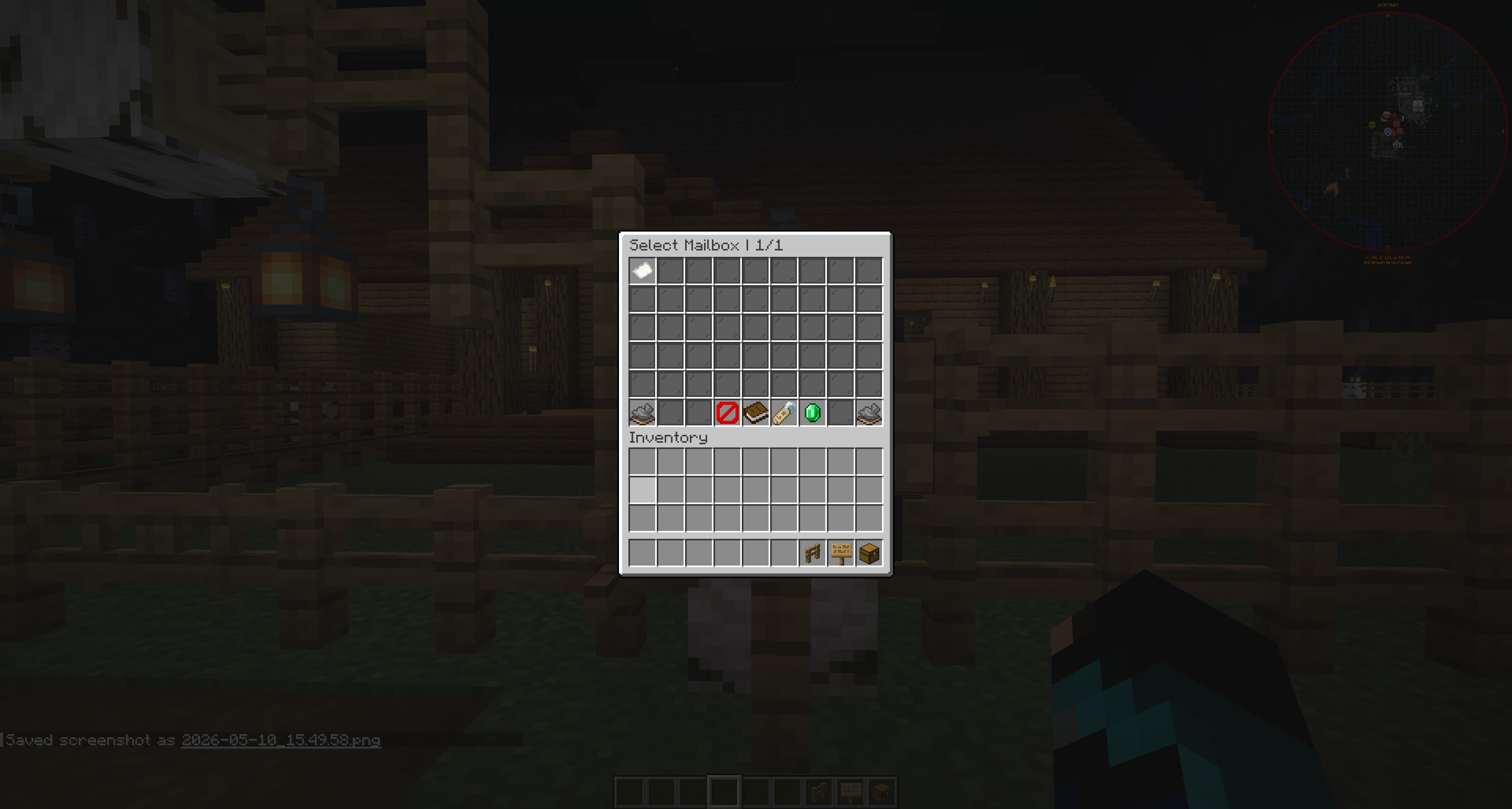
Quick Troubleshooting Checklist

Start with the basics before assuming data or plugin failure.

  • Confirm the server fully restarted after installing or updating MailboxGUI.
  • Check console for MailboxGUI startup errors.
  • Confirm the plugin is enabled.
  • Confirm the correct server version is being used.
  • Confirm required hooks such as Vault, economy, Citizens, or Dynmap are installed only when their related feature is needed.
  • Confirm permissions are assigned through the server's permission plugin.
  • Confirm config.yml was not broken by invalid YAML formatting.
  • Confirm 4.1.0 configs are synchronized to config-version: 8.
  • Confirm the feature is enabled in config.yml.

Plugin Does Not Start

Common startup problems include wrong Java/server compatibility, broken YAML formatting, missing files, or using plugin reload instead of a full restart after a major update.

  • Wrong Java/server compatibility.
  • Broken config.yml YAML formatting.
  • Missing dependency for a feature being tested.
  • Plugin jar not placed in the server plugins folder.
  • Server used plugin reload instead of a full restart after a major update.
  • Startup error appears in console.

Example startup configuration error

[MailboxGUI] Enabling MailboxGUI...
[MailboxGUI ERROR] Failed to load configuration.
[MailboxGUI ERROR] Check config.yml spacing, quotes, and list formatting.

This is an example style of problem to look for. Exact wording may vary by version.

Mailbox Is Not Detected

  • Player mailbox must use a valid physical structure.
  • Player mailbox structure is a fence post, a single chest on top, and a sign attached to the front of the chest.
  • Double chests and trapped chests are not valid player mailboxes.
  • The sign must be attached to the front of the chest.
  • Region protection may block interaction or registration.
  • Player may lack permission.
  • The mailbox may already be registered or owned by another player.

Post Office Box Does Not Work

  • post-office.enabled must be true.
  • post-office.mailboxes.enabled must be true.
  • PO Box structure is a single chest with a sign attached to the front of the chest.
  • PO Boxes do not use the fence-post base.
  • The box must be registered through Admin Tools.
  • If allow-any-player-open is false, players need mailboxgui.player.postoffice.pobox.
  • The saved world/chunk may not be loaded.
  • Region protection can block right-click interaction.

Letters Do Not Send

  • letter.enabled must be true.
  • Sender must have normal MailboxGUI access.
  • Recipient must be a valid delivery target.
  • If the player typed cancel during the prompt, sending was cancelled.
  • Language customization may change button names compared to screenshots.
  • Delivery delay may make the letter arrive later when configured.
  • Admin command/API delivery may resolve recipients through online players, MailboxGUI data, or main-world playerdata for joined-before players.
  • If a command recipient is not found, command send fails instead of sending partial mail.

Packages Do Not Send or Open

  • package.enabled must be true.
  • Package cannot be empty.
  • MailboxGUI packages cannot be placed inside other packages.
  • Non-empty shulker boxes are blocked when package.deny-loaded-shulker-box is true.
  • Recipient must be valid.
  • Command/API package was too large for the configured package slot count.
  • Command item template ID was missing or invalid.
  • Player may not have enough inventory space when cancelling or withdrawing items.
  • Regular packages open into the Package Contents GUI where the recipient manually withdraws items.
  • If a package was partially emptied, remaining contents can be saved back into the inbox package.
  • Delayed command/API package delivery can return queued behavior instead of immediate delivery.

COD Packages Do Not Work

  • package.cash-on-demand.enabled must be true.
  • Vault must be installed.
  • A compatible economy plugin must be hooked.
  • Command/API COD also fails when economy is unavailable.
  • Recipient must have enough money to accept the COD package.
  • Sender must type a valid positive amount.
  • Typing off, none, or 0 removes COD.
  • Typing cancel returns without changing COD.
  • Unpaid COD packages open into Package Preview, not normal Package Contents.
  • Admin-origin COD packages act as sink costs and do not pay an admin/server sender.

Money Mail Does Not Work

  • money.enabled must be true.
  • Vault must be installed.
  • A compatible economy plugin must be hooked.
  • Amount must be greater than 0.
  • Sender must have enough money.
  • Recipient must be valid.
  • Command recipients can fail when the player has not joined before and cannot be found in main-world playerdata.
  • Economy deposit can fail if the economy plugin is not available or rejects the transaction.
  • Delayed money mail may be queued instead of delivered immediately.

NPC Support Does Not Work

  • Citizens must be installed and enabled.
  • MailboxGUI must detect the Citizens API.
  • The NPC must be marked through Admin Tools -> Post Office Registration -> NPC Set / Remove.
  • Player needs mailboxgui.player.postoffice.npc.
  • Admin needs mailboxgui.admin.tools.postoffice.npc.set or remove.
  • If Citizens is missing, NPC tools show Citizens unavailable.
  • Dynmap marker issues do not stop NPC mailbox access.

Dynmap Markers Do Not Show

  • dynmap.enabled must be true.
  • The relevant marker group must be enabled.
  • Dynmap must be installed and compatible with the server version.
  • Marker refresh can happen on startup/reload/register/unregister depending on config.
  • Minecraft 26.1.x marker support depends on Dynmap having a compatible release build. MailboxGUI can still run without Dynmap marker support.

Storage or Data Looks Missing

  • storage.type may point to a different backend than the one containing existing data.
  • Do not change storage.type manually to move data.
  • Use /mailbox admin convert <YAML|SQLITE|MYSQL> to <YAML|SQLITE|MYSQL>.
  • YAML data is under plugins/MailboxGUI/data/playerdata and plugins/MailboxGUI/data/postofficedata.
  • SQLite data defaults to plugins/MailboxGUI/data/data.db.
  • Delayed mail queue data is handled through the active storage provider.
  • MySQL requires a valid database connection.
  • MySQL startup failure falls back to SQLite.
  • Always check backups before assuming data is gone.

Permissions Problems

  • Players need mailboxgui.player.use for normal /mailbox access.
  • Some public Post Office access may require mailboxgui.player.postoffice.pobox or mailboxgui.player.postoffice.npc.
  • Admin GUI features require specific mailboxgui.admin.tools.* permissions.
  • Admin command send shortcuts require mailboxgui.admin.send or the specific send permission.
  • Item template commands require mailboxgui.admin.itemtemplate or the specific item template permission.
  • mailboxgui.admin gives full admin access.
  • If a button is missing or does nothing, confirm the player/admin has the correct permission.
  • Permission plugins may require a server restart or permission reload after changes.

Config YAML Problems

  • Use spaces, not tabs.
  • Keep quotes around values that contain color codes or special characters.
  • YAML lists must use proper indentation.
  • Broken YAML can prevent config loading.
  • If a config option is missing, the synchronizer can add defaults while preserving matching existing settings.
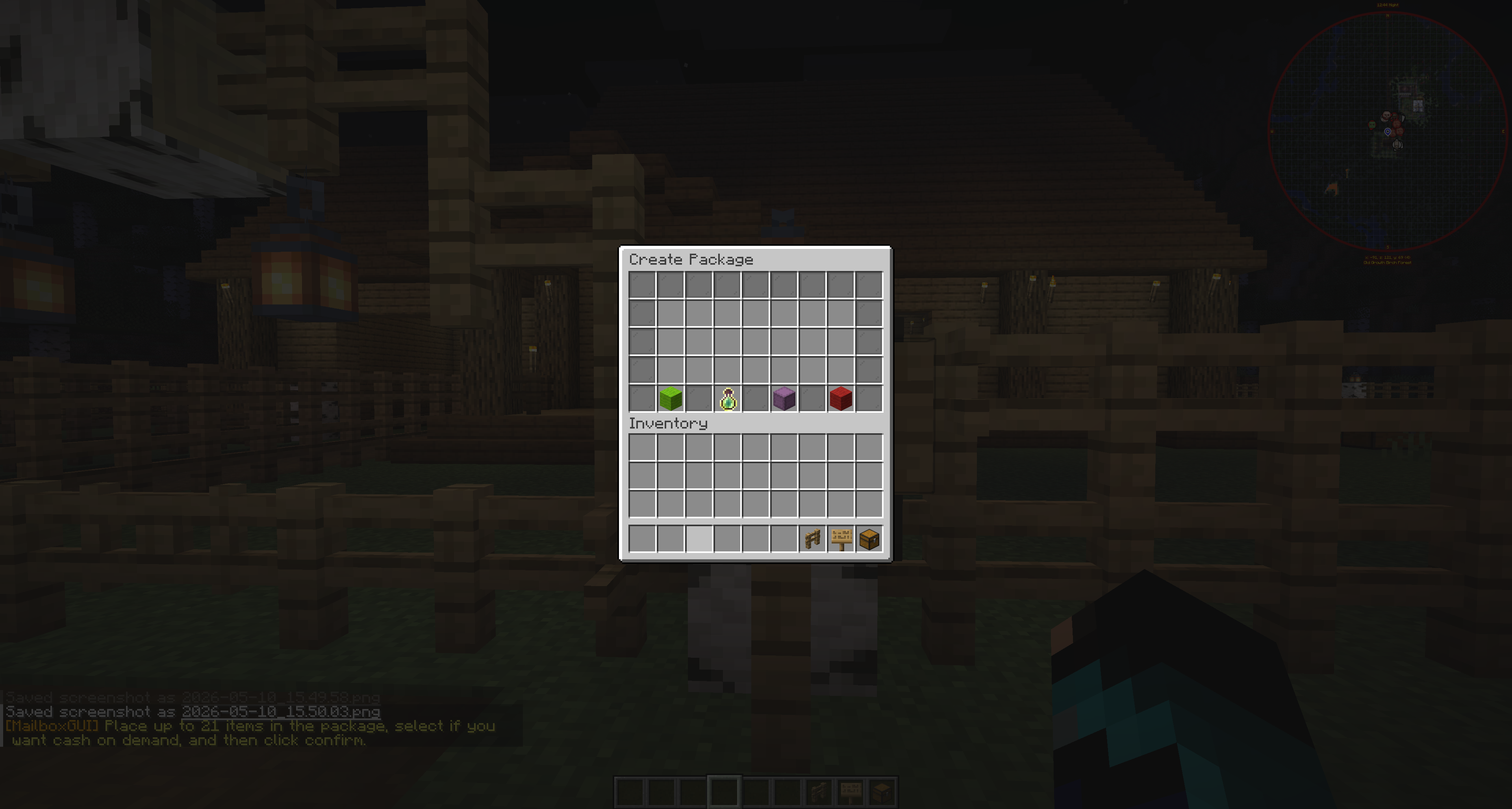
YAML indentation example

package:
  enabled: true
  size-in-rows: 3
  cash-on-demand:
    enabled: true
    send-reward-in-mail: true
Indentation matters. Do not align cash-on-demand at the same level as package unless you are intentionally creating a new top-level section.


When to Ask for Support

When asking for support, include:

  • MailboxGUI version.
  • Server version.
  • Platform: Paper, Spigot, Purpur, etc.
  • Relevant plugins: Vault, economy plugin, Citizens, Dynmap.
  • Full console error.
  • What action caused the issue.
  • Whether the server was restarted after install/update.
  • Current storage.type.
  • Screenshots if the issue is GUI or structure related.